




Everyone feels frustrated when they accidentally delete an important file or photo. It could be a picture from a special vacation, a screenshot containing important information, or a work document. The good news is that you can often recover files you delete from your phone.
Whether you are trying to recover deleted photos and files or recover lost photos and videos, both Android and iPhone offer several built-in recovery options. There are also backup services and third-party tools that may help restore lost data. Here is a complete guide to recovering files and photos you thought were lost.
- Why Deleted Files Can Still Be Recovered
- Deleted File Recovery Periods: How Long Do Files Stay Recoverable?
- Recover Deleted Photos and Files on iPhone
- Step 1: Check the “Recently Deleted” Album
- Step 2: Check iCloud Backup
- Step 3: Check the Files App for Documents
- Step 4: Try a Computer Backup
- Recover Deleted Photos and Files on Android
- Step 1: Check the Google Photos Trash
- Step 2: Check Your Gallery App’s Recycle Bin
- Step 3: Check Google Drive for Documents
- Step 4: Restore From a Backup
- Step 5: Try Third-Party Recovery Software (Last Resort)
- General Tips to Prevent Future Data Loss
- Conclusion
- Frequently Asked Questions
Why Deleted Files Can Still Be Recovered
Deleting a file from your phone does not always remove it instantly. Before deleting a file permanently, most operating systems move it to a temporary storage area, such as the Recycle Bin, Trash, or the “Recently Deleted” folder. This buffer period allows users to restore files that were deleted by mistake. Understanding where these files are stored and how long they remain recoverable is the first step toward successful recovery.
Deleted File Recovery Periods: How Long Do Files Stay Recoverable?
| Platform/Service | Recovery Location | Typical Recovery Period |
| iPhone Photos | Recently Deleted Album | Up to 30 Days |
| iPhone Files App | Recently Deleted Folder | Up to 30 Days |
| Google Photos (Backed-Up Items) | Google Photos Trash | Up to 60 Days |
| Google Photos (Non-Backed-Up Items) | Google Photos Trash | Up to 30 Days |
| Google Drive | Trash Folder | Up to 30 Days |
Must Read: How To Recover Android Data Easily Even With A Cracked Or Black Screen
Recover Deleted Photos and Files on iPhone
Here’s how to recover deleted photos and files on an iPhone:
Step 1: Check the “Recently Deleted” Album
The Apple Photos app stores deleted photos and videos in the “Recently Deleted” album for 30 days before permanently removing them.
- Open the Photos app.
- Tap Albums or Collections.
- Scroll down to Recently Deleted.
- Select the photos you want to recover and tap Recover.
Apple allows users to restore deleted photos within this 30-day recovery window.
The Recently Deleted folder and iCloud backups are among the most reliable options for iPhone file recovery. They can help users recover deleted photos on iPhone quickly and easily in many cases.
Step 2: Check iCloud Backup
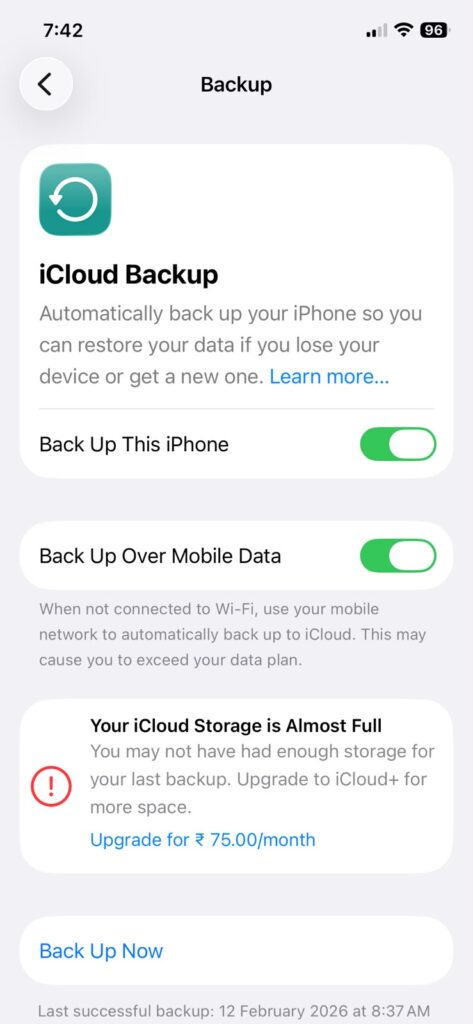
If the photo is not in the Recently Deleted folder, it may still exist in an older iCloud backup created before the deletion.
- Go to Settings > [Your Name] > iCloud > iCloud Backup.
- Check when your last backup was created.
- If the backup predates the deletion, restoring it may recover the missing photo.
However, if you use iCloud Photos, deleted photos are usually removed from all devices linked to the same Apple account. In such cases, restoring an iCloud backup may not always bring the deleted photo back.
In some situations, iCloud backup recovery may help restore deleted photos and files that were backed up before the deletion occurred.
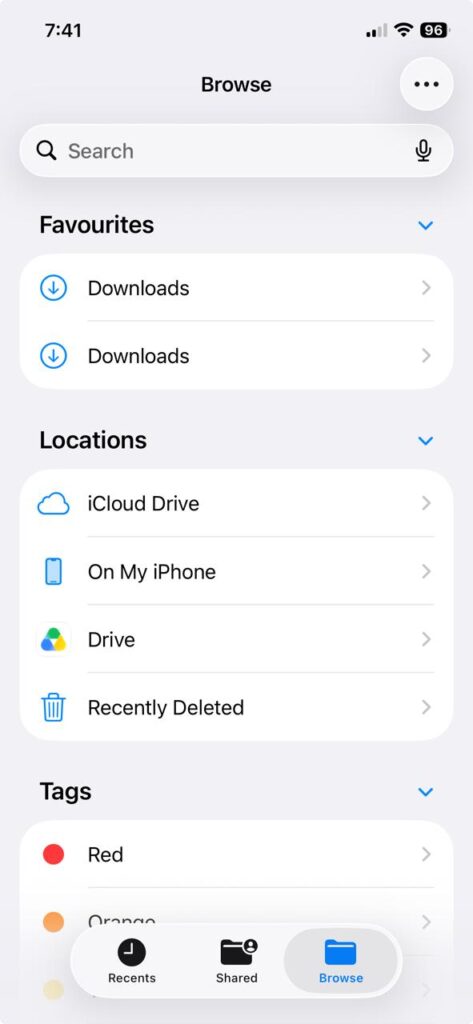
Step 3: Check the Files App for Documents
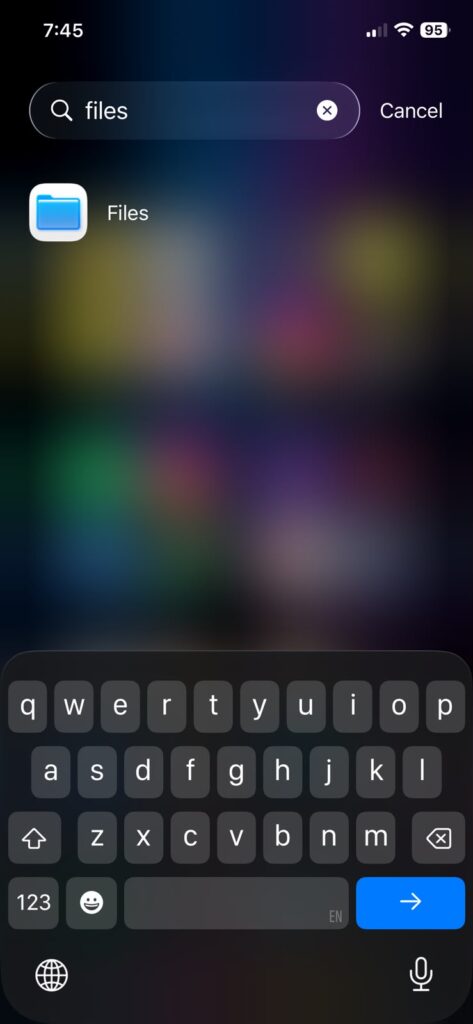
For deleted documents or downloads:
- Open the Files app.
- Tap Browse.
- Select Recently Deleted under Locations.
- Recover any files you need.
Files typically remain there for up to 30 days before being permanently deleted.
Step 4: Try a Computer Backup
If you previously backed up your iPhone using Finder (Mac) or iTunes (Windows), you may be able to restore your device from that backup. Keep in mind that this method restores the entire device to the state it was in when the backup was created.
Recover Deleted Photos and Files on Android
The process of recovering data on Android phones varies slightly between manufacturers, but Google Photos and built-in Trash folders are often the most effective recovery options.
Step 1: Check the Google Photos Trash
Google Photos stores deleted items in the Trash before permanently removing them.
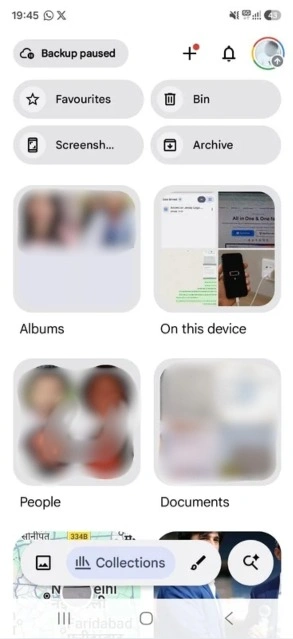
- Open Google Photos.
- Tap on Collections.
- Open Bin (or Trash).
- Select the photo and tap Restore.
Backed-up photos generally remain in Trash for 60 days, while some non-backed-up photos may only remain available for 30 days.
The Google Photos Trash feature is often the easiest place to begin Android file recovery. It can also help users recover deleted photos on Android without relying on third-party software in many situations.
Step 2: Check Your Gallery App’s Recycle Bin
Many Android manufacturers, including Samsung, provide their own Trash or Recycle Bin inside the Gallery app.
- Open the Gallery app.
- Tap the menu icon.
- Look for Trash or Recycle Bin.
- Restore the file if it is available.
Step 3: Check Google Drive for Documents
To recover a deleted file from Google Drive:
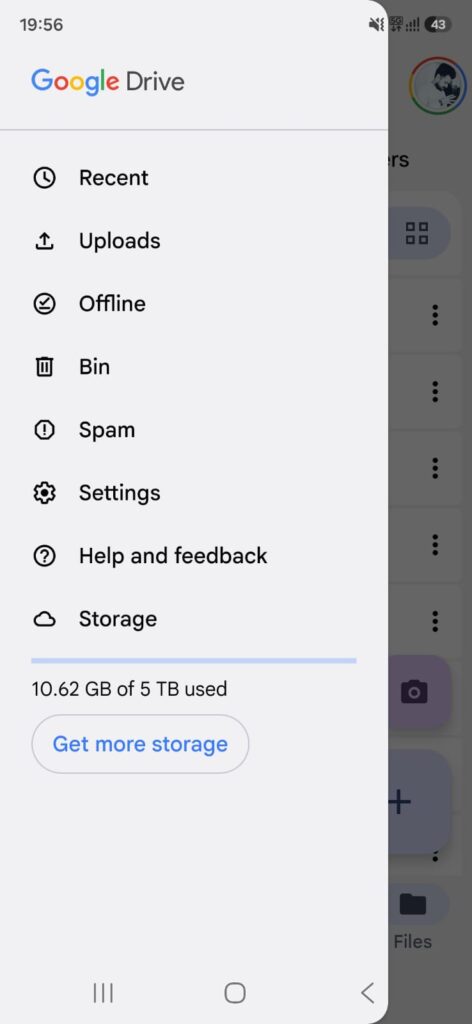
- Open Google Drive.
- Tap the menu (three horizantal lines) icon.
- Open Bin (or Trash).
- Restore the file if it is still available.
Files are generally recoverable for about 30 days before permanent deletion.
Google Drive can help users recover deleted documents if they are still available in the Trash folder.
Step 4: Restore From a Backup
If automatic backup was enabled in Google Photos or Google Drive before the files were deleted, you may still be able to recover them from your cloud backups, even if they no longer appear in Trash.
Step 5: Try Third-Party Recovery Software (Last Resort)
If none of the built-in recovery options work and the deleted data has not been overwritten, you can try third-party recovery tools such as Dr.Fone or similar software.
However, success rates vary significantly. Modern Android and iPhone devices use advanced encryption and storage protection, making recovery much more difficult than it was in the past. Recovery tools generally work best when used immediately after deletion and may perform better on rooted Android devices.
Many users turn to mobile data recovery tools when built-in recovery options are no longer available.
If you accidentally delete a file, avoid using your phone as much as possible until you attempt recovery. Continued use may overwrite the storage space that previously contained the deleted data.
General Tips to Prevent Future Data Loss
Here are some practical ways to reduce the risk of losing important files:
- Enable automatic backups using Google Photos, iCloud Photos, or similar services.
- Back up important files regularly using cloud services such as Google Drive, iCloud Drive, or Dropbox.
- Avoid manually emptying Trash or Recently Deleted folders unless you are certain you no longer need the files.
- Act quickly after accidental deletion. The longer you wait, the lower your chances of successful recovery.
- Check multiple locations before giving up. The file may still exist in a cloud backup, shared album, downloads folder, or another storage location.
Conclusion
Accidentally deleting a photo or file can be frustrating, but in many cases, it is still possible to get it back. Both Android and iPhone offer built-in recovery features, while cloud backups and storage services provide additional ways to restore lost data.
The most important thing is to act quickly after deleting a file. Checking folders like Recently Deleted or Trash, along with your backups, can significantly improve your chances of recovery. To avoid similar problems in the future, make sure automatic backups are turned on and regularly save important files to the cloud.
Frequently Asked Questions
How long do deleted photos stay recoverable before they’re gone for good?
On an iPhone, deleted photos remain in the Recently Deleted album for 30 days. On Android, Google Photos typically keeps backed-up photos in Trash for up to 60 days, while some non-backed-up photos may be removed after 30 days. Once these recovery windows expire, retrieval becomes significantly more difficult.
Can I recover a photo if I never had backup enabled?
It is possible, but the chances of successful recovery are generally lower. Your best options are checking built-in Trash folders or attempting recovery with third-party software before the deleted data is overwritten.
Does factory resetting my phone erase deleted files permanently?
In most cases, yes. A factory reset significantly reduces the chances of recovery and may permanently erase data that recovery software could otherwise detect. If you believe you may need a deleted file, attempt recovery and check all available backups before performing a factory reset.
Must Read: How to Recover Deleted or Lost Files From an SD Card for Free
Visit Devicology for the latest Tech News, Guides, and in-depth Reviews. Follow us on Whatsapp, LinkedIn, X (Twitter) and Instagram to never miss an update!