



Think of the internet as a galaxy. Every website you visit is a star system, and orbiting around each one are tiny data packets called cookies. They are small, mostly invisible, and quietly doing their jobs in the background. Some help you stay logged in. Others remember what is in your shopping cart. And a few? Well, a few follow you around like a nosy neighbor who always knows where you have been.
If you have ever wondered what web cookies actually are, how many types exist, and what each one does, this guide breaks it all down. No tech jargon. No confusing acronyms. Just a clear, friendly walkthrough of every “planet” in the cookie galaxy.
- What Exactly Is a Web Cookie?
- Types of Web Cookies at a Glance
- Planet 1: First-Party Cookies (The Friendly Locals)
- Planet 2: Third-Party Cookies (The Trackers)
- Planet 3: Session Cookies (The Short-Timers)
- Planet 4: Persistent Cookies (The Long-Term Residents)
- Planet 5: Secure Cookies (The Bodyguards)
- Planet 6: HttpOnly Cookies (The Invisible Workers)
- Planet 7: SameSite Cookies (The Border Guards)
- Planet 8: Zombie Cookies (The Ones That Will Not Die)
- Planet 9: Supercookies (The Overachievers)
- How to See and Manage Your Cookies in Google Chrome
- The Bottom Line
What Exactly Is a Web Cookie?
A web cookie is a tiny text file that a website stores on your browser when you visit it. It holds small bits of information, like your login details, language preferences, or browsing behavior. The next time you visit that site, your browser sends the cookie back, so the website “remembers” you.
Cookies are not viruses. They are not malware. They cannot access your files. They are simply data packets that make your browsing experience smoother and more personalized.
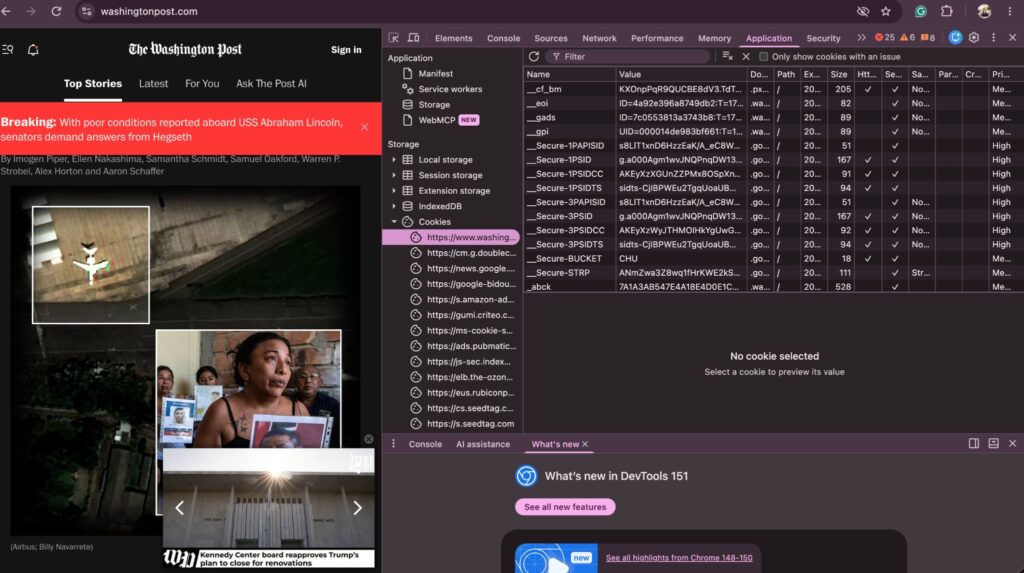
Here’s how you can actually check and see the website cookies.
1. Open Google Chrome > Visit any website. Press F12 to open Developer Tools. In case of a MacBook, click on View > Developer > Developer Tools
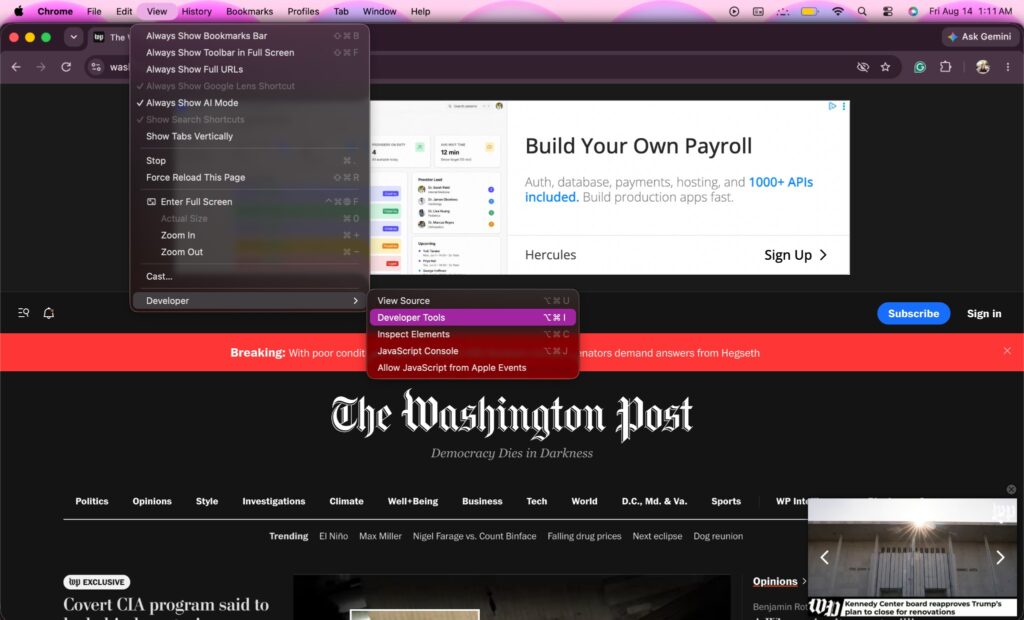
2. Click the Application tab. If you cannot see the same, check for the >> (arrows) and select Application.
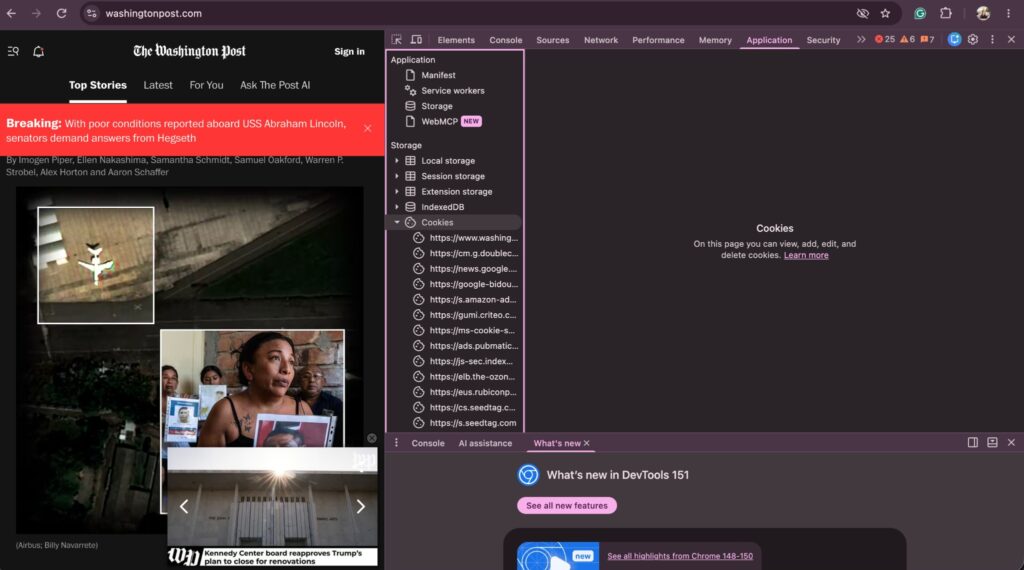
3. In the left sidebar, click on Storage > Cookies. Then, click the site URL listed under cookies. You will see a table showing all cookies stored by that site. Press Command + Shift + 4, then drag to select the area you want to capture.
Types of Web Cookies at a Glance
| Cookie Type | Purpose | Tracks Across Websites? | Stored Until |
| First-Party Cookies | Remember user preferences and logins | No | Session or set expiry date |
| Third-Party Cookies | Advertising and cross-site tracking | Yes | Set expiry date |
| Session Cookies | Maintain activity during a visit | No | Browser closes |
| Persistent Cookies | Remember returning users | Usually No | Expiration date |
| Secure Cookies | Protect data over HTTPS | No | Session or expiry date |
| HttpOnly Cookies | Prevent JavaScript access | No | Session or expiry date |
| SameSite Cookies | Protect against CSRF attacks | Limited | Session or expiry date |
| Zombie Cookies | Recreate themselves after deletion | Yes | Difficult to remove |
| Supercookies | Network-level tracking | Yes | Not controlled by browser |
Planet 1: First-Party Cookies (The Friendly Locals)
First-party cookies are created by the website you are currently visiting. They are the helpful ones. When you log into your email and it remembers your username the next day, that is a first-party cookie at work.
What they do:
- Keep you logged in across pages
- Remember your language or region settings
- Save items in your shopping cart
- Store your preferences (like dark mode)
These cookies only work on the website that created them. They cannot track you across other sites. Think of them as the friendly shopkeeper who remembers your usual order but has no idea what you do after you leave their store.
Here’s how you can check the same:
1. Visit any website in Chrome. Open Developer Tools (Option + Command + I).
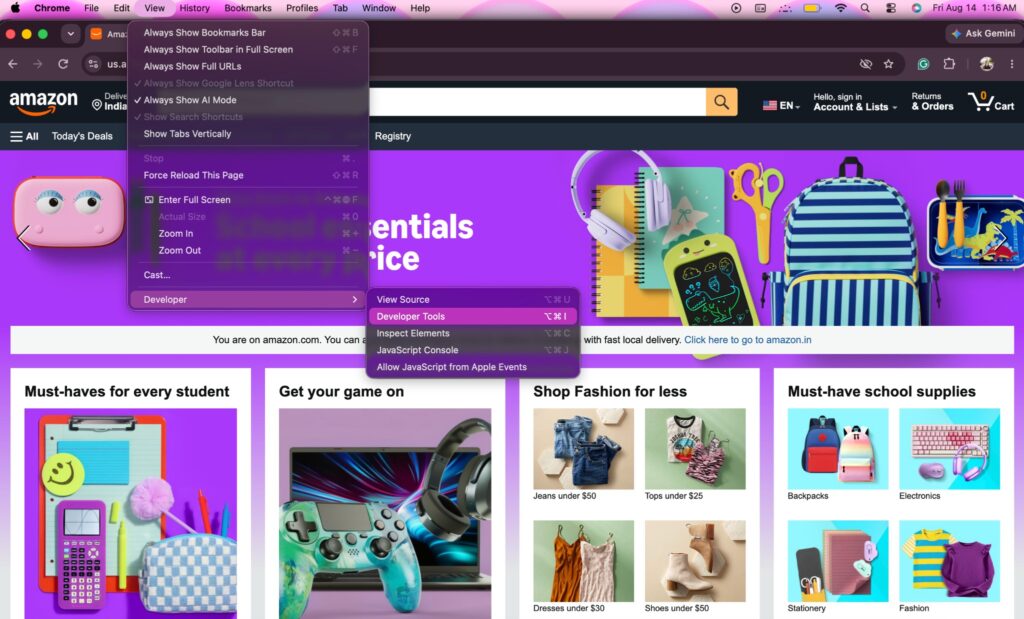
2. Go to Application > Storage > Cookies.
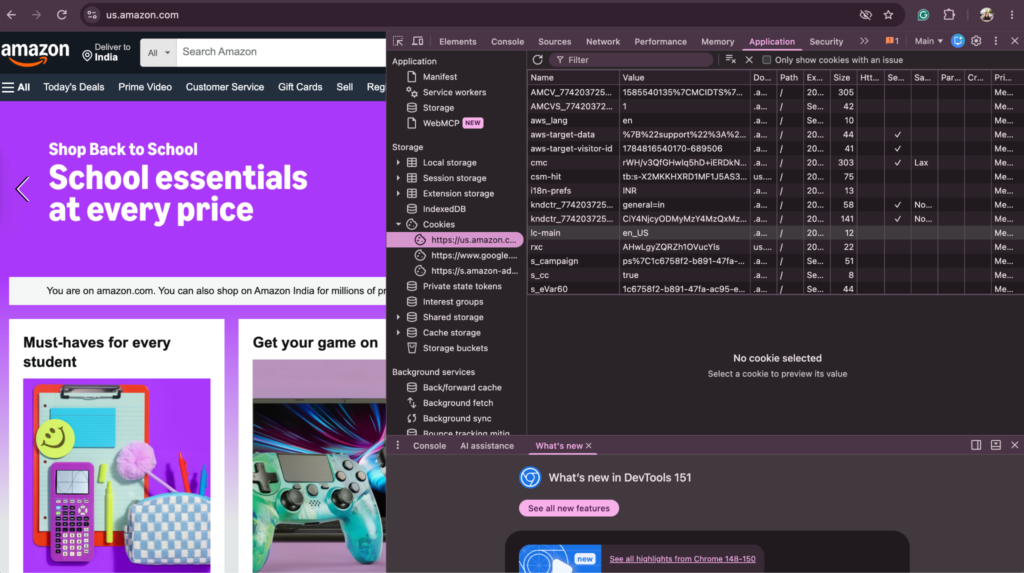
3. Notice how the cookie domains match the site you are visiting (that is what makes them first-party)
Planet 2: Third-Party Cookies (The Trackers)
Third-party cookies are set by a domain different from the one you are visiting. They usually come from advertisers, analytics tools, or social media widgets embedded on the page.
For example, you visit a blog about running shoes. An ad network places a cookie on your browser. Later, when you visit a completely unrelated news site, that same ad network reads the cookie and shows you ads for running shoes. That is third-party tracking in action.
What they do:
- Track your browsing behavior across multiple websites
- Build a profile of your interests for targeted advertising
- Enable retargeting (those ads that “follow” you everywhere)
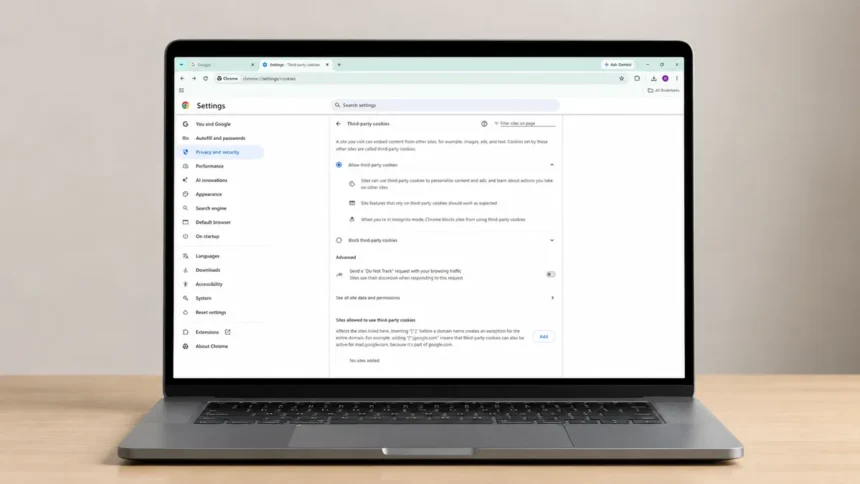
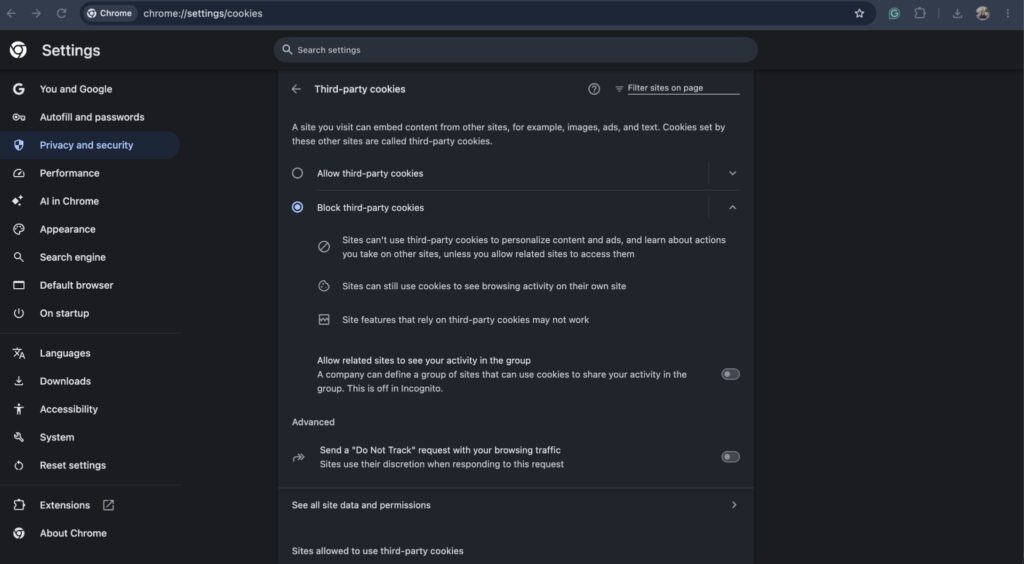
These are the cookies that privacy advocates have been fighting against for years. Google Chrome has been phasing out support for third-party cookies, and most modern browsers now block them by default or give users more control.
Here are the steps to check the same:
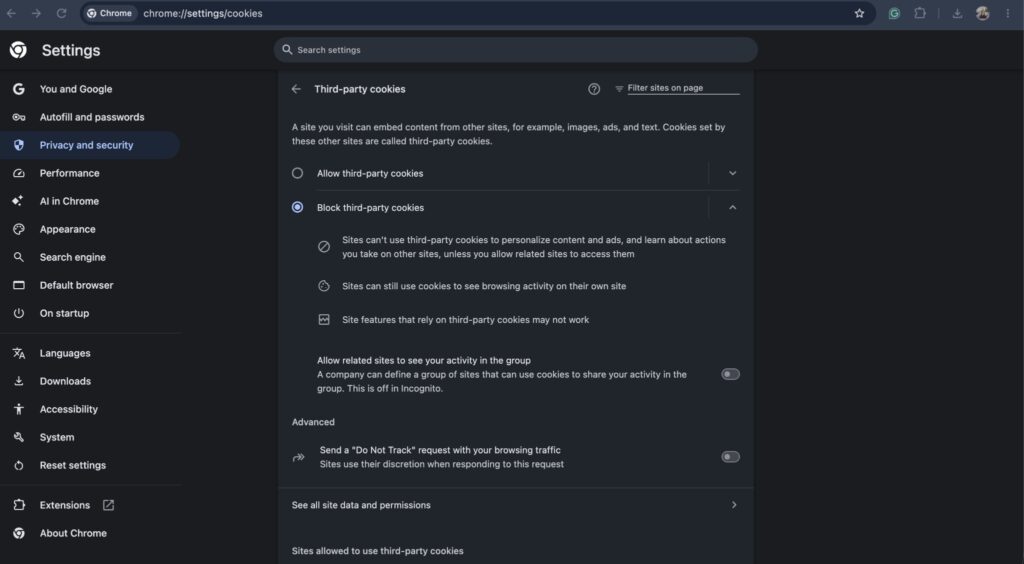
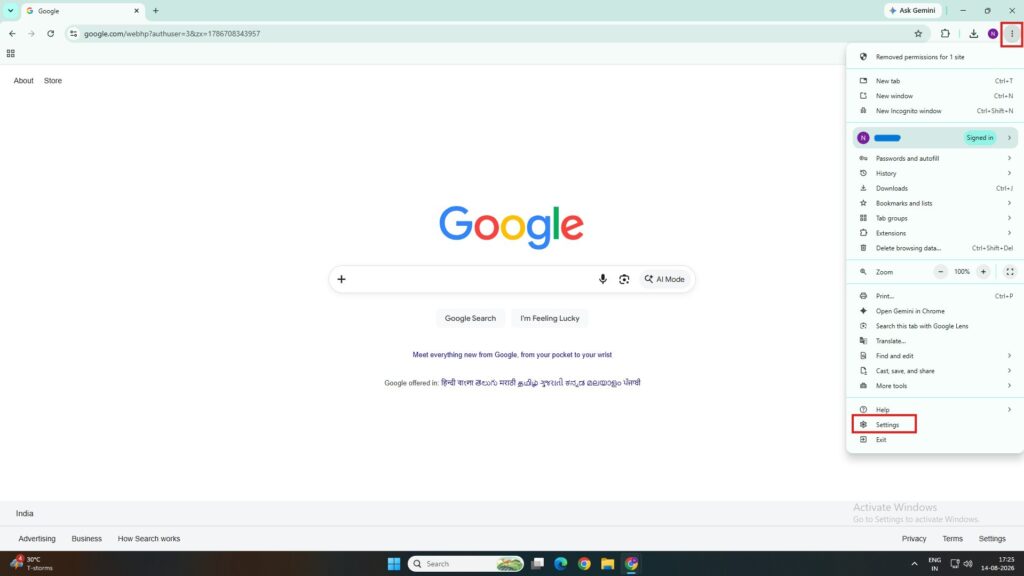
1. Click on the three dots (top-right corner of Chrome) and go to Settings.
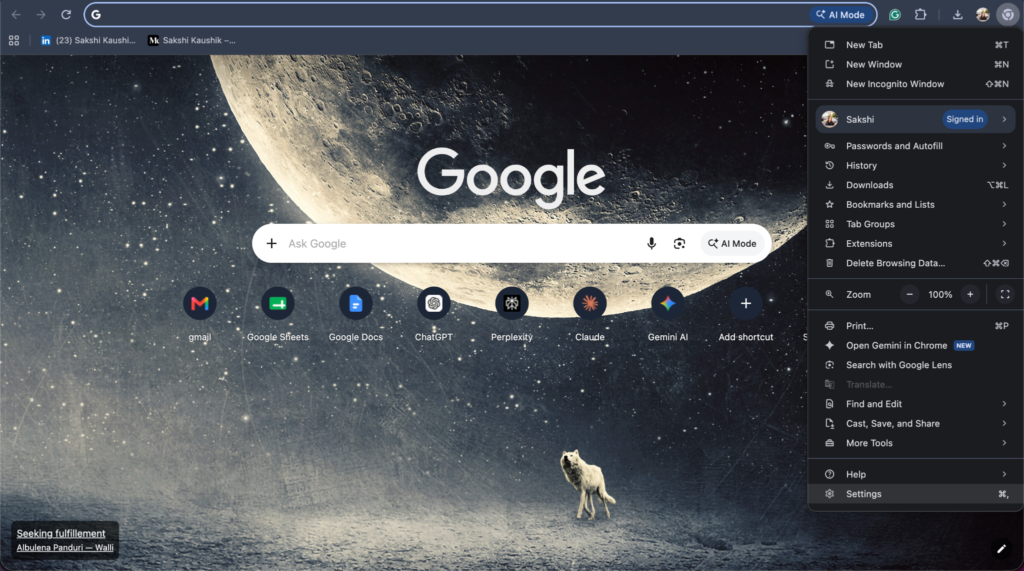
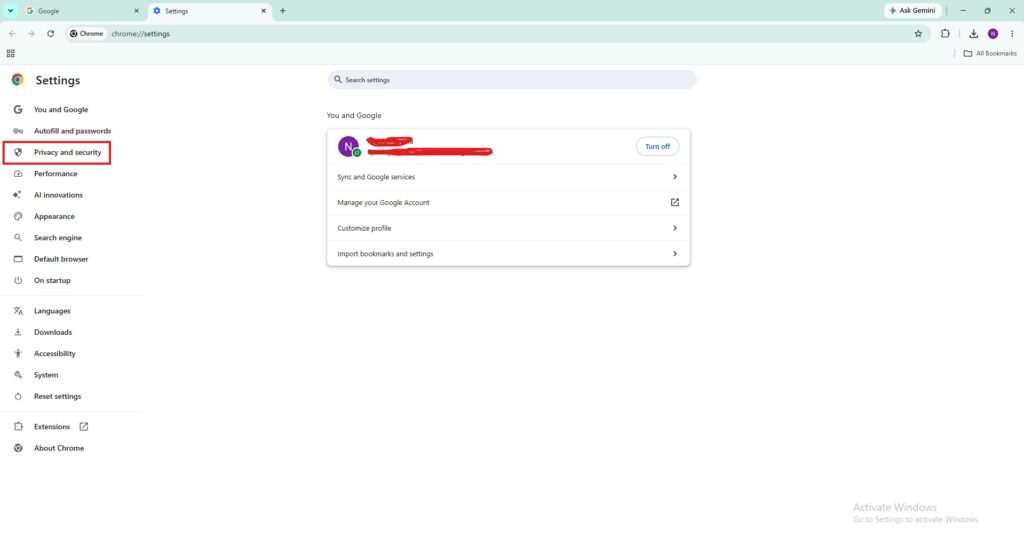
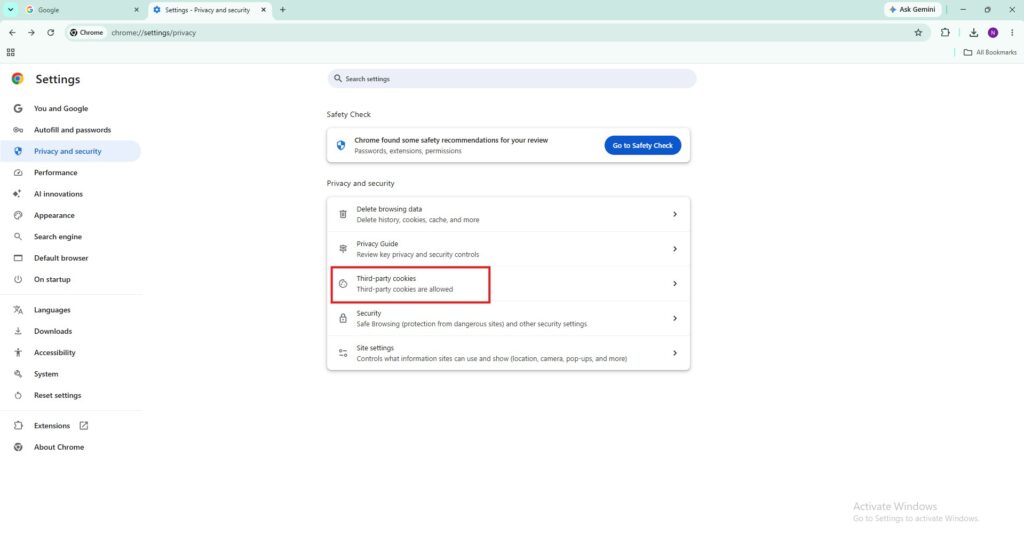
2. Click on Privacy and Security in the left sidebar. Click Third-party cookies. You will see options like “Block third-party cookies,” “Block third-party cookies in Incognito,” etc.
Planet 3: Session Cookies (The Short-Timers)
Session cookies are temporary. They exist only while your browser is open. The moment you close your browser, they vanish. Gone. No trace.
What they do:
- Keep you logged in as you move between pages during a single visit
- Remember what is in your cart while you are still shopping
- Maintain your session on banking or email sites
They are like a wristband at a concert. It gets you access while you are there, but it means nothing once you leave.
Planet 4: Persistent Cookies (The Long-Term Residents)
Unlike session cookies, persistent cookies stick around. They have an expiration date set by the website, and they stay on your browser until that date arrives or until you manually delete them.
What they do:
- Remember your login so you do not have to sign in every time
- Store your preferences across visits (theme, language, layout)
- Help websites recognize returning visitors
These can last anywhere from a few days to several years. They are the reason your favorite news site still knows you prefer the sports section first.
Here are the steps to do the same:
1. Open Developer Tools (Option + Command + I) on any website
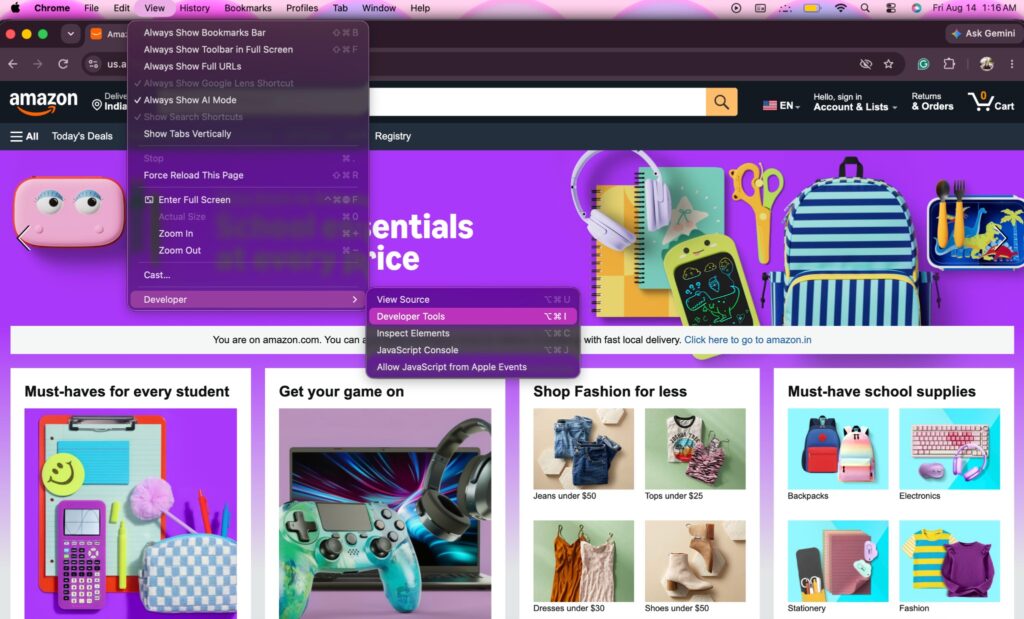
2. Go to Application > Storage > Cookies > [site URL]. Look at the Expires / Max-Age column in the cookie table.
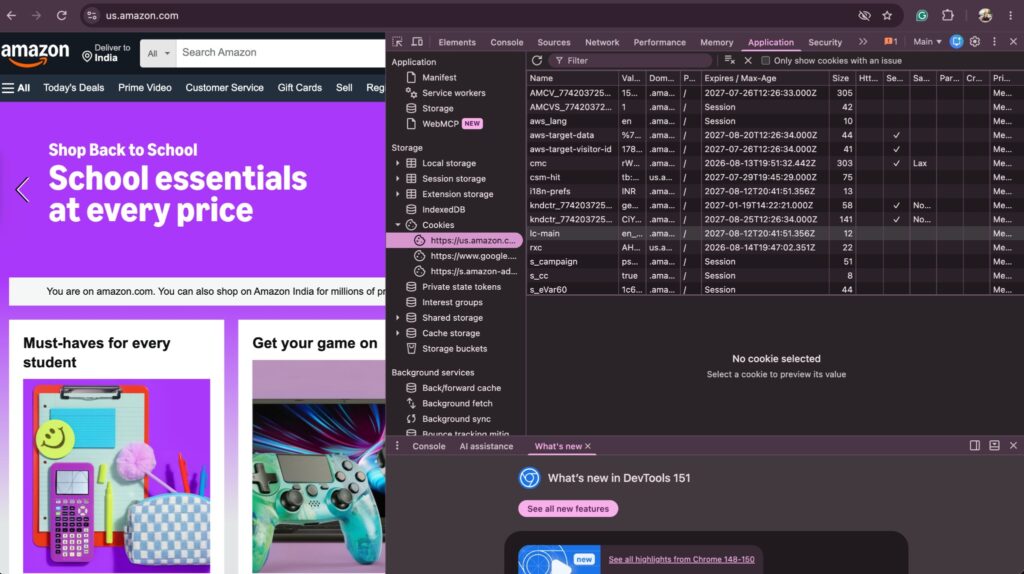
Cookies showing a specific date are persistent; those showing “Session” disappear when you close the browser.
Planet 5: Secure Cookies (The Bodyguards)
Secure cookies are only transmitted over encrypted HTTPS connections. They cannot be sent over regular HTTP, which means they are protected from being intercepted during transmission.
What they do:
- Protect sensitive information like authentication tokens
- Ensure login sessions cannot be hijacked on unsecured networks
- Add a layer of safety for banking and payment sites
You will notice these on any website with a padlock icon in the address bar. They are the bouncers making sure your data travels through a safe tunnel.
Here are the steps to do the same:
1. Same view as above: Application > Storage > Cookies > [site URL]
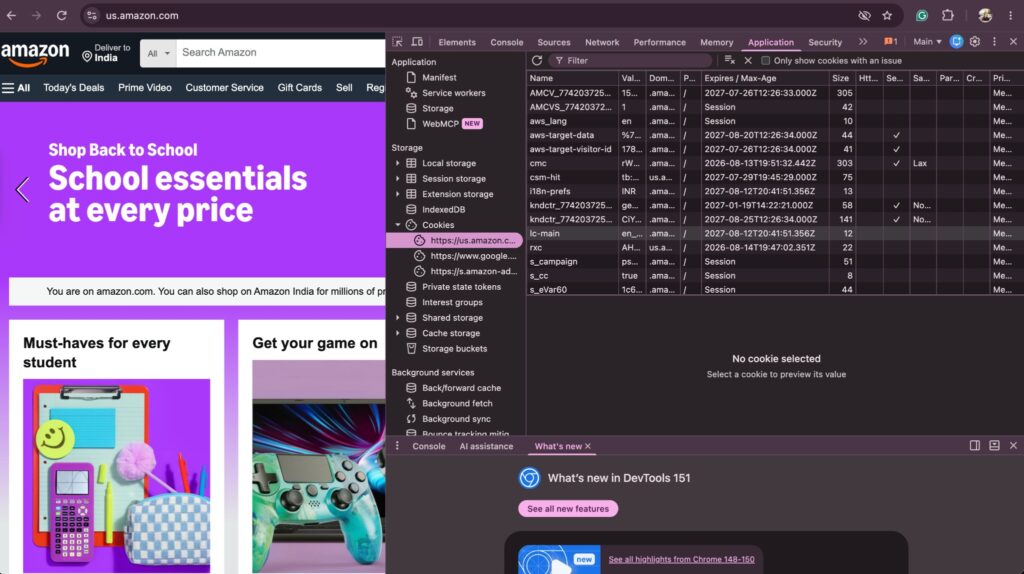
2. Look for the HttpOnly column (you may need to scroll right in the table)
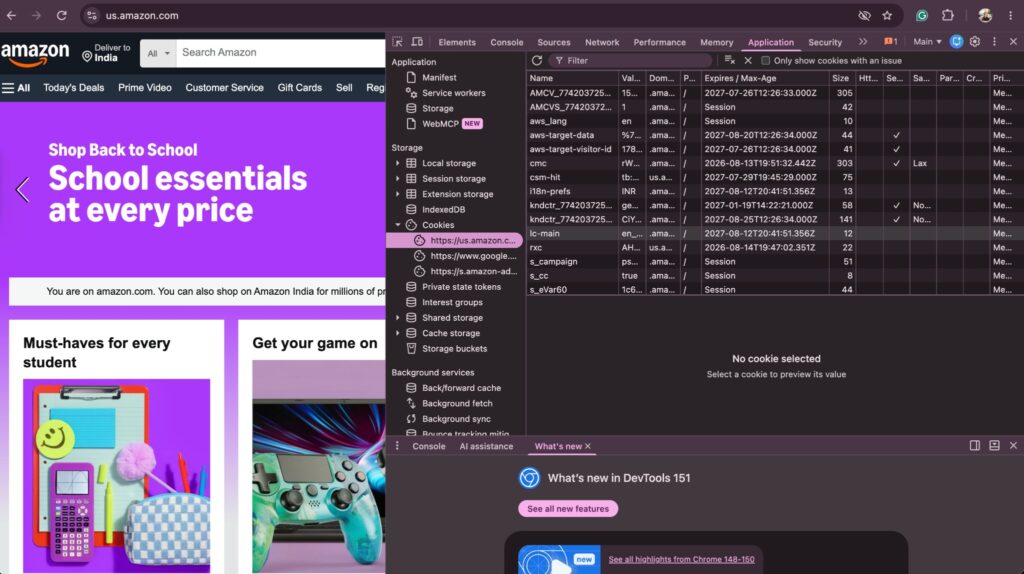
3. Cookies with a checkmark in this column cannot be accessed by JavaScript.
Planet 6: HttpOnly Cookies (The Invisible Workers)
HttpOnly cookies cannot be accessed by JavaScript running on the page. They are only sent between the browser and the server. This makes them much harder for hackers to steal through cross-site scripting (XSS) attacks.
What they do:
- Store authentication tokens securely
- Prevent malicious scripts from reading sensitive cookie data
- Work silently in the background without any client-side exposure
You will never “see” these cookies doing their job through the browser console, and that is exactly the point.
Here are the steps to check the same:
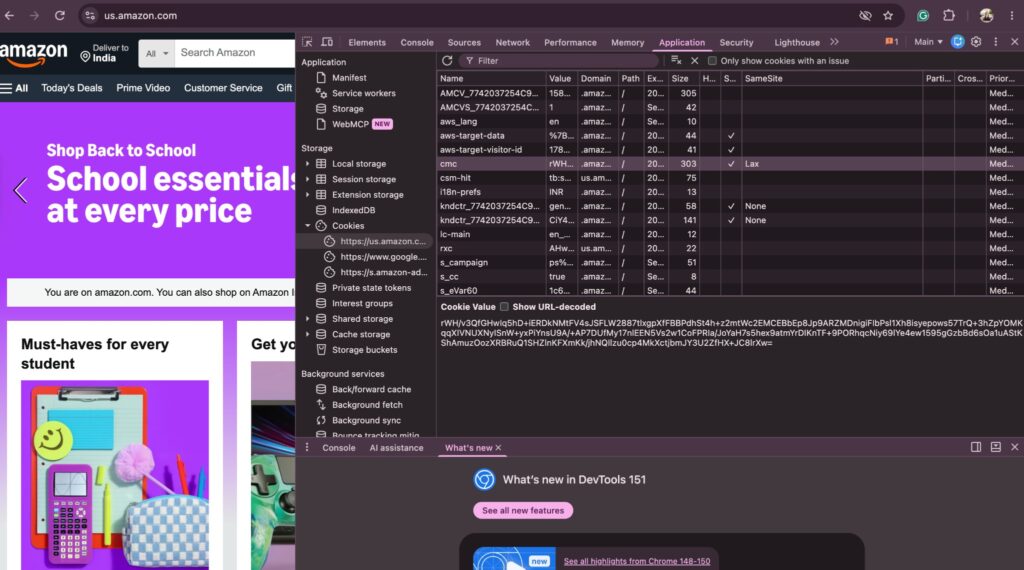
- Same view: Application > Storage > Cookies > [site URL]
- Look for the SameSite column. You will see values like Lax, Strict, or None next to different cookies.
Planet 7: SameSite Cookies (The Border Guards)
SameSite cookies control whether a cookie is sent along with cross-site requests. They help prevent a type of attack called Cross-Site Request Forgery (CSRF), where a malicious site tricks your browser into making unwanted requests to another site where you are logged in.
There are three settings:
- Strict: Cookie is only sent when you are directly on the site. Maximum protection.
- Lax: Cookie is sent when you navigate to the site from an external link but not with embedded requests. A balanced middle ground.
- None: Cookie is sent with all requests, including cross-site. Requires the Secure flag.
Here is a visual presentation of the same:
1. Go to Chrome Settings > Privacy and Security > Third-party cookies
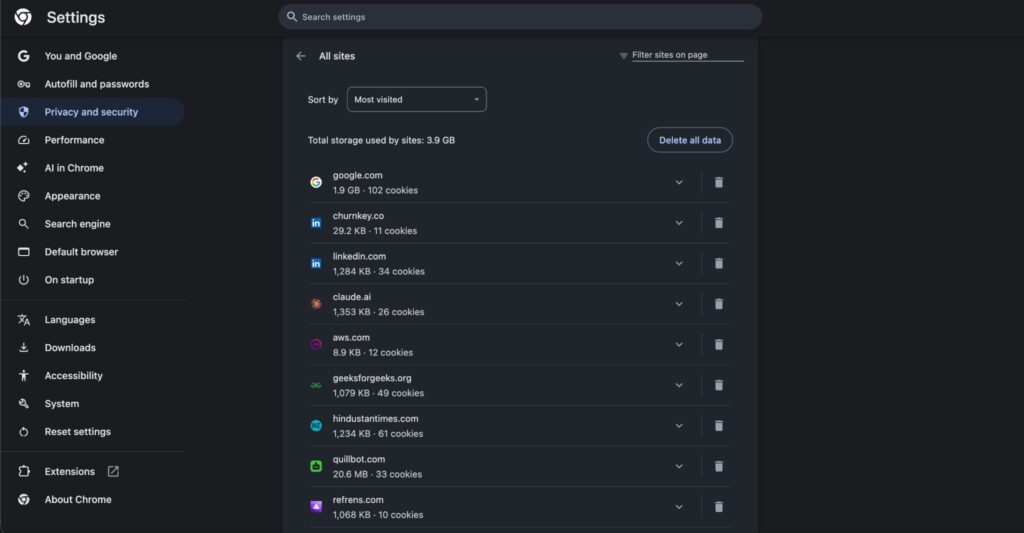
2. Scroll down and click See all site data and permissions. This shows every website that has stored cookies or data on your browser.
Planet 8: Zombie Cookies (The Ones That Will Not Die)
Zombie cookies are the controversial ones. They recreate themselves after you delete them. They use backup storage mechanisms like Flash storage, HTML5 local storage, or ETags to come back from the dead.
What they do:
- Track users even after they clear their cookies
- Persist across browser sessions without user consent
- Raise serious privacy and ethical concerns
Most reputable websites do not use zombie cookies. But some tracking companies have been caught using them, leading to lawsuits and regulatory action.
Planet 9: Supercookies (The Overachievers)
Supercookies are not traditional cookies at all. They are tracking mechanisms embedded at the network level, often by Internet Service Providers (ISPs). They are stored in places regular cookie-clearing cannot reach.
What they do:
- Track browsing activity at a deeper level than regular cookies
- Cannot be easily deleted through browser settings
- Operate outside the user’s direct control
These are rare in everyday browsing but worth knowing about, especially if you care about online privacy.
How to See and Manage Your Cookies in Google Chrome
Here is how you can take control:
1. Open Chrome and click the three dots in the top-right corner
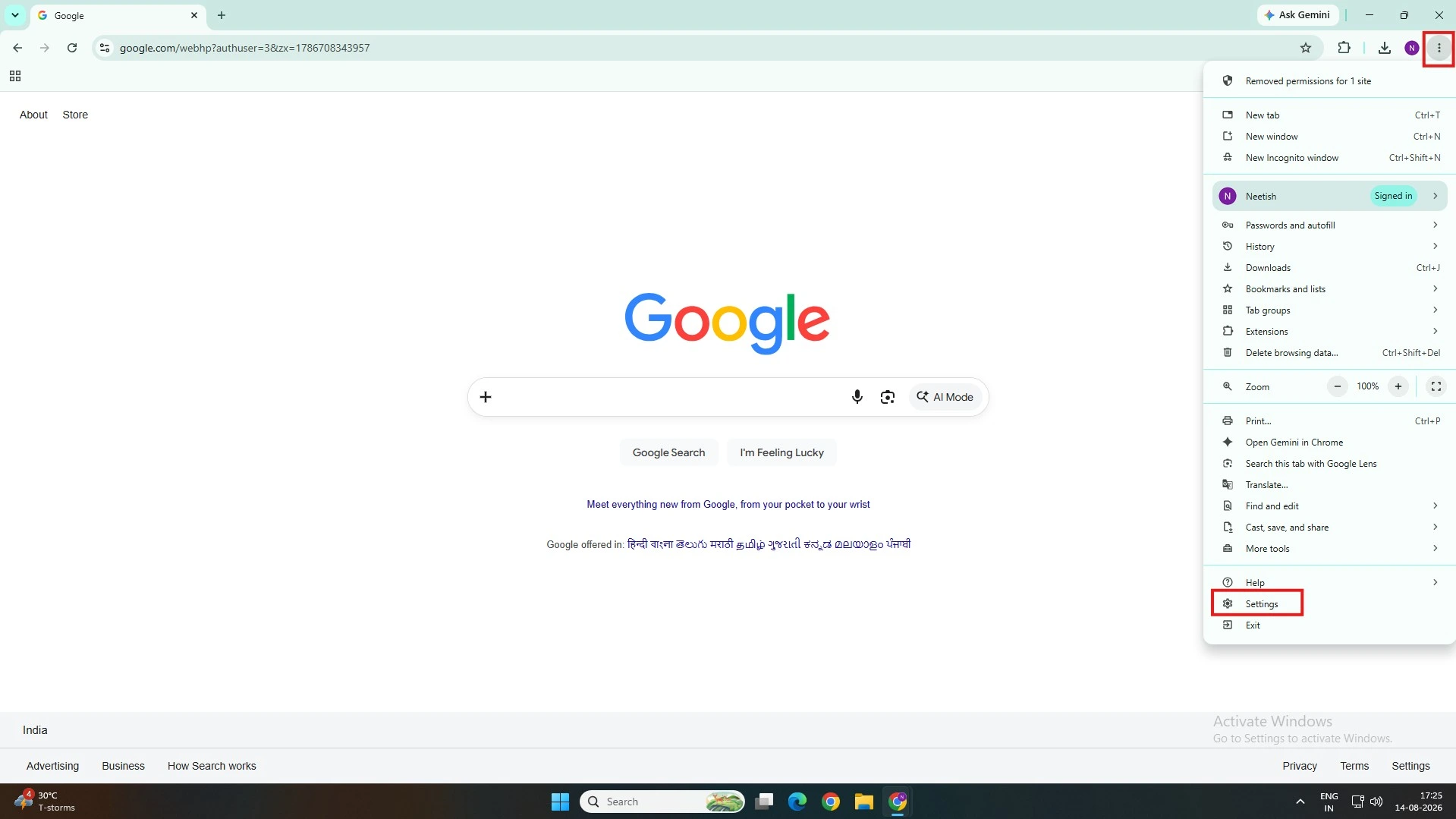
2. Go to Settings > Privacy and Security
3. Click Third-party cookies to manage tracking preferences
You can also delete cookies for specific sites, block all third-party cookies, or set Chrome to clear cookies every time you close the browser.
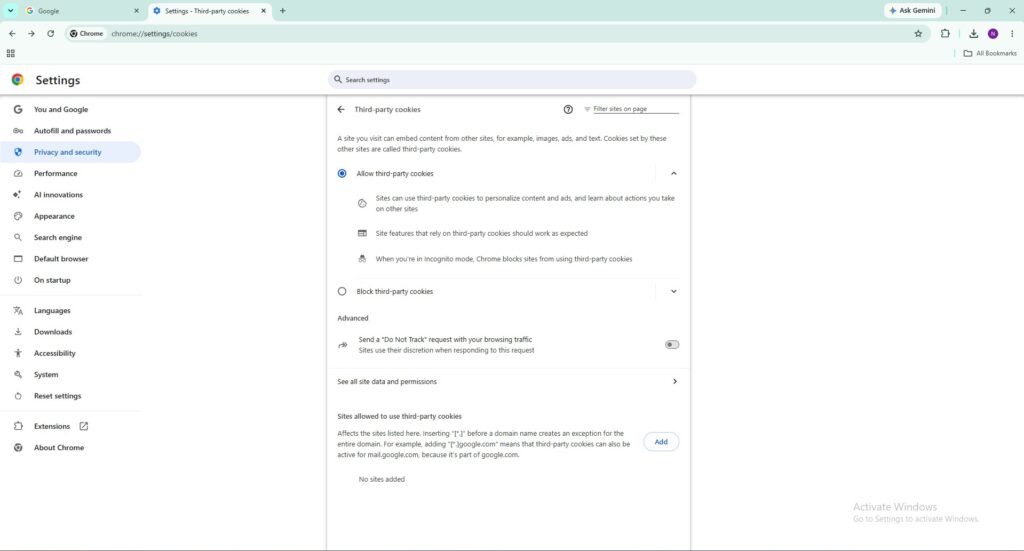
To see all stored cookies: go to Settings > Privacy and Security > Third-party cookies > See all site data and permissions
The Bottom Line
Cookies are not inherently good or bad. They are tools. First-party and session cookies make the web usable. Secure and HttpOnly cookies protect you. Third-party and zombie cookies raise valid privacy concerns.
Understanding what each type does puts you in control. You get to decide which planets in this cookie galaxy are welcome in your orbit and which ones need to be sent into the void.
Now that you know the landscape, take five minutes to check your browser settings. You might be surprised by what is quietly orbiting your browsing experience this whole time.
Visit Devicology for the latest Tech News, Guides, and in-depth Reviews. Follow us on Whatsapp, LinkedIn, X (Twitter) and Instagram to never miss an update!