

With the latest update from Apple, iOS 26, spam calls are making advances, but so is your iPhone. With the addition of Call Screening, the ability to screen out undesired or unidentified calls has now become a reality as a result of the new features in your iPhone, effectively functioning as your own personal screening person for unknown calls.
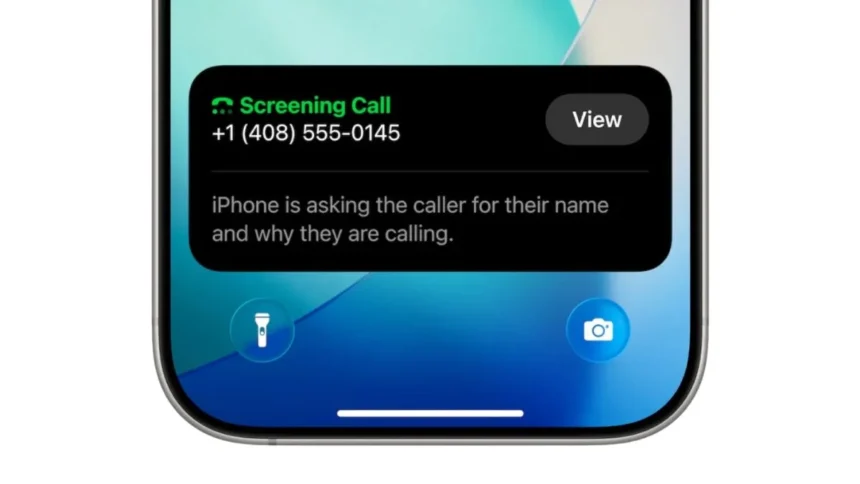
In other words, rather than answering or rejecting a call from an unknown number, your iPhone will ask for an explanation from any phone number that calls you.
Here is how to do it.
Before anything, make sure your device is updated.
Call Screening works on iPhones that support iOS 26, which includes models from the iPhone 11 and newer.
How to Turn On Call Screening
So, once your iPhone is updated, enabling the feature is simple:
Step 1: Open Settings
Step 2: Scroll down and tap Apps
Step 3: Select Phone
Step 4: Tap Screen, Unknown Callers
You will see three options:
- Never – All calls come through normally
- Ask Reason for Calling – This is the Call Screening feature
- Silence – Sends unknown calls straight to voicemail
Select “Ask Reason for Calling” to activate Call Screening.
How Call Screening Actually Works
Now, whenever an unknown number calls you, your iPhone steps in first.
Instead of ringing immediately, the caller hears an automated message asking who they are and why they’re calling, then the caller’s response is converted into live text on your screen.
So you get to read it while the call is still active and decide whether to pick up or ignore
Also, nothing will change for saved contacts.
If someone is in your contacts or you have recently called them, their calls will come through normally because call Screening only targets unknown numbers.
So your regular calls stay uninterrupted.
Therefore, call Screening turns your iPhone into a smart filter instead of just a ringing device. You don’t have to choose between answering everything and missing something important anymore.
Also Read: How to Boost Your Wi-Fi Speed at Home