




If you want to clear system data storage on your Android device because a notification shows it is eating up 20GB of space, you are not alone. You might think about clearing your gallery or files, but undeniably, you would not want to lose your photos while fixing the issue.
This guide will help you through safe, tested methods to clean your system data. Each step keeps your photos safe and untouched. In the end, you will free up storage space without risking your files or photos.
- What Is System Data on Android?
- Why System Data Keeps Growing Over Time
- App Updates and Background Processes
- Developer Options and System Logs
- A Quick Look at Storage Categories
- How to Clear System Data Storage Without Losing Your Photos
- Method 1: Clear Cache Through Settings
- Method 2: Use Files by Google
- Method 3: Back Up Photos Before Any Deep Clean
- Method 4: Freeing Up Space with Google Photos
- Extra Tips to Keep Storage Clean Long Term
- Final Thoughts
What Is System Data on Android?
System data is a catch-all storage category on Android devices. Google can group anything that it cannot classify under the same label. This includes logs, temporary files, and leftover app data.
The Files Hiding Inside System Data
It’s true for most devices that most of what is sitting inside this category falls under some pointers. These are:
- There are some cache files that exist for apps and other operating systems
- Log files are generally used for tracking device activity.
- Temporary files exist from updates on the app or crashed apps
- Fonts used by the systems and the plugin files
Why Google Doesn’t Explain It Clearly
Google has its own storage menu, which does not break this category down any further. You can only see the total number here. This is a lack of detail that often confuses most Android users. This can also create panic among users about deleting the wrong file, which cannot be retrieved.
Why System Data Keeps Growing Over Time
System data can rarely shrink on its own. It will quietly build up with daily phone usage. But if you understand the causes, you can control them better.
App Updates and Background Processes
When an app updates, it leaves behind old cache and residual files. Even the background processes on your device write temporary logs continuously. Over months, this adds up to your storage quite fast.
Developer Options and System Logs
Your logging might be running in the background if you have enabled Developer Options. Detailed system tracing can eventually increase the file size significantly, and several users forget that this setting is turned on for a long time.
While troubleshooting this hidden menu to save space, you can actually optimize it further; for instance, there are 5 hidden Developer Options in Android that actually speed up your phone if tweaked correctly.
A Quick Look at Storage Categories
| Category | What It Includes | Safe to Clear |
| Cache Data | Temporary app files | Yes |
| System Data | Logs, plugins, leftover files | Partially |
| Photos & Videos | Your media library | No, unless backed up |
| Apps | Installed app data | Only via uninstall |
How to Clear System Data Storage Without Losing Your Photos
Dive into this section to learn about different methods of the actual cleanup process. Each method will protect your photos based on the design. You must follow them in the same order to get better results.
Method 1: Clear Cache Through Settings
This is by far the safest first step for any Android device.
- Open Settings on your phone.
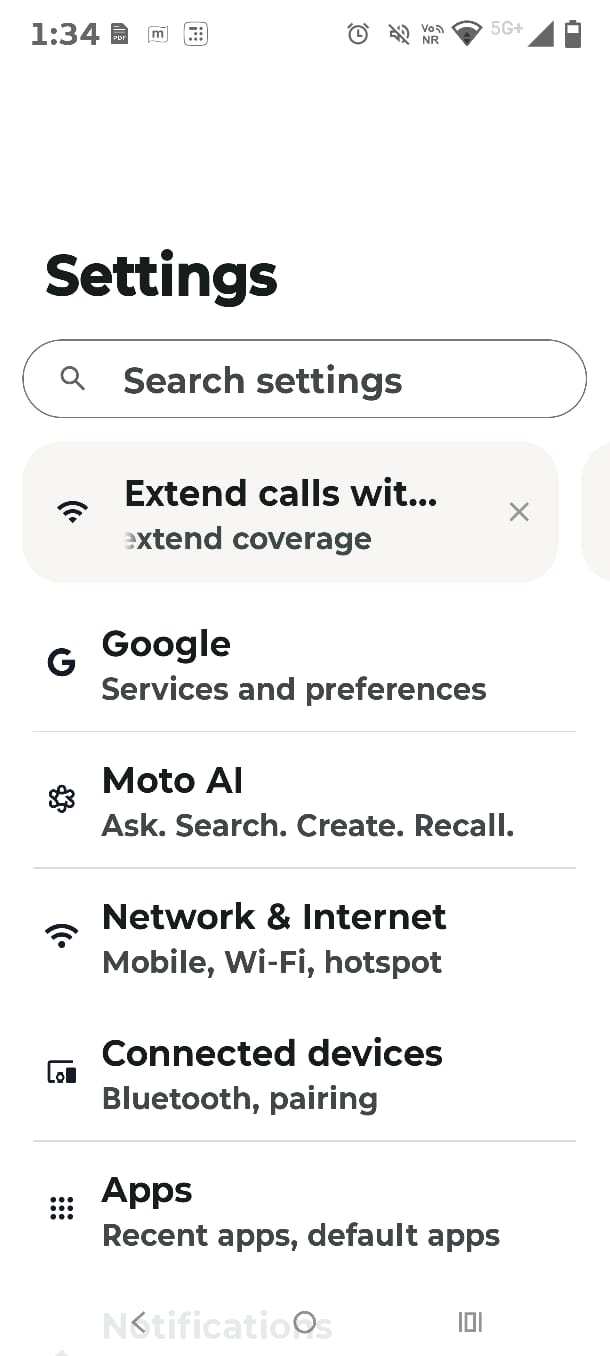
2. Click on Storage.
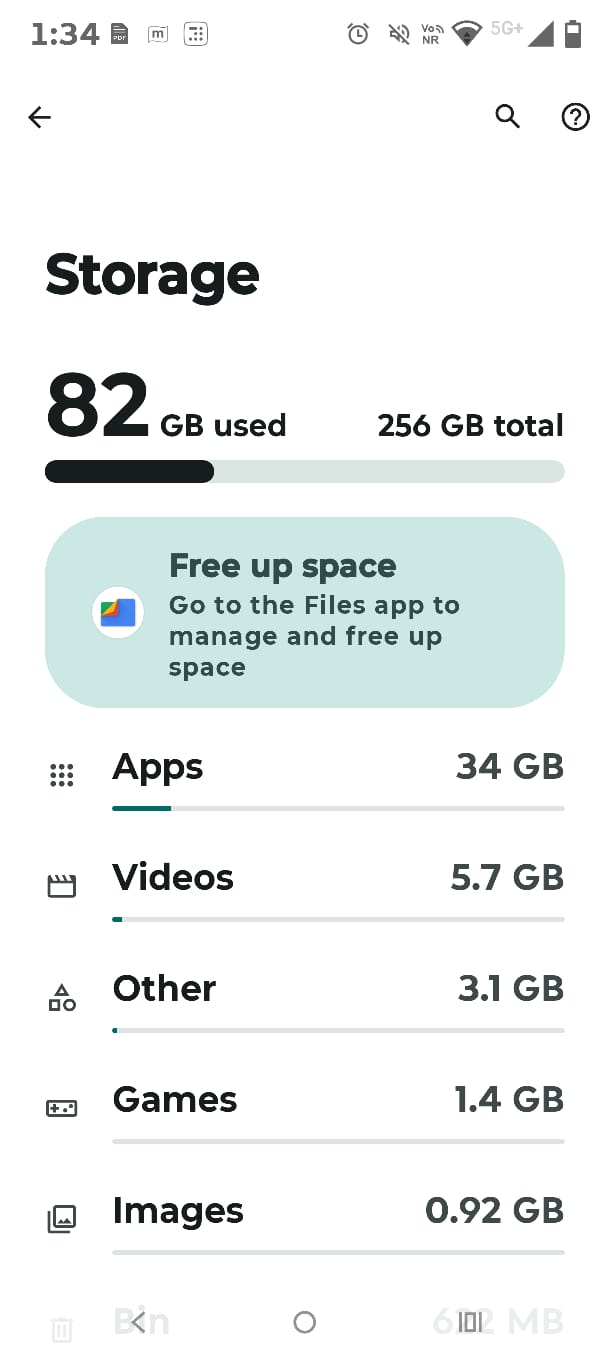
3. Tap to free up space.
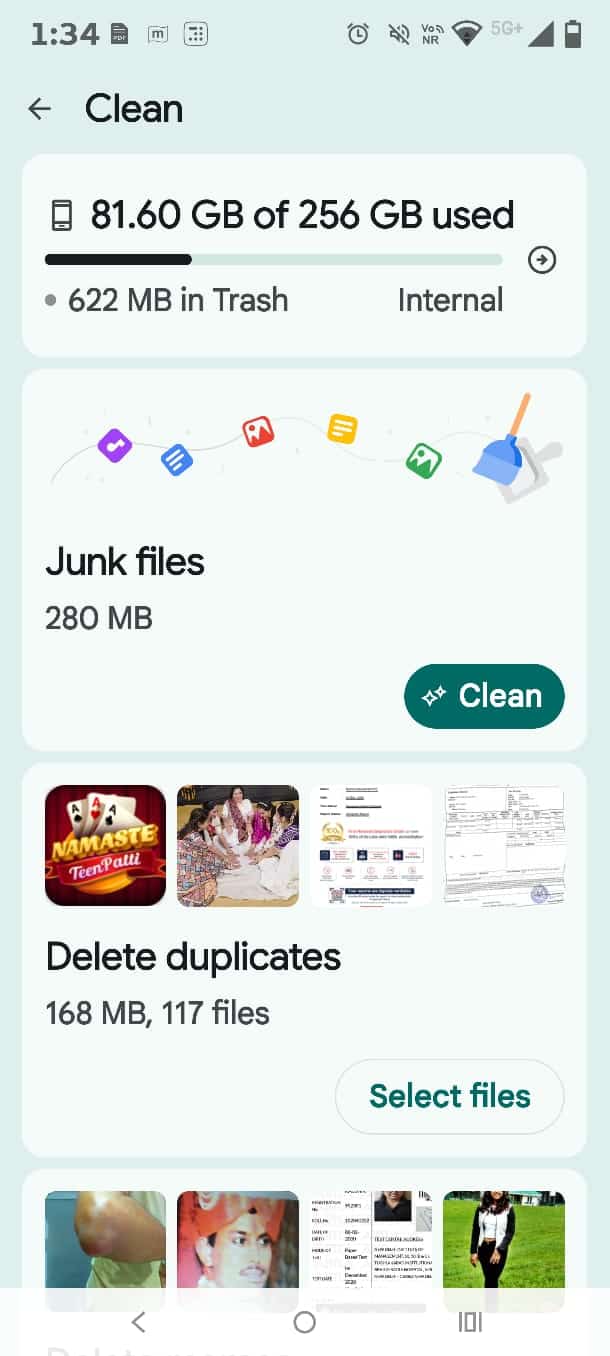
4. Review the categories listed and see which ones you want deleted.
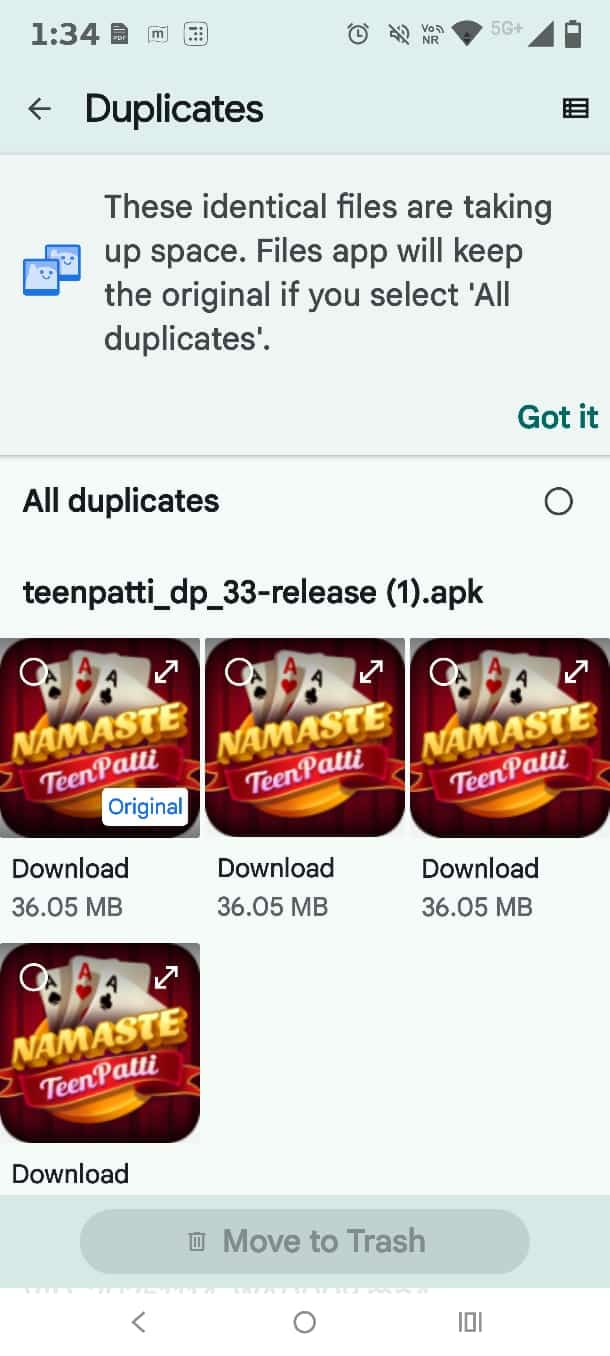
5. Confirm the deletion when prompted.
This method is safe because it never touches your Google Photos backup or gallery files. However, you must note that while this helps to clear system data storage on android, it will only remove the temporary files or junk.
Method 2: Use Files by Google
You can use Files by Google, which is a free app specifically built for cleaning your data.
- If not downloaded, you need to install Files by Google from the Play Store.
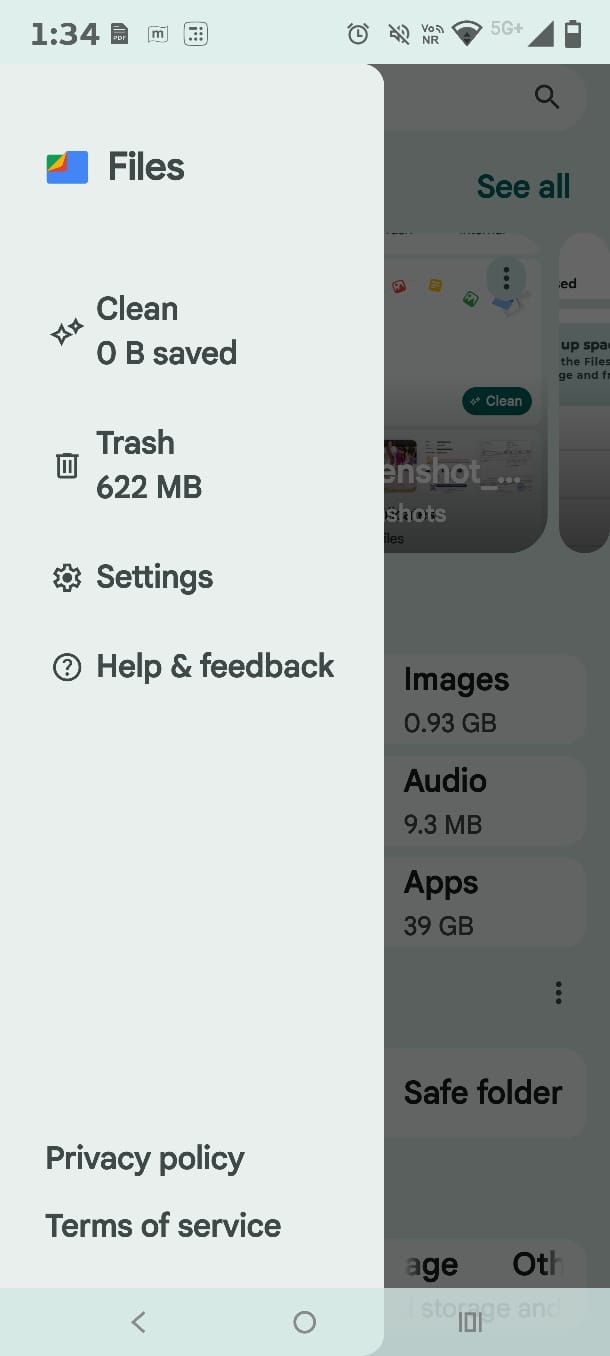
2. Now, open the app and select Clean.
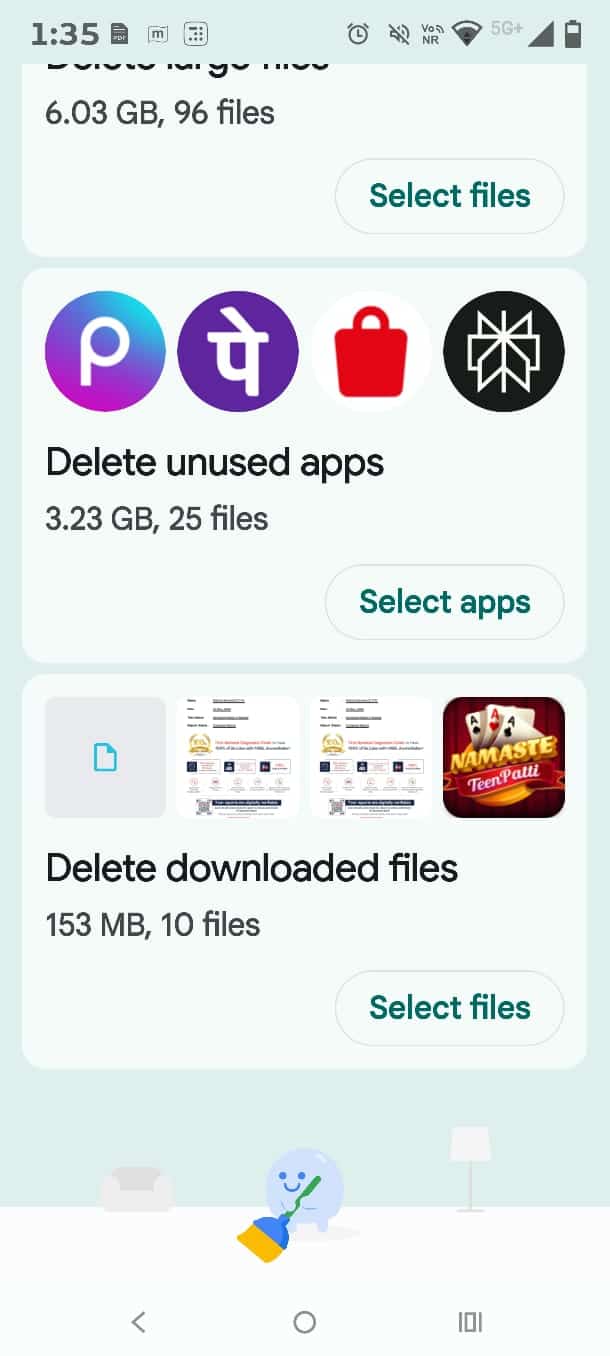
3. Click on Select apps under the tab of “Delete unused apps.”
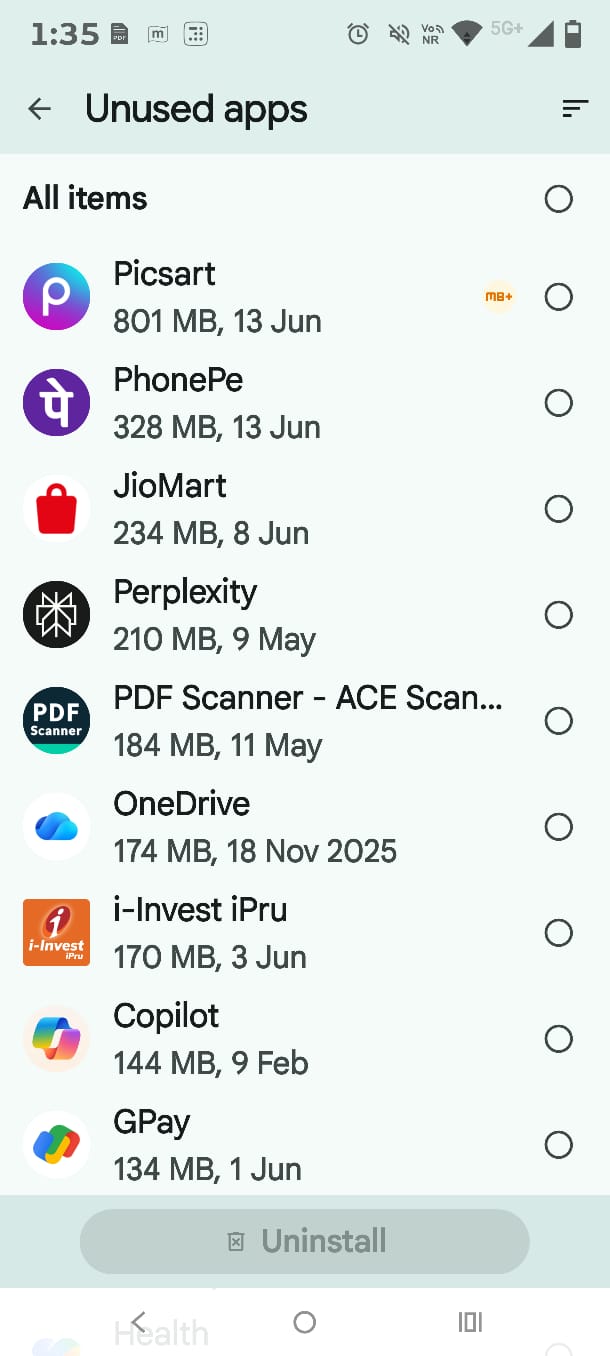
4. Choose apps you no longer use.
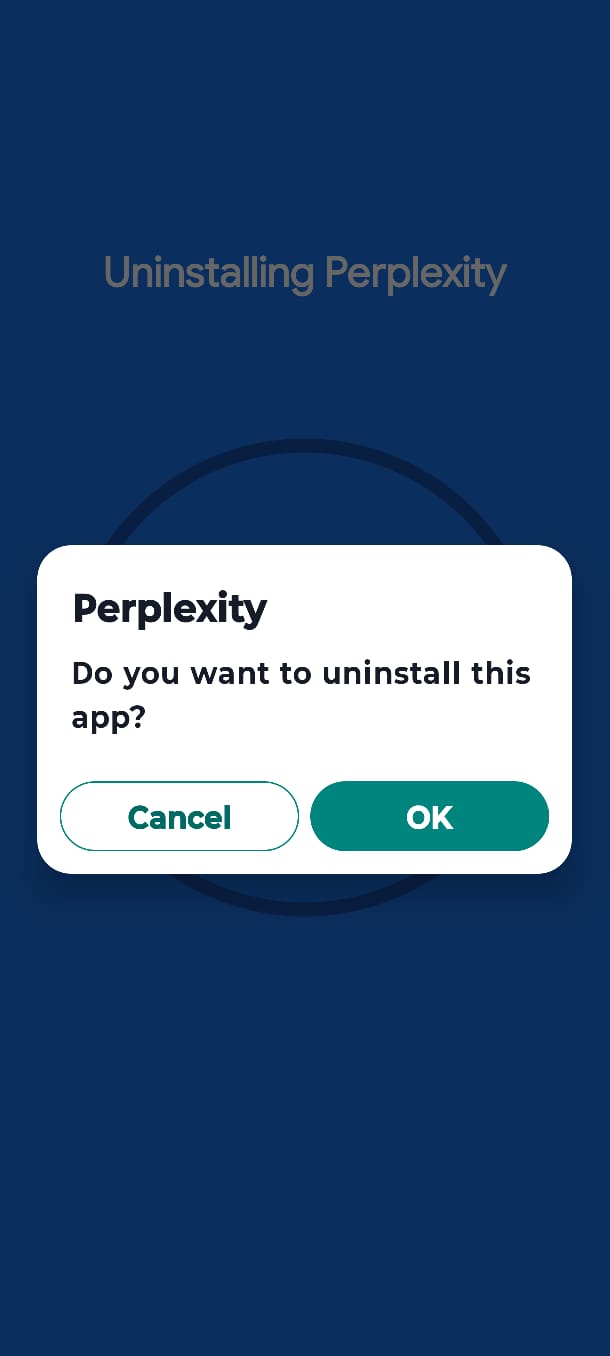
Tap Uninstall to confirm.
Uninstalling the unused apps will also clear their cache or leftover data. This is one of the most effective ways to clear system data storage on android while keeping your photo gallery completely separate, untouched, and safe.
Method 3: Back Up Photos Before Any Deep Clean
Before you start with the cleaning process and touch anything, you must ensure all your files and photos are backed up.
- Open Google Photos.
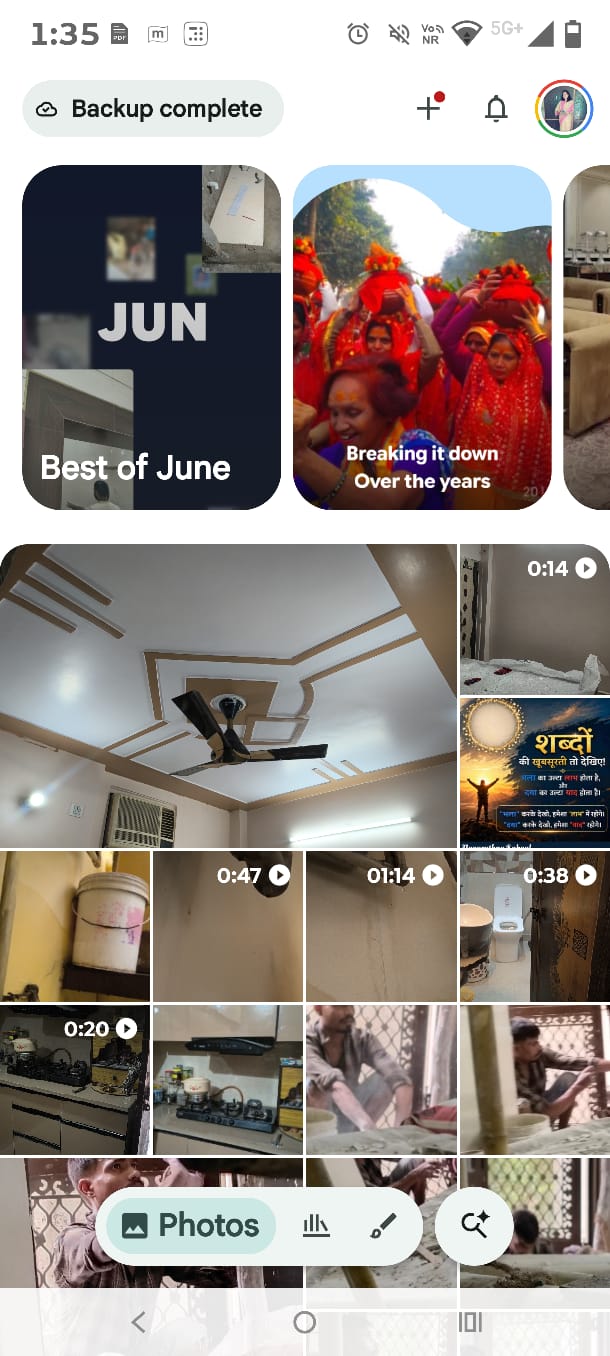
2. Tap your profile photo in the top right corner.
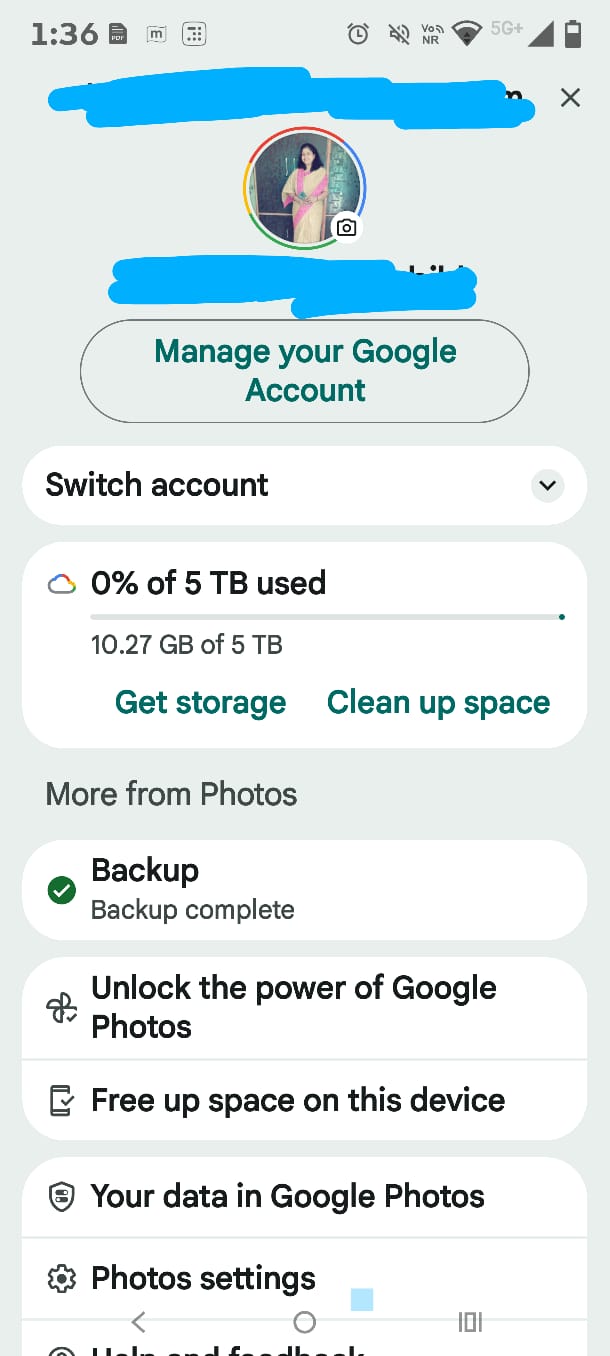
3. Check the backup status and see if it shows “Backup complete.”
If not, select Back up now and wait for it to finish.
This step matters the most for every user. Once the backup is confirmed and done, it becomes completely risk-free to clear system data storage on android phone variants.
Method 4: Freeing Up Space with Google Photos
Now, you can easily delete all the local copies after you have verified the backup.
- Open Google Photos. Sign in if you haven’t yet.
2. Tap on your profile icon.
3. Tap to free up space on this device.
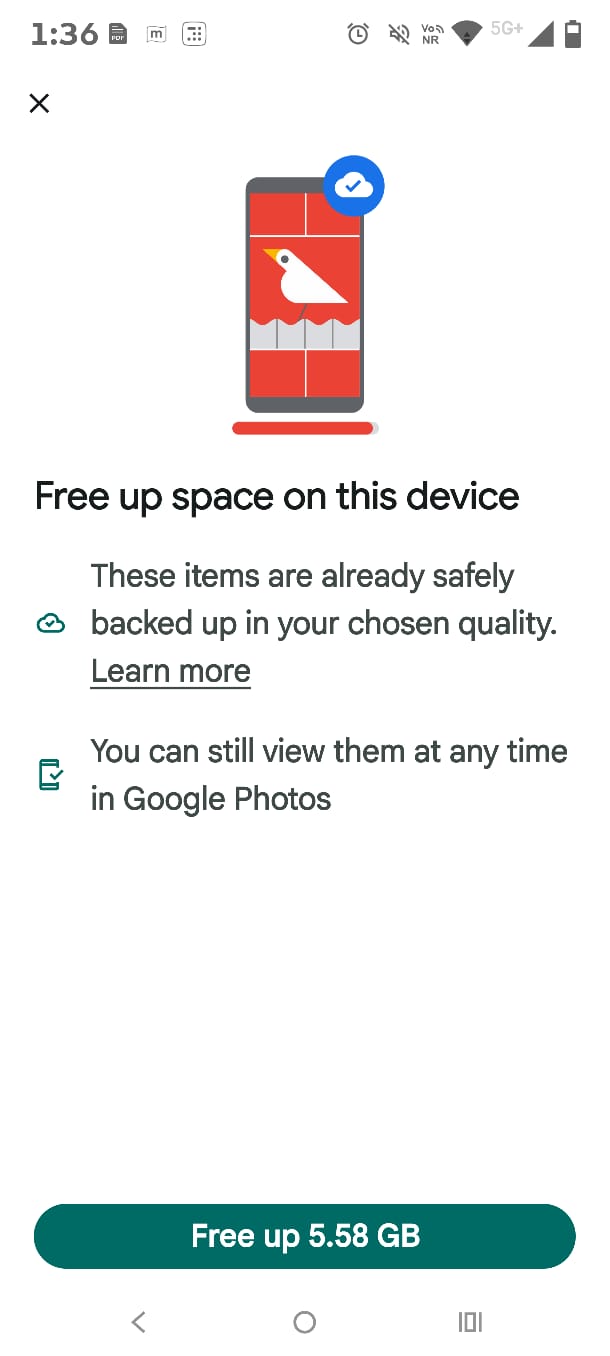
4. Check the amount of space this will recover in GB. You can also see the files that are taking up more space.
5. Tap to free up space on the device to confirm.
This method only removes the files currently stored on your phone. Your photos still remain fully accessible online and inside the app. As per Google’s own support documentation, items that are younger than 30 days can stay on your device even after deletion, since photos and videos that are fewer than 30 days old can be retained on your device.
Extra Tips to Keep Storage Clean Long Term
It’s true that a one-time cleanup only lasts so long. Here are some extra habits to keep system data from piling back up every time.
Disable Unnecessary Logging
Go to Developer Options and turn off system logging if enabled. This is a single change that can prevent large log files from accumulating. Most of the new users don’t even need this feature active.
To enable Developer Options, follow the steps below:
- Open Settings.
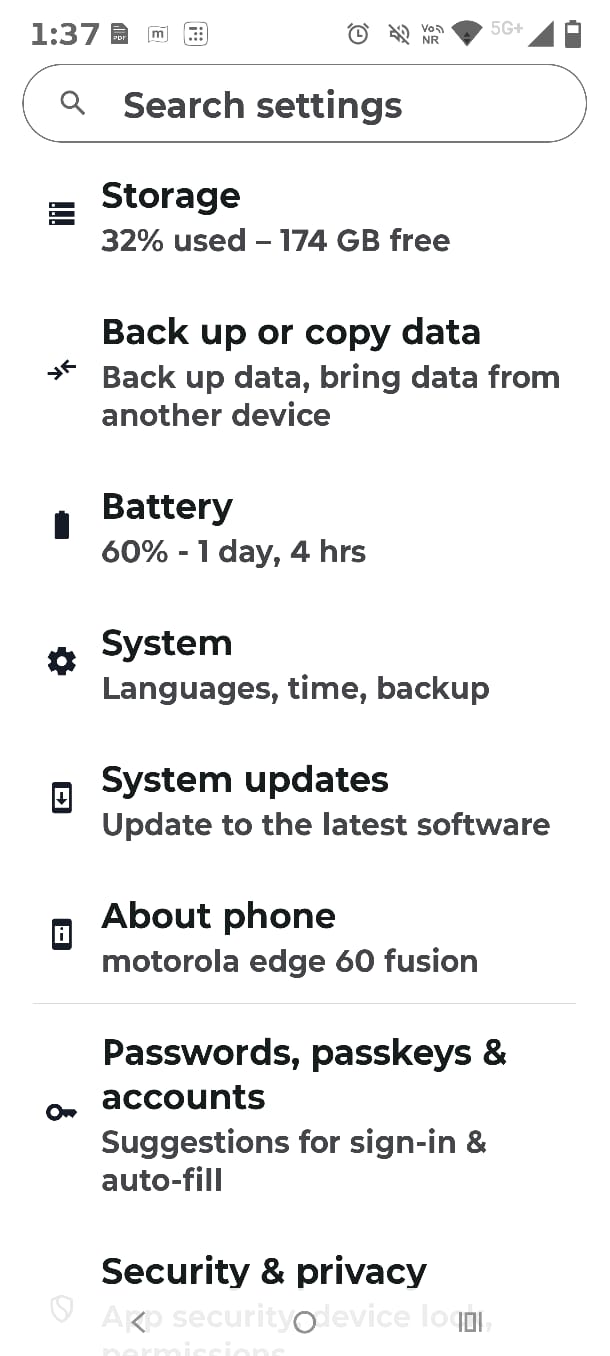
2. Click on About Phone.
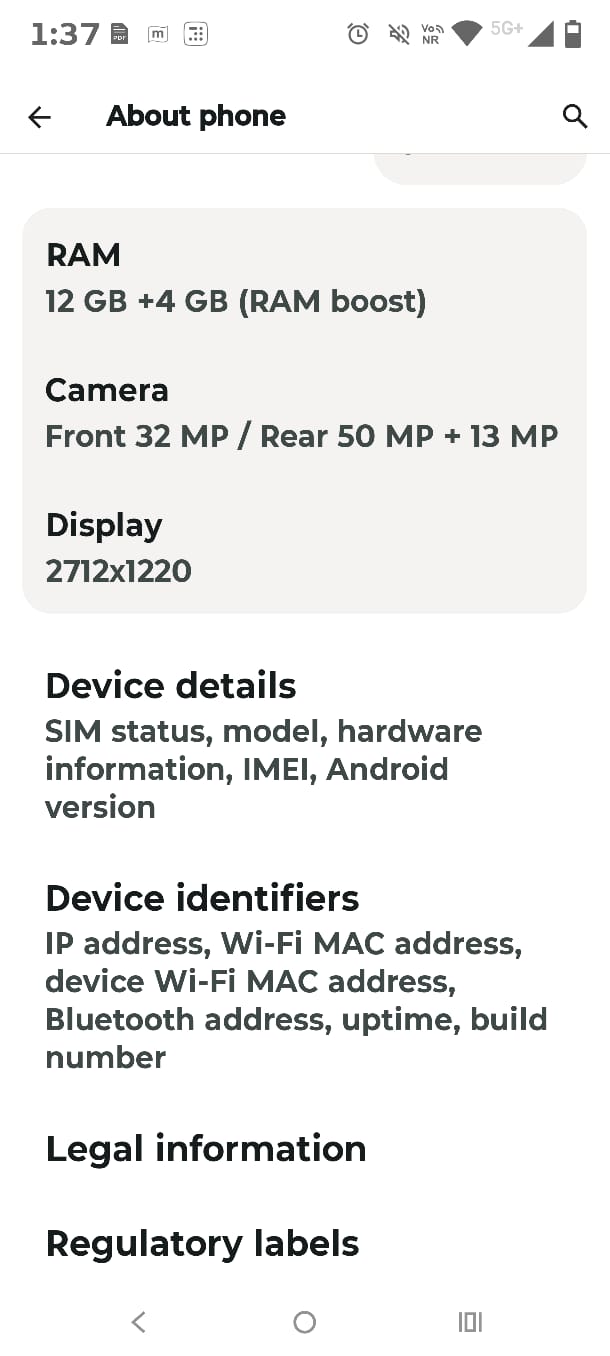
3. Next, click on Device Identifiers.
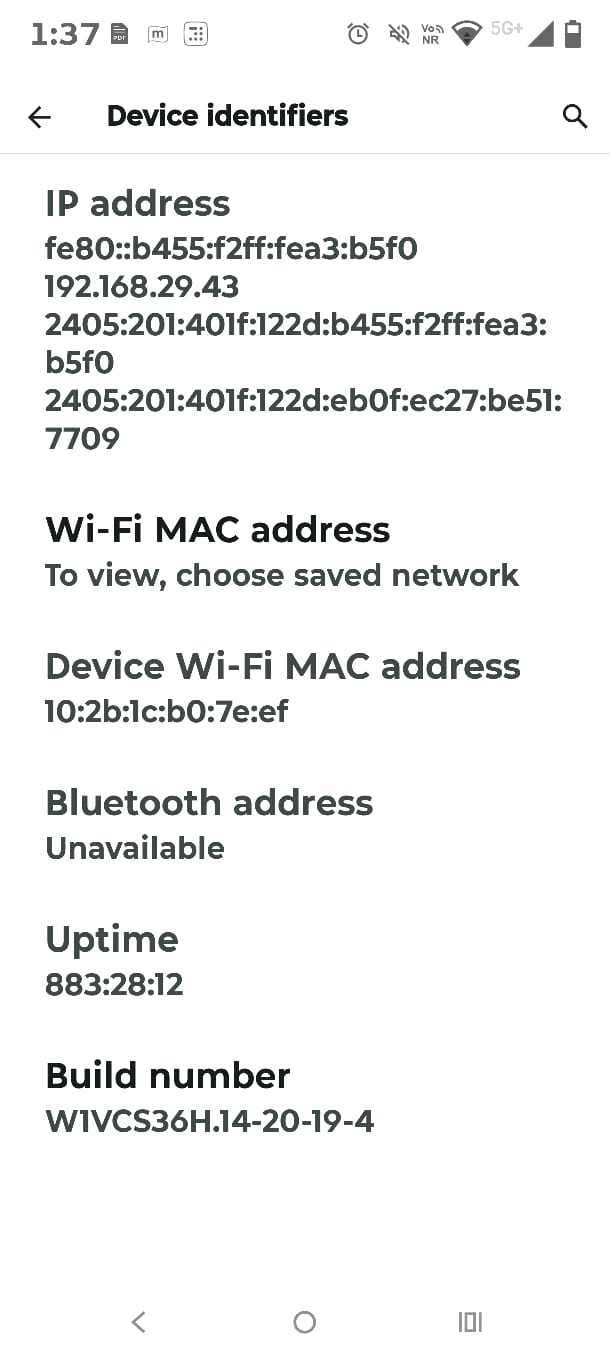
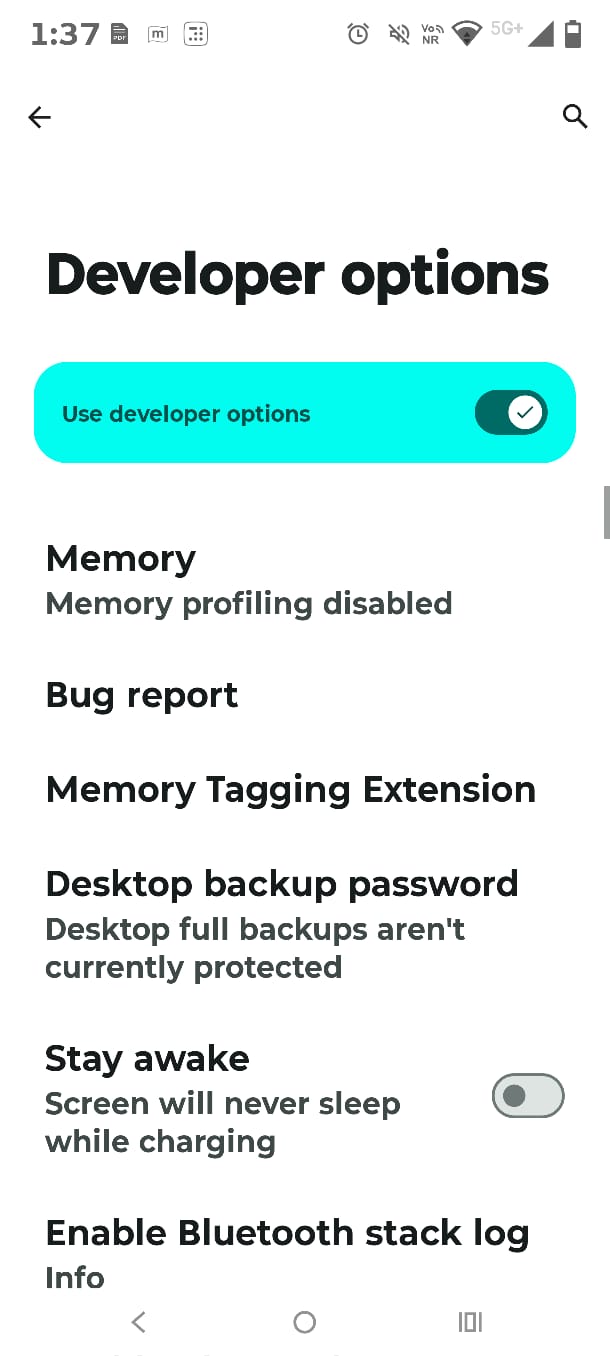
4. Tap on Build Number 7 times, and you’ve unlocked Developer Options.
To check and confirm the same: Settings>System> Developer Options. The Developer options will be marked Green or any other color based on your device.
Review Storage Monthly
Make a monthly reminder to check Settings > Storage. Catching up on the growth early will help you clear system data storage on android before it becomes an emergency cleanup later.
Transfer Large Files to Cloud Storage
You can transfer the downloaded videos, images, or documents to Google Drive. This will ultimately reduce local storage pressure without having to delete anything permanently. With this, now you can get and keep your access to every file anytime you need it.
Final Thoughts
Knowing how to clear system data storage on android should never mean risking your complete photo library. The best idea is to back up first The best idea is to back up first, use verified apps from the Play Store, and avoid using random third-party cleaner apps.
With this, your phone will always run smoothly, and the files and photos will stay exactly where you want them to be.
Visit Devicology for the latest Tech News, Guides, and in-depth Reviews. Follow us on Whatsapp, LinkedIn, X (Twitter) and Instagram to never miss an update!