



Sometimes you pick up your phone just to check something, and then you end up using it for much longer than you intended. Smartphones are designed to hold our attention, but they also have built-in tools to help us see exactly where that time is being spent.
On Android phones, that tool is called Digital Wellbeing, and it is one of the most useful features hiding in your settings.
In this article, we will walk you through exactly how to check your screen time on a OnePlus phone (which runs on Android OS), how to read your usage dashboard, and how to use that data to actually cut back if you want to.
What Is Digital Wellbeing?
Digital Wellbeing is a built-in Android feature that helps you understand and manage your phone habits.
On a OnePlus device, it tracks four main things:
- Total screen time: How long your screen has been on/active each day.
- Unlock count: How many times you have unlocked your phone.
- Notifications received: How many alerts you got, and which apps sent them.
- App usage: Exactly how much time you spend browsing inside each app.
Studies show that spending too much time on our smartphones, without even realising it, can ruin our sleep, hurt our focus, and raise our stress levels.
Digital Wellbeing gives you the exact data you need to make changes, whether that means setting a time limit on social media, cutting down on notifications, or just understanding your daily habits better.
How to Check Your Screen Time on a OnePlus Phone
Here’s the step-by-step process, whether you own a OnePlus Nord, a numbered flagship or the latest OnePlus 15.
Step 1: Open the Settings App
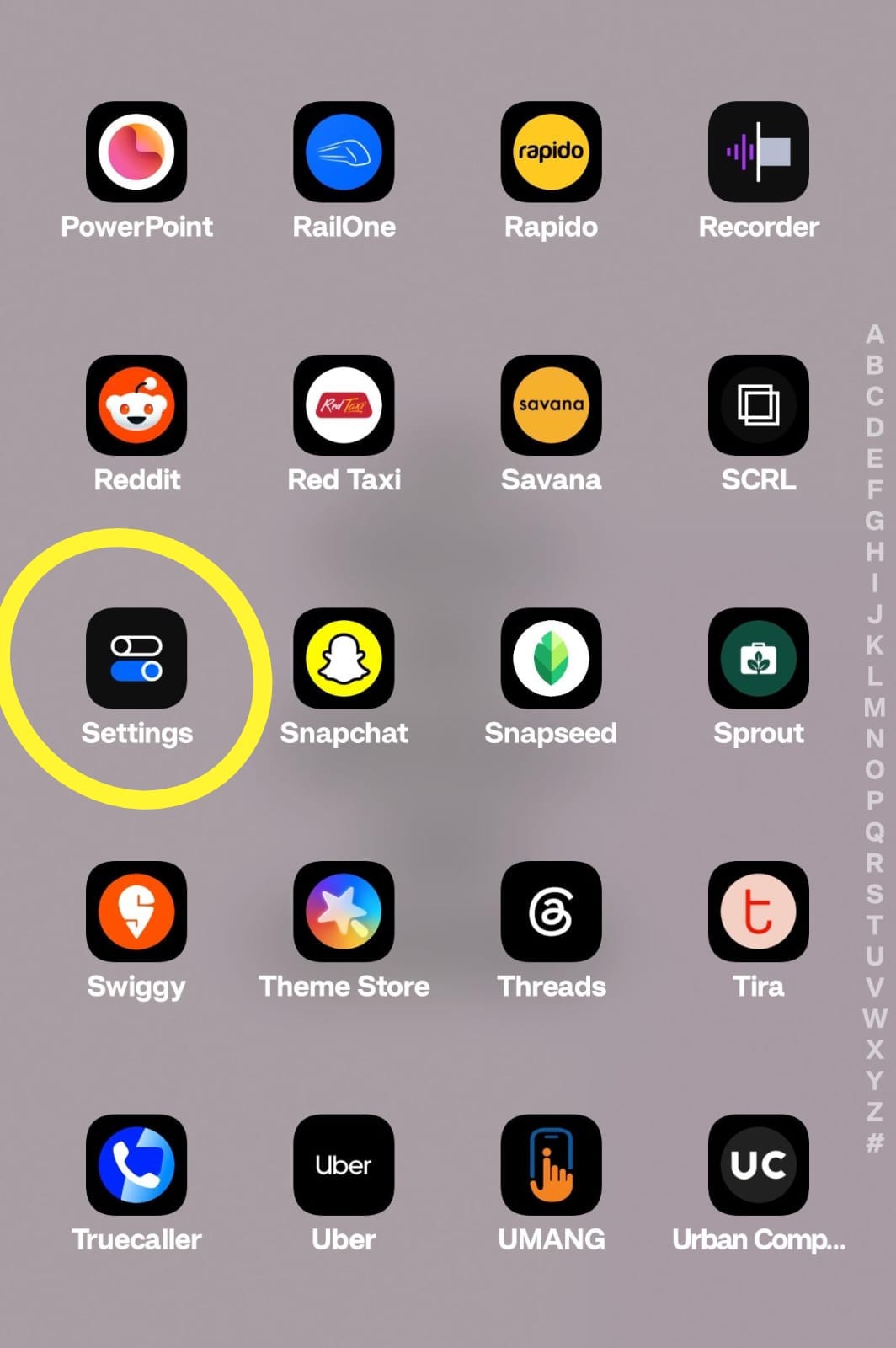
Locate the Settings app on your home screen or app drawer and tap to open it.
Step 2: Scroll Down to Digital Wellbeing & Parental Controls
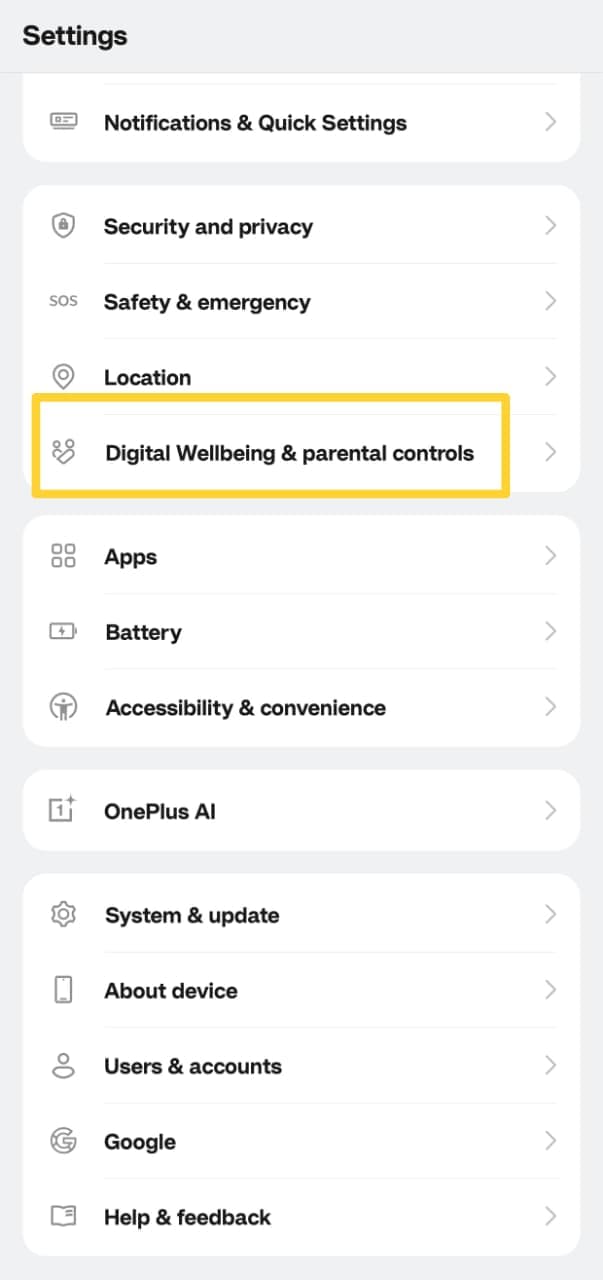
Inside Settings, scroll down until you see Digital Wellbeing & parental controls. Tap on it to open the dashboard.
Step 3: View Your Daily Usage Graph
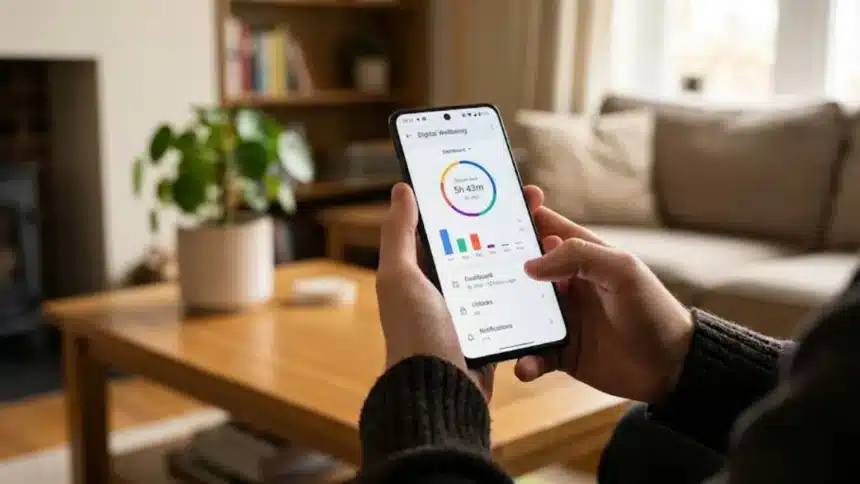
As soon as you open this section, you will see a colourful chart at the top of the screen. It shows your total screen time for the day and breaks down which apps you used most.
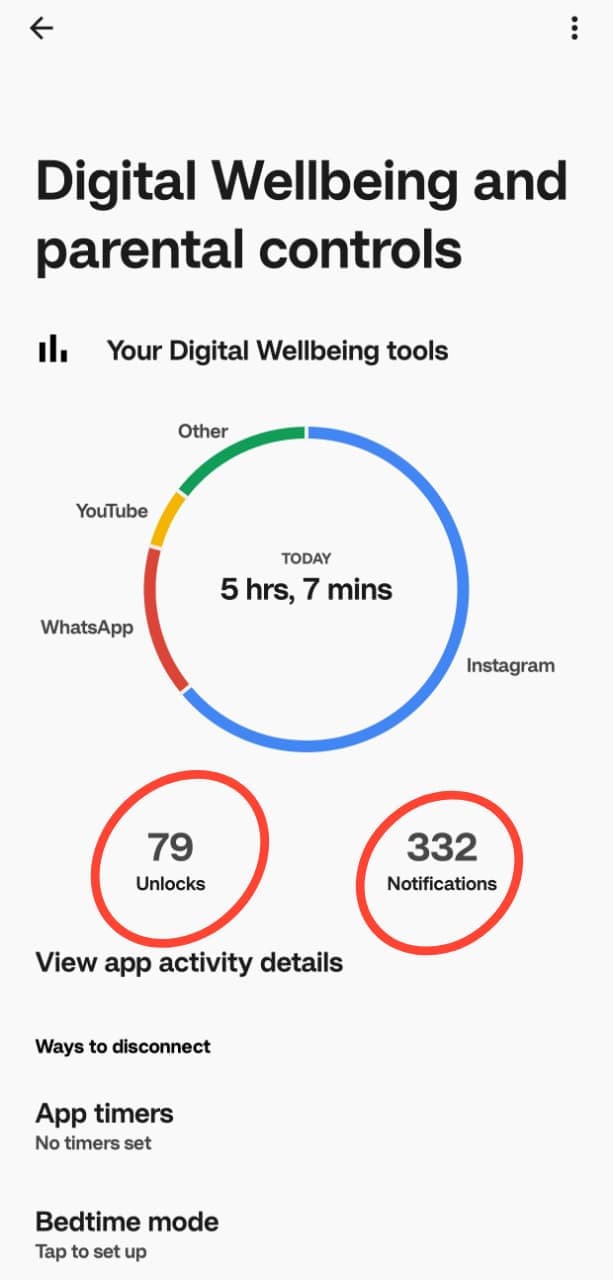
Right below that chart, you will also see the exact number of times you unlocked your phone and how many notifications you received.
Step 4: Tap the Graph for a Detailed Breakdown
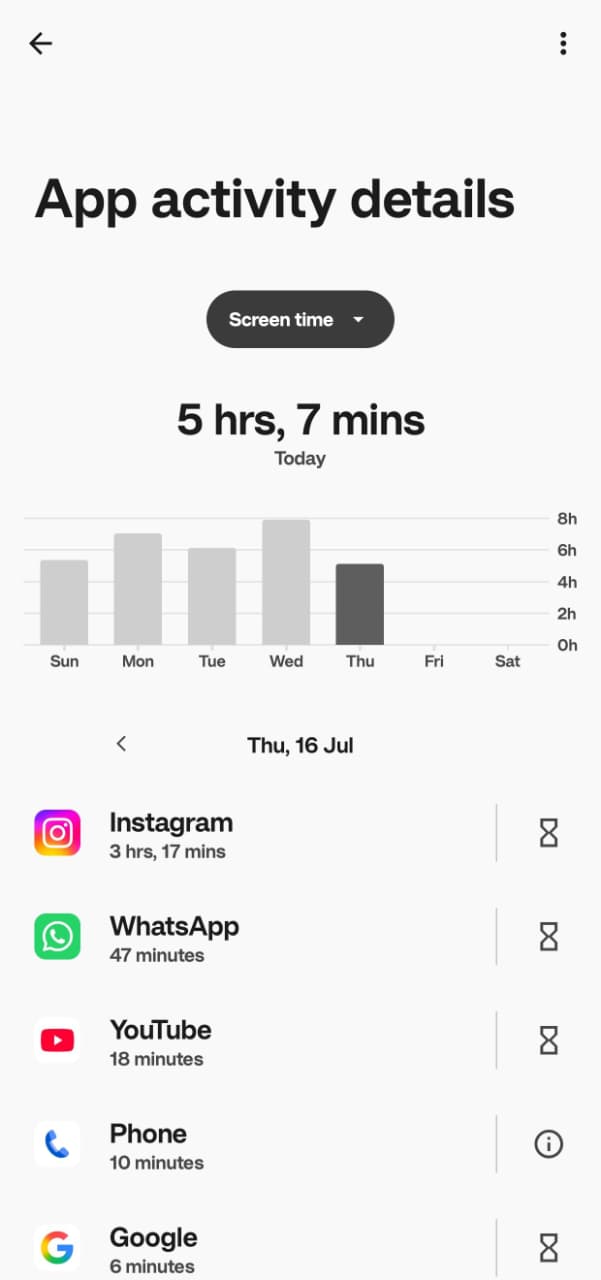
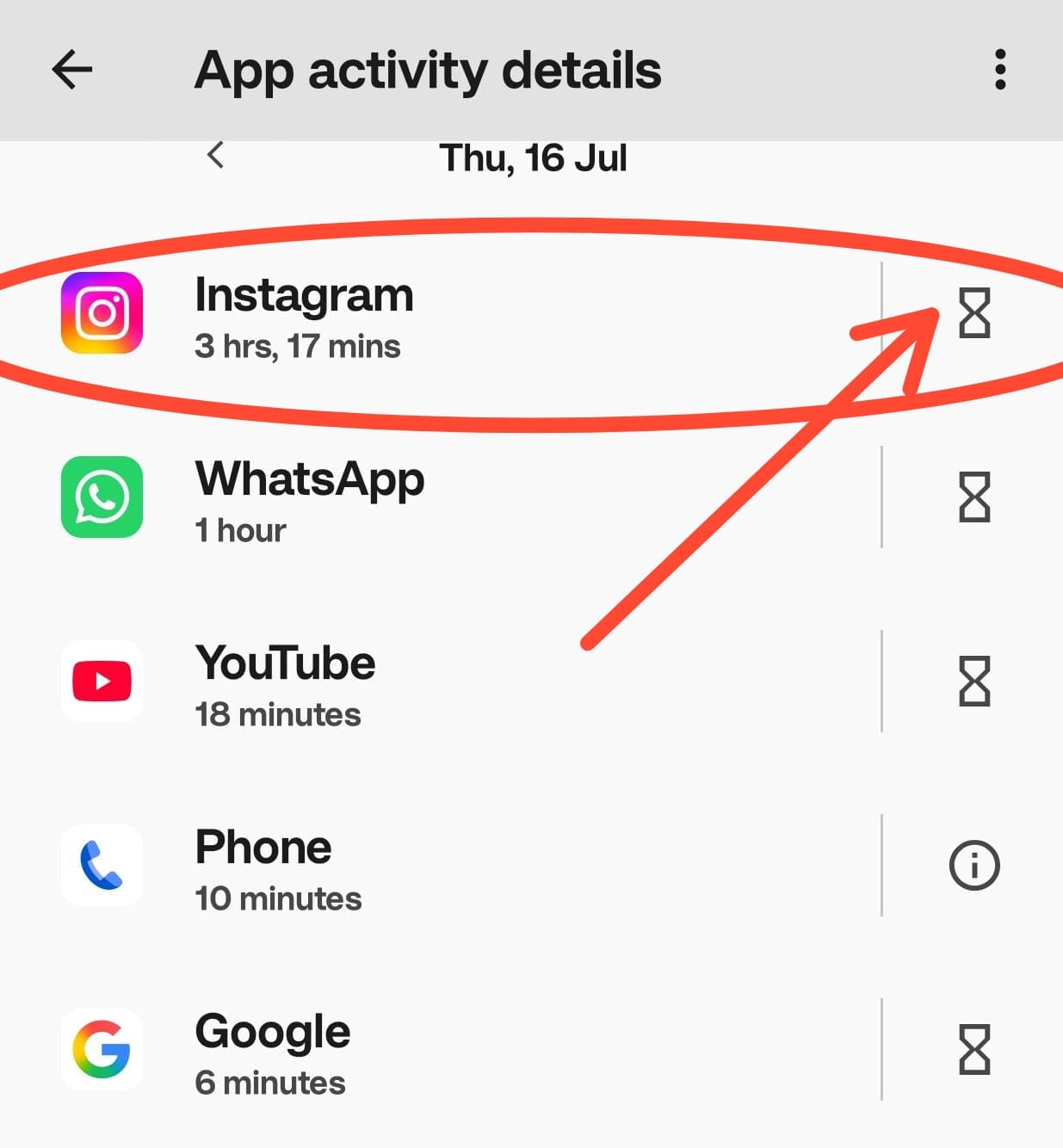
Tap directly on the graph itself to open your full usage Dashboard. This is where the real insight lives. You will see a ranked list of every app you used that day, along with the exact amount of time spent in each one.
Step 5: Check Previous Days or Weekly Trends
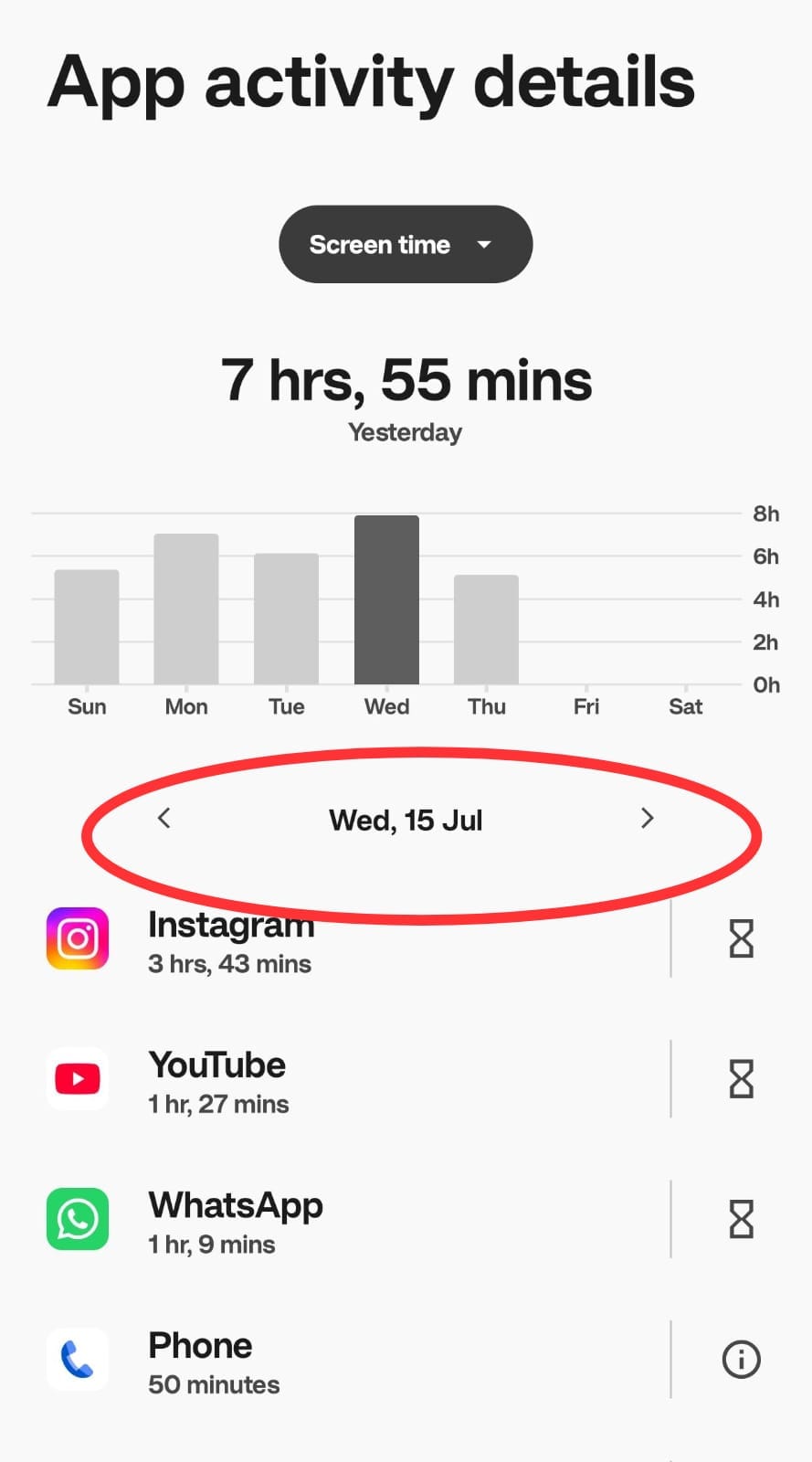
Most OnePlus devices let you scroll through a calendar or date selector at the top of the dashboard, so you are not limited to just today’s numbers. You can look back and compare your usage across different days or view a weekly summary to spot patterns. For example, whether your screen time spikes on weekends or late at night.
Step 6: Tap Any App for More Details
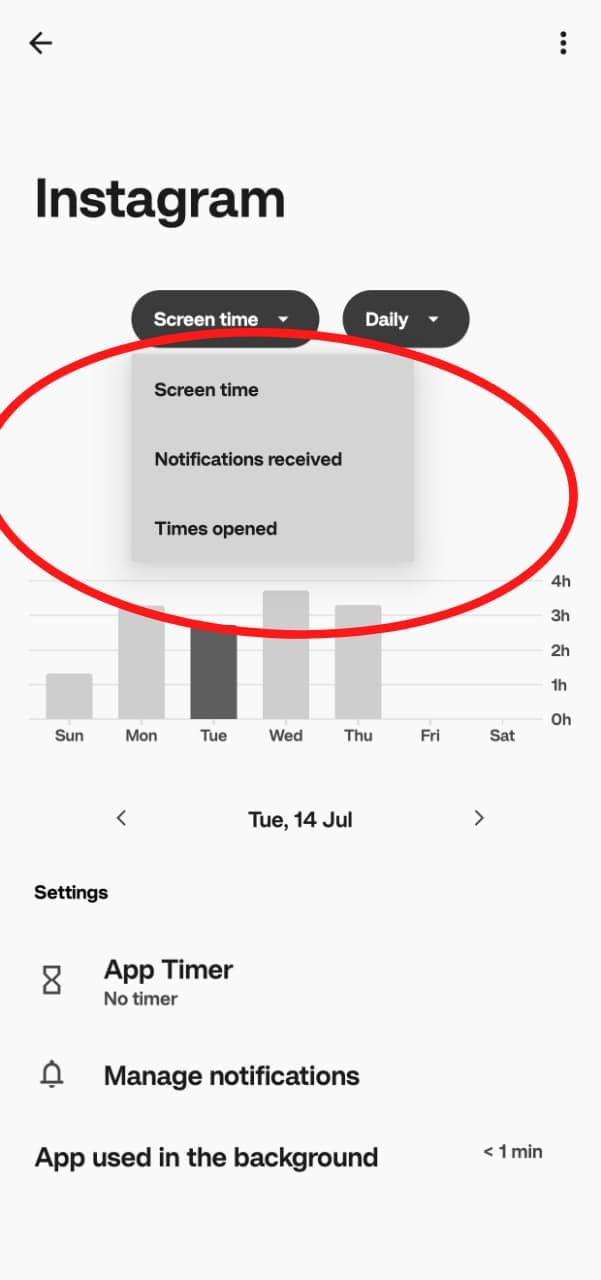
Tapping on an individual app inside the dashboard shows you more data, including how many times you opened it and how long each session lasted.
How to Set Limits Once You Know Your Numbers
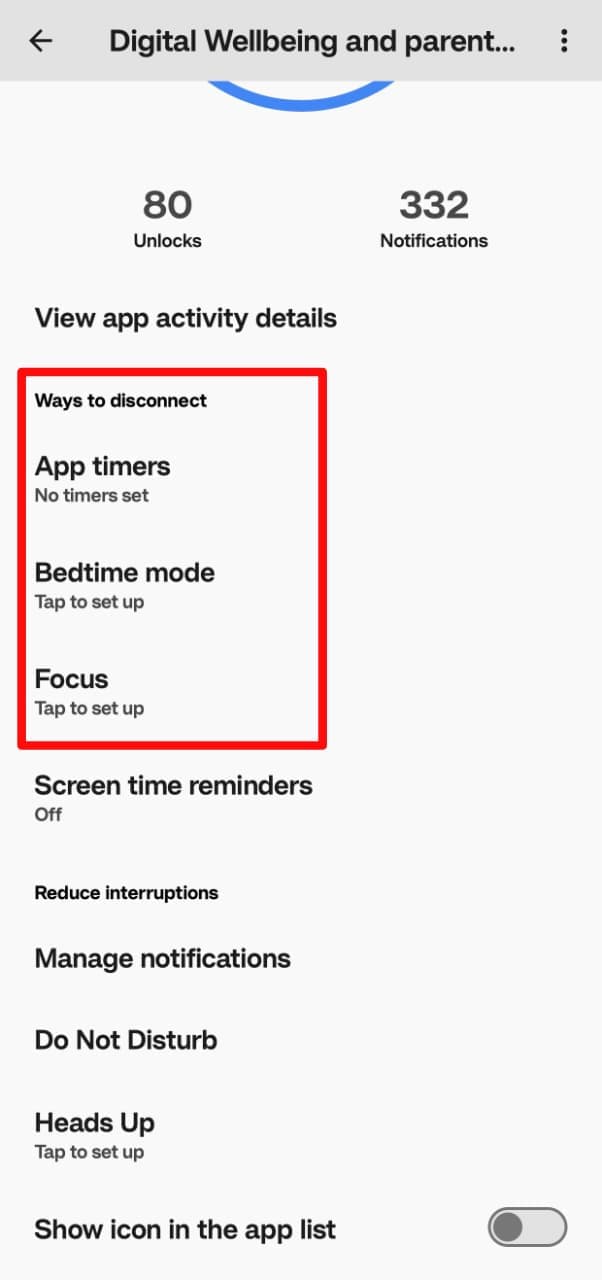
Checking your screen time is only half the picture; Digital Wellbeing also lets you act on what you find.
1. Setting an App Timer
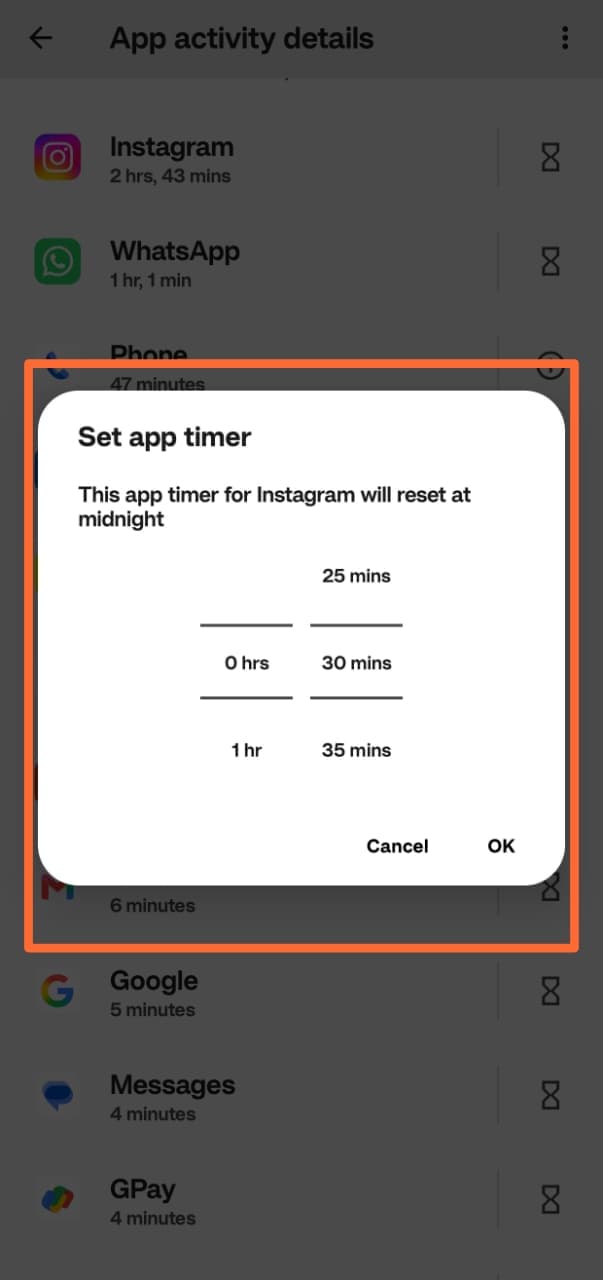
From the Dashboard, find the app you want to limit and tap the hourglass icon next to it. Choose how much time you want to allow yourself each day. Once you hit that limit, the app icon dims, and it becomes blocked for the rest of the day. Timers automatically reset at midnight.
2. Using Focus Mode
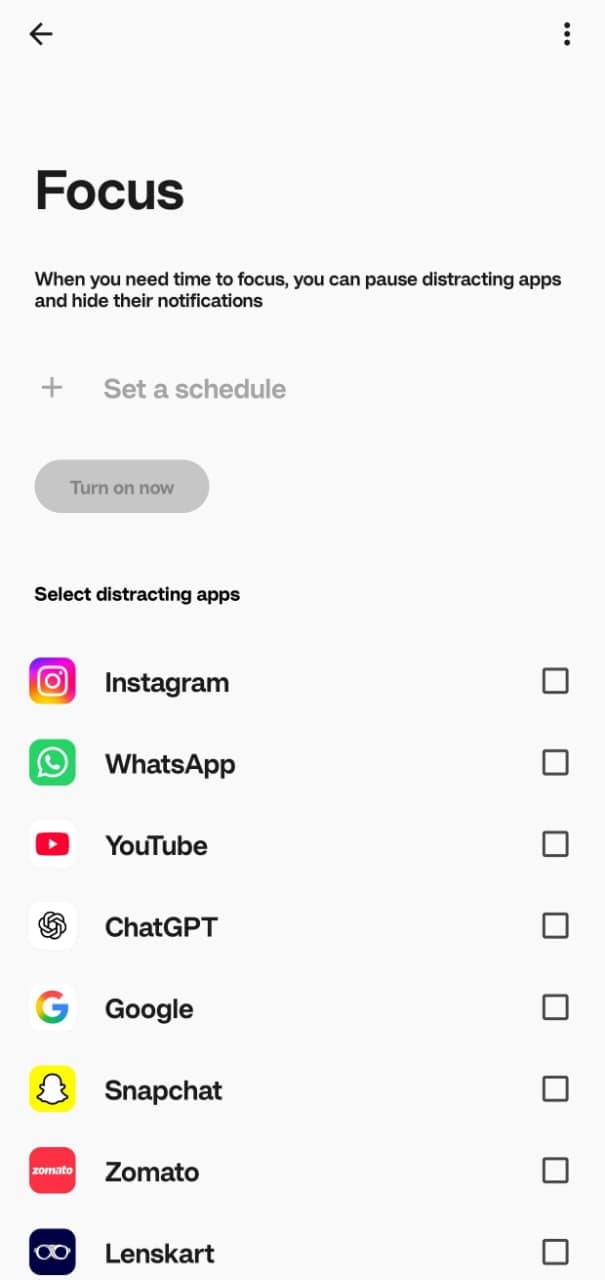
Focus Mode lets you pause distracting apps for a set period, like during work hours or study sessions. Selected apps are grayed out, and their notifications are entirely silenced until you turn Focus Mode off or your scheduled timer ends.
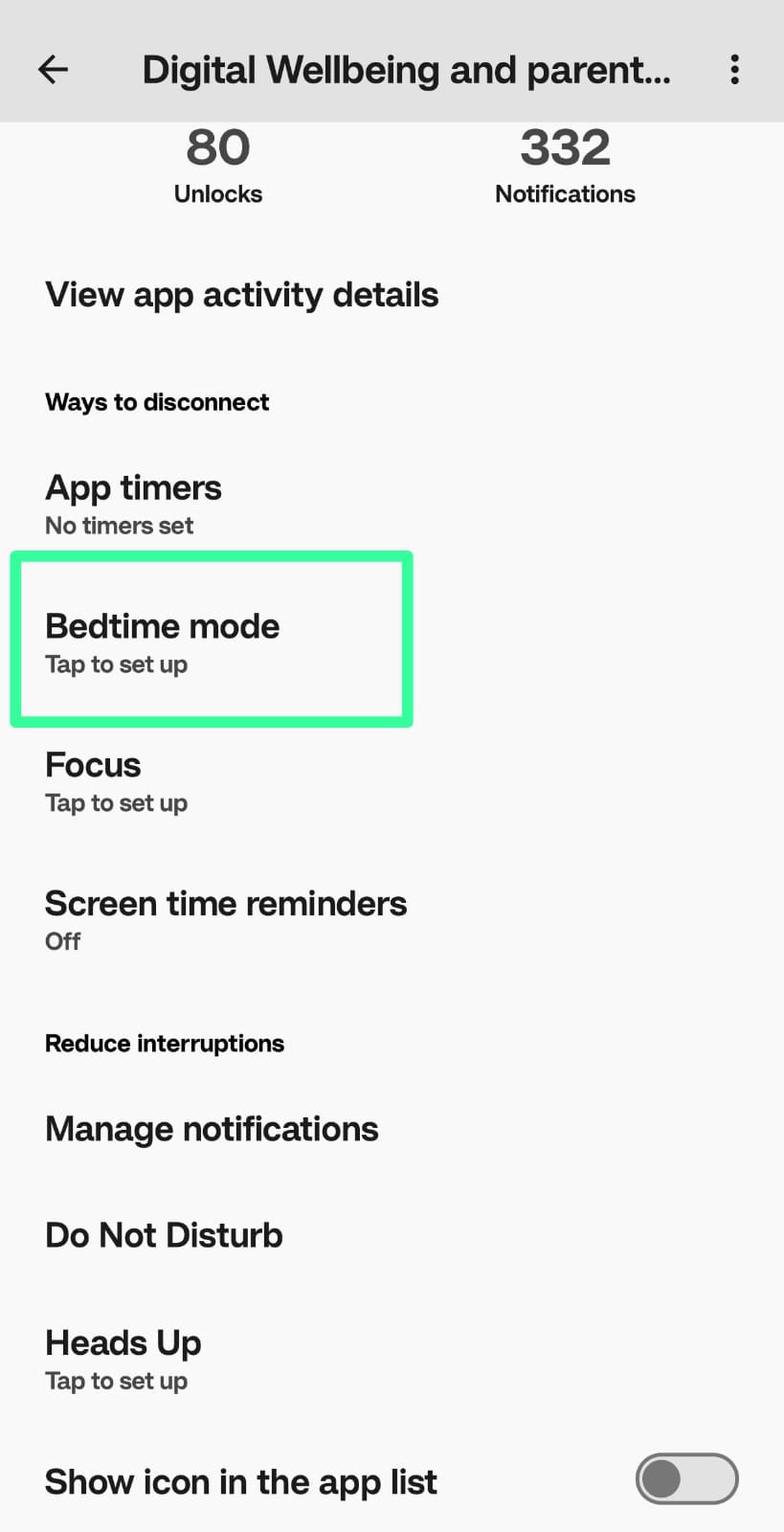
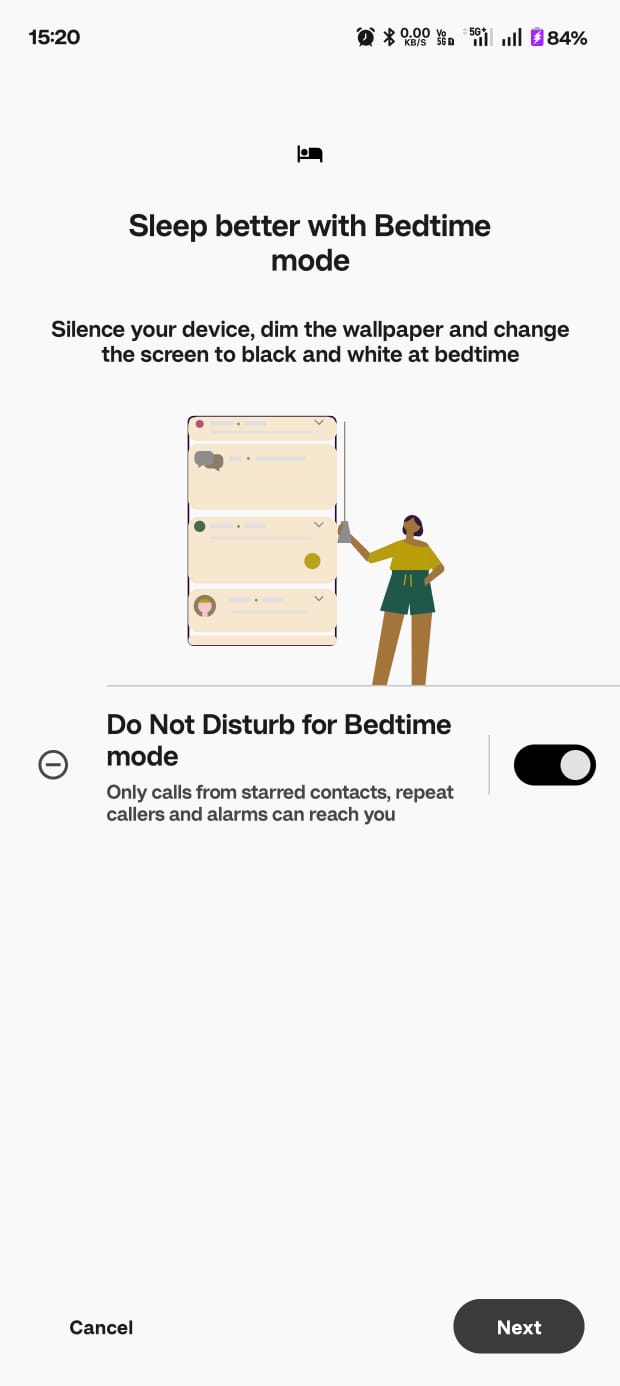
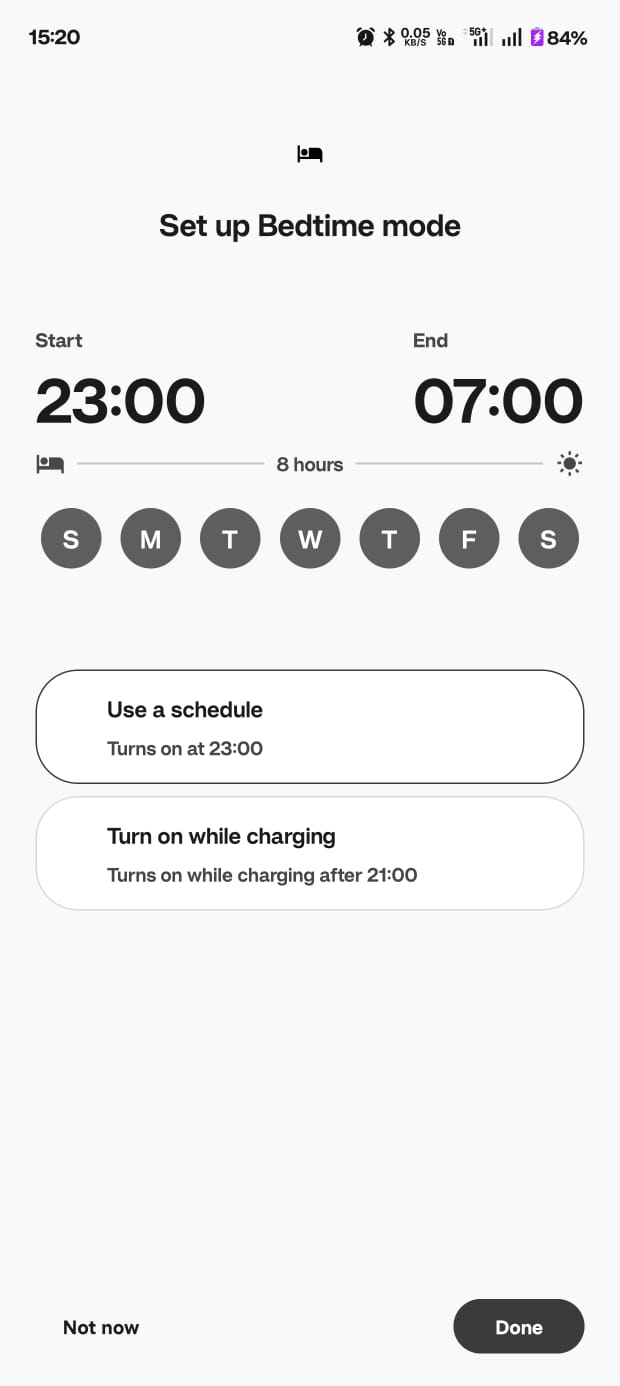
3. Turning On Bedtime Mode
Bedtime Mode dims your screen to grayscale and mutes notifications during the hours you define. This removes the vivid colours that keep your brain awake, helping reduce the temptation to scroll right before sleep.
So, if you own a OnePlus phone, you already have everything you need to understand and manage your screen time without downloading a single extra app.