



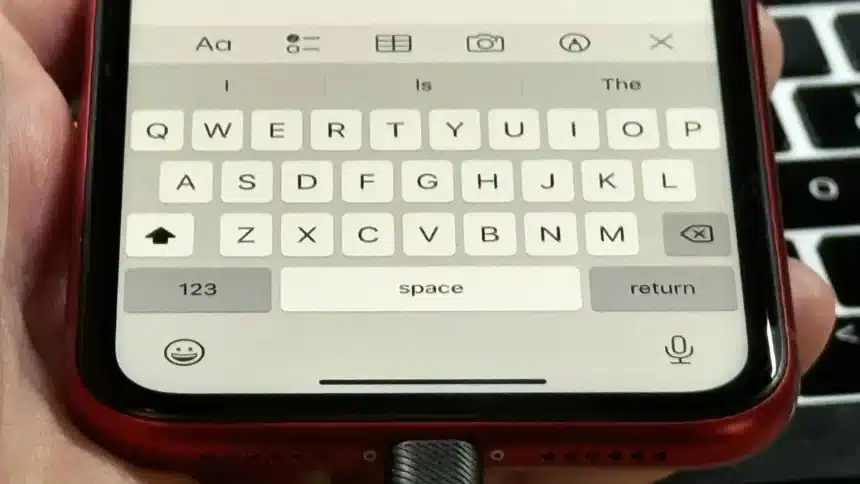
If you’ve been experiencing issues when typing on your iPhone, you’re not hallucinating; it is the real issue. Customers have been suffering from random typos, missed keystrokes, and autocorrect getting all messed up.
Now, the good news is that the iOS 26.4 update has resolved the issue that caused these problems in the first place, but unfortunately, this alone will not completely resolve your issue.
When people type incorrectly, their keyboard learns their mistakes, so now there is plenty of incorrect typing data in your keyboard’s stored dictionary, and to truly fix all of the issues, you will have to manually reset your keyboard.
How to Reset Your iPhone Keyboard Dictionary
So, let’s understand in simple steps how to reset the iPhone keyboard dictionary.
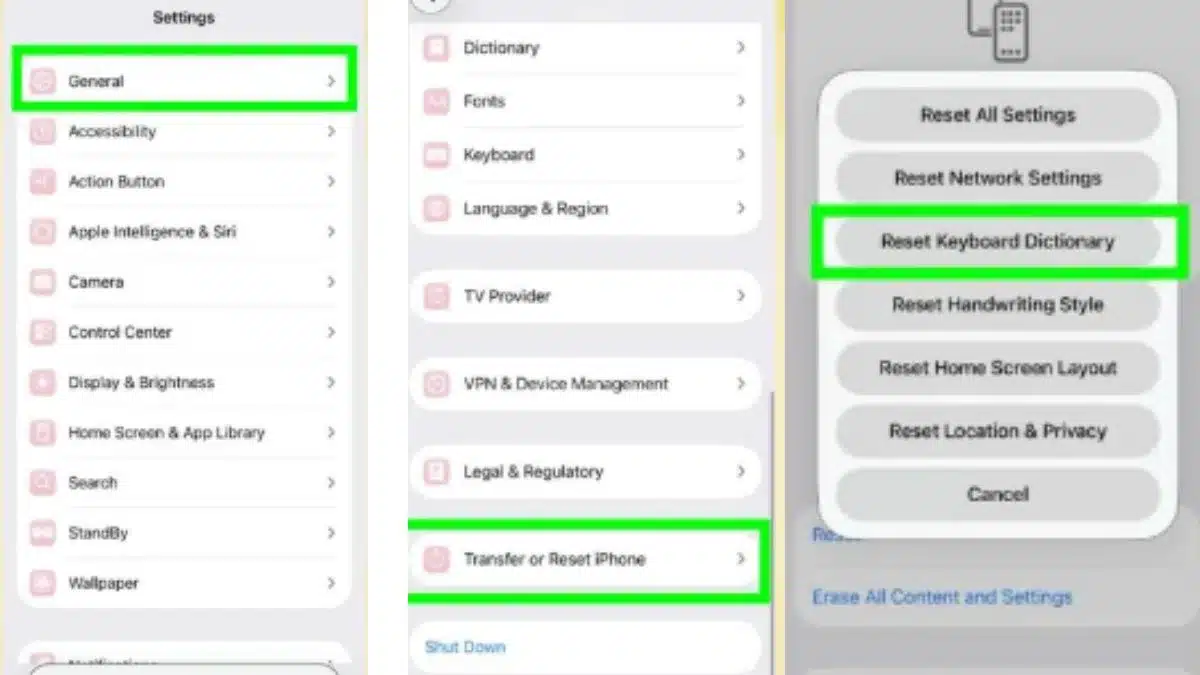
Step 1: Open Settings
Go to the Settings app on your iPhone and tap General.
Step 2: Tap ‘Transfer or Reset iPhone’
Scroll down and select Transfer or Reset iPhone. This section includes all reset options
Step 3: Tap ‘Reset’
At the bottom, tap Reset to open the menu of reset choices.
Step 4: Select ‘Reset Keyboard Dictionary’
Choose Reset Keyboard Dictionary. This only clears typing data, nothing else.
Step 5: Enter your passcode
Confirm the action by entering your passcode. The reset happens instantly.
Right after resetting all this, your keyboard will look basic to you. Autocorrect won’t recognise your usual words, nicknames, or shortcuts. Predictive text may seem less accurate. That’s normal.
But in the next few days, your iPhone will relearn your real typing habits, this time without the bug messing things up.
If you use multiple languages or keyboards, this reset applies to all of them. You will need to re-teach custom words across each language.
So, overall, updating to iOS 26.4 fixes the system-level typing issue, but resetting your keyboard is what actually cleans things up.
Also Read: How to Delete Browsing Data On Google Chrome: Step-by-Step Guide