





Deleting your browsing information in Google Chrome is useful not only for privacy reasons but also to help resolve bad performance, loading problems and random glitches.
Here, I will tell you the proper way to delete your browsing data on Android and what happens when you click delete.
How to Delete Your Chrome Browsing Data?
Let me tell you in a simple, easy step-by-step way to delete all your data from Google Chrome.
Step 1: Open Chrome on your Android device.
Step 2: Tap the three dots (top right corner).
Step 3: Tap Delete browsing data.
Step 4: Choose a time range (last 15 minutes, hour, day, or all time).
Step 5: Tap Delete data.
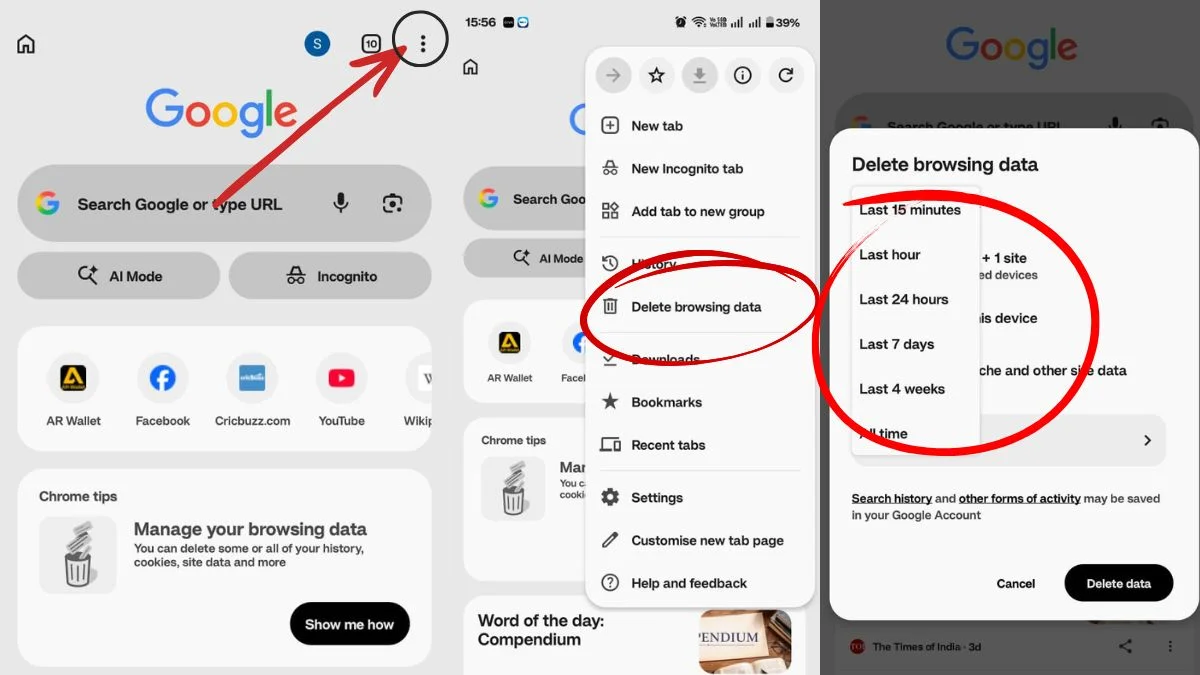
That’s it. Your history and basic data will be cleared instantly.
How to Delete Specific Data
If you don’t want to just delete everything, but rather want to delete any particular thing, then:
Step 1: Tap the three dots
Step 2: Delete browsing data
Step 3: Go to More options
Step 4: Select what you want to remove: browsing history, cookies and site data or cached images and files
Step 5: Tap Delete data
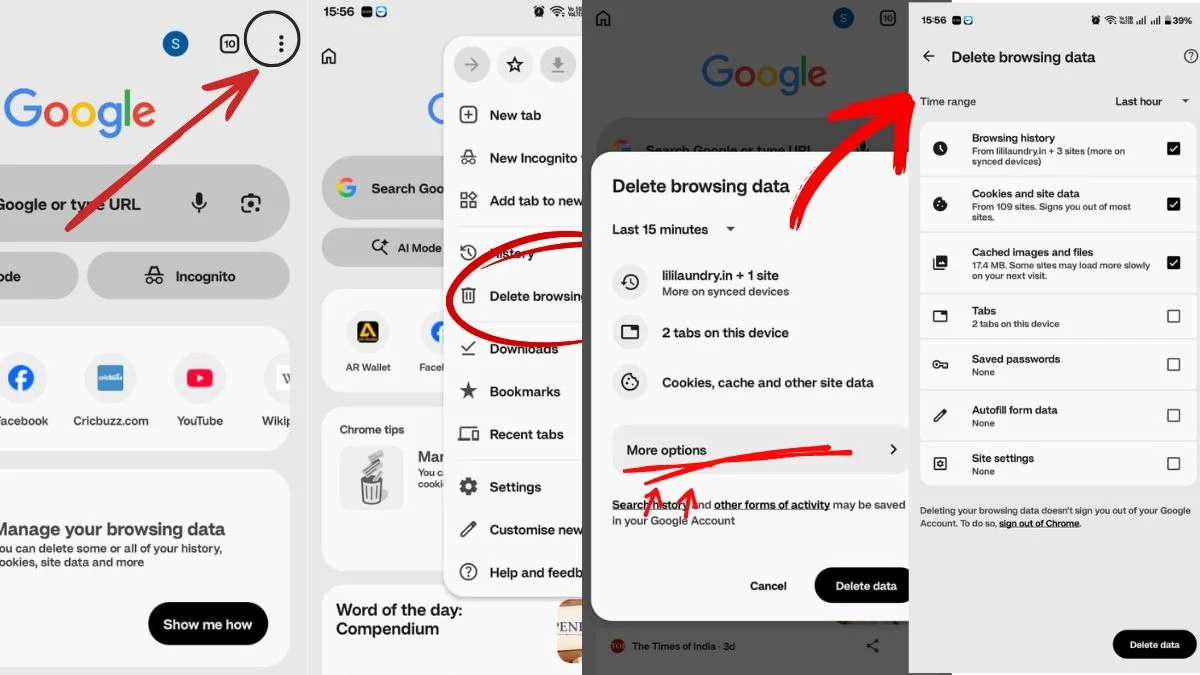
This is useful if you only want to free up space or fix a specific issue.
What happens after you delete data?
- History gets removed from all devices if you’re signed into your Google account
- Websites may log you out if cookies are deleted
- Some sites may load more slowly the first time (cache is gone)
Also, understand this thing that deleting cookies does not sign you out of your Google account in Chrome.
So, if you want to fully sign out across sites, you need to sign out of Chrome separately.
Also Read: How to Boost Your Wi-Fi Speed at Home