


You can absolutely use your AirPods on Android. However, it’s worth noting that the experience of using them with an Android device has always felt half-baked. For one thing, there are no proper battery percentage indicators, no smart switching between devices, and limited control options.
Essentially, when you use AirPods with an Android phone, you miss out on all the features that make them “Apple-level”.
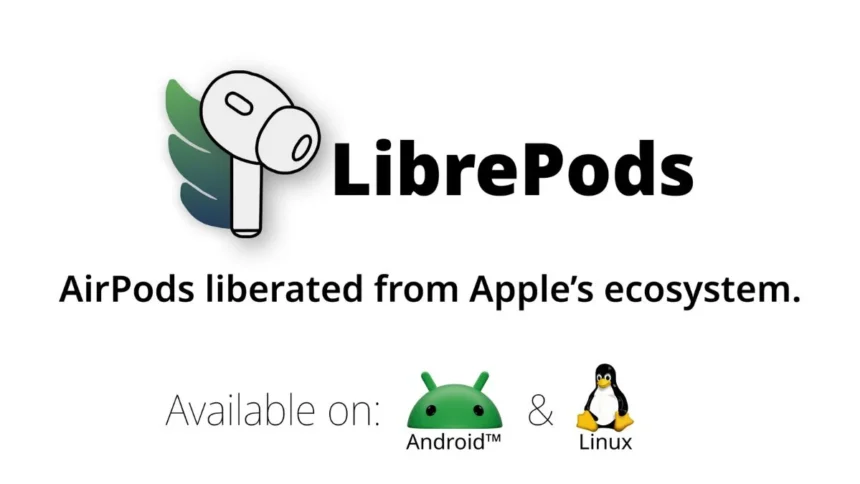
Fortunately, that gap is starting to close with the help of LibrePods. With a recent update to the open-source app, the AirPod features missing from Android devices have been added to the LibrePods app.
Best part? You don’t even need to do any complicated phone modifications or other things that require too many steps.
To get started with LibrePods and finally actually use your AirPods on an Android device, check out this guide.
Why AirPods Feel Limited on Android
AirPods are just Bluetooth earbuds at their core, so they work with any Android phone. But features like accurate battery stats, automatic ear detection and advanced controls have always been locked behind Apple’s ecosystem.
That’s where LibrePods steps in. It taps into newer Android Bluetooth capabilities to bring those missing features over. Earlier, LibrePods required a modified Android setup, which made it impractical for most users.
But now, it’s officially available on the Google Play Store. No hacks, no complicated setup.
This shift became possible after updates in Android 16 (QPR3), which unlocked deeper Bluetooth access. In simple terms, Android can now “talk” to AirPods better than before.
What Features Do You Get with LibrePods?
Once you set up LibrePods, you will find yourself using them much like using AirPods. Here’s what improves:
- Accurate battery levels for each earbud and case
- In-ear detection, so audio pauses automatically
- Listening mode controls, like switching between noise modes
- Conversational Awareness, lowering volume when you start talking
- Head gesture controls (on supported models like AirPods Pro 2 and newer)
It is all the kind of features that Android users have been missing for years.
How to Set Up LibrePods on Android
Step 1: Open the Google Play Store
Step 2: Search for LibrePods and install it
Step 3: Connect your AirPods via Bluetooth
Step 4: Open the LibrePods app
Step 5: Grant the required permissions
Step 6: Customize features like gestures, audio modes and detection
That’s it. Once set up, most features run automatically in the background.
Which Phones Support LibrePods Right Now?
So, yes. Right now, not every Android phone supports these features yet. Only Google Pixel devices, OnePlus phones and Oppo smartphones support LibrePods. And all of these phones need to be updated to the latest Android version.
Support for other brands will expand gradually as they roll out newer Android updates, and is expected to improve further with Android 17.
So, LibrePods doesn’t magically turn Android into an iPhone, but it fixes most of the annoying limitations. You get smarter controls, better feedback and a more seamless experience overall. And since it’s open-source, it’s likely to keep improving.
Also Read: Top 5 Wireless Earbuds Expected To Launch In 2026: AirPods, Galaxy Buds And More