




Our smartphones have become more than just devices we use for communication. WhatsApp has undoubtedly turned into the primary repository for all of our best moments over the years. From the first time you heard your baby laugh and share a long-distance, tear-jerking moment with your partner, to making extremely important decisions at work via text messages and sharing your favourite photos, WhatsApp is always there.
However, the majority of users tend to have a dangerous level of complacency towards their chat history. It is sad to say, but the reality is that your hardware generally fails or can be stolen at any time; software issues will definitely happen; and if you haven’t made the effort to back up your WhatsApp chats, you’re just one more accidental drop of your phone away from experiencing a loss of years of memories.
Backing up your chats should not just be viewed as a technical task; it should be viewed as a critical step in the preservation of your data.
By taking five minutes today to set up your chat backup feature, you are ensuring that your chats are stored away in the cloud and that if anything happens to your phone, you will have access to your chat history and will not lose all of your memories.
How to back up WhatsApp on iPhone
If you are using an iPhone, your chats are backed up to iCloud. But you need to enable it manually. Here’s how to set it up-
Step 1: Go to Settings inside WhatsApp
Step 2: Tap on Chats
Step 3: Open Chat Backup
From here, tap “Back Up Now” to create an instant backup.
If you don’t want to do this manually every time, you can turn on auto backup. Choose daily, weekly, or monthly, depending on how often your chats change.
There’s also an option to include videos. Keep in mind that including this can increase the backup size significantly.
For extra security, you can enable end-to-end encrypted backup. This requires a password or a 64-digit key, but if you ever lose that, or forget it you won’t be able to access your backup later.
How to back up WhatsApp on Android
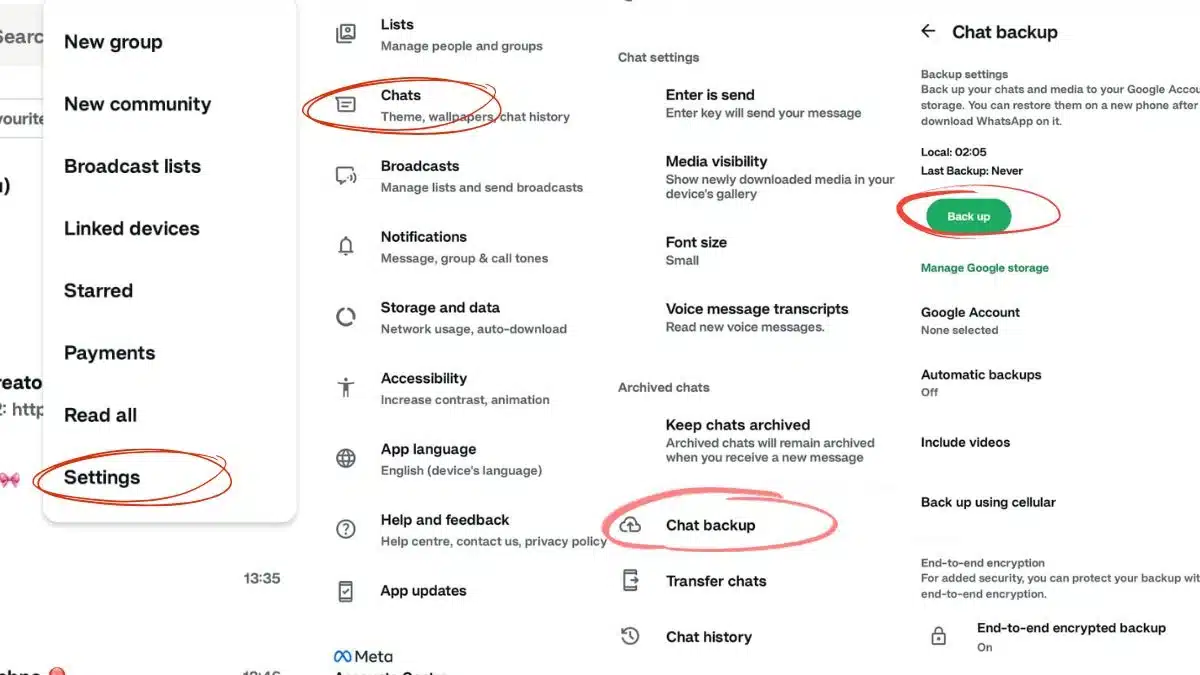
On Android, backups are stored in your Google Account through Google Drive.
Step 1: Open WhatsApp and tap the three-dot menu
Step 2: Go to Settings
Step 3: Tap Chats
Step 4: Select Chat Backup
Step 5: Click on ‘Backup’ and you are done.
You will also see options to include videos and allow backups over mobile data. Be careful with mobile data, as large backups can consume a lot of it.
Just like the iPhone, Android also offers end-to-end encrypted backups for added protection.
So, if you use WhatsApp daily, set your backup to automatic. Daily or weekly is good for you. By doing this, even if something goes wrong, you’ll never lose the data.
Earlier, backups were the only way to move chats. Now, WhatsApp also offers a “Transfer Chats” feature that lets you move conversations directly from one phone to another.
Evolution of WhatsApp
WhatsApp was founded by Jan Koum and Brian Acton, former Yahoo employees. Interestingly, the original concept was not about chats and all. It was an app to show “statuses” next to people’s names in your address book, like- At the gym or Battery about to die.
But when Apple introduced push notifications in 2009, Jan Koum updated WhatsApp so that users were pinged whenever a friend changed their status.
Users quickly started using these status updates to ping each other back and forth, and then came WhatsApp 2.0 as a dedicated instant messenger.
Still, in the initial days, moving chats was not easy, involving manual file transfers of “msgstore.db” files.
As the user base exploded, WhatsApp partnered with Google and Apple to integrate cloud-based backups, making transitions between devices seamless for the masses.
Then in 2016, WhatsApp implemented the most trusted privacy feature, End-to-End Encryption by default for all messages.
However, until 2021, they did not extend this high-level security to the backups themselves, allowing users to lock their cloud archives with a private password.
Later on, WhatsApp first introduced the ability to back up chat history to iCloud in July 2013 with version 2.10.1, and then, for Android users, official Google Drive backup support was fully rolled out in October 2015.
So, follow the above-mentioned steps and save yourself from losing the data.
Also Read: 7 Hidden WhatsApp Settings Most People Never Check- Here’s Why You Should