



Apple has introduced an important improvement to its item-tracking ecosystem by bringing one of AirTag’s most useful features to the Apple Watch. With the launch of AirTag 2, the company has expanded the Precision Finding feature so that users can locate their belongings directly from their smartwatch.
AirTag devices are designed to help users find everyday items such as keys, bags, or wallets when they are misplaced. While the original version already offered accurate tracking through Apple’s Find My network, Precision Finding has been considered the most effective tool for locating items nearby. Now, for the first time, this feature can also be accessed through the Apple Watch.
What Precision Finding Does
Precision Finding utilizes an interactive system, combining sound, vibration, and visual aids to assist the user in finding a misplaced item. With Precision Finding enabled, on the iPhone screen, the approximate distance and direction to the AirTag are displayed along with a step-by-step set of instructions until the user finds the item.
The AirTag 2 has significantly enhanced this feature and now provides greater distance than it originally did; users can now start their search from further away than before. Therefore, Precision Finding functionality is much more applicable in larger indoor environments as well as populated areas outdoors.
In addition to allowing iPhone users to enable Precision Finding, Apple also allows users to do so from their Apple Watch. Therefore, users will experience less delay and more intra-device communication as they locate their misplaced item.
How to Set Up Precision Finding on Apple Watch
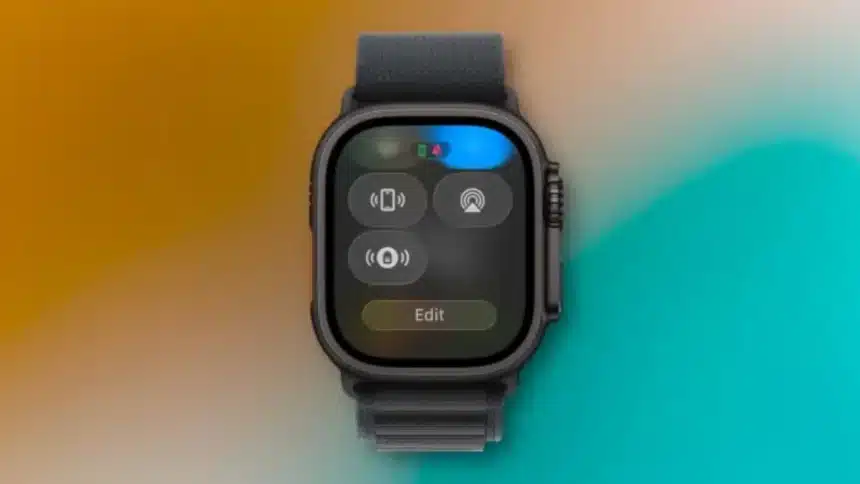
Although tracking AirTags is usually done through the Find Items app on the Apple Watch, Precision Finding is activated from the watch’s Control Center instead. Setting it up requires adding the feature manually.
Follow these steps to add Precision Finding to Control Center:
- Press the side button on the Apple Watch to open Control Center.
- Scroll to the bottom and tap Edit.
- Tap the Add button located at the top left corner.
- Scroll down to the Find Items section.
- Tap Find AirTag to add it to Control Center.
After the feature is added, the AirTag will appear with a small icon that matches the item it is attached to. For example, if the AirTag is placed in a backpack, the Control Center may display a backpack icon.
Adding Precision Finding to the Apple Watch makes the AirTag ecosystem more practical for everyday use. Instead of taking out a phone, users can start searching for their belongings directly from their wrist.
The feature also provides helpful visual and vibration cues, making the process faster and easier.
Also Read: Apple Rolls Out Critical iPhone Update- Check Your Settings Now!