




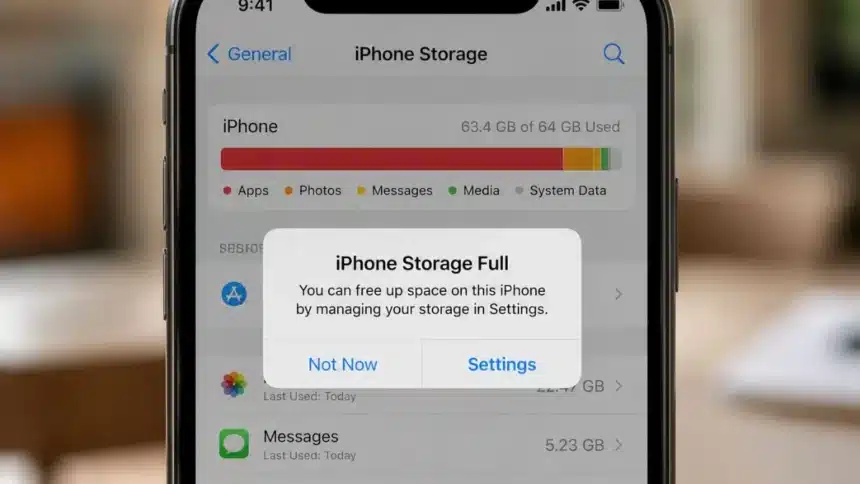
Apple comes up with regular software updates for its devices. This includes iPhones too and users do get a notification the moment an update is available. There is a general tendency amongst people to download the update. However, what most users ignore is the amount of storage space the update would end up taking.
This could be a common sight for many users that they are trying to click a picture photo or shoot a video, and receive a pop up message – Storage Full! The easiest way is to delete some pictures, uninstall a few apps maybe to free up some space. However, that would be a temporary fix.
The problem here is not always the large files, pictures and apps, but a hidden category known as ‘System Data. This is a hidden folder that simply takes up a large amount of space, and the iPhone gives us no simple option to clear it. Here is exactly what it is, why it keeps growing, and what you can actually do about it.
System Data
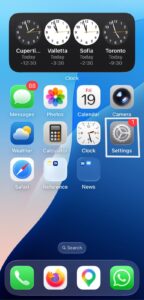
On the Home Screen of your iPhone, navigate to Settings icon as shown in the screenshot below:
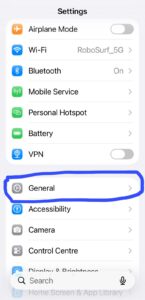
Then on the next screen, click on General as shown in the screenshot below:
Then on the next screen, click on iPhone Storage as shown in the screenshot below:
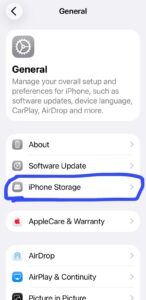
Then on the next screen, click on System Data as shown in the screenshot below:
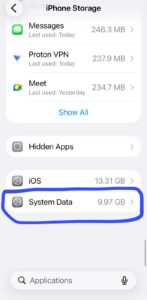
For many users, this section shows storage usage of 10GB to 30GB, without any proper explanation.
System Data is basically a drawer for everything in iOS. It keeps app cache files, browser history data, temporary downloaded files, message attachments, and leftover particles of software updates.
However, as all these files and data are generated in the background, Apple doesn’t provide an ‘All Clear’ option.
Also, one thing more to be noted is that even if you have enough iCloud storage, System Data lives only on your physical device. It cannot be offloaded to the cloud. Same is the case with the iOS folder. It remains native to the device. iOS folder is the one where the software update files get stored and that also uses up a significant amount of iPhone storage space.
7 Things You Can Actually Do Right Now
1. Restart Your Phone First
It sounds too simple, but a full restart can flush temporary files that accumulate during continuous use. It could free up space, somewhere around 500 MB to 1 GB.
2. Clear Safari’s Browsing History
Go to Settings > Apps > Safari > Clear History and Website Data, then select “All history.” This directly removes all cached web data from System Data.
3. Change Message History to 30 Days
Go to Settings > Apps > Messages > Keep Messages and switch it from “Forever” to 30 Days or 1 Year. iOS will automatically delete older threads and their attachments, which reduces the indexing load on System Data considerably.
4. Empty Recently Deleted Folders
Deleted messages and pictures sit in a ‘Recently Deleted’ folder in the Messages app or Photos for 30 days before getting permanently deleted. And these recently deleted files still count toward your storage. So, open both apps, go to their respective Recently Deleted folders, and permanently delete everything there.
5. Offload Heavy Social Media Apps
Go to Settings > General > iPhone Storage, and in the list of Apps that you see, find apps like Instagram, Facebook, or TikTok, and tap Offload App. This removes the app itself but keeps your documents and data. It targets the associated system cache, flushing bloated temporary files. Reinstall the app afterwards and log back in.
6. Delete and Reinstall Problem Apps Entirely
For stubborn cases, fully deleting an app and reinstalling it from the App Store is one of the most effective methods. Since most apps store your account data in the cloud, you lose nothing except the accumulated temporary files.
7. Back Up and Restore
If nothing mentioned above works and System Data remains high, backing up your phone to a computer or laptop via iTunes or Finder and then doing a restore is the last option. It resets System Data entirely. Although it is a bit time-consuming, it is the most thorough fix available.
Most iPhones use around 10 GB to 18 GB of System Data. This depends on how much you use your iPhone. But, if your iPhone is using more than 20-25 GB of System Data and it keeps going up even after you clear it, then there is a problem.
This problem is probably because of an app that is either not working properly or a background process that is stuck.
Apple does not have a button for System Data and will probably never have this button. This is because the iPhone is supposed to manage these files on its own.
So, all you can do to make some space on your iPhone is to clear the Safari browser, delete some messages and get rid of apps that you do not use any more. If you do these things, you can free up a lot of space on your iPhone without deleting any of your photos.
Also Read: Microsoft Quietly Disables THIS Windows Feature In Latest Changes