
For Microsoft Windows users who have an Android mobile phone, you might have heard of Phone Link by Microsoft.
This feature allows to link your mobile device and computer together so both devices function as one unit.
Which means, rather than juggling multiple devices, with Phone Link, you will be able to receive calls, send and receive text messages, manage notifications, and view photos on your PC.
This may be beneficial for users who are on their computer for extended amounts of time and need to stay connected via their mobile device; however, this is not a perfect solution for every user, and in some cases, it may not be necessary at all.
What Microsoft Phone Link Actually Does
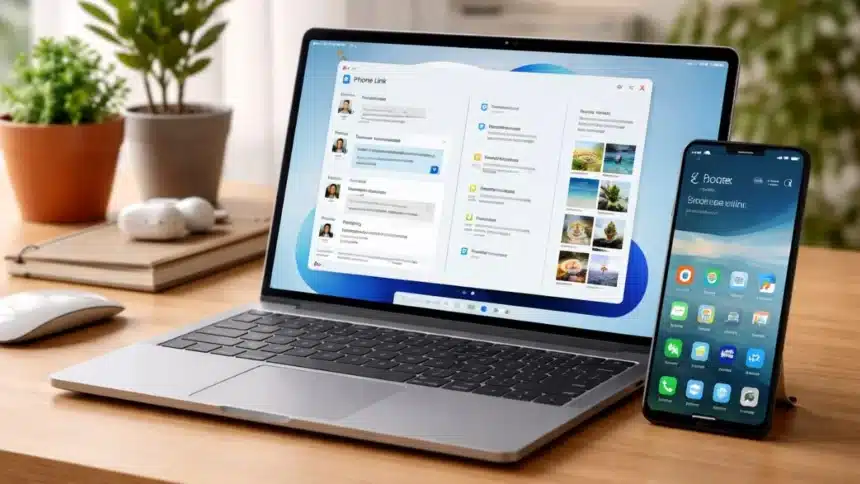
Phone Link connects your Android phone to your Windows PC through the Link to Microsoft Windows companion app. Once the devices are paired using the same Microsoft account and Wi-Fi network, your phone’s activity starts appearing on your computer.
This means you can read messages, view notifications, access photos, and even take calls without touching your phone.
The idea is simple: reduce the need to keep picking up your phone while working.
Messaging and Notifications on Your PC
Accessing your messages is one of the most helpful aspects of Phone Link.
Messages received on your phone will be displayed within the application on your desktop computer so that you can respond and read them with your keyboard.
You will also receive notifications for selected applications so that you are not distracted from your work by missing an important notification.
Having access to your messages and notifications on your computer can help reduce the number of times you have to stop what you are doing throughout the day, which is very useful for someone who spends most of their day working on a desktop computer.
Calls and Contacts
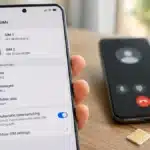
Phone Link can also handle calls through your computer. If your phone is nearby, you can answer or make calls directly from your PC. Your contact list syncs automatically, so dialling someone is quick and easy.
It’s not a replacement for your phone, but it makes communication easier when you’re already at your desk.
Quick Photo Access
Another handy feature is instant photo access.
Recent photos from your phone appear in the Phone Link window, so you can quickly drag them into emails, documents, or presentations. This removes the need to send files to yourself or upload them to cloud storage first.
Screen Mirroring on Some Devices
You can also screen mirror from an Android device to a computer, which allows you to see your phone’s screen on the computer and use your keyboard and mouse to interact with apps or respond to texts.
Unfortunately, not all devices will have this feature, and the quality of the mirroring experience can differ by device model.
Why Some People Skip Phone Link
Despite its useful features, Phone Link is not for everyone.
Support for Apple iPhone is limited compared to Android, and some users prefer keeping their phone and computer activities separate. Others already rely on cloud storage or messaging apps that sync across devices.
There are also small concerns like privacy, since messages and notifications appear on your PC screen.
Microsoft Phone Link can make your Windows PC feel more connected to your phone. For Android users who work on a computer all day, it can be genuinely convenient.
Also Read: Windows 11 Has These Hidden Features – Are You Using Them?