


Have you ever laid back on your desk and looked down at your phone and seen the time, date, or notification icons softly glowing without even touching the screen? That’s Always-On Display (AOD) at work. These features look simple at first glance, but they are based on clever display engineering that happens behind the scenes. If you want to know what it is, how it works and if you should or shouldn’t leave it on.
Always-On Display: Quick Overview
| Feature | Details |
| Full Form | Always-On Display (AOD) |
| What It Shows | Time, date, battery level, notifications and other glanceable information |
| Best Suited Display | OLED and AMOLED |
| Role of LTPO | Can lower the refresh rate significantly, helping reduce power consumption |
| Battery Use | Uses additional battery, but consumption varies by phone, brightness, refresh rate and AOD content |
| Burn-In Risk | Possible with OLED, but modern phones use protections such as dimming and pixel shifting |
| Common Platforms | Android and iPhone |
What Is Always-On Display?
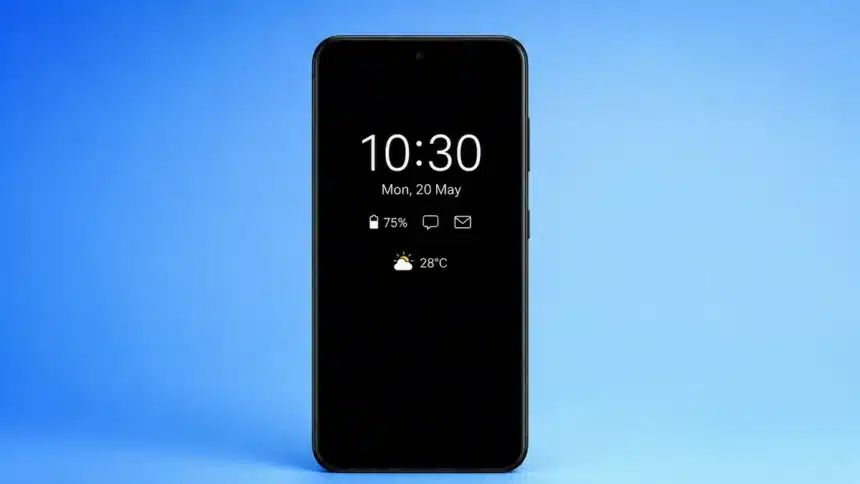
Your phone can be set to an “Always-On Display,” which displays a small amount of information all the time, even when the phone is “asleep” and you’re not using it. You get a dimmed view of the layout, rather than a non-responsive black screen, with things like the time, date, battery level and notification icons.
- Always-On Display: Quick Overview
- What Is Always-On Display?
- How Does Always-On Display Work?
- Why OLED Is Ideal for Always-On Display
- How LTPO Makes Always-On Display More Power Efficient
- What Information Can Always-On Display Show?
- Does Always-On Display Drain Battery?
- Does Always-On Display Cause OLED Burn-In?
- Always-On Display on Android vs iPhone
- How to Turn Always-On Display On or Off
- Should You Keep Always-On Display Enabled?
- FAQs
The goal is to give you quick access to information without having to fully wake up the phone. You don’t have to pick up the device or press a button to get to the important information. It’s always there.
How Does Always-On Display Work?
On OLED-based phones, AOD works by very dimly lighting up the pixels needed to show information on the screen. The phone only powers the pixels that are required to display the clock, icons and other visible elements, while black areas of the OLED display can remain off. This is not like a normal active screen displaying a bright, full-screen interface.
This selective pixel activation is possible due to the display technology used. This is where OLED comes in.
Why OLED Is Ideal for Always-On Display
OLED (organic light-emitting diode) screens are not made the same way as LCD screens. In an OLED panel, each pixel makes its own light, and each pixel can be turned on or off by itself. A pixel is “off” when it doesn’t use power and looks completely black.
That’s why AOD works particularly well on OLED and AMOLED phones. Since an Always-On Display has a black background most of the time on many devices, only the lit-up parts (numbers, icons, and small graphics) use display power. But a conventional LCD has a backlight that illuminates the panel, so it cannot switch off individual black pixels in the same way as OLED. LCD phones can technically support similar always-on or glance-style features, but they are generally less power-efficient. That’s why modern AOD implementations are primarily associated with OLED and AMOLED phones.
How LTPO Makes Always-On Display More Power Efficient
These are taken to a whole new level by new flagship phones that have LTPO (Low-Temperature Polycrystalline Oxide) displays. LTPO panels can change their refresh rate on the fly, going from as high as 120Hz to as low as 1Hz on supported devices, based on what’s on the screen.
This is very important for Always-On Display. A static clock doesn’t need 60 or 120 updates per second. On compatible LTPO panels, the refresh rate can drop as low as 1Hz when the displayed content is largely static. LTPO allows the display refresh rate to drop dramatically with AOD on, using a lot less power than older display tech. And that’s a big part of why AOD doesn’t seem to drain as much battery on newer phones as it did on older phones.
What Information Can Always-On Display Show?
Always-On Display can usually show the following, but it depends on the phone and software:
- Time and date
- Battery percentage
- Notification icons (calls, messages, apps)
- Music playback controls or currently playing track
- Calendar events or reminders
- Custom wallpapers, photos, or animated graphics
- Weather information
AOD is both a useful feature and a way to make your phone look different. Many phones let you change the fonts, clock styles, and notification icons that show up. Some Android manufacturers offer even more options. For example, users can customise the Always-On Display on supported OnePlus phones.
Does Always-On Display Drain Battery?
This is the question that most people have, and the honest answer is that it does use more battery than turning the screen off completely, but modern AOD implementations are designed to minimise this extra power consumption.
AOD only lights up a limited number of pixels at low brightness on many OLED implementations and can use very low refresh rates, especially on LTPO panels, so it can use considerably less power than keeping the full screen active. However, the actual battery drain varies depending on the phone model, display technology, refresh rate, screen brightness, wallpaper, notifications and amount of content shown. Older non-LTPO panels, brighter AOD settings or more lit-up areas can consume more power than newer, better-designed ones.
For most people with a modern phone, the convenience may be worth the additional battery cost. If you want to get the most out of your battery, though, turning off AOD is one way to make your Samsung battery last longer, especially when maximum battery life is more important than quick access to information.
Does Always-On Display Cause OLED Burn-In?
A real problem with OLED technology is burn-in, where an image on screen can permanently discolour or leave a visible ghost as the organic compounds that make up the display degrade unevenly over time. However, phone makers design AOD features in ways that help minimise this risk.
Some common ways to reduce damage are:
- Keeping AOD content relatively dark and at low brightness.
- Pixel shifting, which means moving things that don’t change, like the clock, a little bit over time.
- Reducing display brightness when high brightness is not required.
- Dimming or turning off AOD automatically in some situations.
Because of these protections, burn-in caused by Always-On Display alone is less likely during normal use on modern phones. Burn-in is still technically possible on OLED displays, especially when bright static elements are displayed for extended periods, but modern AOD implementations use measures such as low brightness, content movement and automatic screen-off behaviour to reduce the risk.
Always-On Display on Android vs iPhone
For years, Samsung, Google Pixel, and other Android phones have had AOD. The available customisation varies widely between manufacturers. Samsung, for example, offers different clock styles and other AOD options, while Google integrates information such as At a Glance and Now Playing into the Always-On Display on supported Pixel phones.
Apple first offered Always-On Display on the iPhone 14 Pro and Pro Max. It was later added to subsequent Pro models, and the regular iPhone 17 also supports Always-On Display. Apple’s version can show a dimmed version of the Lock Screen wallpaper instead of only showing a black background with icons. Users can also choose whether the wallpaper and notifications appear on the Always-On Display. On supported models, the display can operate at a refresh rate as low as 1Hz to reduce power consumption.
Android AOD implementations vary considerably between manufacturers, while Apple’s implementation is closely integrated with the iPhone Lock Screen.
How to Turn Always-On Display On or Off
To turn Always-On Display on or off, you have got to follow these steps given below. Keep in mind that menu names and paths can vary depending on the phone model and software version:
If you have a Samsung Galaxy, look for Always On Display under the Lock Screen or Lock screen and AOD settings. Depending on the Galaxy model and One UI version, you may also be able to choose how and when it appears.
- Google Pixel: On current Pixel software, go to Settings > Display & touch > Always-on display. The exact menu wording can vary depending on the Pixel model and Android version.
- On an iPhone, go to Settings > Display & Brightness and turn on or off Always-On Display.
Should You Keep Always-On Display Enabled?
Yes, for most people. Modern phones with OLED and LTPO screens are designed to keep AOD power consumption relatively low, and the risk of burn-in is reduced by software and display-management techniques. Also, being able to quickly see information is very helpful. If you’re using an older device (especially one without LTPO) or want the longest battery life for a certain reason (like travelling without a charger), it makes sense to turn it off for a short time.
FAQs
Does Always-On Display drain battery overnight?
Yes, it can use some additional battery since the display is still partially active. You can turn off AOD on many phones during certain times or use available scheduling and power-saving options to reduce this drain.
Does AOD work on LCD screens?
It can, but it is generally much less power-efficient. Traditional LCDs use a backlight that illuminates the panel, whereas OLED displays can control the light from individual pixels. This is why modern smartphone AOD implementations are mainly associated with OLED and AMOLED screens.
Does Always-On Display turn off automatically?
Yes, on many phones it can. Depending on the device and settings, AOD may switch off when the phone is face down, inside a pocket or bag, during certain power-saving or sleep modes, or in other situations determined by the manufacturer.
Can Always-On Display cause screen burn-in?
In theory, it is possible, but manufacturers use dimming, shifting pixels, and other methods to lower the risk. During normal use on modern phones, these protections help reduce the chance of AOD-related burn-in.
Why doesn’t my phone have Always-On Display?
Your phone may lack AOD because its display technology, display hardware or software does not support the feature, or because the manufacturer chose not to enable it on that particular model. Having an OLED screen alone does not guarantee Always-On Display support.