
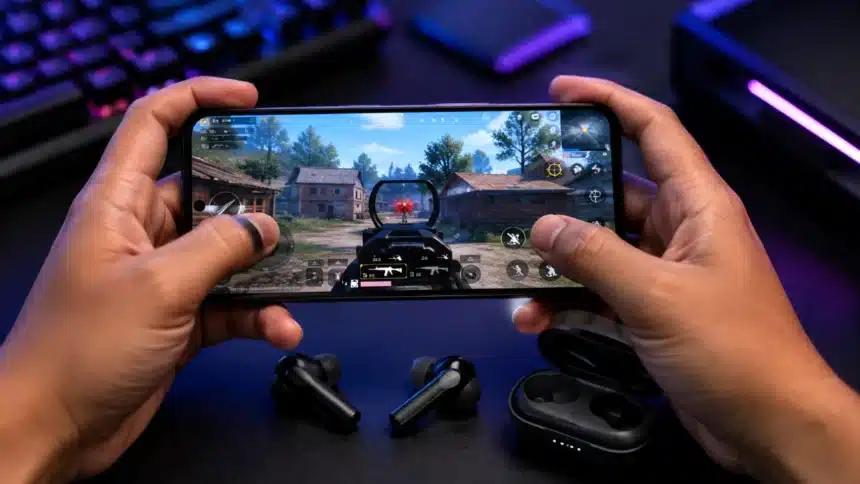
If you have ever used Bluetooth headphones or earbuds while gaming on your phone, you have almost certainly noticed it. The audio does not quite match what is happening on screen. You tap to shoot, but the sound arrives a fraction of a second later. Footsteps in the game feel out of sync. Explosions land visually before you hear them. It is subtle enough to confuse you at first, but once you notice it, it becomes impossible to ignore.
This audio delay, often called latency, is one of the biggest frustrations for mobile gamers who prefer wireless audio. And it is not limited to low price earbuds. Even premium Bluetooth headphones can suffer from noticeable lag depending on the codec, phone, and game involved.
- Why Bluetooth Audio Has Delay During Gaming
- Which Bluetooth Codecs Have the Lowest Latency?
- How to Check and Change Your Bluetooth Codec on Android
- Enable Game Mode or Low Latency Mode on Your Earbuds
- Reduce Latency Through Your Phone’s Settings
- I Tested This on My Phone
- What If None of These Fixes Work?
- Things to Check Before Gaming With Bluetooth Audio
- Does Fixing Bluetooth Audio Delay Actually Make Gaming Better?
The good news is that this is not something you simply have to live with. There are real, practical steps you can take to reduce or even eliminate Bluetooth audio delay while gaming. This article will explain why the delay happens in the first place, what factors make it worse, and how to fix it using settings, features, and adjustments available on most modern phones.
Why Bluetooth Audio Has Delay During Gaming
To fix the problem, it helps to understand what causes it.
When you use wired headphones, audio travels from your phone to your ears almost instantly through a physical cable. There is virtually no delay. But with Bluetooth, the process is different. Your phone has to:
- Encode the audio into a compressed format
- Transmit it wirelessly to your Bluetooth device
- Wait for the Bluetooth device to decode and play the audio
Each of these steps takes time. The total time from when the sound is generated in the game to when it reaches your ears is the latency. For music or video, a small delay is barely noticeable because your brain adjusts. But for gaming, where your actions and the audio feedback need to feel instant, even 100 to 200 milliseconds of delay can feel wrong.
The amount of delay depends on several factors:
| Factor | How It Affects Latency |
| Bluetooth codec | Different codecs compress and transmit audio at different speeds |
| Bluetooth version | Newer versions can offer improvements in connectivity and efficiency, but the Bluetooth version alone does not determine audio latency |
| Phone’s processing speed | Additional processing can contribute to overall audio latency |
| Distance from the phone | Greater distance or interference can affect connection stability |
| Game’s audio engine | Some games may introduce their own audio processing or timing differences |
| Earbuds/headphones hardware | The decoding and processing hardware inside your Bluetooth device affects the overall delay |
The codec is usually one of the most important factors. Standard Bluetooth audio commonly uses the SBC codec, while other codecs such as AAC, aptX, aptX Adaptive and LC3 can offer different combinations of quality, efficiency and latency depending on the complete device setup.
Which Bluetooth Codecs Have the Lowest Latency?
Not all Bluetooth codecs are created equal when it comes to gaming. There is no single fixed latency figure for each codec because real-world latency depends on the phone, earbuds, implementation, connection conditions and game.
For gaming specifically, aptX Adaptive is designed to provide low-latency audio for applications including gaming, while LC3 is the default codec for Bluetooth LE Audio.
- SBC: Widely supported, but not specifically designed for ultra-low-latency gaming
- AAC: Commonly used on Apple devices and supported on many other platforms
- aptX: Qualcomm’s Bluetooth audio codec family with broad device support
- aptX Adaptive: Designed to dynamically adjust and provide low-latency audio for gaming and other use cases
- LC3: The default codec for Bluetooth LE Audio, designed for efficient, high-quality Bluetooth audio
- LDAC/LHDC: Primarily focused on high-quality wireless audio, with actual latency varying by device implementation and connection conditions
For gaming, a low-latency codec can help, but both your phone and your earbuds need to support the same codec. Qualcomm specifically describes aptX Adaptive as a low-latency solution for gaming, while Bluetooth LE Audio uses LC3 as its default codec.
How to Check and Change Your Bluetooth Codec on Android
Most Android phones allow you to manually select a Bluetooth codec through Developer Options, although the exact options available vary by device and connected accessory.
Here is how to access it:
- Open Settings
- Go to About Phone
- Find the Build Number and tap it seven times to enable Developer Options
- Go back to Settings and open Developer Options, or search for it
- Scroll down to the Bluetooth Audio Codec section
- Tap it and select a compatible codec supported by both your phone and earbuds
Android’s official documentation confirms that Developer Options can include Bluetooth Audio Codec controls, along with settings for Bluetooth audio sample rate, bits per sample and channel mode.
For a more detailed explanation of Android Developer Options, you can also check our existing Devicology guide.
If you see aptX or aptX Adaptive in the list and your earbuds support it, you can try that option. If LC3 is available and both devices support Bluetooth LE Audio, you can also test it.
Keep in mind that if your earbuds do not support the codec you select, the phone may fall back to a compatible option. You cannot force a codec that your Bluetooth device does not support.
On iPhones, Apple does not provide a general manual Bluetooth audio codec selection option through iOS settings. If you are gaming on an iPhone and experiencing delay, the fixes will focus on other areas rather than codec selection.
Enable Game Mode or Low Latency Mode on Your Earbuds
Many modern Bluetooth earbuds and headphones come with a dedicated gaming mode or low latency mode. This mode is designed to reduce the delay between the phone sending audio and the earbuds playing it.
How to enable it depends on your specific earbuds:
- Samsung Galaxy Buds: Open the Galaxy Wearable app and check the available Labs or gaming-related options for your specific model.
- OnePlus Buds: Use the HeyMelody app or the Bluetooth settings on a OnePlus phone to check whether your model provides a low latency or gaming mode.
- Earbuds with companion apps: Brands such as Sony, Jabra, Nothing and Realme may provide gaming or low latency controls depending on the model.
- Earbuds without apps: Some budget earbuds activate gaming mode through a specific touch gesture. Check the user manual for the exact method.
For example, our Sennheiser Momentum True Wireless 4 review also covers how Bluetooth latency can become noticeable during fast-paced gaming.
When gaming mode is active, you may notice a slight reduction in audio quality or some other changes depending on the earbuds. This is normal. The earbuds may be prioritizing responsiveness over other aspects of the wireless audio experience.
Reduce Latency Through Your Phone’s Settings
Beyond codec selection and earbud settings, your phone itself may have options that help reduce Bluetooth audio delay.
On Android
- Disable Bluetooth audio processing effects: Some phones apply audio enhancements such as Dolby Atmos or equalizer effects. If you notice additional processing while gaming, try disabling unnecessary effects and compare the result.
- Turn off battery optimization for your game: If your phone aggressively manages background processes, try setting the game to unrestricted battery usage where your phone provides that option.
- Keep your phone’s software updated: Bluetooth and audio improvements can be included in system updates. Running current software ensures you have the latest available fixes for your device.
- Check Bluetooth audio settings in Developer Options: Android provides controls for Bluetooth Audio Codec, sample rate, bits per sample and channel mode. However, changing these settings does not guarantee lower latency on every device.
On iPhone
- Check Spatial Audio: If you use compatible AirPods, you can turn Spatial Audio and head tracking off from Control Center and compare the result during supported games.
- Disable unnecessary audio enhancements: If your headphones or earbuds provide additional processing through their companion app, try disabling those features while gaming.
- Keep iOS updated: Apple regularly provides software updates that can include Bluetooth and audio-related improvements.
Apple’s official documentation explains how to control Spatial Audio and head tracking on supported AirPods.
I Tested This on My Phone
To verify these fixes in practice, I tested Bluetooth audio latency while gaming on a Motorola Edge 60 Fusion running Android 15, paired with earbuds that support aptX Adaptive.
Here is my setup:
- Phone: Motorola Edge 60 Fusion, Android 15
- Earbuds: Paired via Bluetooth 5.3 with aptX Adaptive support
- Game tested: Call of Duty Mobile and BGMI
- Codec before fix: SBC (default)
- Codec after fix: aptX Adaptive
Before making changes: With the default SBC codec and no gaming mode enabled, the audio delay was clearly noticeable. Gunshots in Call of Duty Mobile arrived visibly after the muzzle flash on screen. In BGMI, footstep audio felt disconnected from the movement I was seeing.
After making changes: I switched the codec to aptX Adaptive through Developer Options and enabled the low-latency mode on my earbuds through their companion app. The difference was immediately obvious. Audio felt nearly synchronized with the on-screen action. Gunshots matched the visuals, and footsteps felt properly timed with character movement.
The delay was not completely zero, but it was reduced to a point where it no longer affected gameplay or felt distracting. For competitive gaming where every millisecond matters, wired audio is still technically superior. But for casual and semi-competitive mobile gaming, the combination of a low-latency codec and gaming mode on the earbuds made Bluetooth audio perfectly usable.
What If None of These Fixes Work?
If you have tried everything above and still experience unacceptable audio delay, the issue may come down to hardware limitations or the particular combination of phone, earbuds and game. Here are your remaining options:
- Use wired headphones or a USB-C DAC: This avoids the Bluetooth wireless audio path and can significantly reduce latency. If your phone does not have a headphone jack, a USB-C to 3.5mm adapter or a small DAC dongle can work if supported by your device.
- Upgrade your Bluetooth earbuds: If your current earbuds only support basic Bluetooth audio codecs, consider upgrading to a pair with a suitable low-latency mode or codec supported by your phone. The hardware inside the earbuds matters just as much as the phone.
- Use a dedicated gaming audio connection: Some gaming earbuds and headsets use a USB-C or proprietary wireless dongle rather than standard Bluetooth. These connections can provide lower latency than traditional Bluetooth audio.
- Disable in-game music and use only sound effects: This does not fix the delay, but it can make the lag less noticeable since ambient music is less timing-sensitive than action sounds.
- Check if your game has an audio offset setting: Some games allow you to manually adjust audio timing to compensate for delays. Look in the game’s audio or accessibility settings.
If you are specifically looking for gaming-focused earbuds, you can also read our Xiaomi Buds 5 Pro review, which covers their Bluetooth connectivity, audio features and overall performance.
Things to Check Before Gaming With Bluetooth Audio
Before you start a gaming session with Bluetooth earbuds, run through this quick checklist:
- Codec is set to a compatible low-latency option available on your phone and earbuds
- Gaming mode or low latency mode is enabled on your earbuds, if available
- Unnecessary audio enhancements are turned off if they are contributing to processing delay
- Earbuds have sufficient battery
- Phone software is up to date for the latest available Bluetooth improvements
- Earbuds firmware is up to date through the companion app
- Phone and earbuds are kept reasonably close together and away from sources of wireless interference
- No unnecessary Bluetooth devices are connected if they are causing connection or interference problems
Does Fixing Bluetooth Audio Delay Actually Make Gaming Better?
Based on my testing, yes, it makes a genuine and noticeable difference. Switching from the default SBC codec to aptX Adaptive and enabling gaming mode on my earbuds transformed the experience from frustratingly laggy to smooth and responsive.
The people who will benefit most from these fixes are mobile gamers who prefer wireless audio and play action games, shooters, or rhythm games where audio timing matters. If you mostly play turn-based or puzzle games, the delay probably does not bother you much. But for anything fast-paced, reducing Bluetooth latency can make a noticeable difference.
That said, this is not a universal fix. The result you get depends on your specific phone, your earbuds, the codecs both devices support, the wireless connection and even the game itself. Some combinations will get you very low perceptible delay. Others will improve things but not eliminate the lag entirely.
The practical takeaway is straightforward. If you game on your phone with Bluetooth audio and the delay bothers you, start with the codec and gaming mode fixes. They are free, take less than a minute to set up, and can deliver an immediately noticeable improvement. And if you are shopping for new earbuds, prioritize low-latency support and compatibility with your phone over flashy features. Your gaming experience will thank you for it.