



On the outside, a Windows PC appears to be clean. However, there’s a lot of activity occurring underneath.
Many background applications are opening quietly and providing notifications randomly, and you’ll find that some features that you may never need are still using your machine’s resources.
Useless Windows Features
If you’re looking for a faster and cleaner PC experience, below are some features to immediately disable.
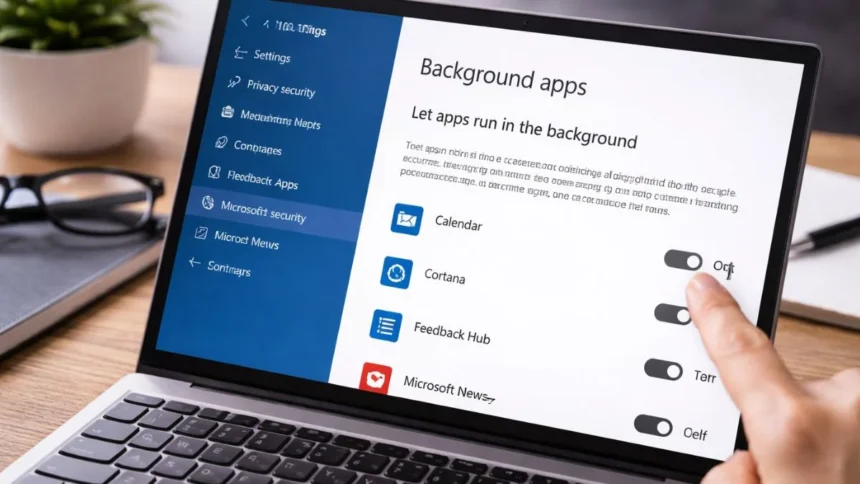
1. Background Apps You Never Use
Many apps keep running even when you’ve closed them. They use CPU, memory, and sometimes even internet data.
2. Annoying Tips and Suggestions
Windows keeps sending “helpful” tips and tricks. They’re useful once, maybe twice. After that, they just become noise. Disabling them cuts down distractions and stops extra background activity tied to notifications.
3. Lock Screen Ads and Content
Your lock screen doesn’t need to show random suggestions or promotions. Switching this off not only makes your PC feel cleaner but also slightly speeds up login since fewer elements are loading.
4. Visual Effects and Animations
Transparency, shadows, animations, they look good, but they cost performance. If your system isn’t high-end, turning these down or off makes a noticeable difference in speed and responsiveness.
5. Cortana and Voice Features
If you’re not using voice commands, this is just wasted power. Disabling it removes background processes and also improves privacy, since fewer services are actively listening or processing.
6. Automatic App Suggestions
Windows loves suggesting apps from the Microsoft Store. These clutter your Start menu and don’t really add value. Turning them off gives you a cleaner interface and fewer distractions.
7. Microsoft OneDrive Auto Sync
Auto-sync sounds useful, but it constantly runs in the background. If you don’t rely on it daily, switch it to manual. You’ll save bandwidth, reduce CPU usage, and avoid random slowdowns.
8. Data Sharing and Telemetry
Windows collects diagnostic data to improve services. While some of it is necessary, optional telemetry can be reduced. This improves privacy and slightly cuts down background activity.
9. Xbox Game Bar and Gaming Services
Even if you don’t play games, these services are active. Turning them off frees up memory and reduces unnecessary background processes.
10. Live Tiles and Dynamic Start Menu
Live tiles update things like weather and news in real time. But they do it by constantly running in the background. Disable them for a simpler Start menu and better performance.
11. Automatic Feedback Requests
Windows asking for feedback might seem harmless, but it runs background services. Turning this off keeps your system focused and eliminates interruptions.
12. Unnecessary App Notifications
Apps love sending notifications you don’t need. Disabling them improves focus and reduces background activity, especially if you have a lot of apps installed.
Also Read: WhatsApp Testing ‘Plus’ Subscription With Exclusive Features For Power Users