

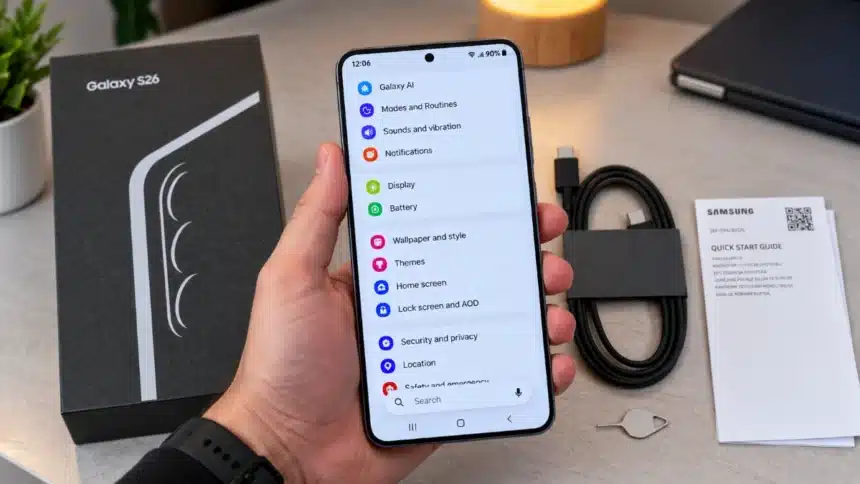
When you get a new Samsung Galaxy S26, the first thing you need to do is check out some of the features and settings that may seem hard to find. Samsung Galaxy devices have plenty of fantastic hidden features. Setting them up can extend your device’s lifespan and improve efficiency.
Here are a couple of Samsung Galaxy S26 settings that I will definitely change as soon as I get this smartphone.
The First Things To Change in Samsung Galaxy S26 Settings
Before you personalize your home screen and install apps, change a few useful settings right away. These settings will improve your smartphone’s display quality, speed up navigation, and make your phone easier and more efficient to use.
These changes will make your Samsung Galaxy S26 clean, fast, and even better right out of the box.
1. Check Display Settings
Samsung Galaxy S26 comes with an FHD+ display, while the Galaxy S26+ and Galaxy S26 Ultra offer QHD+ resolution. Therefore, the base Galaxy S26 does not have a QHD+ resolution option.
Go to Settings > Display and check the available display settings. You can adjust options such as Screen mode and other display features based on your preference. If you ever feel that the battery is becoming a problem, you can also adjust some display settings to help reduce power consumption.
2. Enable Privacy Features
First, it is about privacy on any smartphone. The Samsung Galaxy S26 offers plenty of features for securing your privacy and personal information. Here are a couple of features that you need to use to guarantee the protection of your information:
- Notification privacy: Set your lock screen to hide sensitive data. This means only you can access your personal notifications.
- App permissions: Check and configure your apps’ permissions so they use only the information they need.
This gives you control over your information and helps keep you secure.
3. Combine Quick Settings and Notification Drawer
Samsung split the Quick Settings and Notification Drawer after the launch of One UI 7, and users aren’t very happy about it. This is also the first thing you will notice on your new Samsung Galaxy S26, and you can fix it easily.
Swipe down from the top-right of the screen to open the Quick Panel, tap the pencil edit icon, click Panel settings at the top, and modify the settings to combine them into one instead of two swipes. You can also delete the Media and Device Control buttons from the notification bar.
4. Turn Off or Disable Extended RAM
The Samsung Galaxy S26 is equipped with 12GB of RAM. Samsung also offers RAM Plus, which uses part of the phone’s internal storage as virtual memory.
At first, it may not seem like a big problem, since RAM Plus can help keep more apps open in the background when the device needs additional memory. However, if your Samsung Galaxy S26 already has 12GB of RAM, you may not need RAM Plus for your everyday usage. You can adjust or disable it based on your preference.
To turn off Extend RAM, go to Settings, tap Device Care, then Memory, tap RAM Plus, and choose the setting you prefer or turn it off if the option is available.
5. Turn Off Pop-up Notifications
I don’t like being disturbed by messages from a contact or an app when I am using my phone. It is an easy distraction, as you will tend to click on the pop-up and eventually forget what you were doing.
If you’re like me, you should change this setting immediately. Go to Settings > Notifications > App Notifications, select the app you want to change, then tap Notification pop-up style and choose the notification style you prefer.
6. Switch to Gesture Navigation
Android introduced gesture navigation years ago, but the Samsung Galaxy S26 still uses the three-button navigation system. If you prefer this, you can skip this point. But if you like Gesture navigation, here is a simple way to turn it on. Go to Settings > Display > Navigation Bar and choose Swipe gestures. You can also adjust the back-gesture sensitivity in More options.
You can also find Google’s Circle to Search feature, and you can always turn it on or off. This feature lets you press and hold the home button or pill-shaped bar to circle anything on the screen and search on Google. Circle to Search can be used independently of whether you use gesture navigation or three-button navigation.
7. Developer’s Options
To adjust animation speeds on your Samsung Galaxy S26, unlock Developer Options. Go to Settings > About phone > Software Information, then tap Build number 7 times.
Inside Developer options, you can change window animation scale, animator duration scale, and transition animation scale to 0.5x.
It won’t technically make your phone faster, but it will make the animations feel faster and everything more responsive.
Final Thoughts
You can make full use of your Samsung Galaxy S26 by following the advice above. Every configuration change listed above will improve your overall experience, from improving privacy to customizing your phone. To get the most out of your new gadget, spend some time exploring these features and customizing your Samsung Galaxy S26.