



You wouldn’t know it, but someone might be tracking your phone right now. There are hidden trackers in your phone. They exist in the apps you download, system settings, and even the hardware accessories nearby. Several Americans never even get their phones audited for the same.
But this stops now.
Dive into this guide that walks you through a perfectly done technical audit. By the end, you will be able to locate these hidden trackers, disable them, and be cautious of the new ones. Even if you don’t have any technical background, you will still be able to understand everything. Just have your phone, and in the next fifteen minutes you will clear these trackers.
- Hidden Trackers Audit Checklist
- Understanding What Hidden Trackers Actually Are
- Step-by-Step Audit for iPhone Users (iOS 18+)
- Step 1: Check App Tracking Permissions
- Step 2: Audit Location Access
- Step 4: Review System-Level Data Sharing
- Step 5: Check for Tracking Profiles
- Step-by-Step Audit for Android Users (Android 15+)
- Step 1: Use the Privacy Dashboard
- Step 2: Audit Location Permissions
- Step 3: Scan for Unknown Bluetooth Trackers
- Step 4: Reset Your Advertising ID
- Red Flags That Suggest Active Tracking
- Preventing Future Tracker Installations
- Quarterly Maintenance Checklist
- What US Privacy Laws Mean for You
- Final Thoughts
Hidden Trackers Audit Checklist
| Tracking Type | Where It Comes From | Risk Level | What to Check |
| Software Trackers | Installed apps | High | Review app tracking permissions and unnecessary app access. |
| Physical Trackers | AirTag, SmartTag, Tile and similar Bluetooth trackers | High | Scan for unknown trackers using your phone’s built-in detection tools. |
| System-Level Trackers | Advertising ID, location history, analytics | Medium | Disable unnecessary data sharing and reset your advertising ID. |
| Location Tracking | Apps with location access | High | Change permissions to “While Using” or “Never” wherever possible. |
| Bluetooth Tracking | Nearby tracking devices | Medium | Enable Unknown Tracker Alerts and run regular scans. |
Read Also: Are These Popular Web Browser Extensions Secretly Selling Your Mobile Web History?
Understanding What Hidden Trackers Actually Are
There are multiple forms of trackers. These include software-based trackers, some buried inside the apps you’ve installed for years but never checked. Some more include AirTags or SmartTags placed near you without consent. There is a third category that lives inside the operating system of your device.
Software Trackers
Your apps generally have code snippets embedded in them. They collect data like location, browsing, contacts, and even device usage patterns. Several apps bundle around 5-15 trackers. In general, social media apps carry the most trackers.
Physical Trackers
Bluetooth-enabled devices can follow your movements as well. These include Apple AirTags, Samsung SmartTags, and Tile trackers. Such a tracker could even be slipped into your bag, luggage, and car. Now, Apple and Google can alert users regarding unknown trackers near you. But these alerts also need clear settings to function.
System-Level Trackers
Your phone’s operating system is also collecting your data secretly. This can be done via advertising IDs, location history, and diagnostic sharing. They run silently unless you are actively disabling them.
Step-by-Step Audit for iPhone Users (iOS 18+)
Starting from 2025, Apple has started improving privacy tools. But several features still need manual activation. Here is a complete audit checklist you need to follow.
Step 1: Check App Tracking Permissions
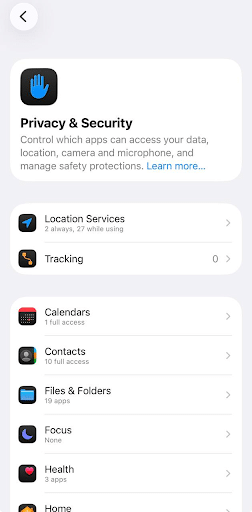
- Open Settings > Privacy & Security > Tracking.
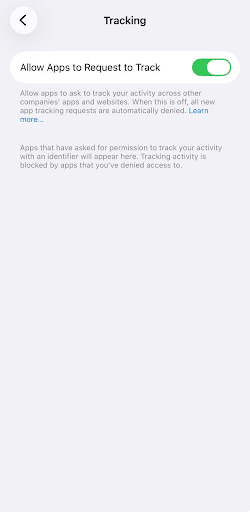
Check for the button and ensure “Allow Apps to Request to Track” stays off if you want blanket denial. This should be disabled.
Step 2: Audit Location Access
- Go to Settings > Privacy & Security > Location Services.
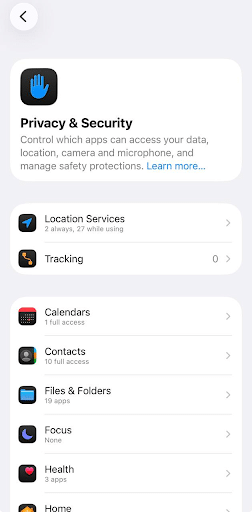
- Review every app listed there.
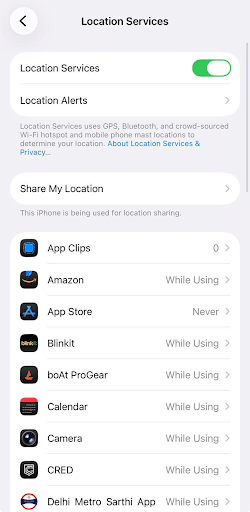
- Change permissions to “While Using” or “Never” for most apps.
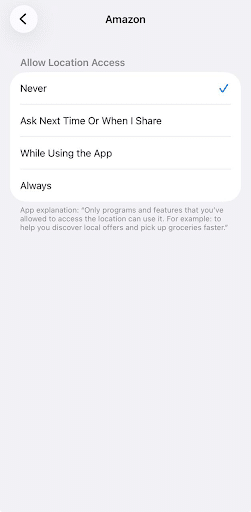
- Check for apps set to “Always.” Question whether they truly need constant access.
| Location Setting | When to Use It |
| Never | Apps that have no location-based function |
| While Using the App | Navigation, weather, ride-sharing apps |
| Always | Only fitness trackers or Find My Phone services |
Step 3: Scan for Unknown Physical Trackers
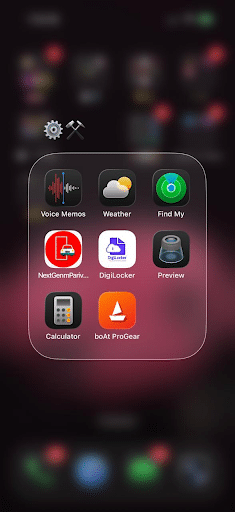
- Open the Find My app.
- Tap the Items tab at the bottom.
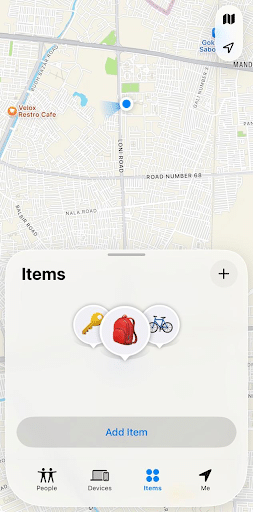
- Look for “Items Detected Near You” alerts.
- If an unknown tracker appears, tap it for options to disable or play a sound.
Apple has now started to send automatic notifications if an unfamiliar AirTag is traveling with you. Ensure notifications for Find My are enabled under Settings > Notifications.
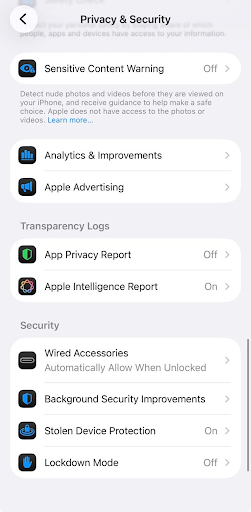
Step 4: Review System-Level Data Sharing
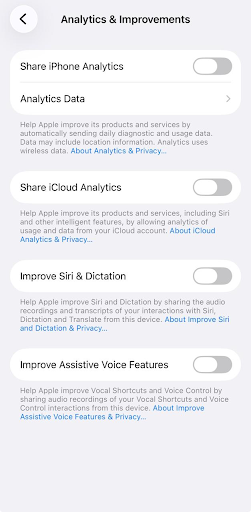
- Go to Settings > Privacy & Security > Analytics & Improvements.
- Turn off Share iPhone Analytics.
- Turn off Share iCloud Analytics.
- Turn off Improve Siri & Dictation.
Step 5: Check for Tracking Profiles
- Go to Settings > General > VPN & Device Management.
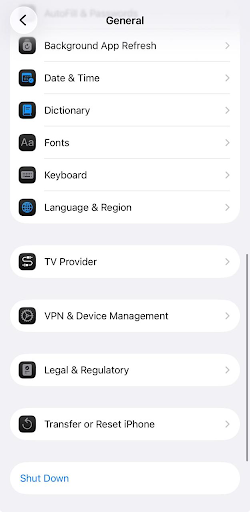
- Look for any configuration profiles you did not install.
- Unknown profiles can route your traffic through third-party servers.
- Delete anything you do not recognize immediately.
Step-by-Step Audit for Android Users (Android 15+)
Android has now started to offer granular privacy controls. Google’s Privacy Dashboard makes auditing faster than previous years. Follow these steps on Samsung Galaxy, Pixel, or any Android 15+ device.
Step 1: Use the Privacy Dashboard
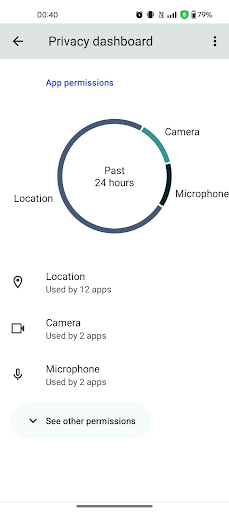
- Open Settings > Security & Privacy > Privacy Dashboard.
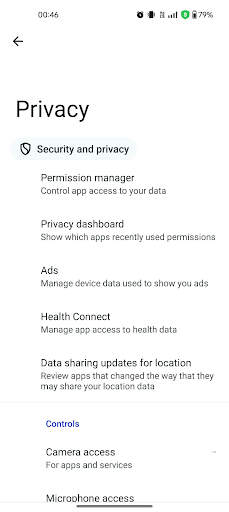
- Review which apps accessed location, camera, and microphone in the last 24 hours.
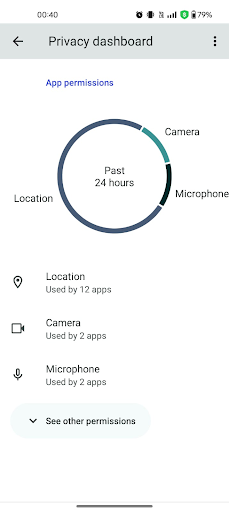
- Tap any permission to see the full access timeline.
- Revoke access for apps that used permissions at unexpected times.
Step 2: Audit Location Permissions
- Go to Settings > Privacy & Dashboard > Location.
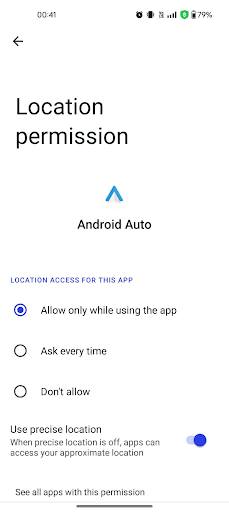
- Review apps and click on any app to see if they have permission for location. Check for “Allowed all the time” first. This category poses the highest risk.
- Move apps to “Allowed only while in use” or “Not allowed.”
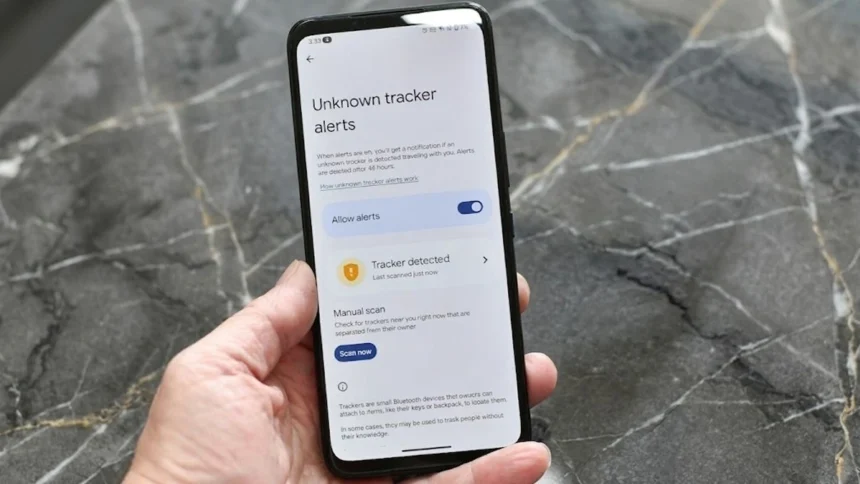
Step 3: Scan for Unknown Bluetooth Trackers
- Go to Settings > Security & Privacy > Device Finders.
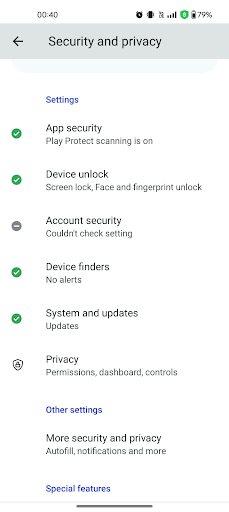
- Then, click on Unknown Tracker Alerts. Ensure this feature is toggled on.
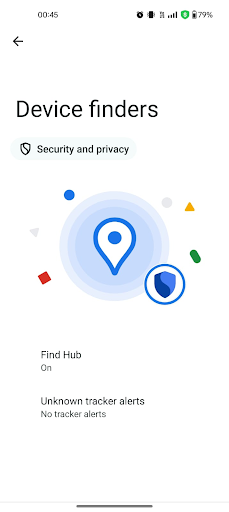
- Run a manual scan by tapping “Scan Now.”
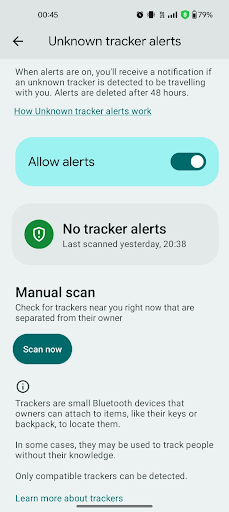
- If a tracker appears, follow prompts to locate and disable it physically.
Google has now rolled out cross-platform tracker detection starting late 2024. This works for AirTags, SmartTags, Tile, and other Find My Network accessories.
Step 4: Reset Your Advertising ID
- Open Settings > Security & Privacy > Privacy > Ads.
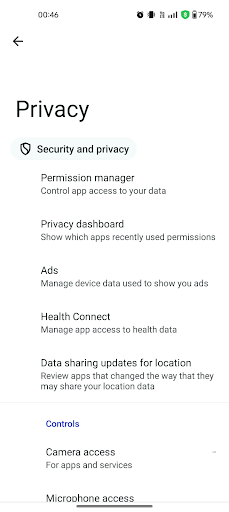
- Tap “Delete advertising ID.”
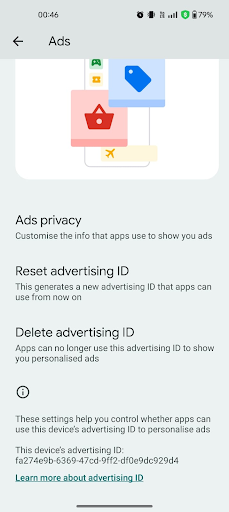
This prevents apps from building a persistent profile across your usage.
Red Flags That Suggest Active Tracking
Sometimes trackers reveal themselves through phone behavior. Watch for these warning signs during your daily use.
- Unusual battery drain without increased usage.
- Phone runs warm while idle or in your pocket.
- Unknown apps appear that you never downloaded.
- Data usage spikes without streaming or downloads.
- Delayed shutdown when you power off your device.
- Random notification sounds from Bluetooth devices nearby.
If you notice two or more of these signs, run the full audit above. Consider a factory reset as a last resort if suspicious apps resist removal.
Preventing Future Tracker Installations
Auditing once helps. Building habits prevents recurring issues. These practices keep your device clean going forward.
For Both iPhone and Android
- Update your OS within one week of every release. Security patches close tracker vulnerabilities.
- Only install apps from the App Store or Google Play Store. Sideloaded apps carry higher tracker risk.
- Review app permissions immediately after every install. Deny anything unnecessary upfront.
- Run the physical tracker scan weekly if you commute or travel frequently.
- Use a privacy-focused browser like Firefox or Brave for daily browsing.
Quarterly Maintenance Checklist
| Task | Frequency | Time Required |
| Full app permission audit | Every 3 months | 10 minutes |
| Physical tracker scan | Weekly | 2 minutes |
| Advertising ID reset | Every 3 months | 1 minute |
| OS and app updates | Within 7 days of release | 5-15 minutes |
| Review installed apps list | Monthly | 5 minutes |
| Check device admin apps (Android) | Every 3 months | 3 minutes |
What US Privacy Laws Mean for You
American users have specific legal protections worth knowing. These vary by state but provide real recourse.
- California (CCPA/CPRA): You can request companies delete your tracked data. Opt-out rights exist for data sales.
- Colorado, Connecticut, Virginia, Oregon, Texas: Similar consumer privacy laws now active. Right to know and delete applies.
- Federal level: No comprehensive federal privacy law exists yet in 2026. But the FTC actively pursues companies that track without consent.
Knowing your rights matters. If you discover unauthorized tracking, document everything. File complaints with your state attorney general and the FTC.
Final Thoughts
Your phone can and should work for you. It is definitely not for someone watching through it. The audit explained in this article would just take 5-15 minutes of yours, but will protect you for months ahead. Run through both the software and physical tracker checks now. Set a calendar reminder for quarterly reviews. Privacy in 2026 requires active participation. The tools exist on your device already. You just need to use them intentionally.
Disclaimer: These are all recommended usage methods. Users are advised to exercise their own discretion and caution before they undertake any changes on their devices.
Must Read: AirDrop Alternatives 2026: The Best File Transfer Apps Tested for Speed and Security
Visit Devicology for the latest Tech News, Guides, and in-depth Reviews. Follow us on Whatsapp, LinkedIn, X (Twitter) and Instagram to never miss an update!