


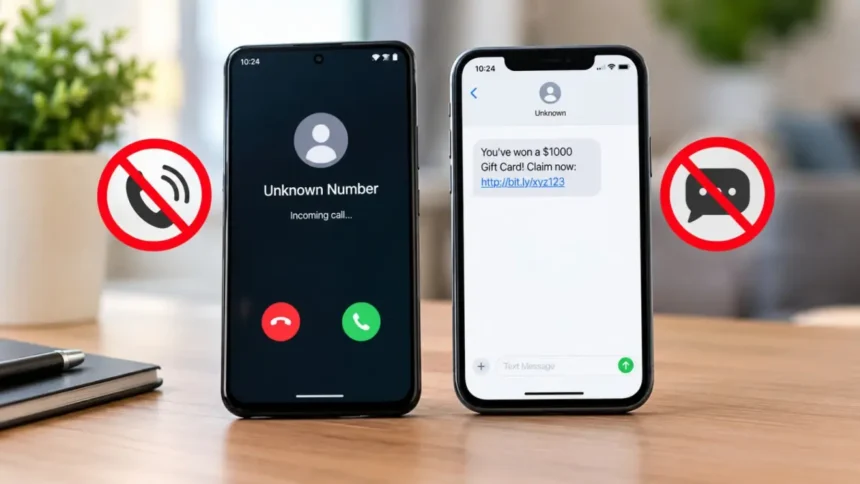
These days, it seems like junk texts and spam calls are commonplace. One moment you’re anticipating a call from your doctor’s office or a delivery update, and the next you’re staring at a message saying you owe money to an unidentified organization or have won a gift card.
Many individuals just ignore calls from numbers they don’t recognize because the issue has gotten so widespread. Sadly, this can result in both bothersome and crucial calls being missed.
- Why Are You Getting So Many Spam Calls and Texts?
- Common Types of Spam Calls
- Common Types of Junk Texts
- The Golden Rule: Never Reply to Spam Messages
- How to Stop Spam Calls on Android
- Step 1: Open the Phone App
- Step 2: Tap the Three-Dot Menu
- Step 3: Open Caller ID & Spam Protection
- Step 4: Turn On Spam Filtering
- How to Block a Specific Number on Android
- How to Stop Junk Texts on Android
- Step 1: Open Messages
- Step 2: Tap Your Profile Icon
- Step 3: Open Spam Protection
- Step 4: Enable Spam Protection
- How to Block a Text Sender on Android
- How to Stop Spam Calls on iPhone
- Step 1: Open Settings
- Step 2: Scroll to Phone
- Step 3: Select Silence Unknown Callers
- What Happens Next?
- How to Block a Number on iPhone
- Step 1: Open the Phone App
- Step 2: Open Recents
- Step 3: Tap the Information Button
- Step 4: Choose Block Caller
- How to Stop Junk Texts on iPhone
- Additional Ways to Reduce Spam
- Avoid Posting Your Number Publicly
- Be Careful With Online Forms
- Use Two-Factor Authentication Apps
- Watch for Data Breaches
- Don’t Answer Suspicious Calls
- Signs that a Call or Text Is Probably a Scam
- Final Thoughts
The good news is that both iPhones and Android phones come with built-in capabilities to help cut down on unsolicited calls and messages. You can significantly reduce spam and take back control of your phone with a few wise behaviors.
Here’s how spam calls operate, the reasons for the persistent appearance of garbage texts, and the most effective techniques to prevent them.
Why Are You Getting So Many Spam Calls and Texts?
The majority of spam calls are not random.
Your phone number may have ended up in marketing databases through:
- Online shopping accounts
- Sweepstakes entries
- Social media profiles
- Data breaches
- Public records
- Third-party marketing lists
Additionally, scammers employ automated systems that create and call thousands of phone numbers each day.
Marketers and prospective scammers will find your number even more desirable if it is active and someone answers the phone or responds to a text.
Reducing engagement is therefore one of the best defenses.
Common Types of Spam Calls
Not every unsolicited call originates from the same place.
The most prevalent kinds consist of:
Robocalls
These automated calls frequently try to sell goods or services by playing pre-recorded messages.
Fake Financial Warnings
Callers may claim:
- Your bank account is compromised
- A payment has failed
- An urgent transaction requires approval
The goal is usually to collect personal information.
Fake Government Calls
Sometimes scammers pose as police enforcement, tax departments, or government entities.
Fear techniques are frequently used in these calls to generate a sense of urgency.
Extended Warranty and Insurance Calls
Repeated calls for auto warranties, insurance updates, or account verification are common.
These calls are typically unwanted marketing, even when they are genuine.
Common Types of Junk Texts
Spam texts have become just as common as spam calls.
Examples include:
- Package delivery scams
- Account verification requests
- Fake banking alerts
- Prize notifications
- Cryptocurrency promotions
- Fraudulent job offers
Many include suspicious links designed to steal personal information.
The Golden Rule: Never Reply to Spam Messages
One of the biggest mistakes people make is responding with messages such as:
- Stop
- Unsubscribe
- Who is this?
- Remove me from your list
These answers can verify that your number is active, even though they might occasionally operate with reputable companies.
It’s usually preferable to block and report communications that are clearly spam.
How to Stop Spam Calls on Android
Numerous built-in tools on Android handsets can assist in screening out unsolicited calls.
Step 1: Open the Phone App
On your Android device, open the Phone app.
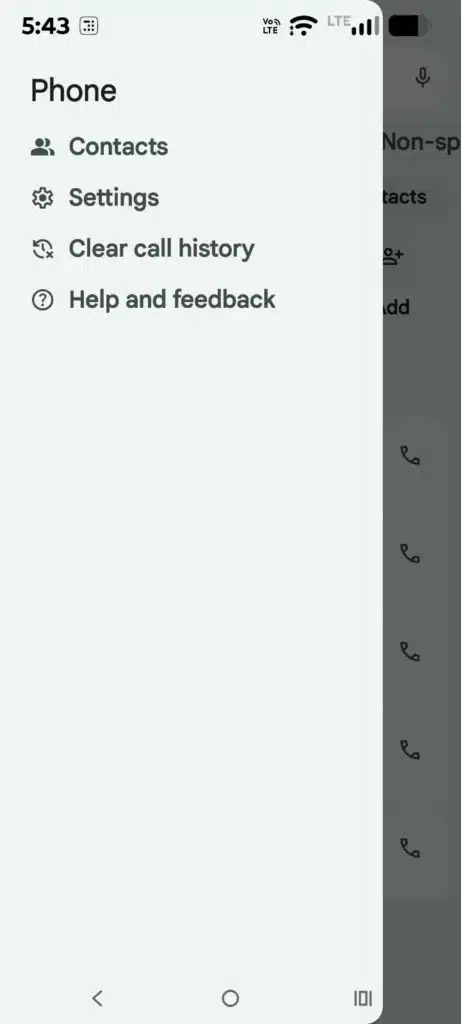
Step 2: Tap the Three-Dot Menu
In the top corner, look for the three-dot menu.
Tap it and select: Settings
Step 3: Open Caller ID & Spam Protection
Depending on the version of Android you have, you will see options like:
Caller ID & Spam
or
Spam Protection
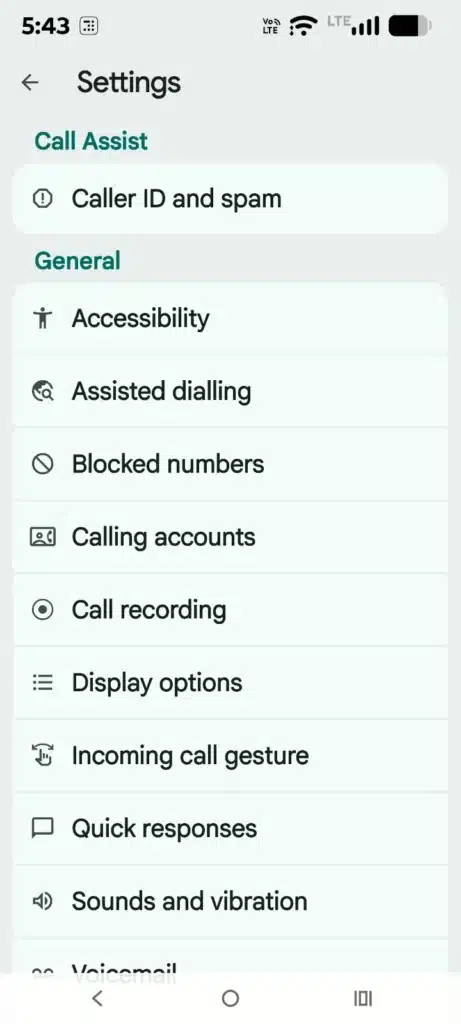
Enable the available spam protection settings.
Step 4: Turn On Spam Filtering
Enable:
- Caller ID
- Spam Detection
- Filter Spam Calls
Each manufacturer has a different phrasing.
When enabled, Android can alert you to calls who might be spammers before you answer.
How to Block a Specific Number on Android
If you continue to receive calls from spammers:
Step 1: Open Recent Calls
Launch the Phone app and view your call history.
Step 2: Select the Number
Tap the suspicious number.
Step 3: Choose Block
Select:
Block Number
or
Block/Report Spam
How to Stop Junk Texts on Android
Android’s Messages app includes useful spam controls.
Step 1: Open Messages
Launch the Google Messages app.
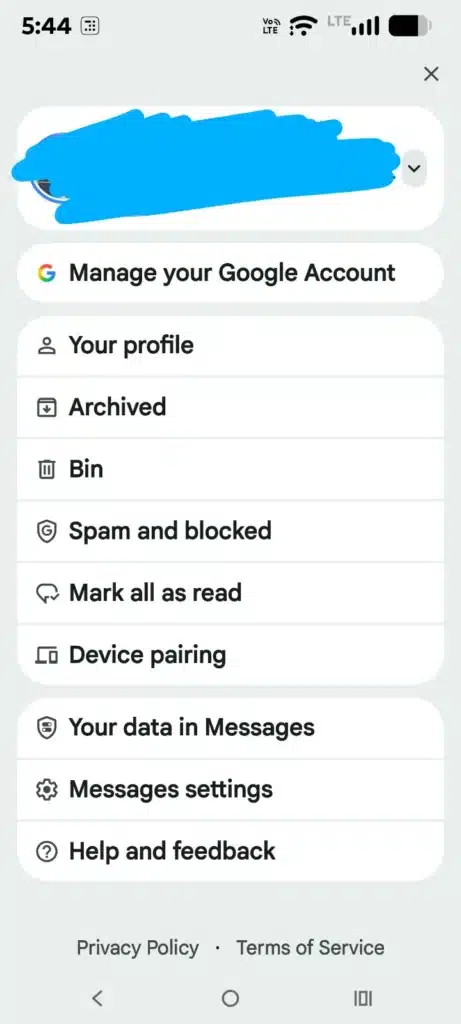
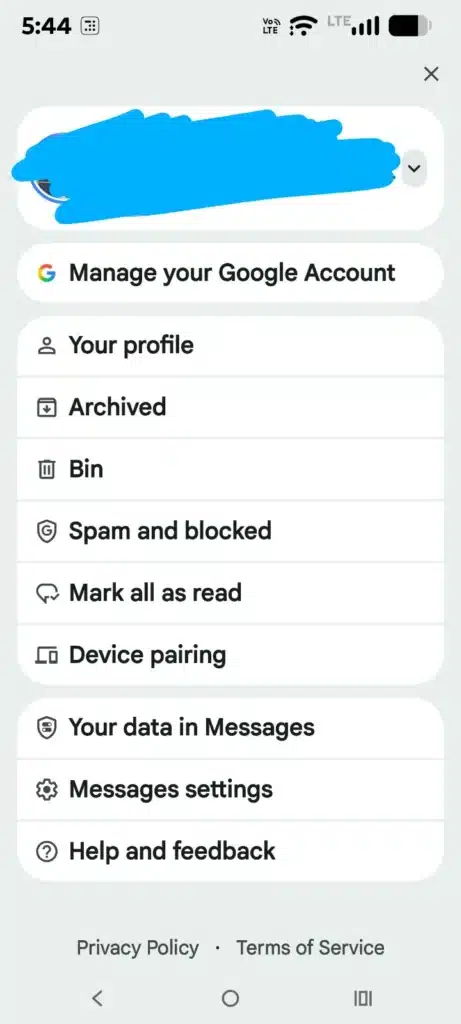
Step 2: Tap Your Profile Icon
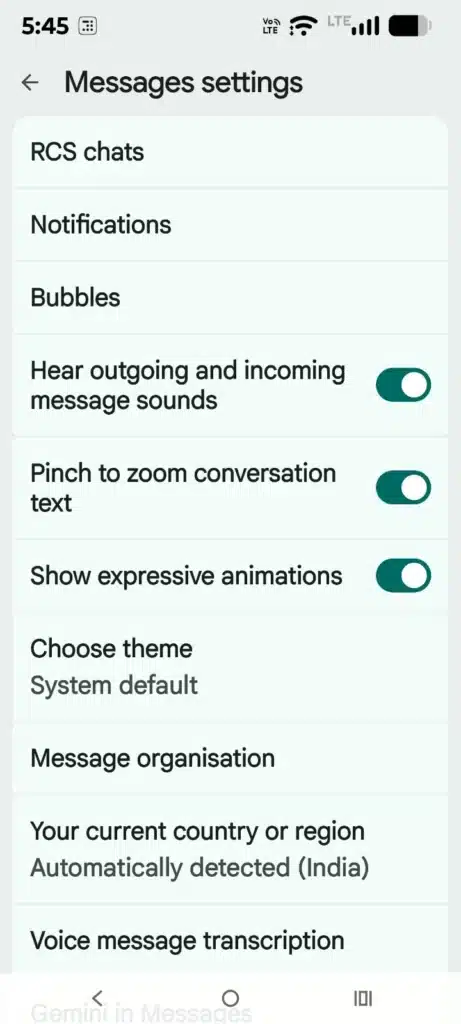
Select:
Messages Settings
Step 3: Open Spam Protection
Navigate to:
Spam Protection
Step 4: Enable Spam Protection
Turn on:
Enable Spam Protection
Your phone will automatically identify many junk messages before they reach your inbox.
How to Block a Text Sender on Android
Step 1: Open the Conversation
Tap the unwanted message.
Step 2: Tap the Menu
Open the options menu.
Step 3: Select Block and Report Spam
Choose:
Block & Report Spam
Future messages from that sender will no longer reach your inbox.
How to Stop Spam Calls on iPhone
Apple includes several helpful tools for reducing spam calls.
Step 1: Open Settings
Launch the Settings app.
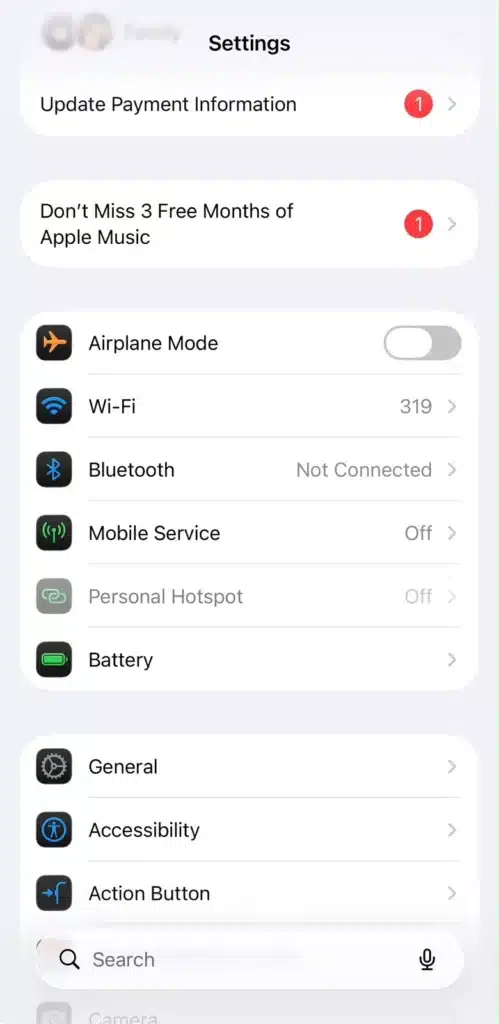
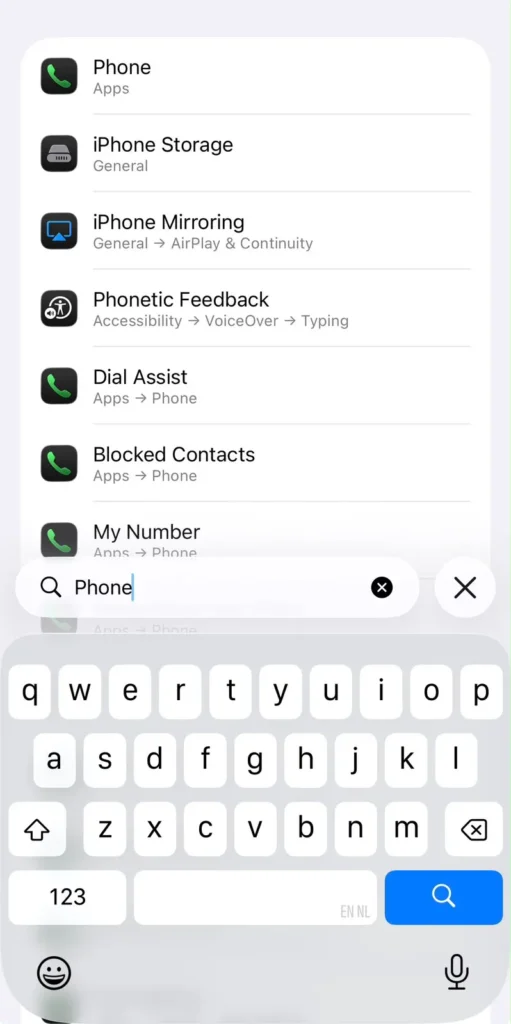
Step 2: Scroll to Phone
Tap:
Phone
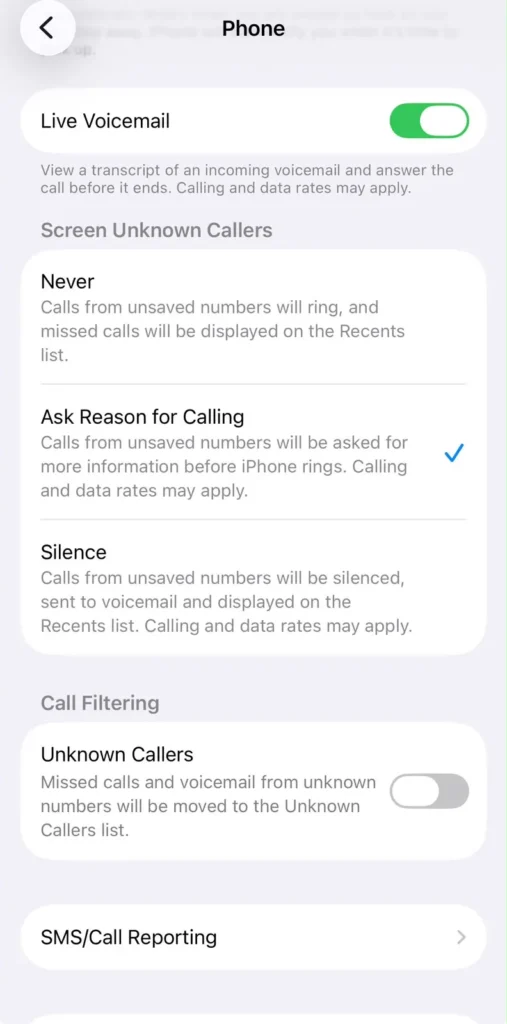
Step 3: Select Silence Unknown Callers
Find:
Silence Unknown Callers
Turn it on.
What Happens Next?
Calls from unknown numbers are sent directly to voicemail.
Contacts, recent outgoing calls, and recognized numbers can still ring normally.
How to Block a Number on iPhone
Step 1: Open the Phone App
Launch the Phone application.
Step 2: Open Recents
Tap:
Recents
The entire call log including calls made and received will show up. Next to each number, on the right hand side next to the time of call, there is an information button with a small i in a circle.
Step 3: Tap the Information Button
Select the small information icon next to the number.
Step 4: Choose Block Caller
Tap:
Block this Caller
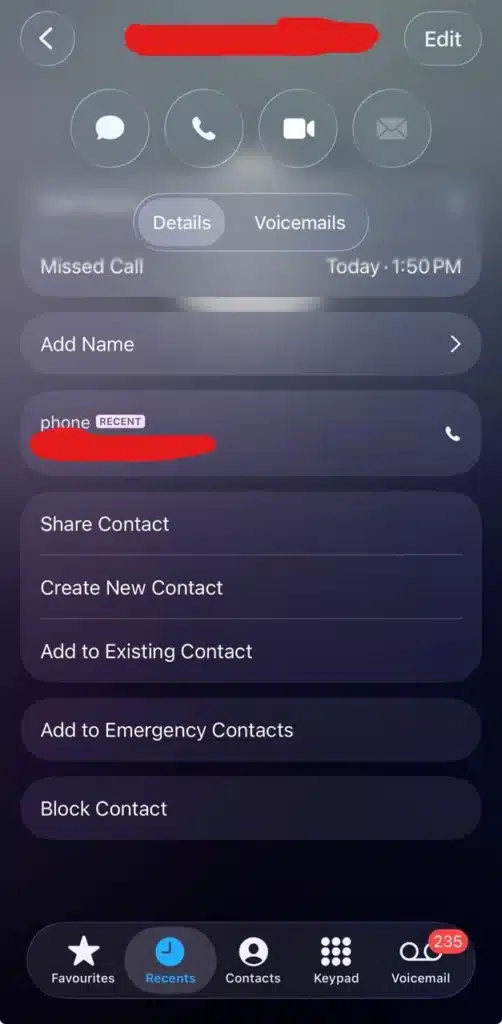
The number can no longer call, text, or FaceTime you.
How to Stop Junk Texts on iPhone
The Messages app also includes filtering tools.
Step 1: Open Settings
Launch Settings.
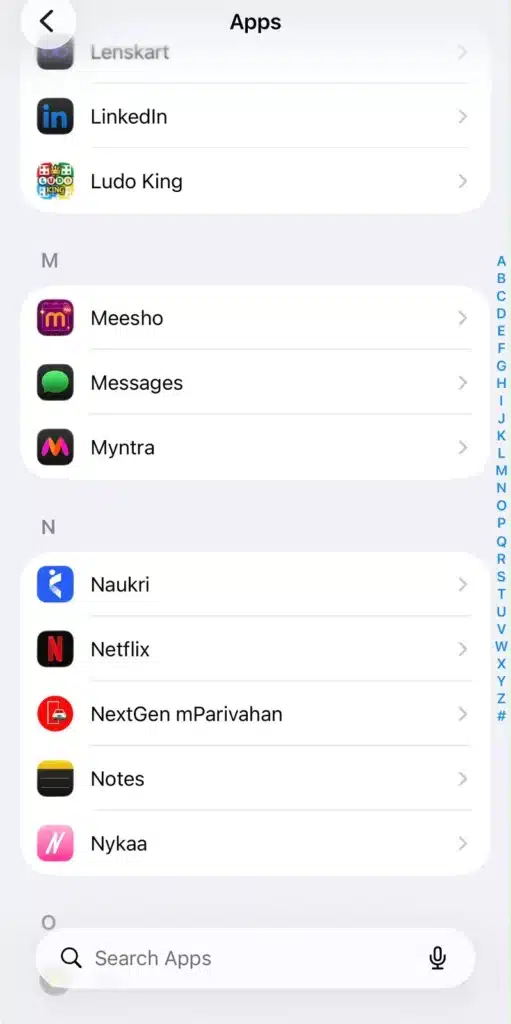
Step 2: Tap Apps
Scroll down and select:
Apps
Then tap:
Messages
Step 3: Enable Message Filtering
Turn on:
Filter Unknown Senders
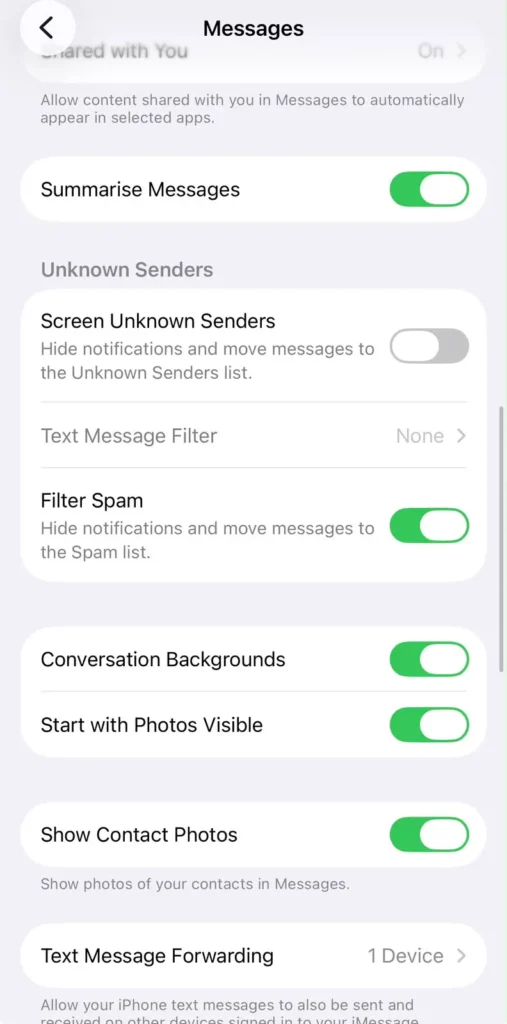
What It Does
Conversations involving individuals in your contacts are kept apart from messages from senders you are not familiar with.
This keeps your primary inbox more organized and manageable.
Additional Ways to Reduce Spam
Although built-in tools are quite helpful, a few behaviors can have an even greater impact.
Avoid Posting Your Number Publicly
Publicly accessible social media accounts are frequently used as sources for marketing databases.
Be Careful With Online Forms
Even when they are not required, a lot of websites ask for phone numbers.
Only give your phone number when asked.
Use Two-Factor Authentication Apps
Use authentication apps rather than SMS verification whenever you can.
Watch for Data Breaches
Your contact details may wind up in the hands of scammers or marketers if a service you’ve used has a data breach.
Don’t Answer Suspicious Calls
Whether or not numbers are actively answered is recorded by several robocall systems.
Ignoring suspicious calls may reduce future activity.
Signs that a Call or Text Is Probably a Scam
Be cautious if a caller or message:
- Creates a sense of urgency
- Requests payment immediately
- Asks for passwords
- Requests banking information
- Uses threatening language
- Contains suspicious links
- Unrealistic benefits are promised
Seldom do reputable organizations use unwanted calls or texts to demand immediate action.
Final Thoughts
Junk messages and spam calls are annoying, but you don’t have to put up with them. Modern iPhones and Android phones both have useful features that can drastically cut down on unsolicited interruptions. You can transform your phone back into a tool for engaging with individuals you genuinely want to hear from by turning on spam protection, barring questionable numbers, screening unknown senders, and avoiding interaction with scammers.
Combining technology with awareness is the best strategy. You’ll probably have a much cleaner, quieter inbox and call log tomorrow if you take a few minutes to change your settings today.