

When you call Samsung assistance, the representative offers, “I can connect to your device and fix this for you remotely.” Your first thought? Is it possible for Samsung to access my phone remotely? Is it safe at all?
It’s a valid question. Yes, they can, but only if you let them. Here is exactly what Samsung Smart Tutor allows a support technician to see, what stays off-limits, and how your privacy remains protected throughout the process.
- What Is Samsung Smart Tutor?
- Why Samsung Offers Remote Phone Support
- How to Use Samsung Smart Tutor for Remote Support
- Privacy Controls During a Smart Tutor Session
- What Can a Samsung Technician See and Do?
- What a Technician Cannot Access
- How Smart Tutor Protects Your Privacy
- How to End a Remote Session Immediately
- How Scammers Exploit Remote Access (And How to Protect Yourself)
- Safety Tips for US Samsung Users
- Final Word
What Is Samsung Smart Tutor?
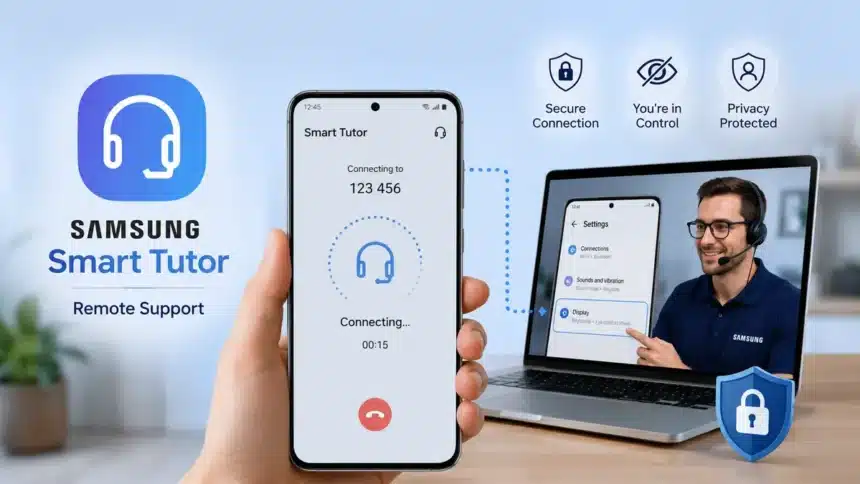
Samsung Smart Tutor is a built-in application available on Samsung devices that enables Samsung technical experts to remotely access and manage a smartphone’s screen for troubleshooting and support purposes. The tool allows Samsung support professionals to view and control a device remotely, helping users resolve technical issues without visiting a service center.
It enables Samsung technical experts to remotely access and manage a smartphone‘s screen, helping users diagnose problems, customize settings, install software updates, and perform troubleshooting remotely. Depending on the issue, support agents may also assist with backing up and restoring settings or guiding users through a factory reset when necessary.
Many Galaxy devices support Samsung Smart Tutor through the Samsung Members app or Galaxy Store. Additionally, you can download it from the Galaxy Store or access it via the Samsung Members app.
Why Samsung Offers Remote Phone Support
Not every phone issue is easy to describe over a call. There are numerous reasons why “my Wi-Fi keeps dropping” or “notifications stopped working” could occur. Instead of guessing, Samsung remote support lets the technician see your screen, identify the problem directly, and resolve it in minutes.
For Samsung users in the US, this implies the following:
- No driving to a service center for software issues
- No confusing back-and-forth trying to describe menu locations
- Faster resolution without handing your phone to a stranger in person
How to Use Samsung Smart Tutor for Remote Support
Here is what happens when you use Samsung remote assistance:
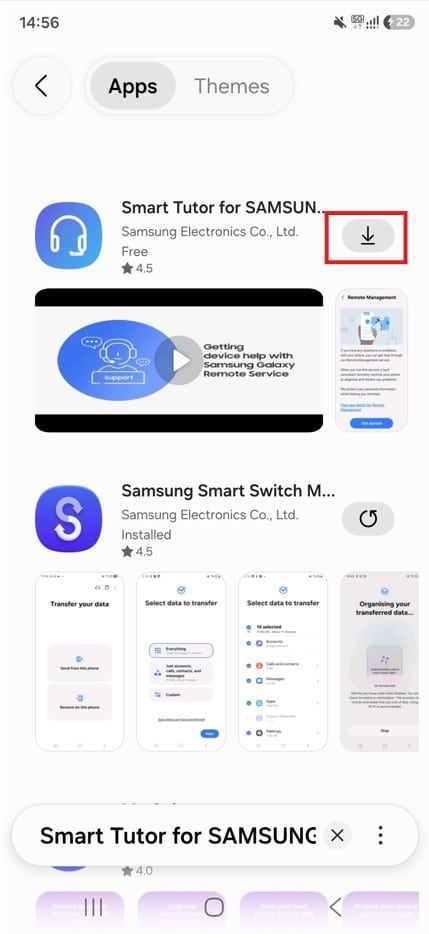
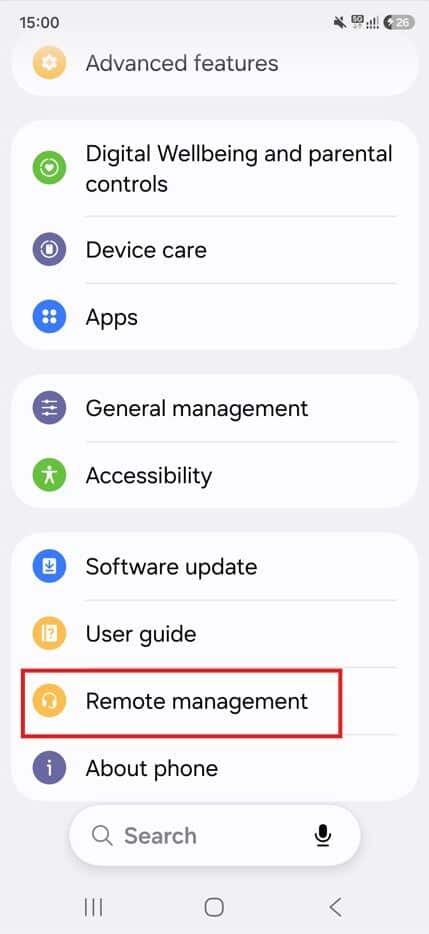
1. Open Smart Tutor on your device. You can download and install the application from the Galaxy Store. On supported devices, you can also access Remote Management by going to Settings > Remote management.
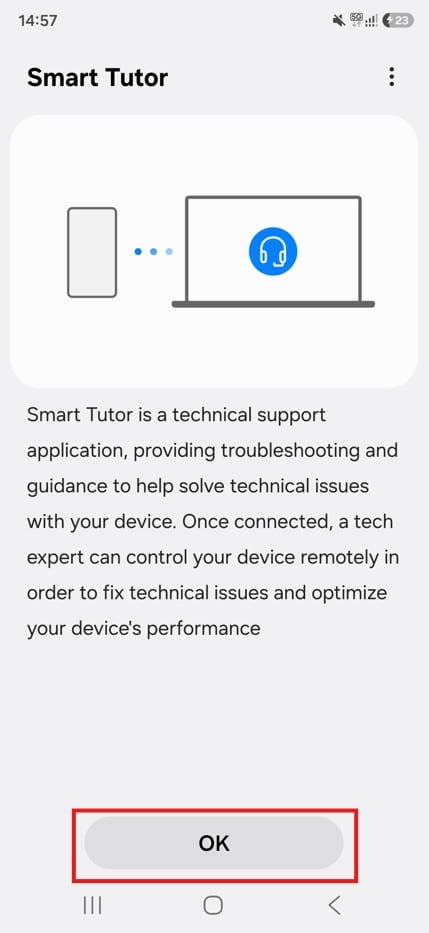
2. Tap OK to start the process and continue with the remote support setup.
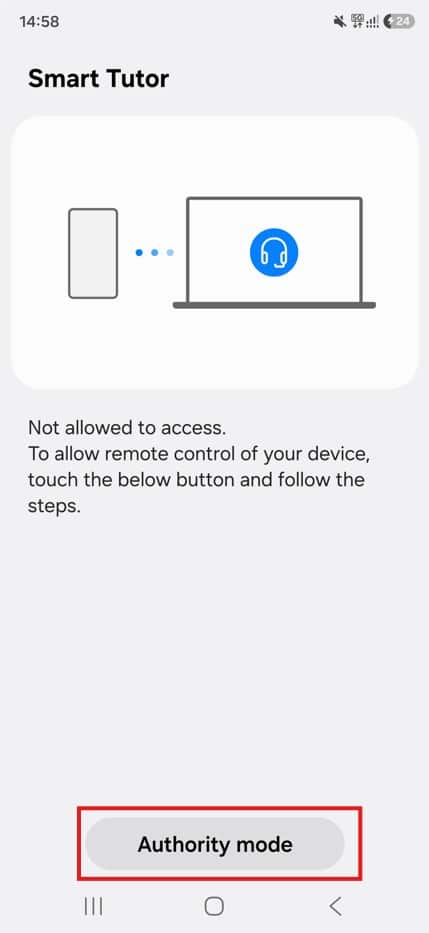
3. Select Authority mode to grant the required permissions for Smart Tutor.
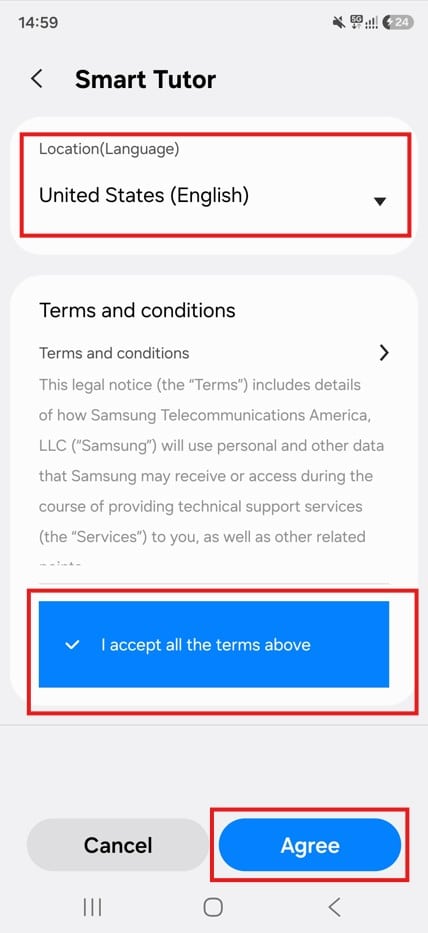
4. Choose your preferred location (language), then tap Agree to continue.
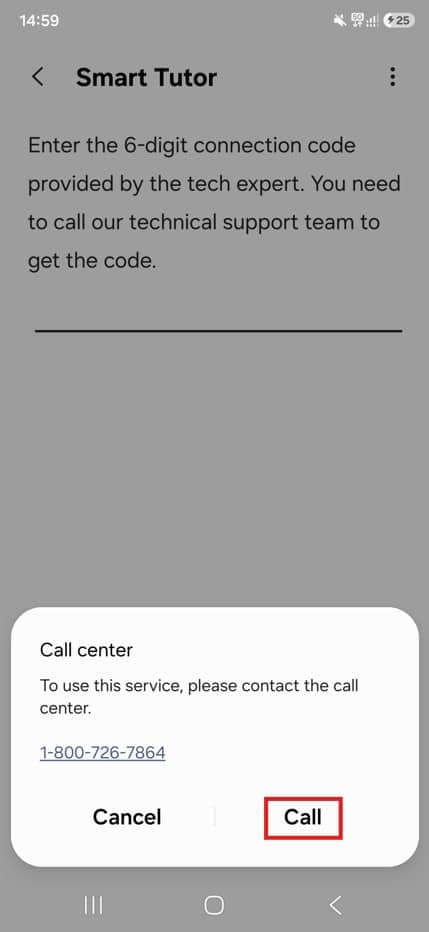
5. Tap Call to connect with Samsung Customer Care when prompted.
6. Enter the 6-digit connection code provided by the Samsung technical support team.
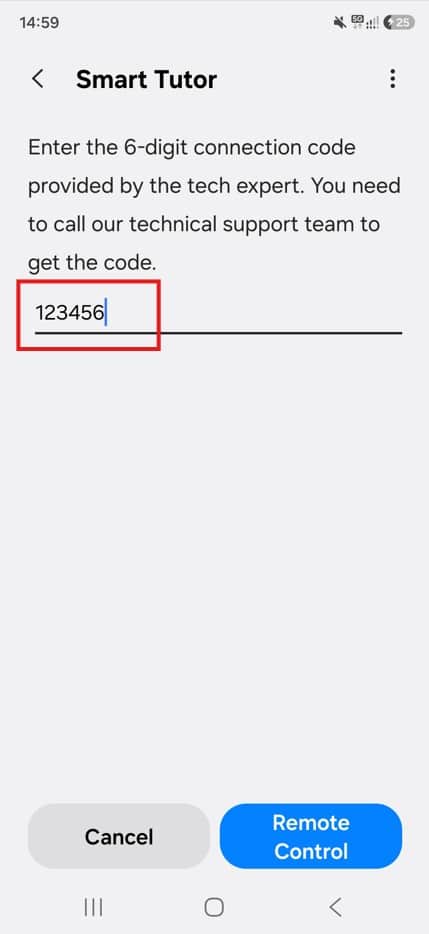
7. Enter the PIN and tap Remote Control to start the remote support session.
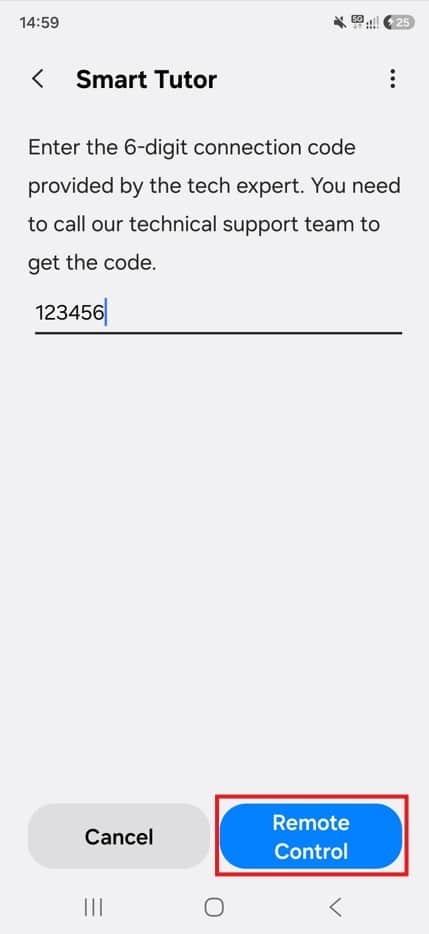
The technician can now view your screen and, where permitted, interact with the device to help diagnose and resolve the issue.
Privacy Controls During a Smart Tutor Session
Once the remote session starts, Smart Tutor provides additional controls to help protect private information.
Security popup: When an agent tries to access privacy-sensitive applications such as Messages, Phonebook, Gallery, or Camera, Smart Tutor displays a warning popup asking whether you want to allow access. The agent cannot control the device in those areas without your permission.
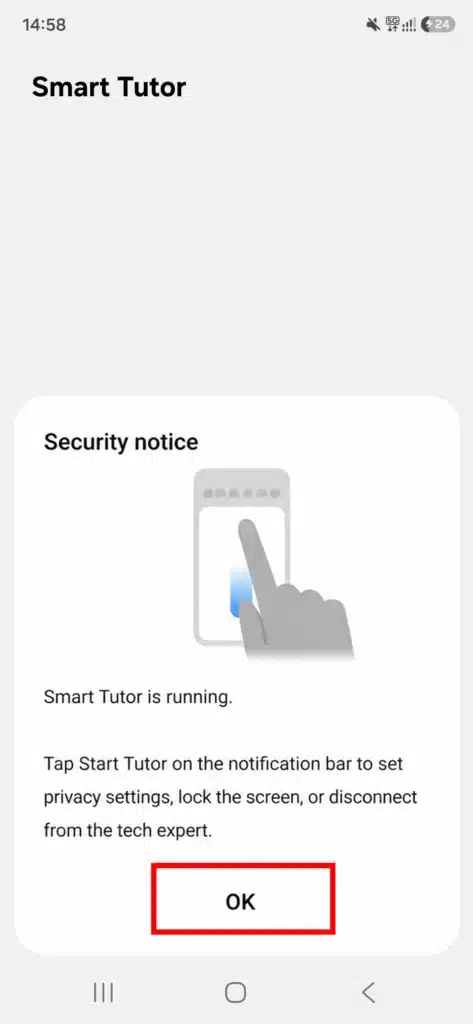
Temporarily stop screen sharing: If you need to hide something private while the remote session is active, swipe down the notification bar and tap Smart Tutor Connection. Then tap Lock. This stops screen sharing temporarily. The control displays “UNLOCKED” after screen sharing is stopped; tapping “UNLOCKED” again resumes screen sharing.
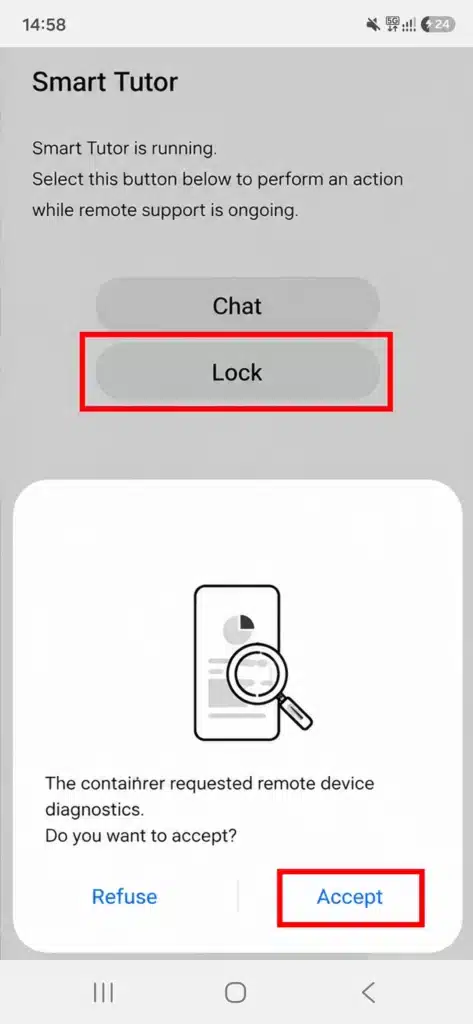
The connection code and session credentials used for Smart Tutor are temporary and intended only for the active support session. Once the session ends, the connection must be re-established for any future support request.
What Can a Samsung Technician See and Do?
Once you grant Samsung Smart Tutor access, the technician can:
- View your screen in real time
- Navigate through device Settings
- Adjust Wi-Fi, Bluetooth, display, and notification configurations
- Clear app caches or problematic data
- Install pending software updates
- Backup and restore customized settings
- Assist with factory reset procedures when required
- Draw on your screen to guide you visually
This covers many of the software-related issues US customers contact Samsung about, from battery drain to app crashes and connectivity problems.
What a Technician Cannot Access
This is the part that matters most. During Samsung technician remote access, the following apps are blocked by default:
| Blocked App Category | Examples |
| Photos and videos | Gallery, Google Photos |
| Messaging | Messages, WhatsApp, Telegram |
| Gmail, Samsung Email, Outlook | |
| Contacts | Phone contacts, address book |
| Financial apps | Banking apps, payment wallets |
Samsung Smart Tutor is designed to restrict access to these categories unless a separate permission request is approved by the user. If a pop-up appears on your screen asking for access and you tap “Allow,” the technician may be able to proceed depending on the device and support requirements.
If you tap “Deny,” access to that app remains restricted.
Note: Access restrictions may vary depending on device model, Android version, and Samsung support configuration.
How Smart Tutor Protects Your Privacy
Smart Tutor privacy is built on multiple layers, not just a single permission gate. Here is how Samsung keeps your data safe during Samsung phone remote support:
- You initiate everything. No one can connect without you entering the PIN and accepting access.
- Restricted app categories. Personal apps are blocked unless you specifically unlock them.
- Full-screen visibility. You see exactly what the technician does in real time. Nothing happens in the background.
- Session-based connection. The link is temporary. Once the session ends, access is gone permanently.
Samsung states that Smart Tutor includes privacy protections and user-controlled access during support sessions. You remain in control from start to finish.
How to End a Remote Session Immediately
Uncomfortable with something? You can end the connection instantly:
- Tap the floating Smart Tutor icon on your screen and hit “Disconnect.”
- Force-close the Smart Tutor app
- Turn off Wi-Fi and mobile data
- Restart your phone
Disconnecting the active Smart Tutor session removes the technician’s remote access. If you only want to temporarily stop screen sharing without ending the session, use the Smart Tutor Connection > Lock option described above.
How Scammers Exploit Remote Access (And How to Protect Yourself)
Samsung Smart Tutor remote access is safe when used through official channels. The danger comes from scammers who impersonate Samsung support to trick you into granting access.
Red flags to watch for:
| Scam Tactic | Why It Is Suspicious |
| Unsolicited call claiming to be Samsung | Unsolicited calls claiming to be Samsung should be treated with caution |
| Text or email with a “security alert” link | Official Samsung will never send you a Smart Tutor link via SMS |
| Requests to access banking or payment apps | Legitimate agents have zero reason to open financial apps |
| Pressure to act immediately | Real support agents will never rush or threaten you |
| Asking you to download Smart Tutor from a random link | The app should only come from Samsung Members or Galaxy Store |
The rule is simple: If you did not call Samsung yourself, do not grant remote access to anyone. Period.
Safety Tips for US Samsung Users
Follow these guidelines every time you use Samsung Smart Tutor:
- Only initiate sessions through official channels (Samsung Members app, 1-800-SAMSUNG, or samsung.com live chat).
- Never share your 6-digit code with anyone who contacts you first.
- Watch your screen the entire time. If the technician navigates somewhere unexpected, disconnect.
- Deny access to personal apps unless your specific issue requires it.
- Use Wi-Fi to avoid mobile data charges during the session.
- Close Smart Tutor completely after the session ends.
- Report suspicious calls to Samsung and the FTC if someone impersonates their support team.
Final Word
Can Samsung remotely access your phone? Yes, but only when you open the door yourself. Samsung Smart Tutor is a legitimate, privacy-protected tool that gives you visibility and control over what a technician can see and do during a support session.
Sensitive apps and personal information may require additional permissions before access is granted. You can disconnect at any time, and the session ends once the remote support process is complete.
Use Smart Tutor when you need legitimate assistance through official Samsung channels. And if someone contacts you unexpectedly and asks for remote access, treat it as a potential warning sign until you verify who they are.
Visit Devicology for the latest Tech News, Guides, and in-depth Reviews. Follow us on Whatsapp, LinkedIn, X (Twitter) and Instagram to never miss an update!