


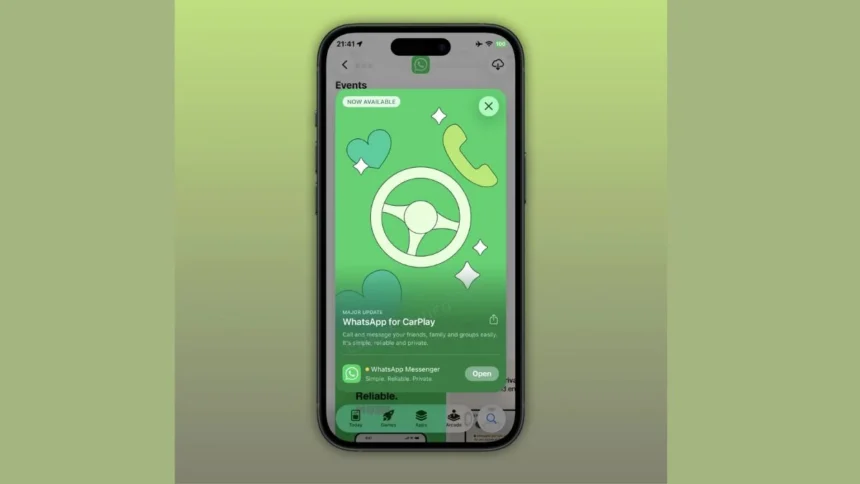
Through the latest iOS update, using WhatsApp on Apple CarPlay has finally become easier. You no longer need to rely solely on Siri; you can access your chats, call log and favourite contacts directly from the dashboard of your vehicle.
How to Use Whatsapp on Carplay
To tell you more about his new functionality, first, let me tell you the steps to use WhatsApp on Carplay.
Step 1: Update WhatsApp on your iPhone
Make sure you’ve installed the latest WhatsApp iOS update (version 26.13.74 or newer). The CarPlay features won’t show up without this.
Step 2: Connect your iPhone to CarPlay
Plug in your iPhone or connect it wirelessly to Apple CarPlay. Once connected, WhatsApp will automatically appear on your car’s dashboard. There’s no separate app to download.
Step 3: Use the Chat List tab
Open WhatsApp on CarPlay and you’ll see the Chat List tab.
You can view recent chats and check for unread messages You won’t be able to open full conversations, but it gives you a glance at what’s new.
Step 4: Check and return calls easily
Head to the Call History tab. Here, you can see incoming, outgoing and missed calls and tap on a contact to call them back instantly.
This makes calling much faster compared to earlier voice-only methods.
Step 5: Access favourite contacts quickly
Use the Favourite Contacts tab to reach people you talk to the most. Instead of scrolling through chats, you can tap directly to call or message
Step 6: Send messages hands-free
While you now have visual access, messaging is still designed to be safe.
You can use voice input to dictate messages and let CarPlay read incoming messages aloud.
Evolution of WhatsApp on CarPlay
The history of WhatsApp on Apple CarPlay is a story of gradual evolution, moving from a completely locked-down environment to a more helpful, hands-free experience. When Apple first launched CarPlay in 2014, it was extremely restrictive about which apps could appear on the dashboard to ensure driver safety.
For several years, third-party messaging apps were largely excluded, meaning iPhone users could only use Apple’s own iMessage service while behind the wheel. WhatsApp users had to rely on basic Bluetooth audio or simply wait until they parked to check their chats, as there was no official interface for the app on the car’s screen.
The big turning point came in early 2018 with the release of WhatsApp version 2.18.20. This update finally introduced official support for CarPlay, making WhatsApp one of the first major third-party messaging platforms to join the platform.
However, the experience was designed to be strictly “eyes-free.” Instead of showing long lists of text conversations that might distract a driver, the app appeared as a simple icon on the CarPlay home screen. When a notification arrived, it would pop up on the display, but the system would not allow the driver to read the text.
Instead, it relied entirely on Siri to read the message out loud and record voice-to-text replies.
As the years progressed, the integration became much smoother and more intuitive. With the release of iOS 13 and later updates, the CarPlay Dashboard was introduced, allowing WhatsApp to show up in a split-screen view alongside navigation maps and music controls.
This made it easier for drivers to see who was messaging them at a glance without leaving their GPS route. Improvements in Siri’s intelligence also helped, as the voice assistant became better at recognizing names in a contact list and handling group chats, which had previously been a bit clunky to navigate by voice alone.
In recent years, the focus has shifted toward making the app feel more like a native part of the driving experience. WhatsApp added features like the ability to hear a preview of recorded voice notes and improved the way archived or muted chats are handled so they don’t clutter the driving interface.
Earlier, CarPlay relied heavily on Siri, which often misread messages and didn’t show chats or call logs.
Now, with three dedicated tabs, everything is more structured and easier to use.