




How to Block Ads on Mozilla Firefox: Complete Step-by-Step Guide
Browsing the web should be fast, private, and distraction-free. However, constant pop-ups and intrusive advertisements can ruin your online experience. Thankfully, Mozilla Firefox offers built-in tools and trusted add-ons that let you take full control of your browsing privacy.
In this guide, we’ll explain how to block ads on Mozilla Firefox using Enhanced Tracking Protection and powerful content blockers like uBlock Origin. Follow these simple steps to enjoy a cleaner, faster web experience.
Understanding Why Ad Blocking Matters
Online ads not only clutter your screen but also slow down websites and track your activity. Many advertisers use hidden trackers to collect your data, affecting your privacy and security.
By blocking ads, you can:
•Speed up webpage loading times.
•Prevent intrusive pop-ups and video ads.
•Reduce online tracking and data collection.
•Enjoy a cleaner, distraction-free browsing environment.
Mozilla Firefox is one of the few browsers that actively supports user privacy. Its built-in protection features make it easy to block most unwanted ads without needing extra software.
Step 1: Open Firefox Settings
To start, launch Mozilla Firefox on your computer or mobile device. Then:
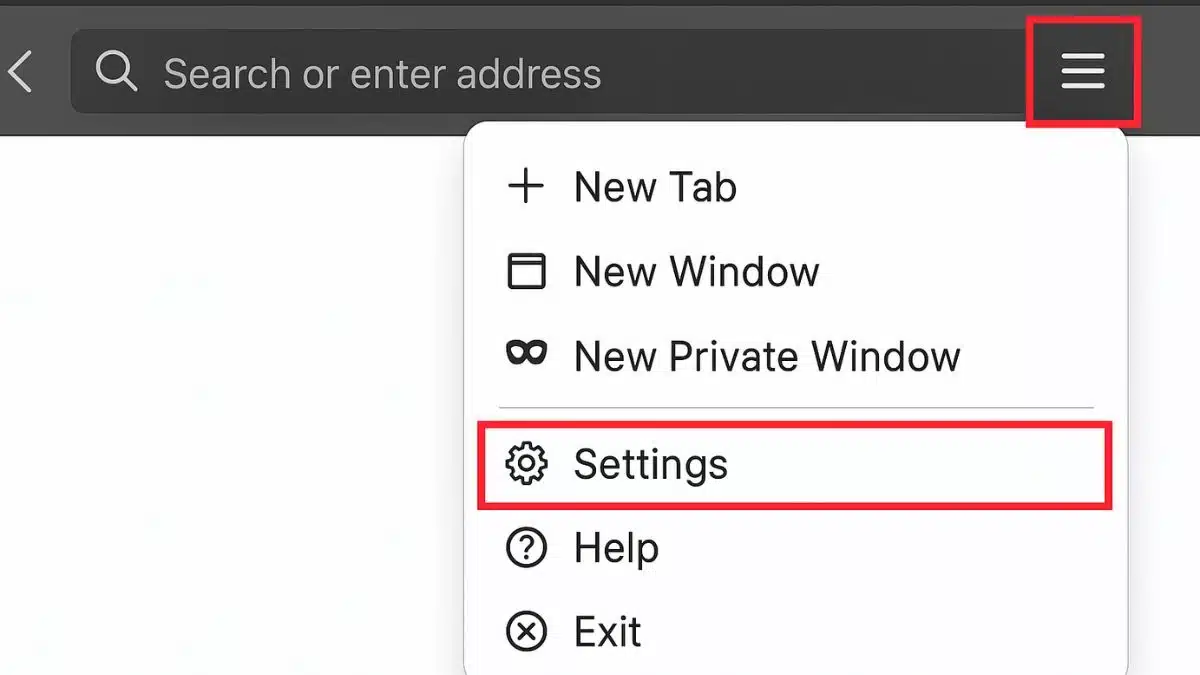
1.Click the menu button (three horizontal lines) in the upper-right corner of the browser window.
2.From the dropdown list, select Settings.
This will open a new tab containing all of Firefox’s settings and privacy options.
Step 2: Access the Privacy and Security Panel
Once in the Settings menu, look at the sidebar and click on Privacy & Security. This section controls how Firefox handles trackers, cookies, and website permissions.
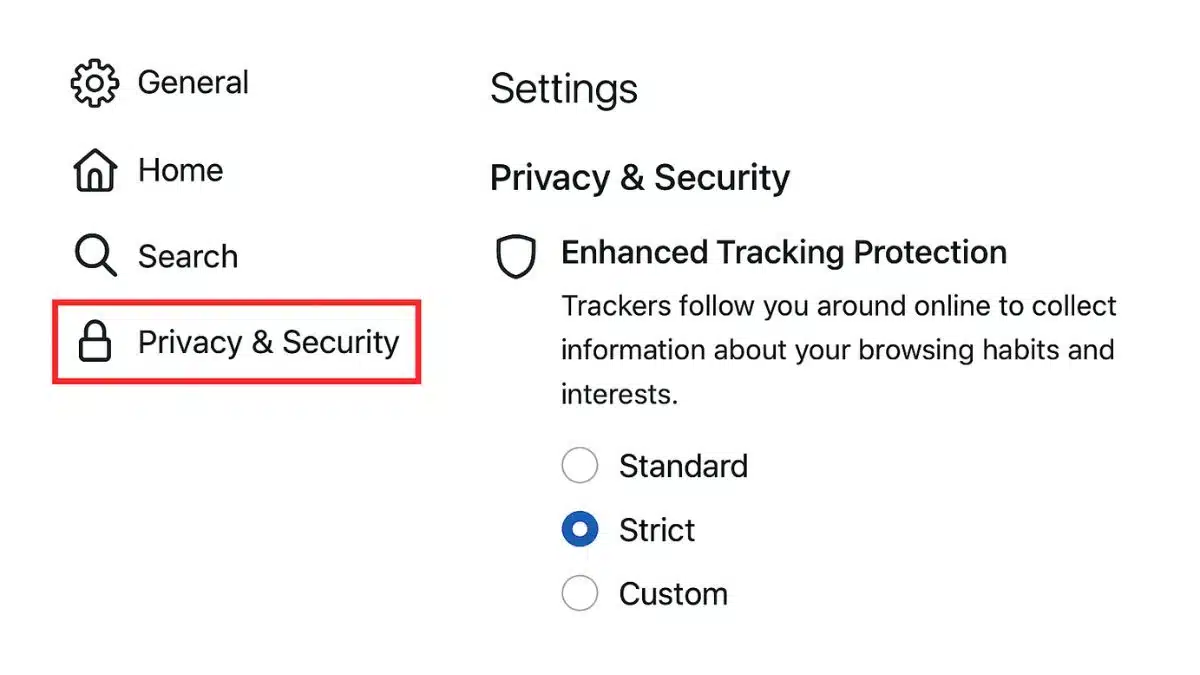
Under this panel, you’ll find Enhanced Tracking Protection, Firefox’s built-in system for blocking ads, trackers, and unwanted content.
Step 3: Enable Strict Enhanced Tracking Protection
By default, Firefox’s tracking protection is set to Standard, which offers basic privacy. To block more ads and trackers:
1.Under Enhanced Tracking Protection, choose Strict mode.
2.Firefox will now block most trackers, pop-up ads, and harmful scripts automatically.
What Strict Mode Blocks:
•Cross-site trackers
•Social media trackers
•Fingerprinters
•Cryptominers
•Ads that follow you across websites
This setting offers a perfect balance between privacy and performance, although a few sites might not load properly. If that happens, you can switch back to Standard or add the site to your exceptions list.
Step 4: Install a Trusted Content Blocker
To block even more ads, install a powerful extension like uBlock Origin from the Firefox Add-ons store.
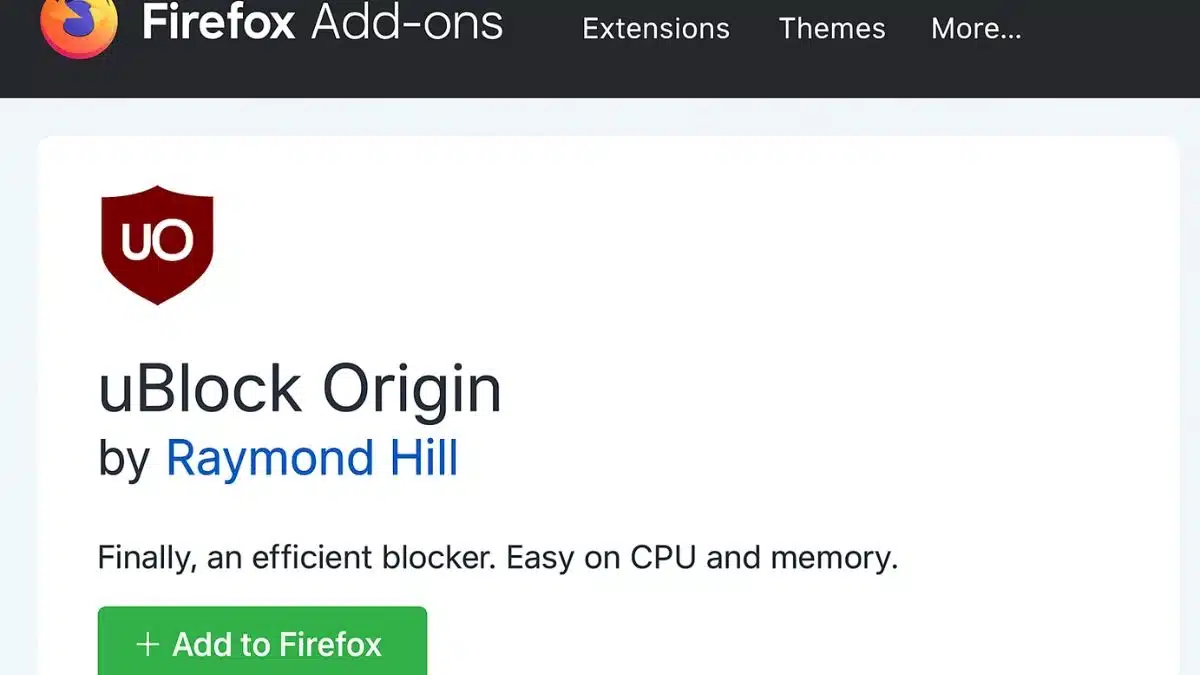
Here’s how:
1.Go to the Firefox Add-ons website.
2.In the search bar, type uBlock Origin.
3.Click Add to Firefox and confirm the installation.
Once installed, uBlock Origin will automatically start blocking unwanted ads, pop-ups, and trackers across all websites. You can click its icon in the toolbar to manage or customize your ad-blocking preferences.
Step 5: Adjust uBlock Origin Settings (Optional)
uBlock Origin gives you full control over what to block. Advanced users can fine-tune the settings by:
•Enabling additional filter lists for more ad and tracker protection.
•Creating custom rules for specific websites.
•Allowing ads only on trusted sites.
This flexibility ensures you get the perfect browsing experience, safe, fast, and clutter-free.
Step 6: Clear Cache and Restart Firefox
After enabling ad-blocking tools, it’s a good idea to clear your browser cache. This removes stored ads and tracking cookies that might have been saved earlier.
To do this:
1.Open Settings – Privacy & Security.
2.Scroll down to Cookies and Site Data.
3.Click Clear Data and confirm.
Then restart Firefox for all your new settings to take effect.
Benefits of Blocking Ads on Firefox
Once ad blocking is enabled, you’ll notice several improvements:
•Faster Browsing: Pages load quicker without heavy ad scripts.
•Better Privacy: Fewer trackers collecting your data.
•Improved Security: Blocks harmful or malicious advertising networks.
•Cleaner Design: Focus only on content that matters to you.
Mozilla Firefox, with Enhanced Tracking Protection and uBlock Origin, provides one of the best ad-free browsing experiences available today.
Common Issues and Fixes
While ad blocking works seamlessly most of the time, here are a few potential issues and solutions:
Issue 1: Some websites don’t load or display incorrectly.
Fix: Add that site to your Exceptions list under Enhanced Tracking Protection or disable uBlock Origin temporarily for that page.
Issue 2: You still see ads on video streaming sites.
Fix: Update your uBlock Origin filters regularly or use additional filter lists optimized for video platforms.
Issue 3: Pages ask you to disable your ad blocker.
Fix: Temporarily pause uBlock Origin, reload the page, and enable it again when done.
Blocking ads on Mozilla Firefox is quick, effective, and completely free. With Enhanced Tracking Protection and a trusted content blocker like uBlock Origin, you can transform your web experience, faster speeds, cleaner pages, and stronger privacy.
Take control of your browsing today and enjoy the internet without constant interruptions.
FAQs
1. Does Firefox block ads by default?
Yes. Firefox includes Enhanced Tracking Protection that blocks many ads and trackers automatically.
2. Is uBlock Origin safe to use?
Absolutely. uBlock Origin is open-source, lightweight, and one of the most trusted ad blockers available.
3. Can I allow ads on specific websites?
Yes. You can whitelist websites in uBlock Origin or Firefox’s exceptions list.
4. Will ad blocking slow down Firefox?
No. In fact, it usually makes pages load faster by preventing unnecessary scripts and trackers.
5. Can I block ads on Firefox Mobile?
Yes. You can enable Enhanced Tracking Protection in Firefox for Android or iOS and install supported add-ons like uBlock Origin on Android.