



How to Use iTranslate: Complete Beginner’s Guide
iTranslate is one of the most popular translation and dictionary apps for users who want to break language barriers quickly and easily. It allows you to translate text, websites, and objects while also offering voice-to-voice conversations in many languages. With tools like a Custom Phrasebook, widgets and flashcards, and an advanced camera-based translation mode, the app aims to make communication effortless.
This guide explains every essential feature of iTranslate in a simple and easy way. Whether you want to translate text, learn phrases, use offline mode abroad, or conduct real conversations in different languages, this step-by-step article covers everything you need to know.
- How to Use iTranslate: Complete Beginner’s Guide
- How to Start Using iTranslate
- How to Use Text Translation on iTranslate
- How to Use the Phrasebook in iTranslate
- How to Use Flashcards and Widgets on iTranslate
- How to Use Lens and AR Mode in iTranslate
- How to Use Voice-to-Voice Conversations in iTranslate
- How to Use Website Translation on iTranslate
- How to Use Custom Phrasebook in iTranslate
- How to Use Offline Translation Mode on iTranslate
- How to Use the Keyboard Extension in iTranslate
- How to Use Dictionaries and Verb Conjugations in iTranslate
- FAQs
How to Start Using iTranslate
The first thing to learn is how to navigate the basic interface of iTranslate. Once you open the app, you will see clear options for text translation, phrasebooks, voice input, camera lens features, and more. The design of iTranslate is made so that beginners can quickly understand what they need to tap to perform any action.
After selecting your source and target languages, you can begin typing, speaking, or scanning text. iTranslate provides translations in over 100 languages in its free version, which means most common international languages are covered. This makes it useful for travel, study, or everyday communication.
Before exploring the advanced modes, users should spend some time getting familiar with the main translation section. This is the area where you type a word, phrase, or sentence and instantly see results along with pronunciation options in male or female voices.
How to Use Text Translation on iTranslate
Text translation is one of the simplest and fastest features available on the app. All you have to do is choose your input language and the language you want the text translated into. You can then type or paste your text directly into the input box.
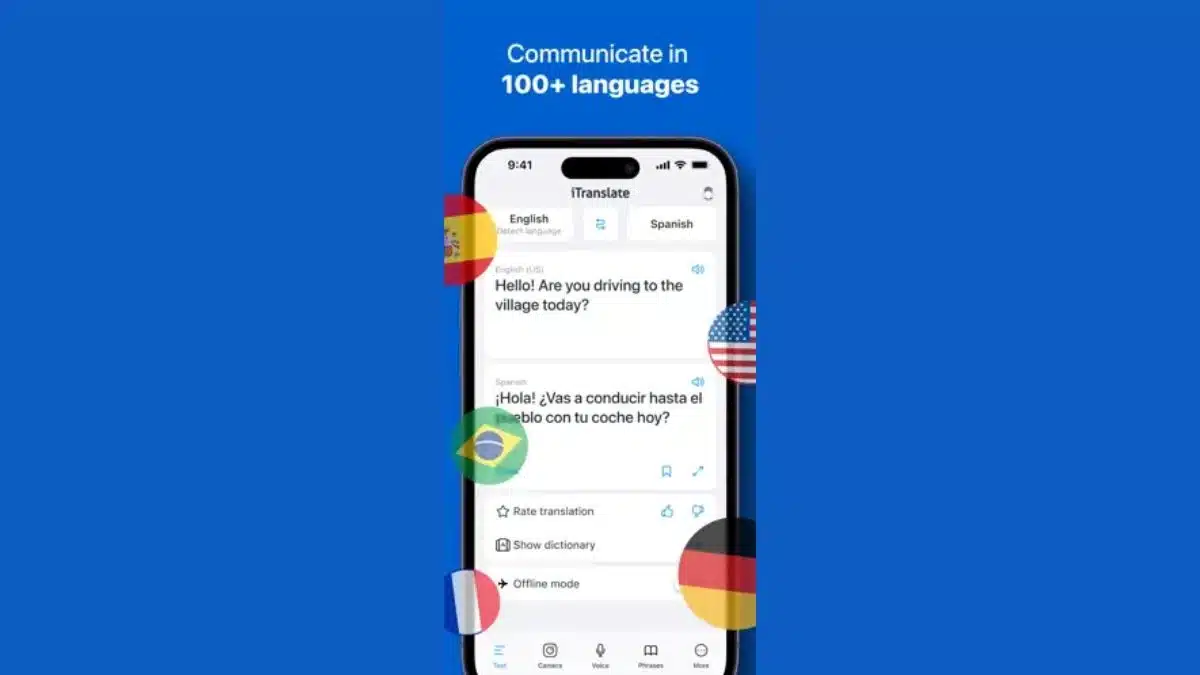
When you enter your text, iTranslate shows the translated version instantly. It also includes features like dictionaries, synonyms, and different meanings of words. This helps you understand context and variations of a word so that your translations are more meaningful.
You can save translations to your Favorites or check them later in your History. These small but useful tools help you build your own collection of important words and phrases. Text translation also supports different dialects, which is helpful when you want more accurate regional results.
How to Use the Phrasebook in iTranslate
The built-in phrasebook is one of the most helpful features for travellers and beginners. It comes with over 250 predefined phrases that cover common situations like greetings, shopping, emergency help, directions, and more.
Users can browse through categories and listen to pronunciations so they can learn how to speak naturally. The ability to hear phrases in both male and female voices helps with practicing variations in tone.
The phrasebook is especially useful because it offers prepared content. Instead of thinking about how to form a sentence, you can quickly pick a phrase and use it directly. This speeds up communication and reduces mistakes.
How to Use Flashcards and Widgets on iTranslate
iTranslate offers flashcards and widgets to help users learn new words and phrases directly from their device home screen. This feature is great for daily learning because it does not require opening the app every time.
Flashcards show a new word or phrase each day, including translations and pronunciations. You can tap the widget to save items or explore them further inside the app. Over time, this helps you build a strong vocabulary without any complicated lessons.
Widgets work well for users who want constant exposure to the language they are learning. The convenience of seeing phrases instantly makes language learning more natural and enjoyable.
How to Use Lens and AR Mode in iTranslate
iTranslate’s Lens feature allows you to use your camera to translate menus, signs, documents, and other printed text. This is especially useful when traveling or reading foreign-language materials.
To use Lens, you simply open the camera mode and point it at the object you want to translate. The app will instantly identify the text and show the translated version on your screen.
For more advanced usage, AR Mode takes this a step further by allowing real-time object translation. When AR Mode is active, the app uses augmented reality to recognise objects and provide translations on the screen. This creates a more interactive and visual learning experience.
These camera-based features remove the need to type or speak, making them ideal for users who need fast and accurate translations on the go.
How to Use Voice-to-Voice Conversations in iTranslate
Voice-to-voice conversation mode helps you communicate directly with another person speaking a different language. You speak into the app in your language, and it provides an immediate translation in the other language.
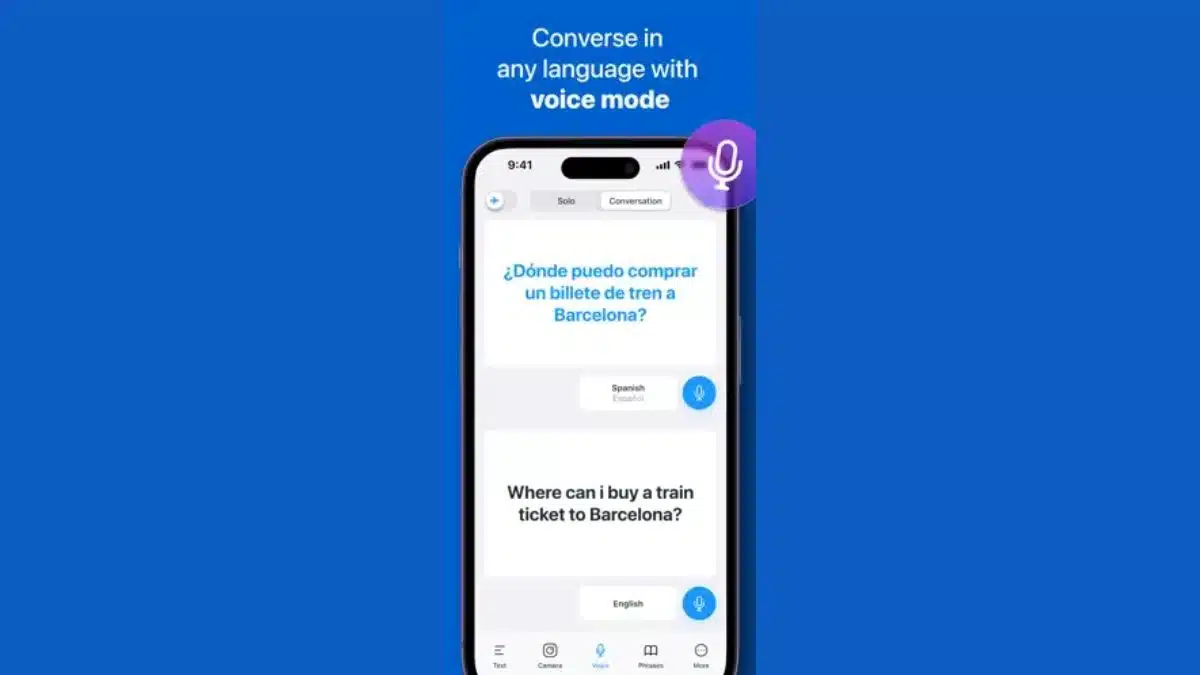
This feature is part of the Pro version and is extremely useful in real-life situations like travel, work, or study. Instead of typing long sentences, the app handles full conversations and makes communication smoother.
The accuracy of voice translation can vary depending on clarity and environment, but it is designed to work effectively in many everyday scenarios. The ability to respond instantly makes it practical for face-to-face interactions.
How to Use Website Translation on iTranslate
For users who want to read content from foreign-language websites, iTranslate also includes a website translation feature in the Pro version. You simply enter the website address, and the app shows the translated version.
This helps readers explore news, blogs, or information from different countries without needing to copy and paste text. Website translation is useful for research, study, and staying updated with international content.
It is a simple and clean tool that translates entire pages in a user-friendly layout, making reading much easier.
How to Use Custom Phrasebook in iTranslate
The Custom Phrasebook is one of the most unique features in iTranslate. It allows you to create personalised collections of phrases for specific situations. Instead of relying only on predefined phrases, you can add your own and organise them based on your needs.
This feature is ideal for travellers, students, working professionals, and anyone who wants a customised learning path. You can save personal phrases, terms from your job, or sentences you use frequently. Over time, this becomes a personal library of useful expressions.
The Custom Phrasebook helps users move beyond basic phrases and store content that reflects their real communication style.
How to Use Offline Translation Mode on iTranslate
Offline mode is a valuable tool, especially while traveling abroad. iTranslate’s offline mode allows you to translate text without needing an internet connection. This helps you avoid expensive roaming charges and ensures you can still communicate even in areas with poor connectivity.
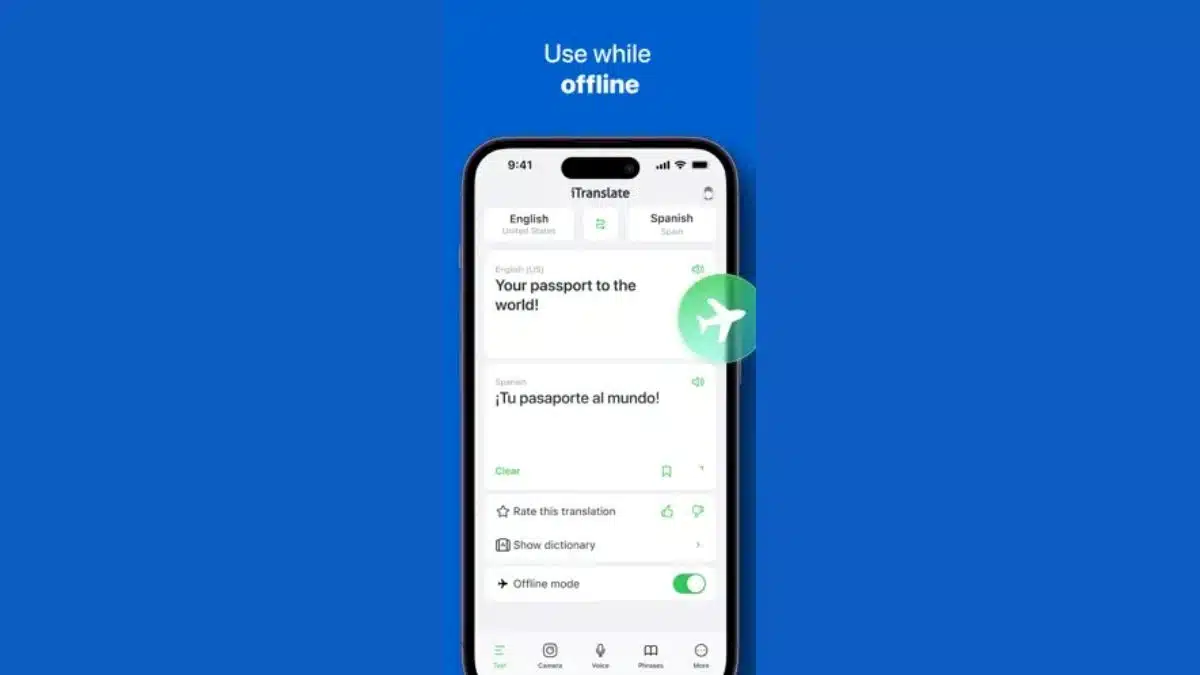
Once offline mode is activated, you can use features like text translation and phrasebook access. It is designed to work smoothly and provide reliable results when the internet is unavailable.
Offline support gives you confidence while traveling, knowing you can always translate essential information.
How to Use the Keyboard Extension in iTranslate
The keyboard extension is a Pro feature that lets you translate text directly from your phone’s keyboard. Instead of switching apps, you can translate sentences instantly while messaging, emailing, or writing anywhere on your device.
This makes communication faster and more practical. The keyboard extension is helpful for users who often talk to people in different languages or need to write multilingual content.
It saves time and improves workflow because you don’t need to constantly open the main app.
How to Use Dictionaries and Verb Conjugations in iTranslate
The dictionary feature contains synonyms, meanings, and word variations. This helps you understand language in greater detail and improves your learning accuracy. Instead of giving just one translation, the app explains multiple uses of a word.
For language learners, the verb conjugation section allows you to see different tenses of a verb. This helps you understand grammar and use words correctly in various contexts.
These tools are simple yet powerful resources for improving your command of any language.
FAQs
Q1. Does iTranslate support offline translations?
A. Yes, offline translations are available in the Pro version.
Q2. Can I use the camera to translate text?
A. Yes, the Lens feature allows camera-based translations for menus, signs, and more.
Q3. What is the Custom Phrasebook used for?
A. It helps users create personalised lists of phrases based on their needs.
Q4. Can iTranslate translate websites?
A. Yes, website translation is part of the Pro features.
Q5. How many predefined phrases are included in the free phrasebook?
A. The phrasebook contains over 250 predefined phrases.
Also Read- Top 10 Best Black Friday AI Deals 2025: Massive Discounts On The Year’s Most Powerful AI Tools