



Google Pixel phones have offered call recording in different forms for a while, but until recently, it was only available in certain regions. That changed in November, when Google expanded basic call recording to Pixel users worldwide. Now, you can record phone calls directly in the Google Phone app without relying on third-party tools.
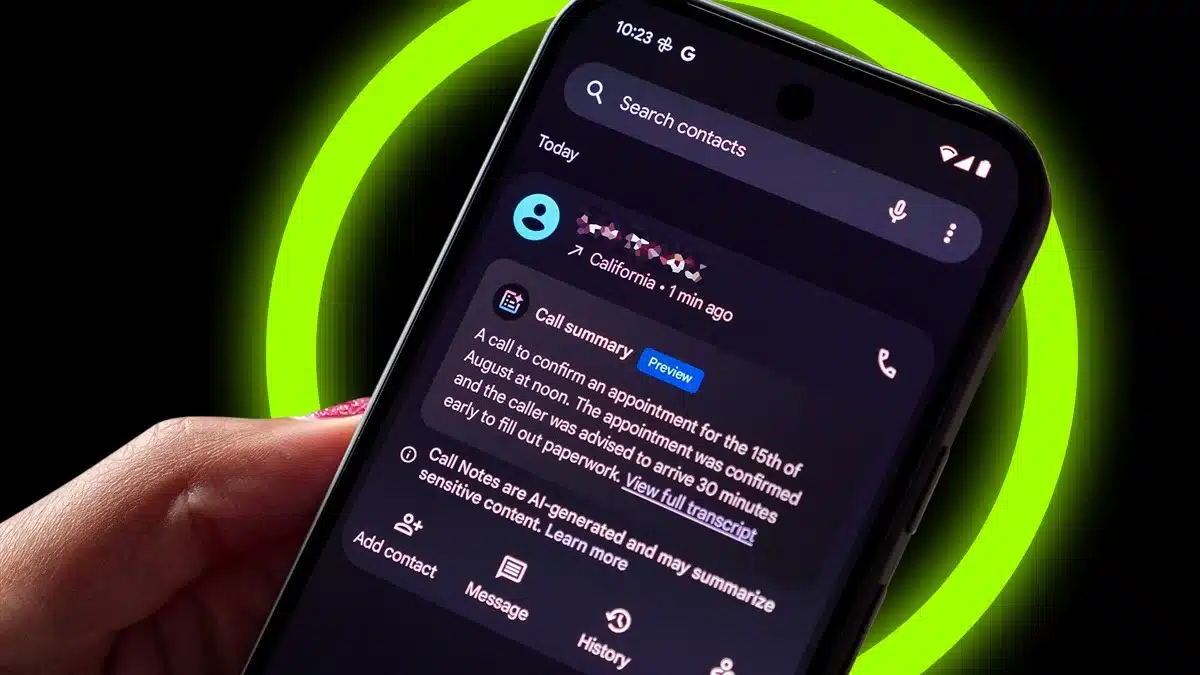
This built-in call recording option is a simpler alternative to Call Notes, the AI-powered recording and summary feature found on the Pixel 9 and newer models. Call recording was first announced in September, and it is now rolling out broadly to Pixel users around the world. Here is a clear and friendly guide to everything you need to know, including availability, setup, and how to use it.
What You Need to Use Call Recording on a Pixel Phone
In the past, Google limited call recording to specific regions, likely because phone recording laws differ from place to place. Now, the feature is available in most countries, and Google puts the responsibility on users to follow local laws.
“It’s up to you to follow all laws on recording phone conversations,” Google explains in a support document. “Use call recording responsibly and turn it on only when needed.”
To use call recording, your device must meet a few requirements. You need a Google Pixel 6 or newer running Android 14 or higher. The Google Phone app also needs to be updated to the latest version. Google notes that while the feature is widely available, some options may vary depending on your country or region.
Once call recording is enabled, you can choose to record calls manually or automatically based on certain conditions.
How to Enable Call Recording on Your Pixel
Before you can record any calls, you need to turn on the feature in the Google Phone app. Here is how to set it up and customize your preferences:
Open the Google Phone app and tap the hamburger menu.
Tap the Settings tab.
Press the toggle next to Call Recording.
Optionally, choose the ” Automatically delete recordings option.
Optionally, enable Automatically record calls with non-contacts or Automatically record calls with these numbers.
After setting your preferences, you are ready to start recording calls.
How to Record a Call on a Pixel Phone
If you have enabled automatic recording, calls that meet your chosen conditions will start recording on their own. For all other calls, you will need to start recording manually. Here is how:
After answering a call, tap the Turn on button in the Call Recording box on the call screen.
Tap Record to begin. An audio message will play to notify everyone on the call that it is being recorded.
Under the Call Assist section, press Stop when you are finished, or simply hang up the call.
The recording will then be saved automatically in the Google Phone app.
How to Find and Manage Your Call Recordings
Listening to, sharing, or deleting recordings is easy. Here is how to access them:
Open the Google Phone app and go to the Home tab.
Find the recorded call in your call history and tap it.
From there, you can Play, Share, or Delete the recording.
You can also delete all recordings by going to Google Phone, then Settings, then Call recording, and tapping Delete all recordings now.
Tap Delete again to confirm.
With these steps, you can fully manage your saved call recordings whenever you need.
When Call Recording Can Be Useful
Call recording can be especially helpful for conversations with businesses, customer support calls, or important discussions you may want to revisit later. It is part of the Pixel Call Assist features and is based on the same foundation as Call Notes.
While Call Notes is limited to newer Pixel models, basic call recording is available on a wider range of Pixel devices, making it a useful option for many users.
Packed With Pixel-Only Features
The Google Pixel 10 includes all the latest Google Phone features, including Call Assist, which powers call recording and other helpful tools. It also comes with the Google Tensor G5 chip, a triple-camera system, and a sleek premium design, making it a strong option for anyone who wants smart features built right into their phone.
ALSO READ: OnePlus 15R Launches With Massive Battery And Smooth 165Hz Display