




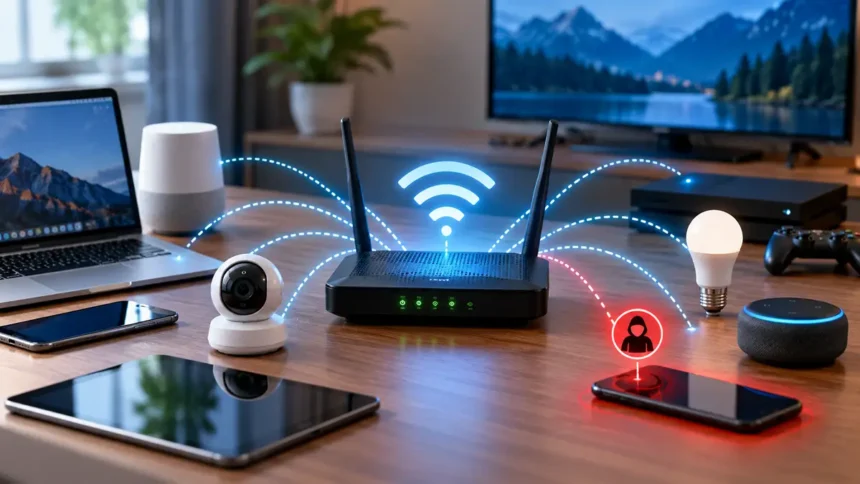
Your home router is the front door to your digital life. Every phone, laptop, smart TV, and light bulb connects through it. But very rarely do people actually check what’s going on inside it.
Most people set up their router once and forget it. That is a problem. Unknown devices could be leeching your bandwidth. Old security settings could leave your network wide open. And some of your own gadgets might be quietly sending data to servers you never approved. Here is how to audit all of it:
How to Audit Your Home Router
Before you start changing settings, here is a quick look at the three areas you should check on your home router.
| What to Check | What to Look For | What to Do |
| Connected Devices | Unknown or unrecognized devices | Identify devices and remove suspicious connections |
| Wi-Fi Security | WEP, TKIP, WPS, or outdated firmware | Use WPA2 or WPA3 and update your router |
| Privacy and Tracking | DNS activity and connected smart devices | Review DNS queries and isolate IoT devices |
Step 1: Find the Ghost Connections
A “ghost connection” is any device on your network you do not recognize. It could be a neighbor on your Wi-Fi. It could be an old tablet you forgot about. Or it could be something worse.
- Log into your router’s admin panel. Open a browser and type your router’s IP address. It is usually 192.168.0.1 or 192.168.1.1. Check the sticker on your router if you are unsure. Enter your admin username and password.
- Find the connected devices list. Look for a section called “Connected Devices,” “Client List,” or “DHCP Leases.” Every device currently on your network will show up here. You will see a device name, a MAC address, and an IP address for each one.
- Now count them. The average household had 22 connected devices in 2026, according to Statista. That number adds up fast. Phones, laptops, smart speakers, streaming sticks, security cameras, robot vacuums. Write down every device you own and compare it to the list.
- Spot the strangers. If a device name looks unfamiliar, check the MAC address. The first six characters can identify the manufacturer when the device uses a globally assigned MAC address. Search “MAC address lookup” online and paste it in. That can help identify the manufacturer, although modern devices may use randomized MAC addresses.
- Use a scanning tool for a deeper look. Apps like Fing (iOS and Android) or Wireless Network Watcher (Windows) scan your entire network. They catch devices that might not appear in the DHCP list. Some devices use static IP addresses and may not appear in the default DHCP view.
If you find something suspicious, change your Wi-Fi password immediately. Then reconnect only your known devices one by one.
Step 2: Kill the Outdated Protocols
Your router uses an encryption protocol to protect your Wi-Fi traffic. But not all protocols are equal. Some were cracked years ago. And plenty of routers still have old settings enabled.
Here is a quick breakdown of what exists.
- WEP was introduced in 1997. It can be cracked in minutes. The Wi-Fi Alliance announced that WEP had been superseded by WPA in 2003. If your router still uses WEP, replace the router entirely. Do not just change the setting. Hardware that old has other problems too.
- WPA with TKIP came next in 2003. It was better than WEP but still flawed. Researchers demonstrated practical attacks against TKIP, and the Wi-Fi Alliance later deprecated it. If your phone or laptop shows a “Weak Security” warning, TKIP could be the reason.
- WPA2 with AES has been the standard since 2004. It is still solid for most home networks. Use WPA2-Personal (AES) at minimum. Avoid any setting that says “WPA/WPA2 Mixed Mode” with TKIP. That mixed mode allows use of the weaker TKIP protocol.
- WPA3 is the current gold standard. It was launched in 2018. It uses stronger protections and is designed to resist offline password-guessing attacks. If your router supports it, turn it on. If your older devices cannot connect with WPA3, use “WPA2/WPA3 Transitional” mode.
How to check your current setting. Go to your router’s admin panel. Look under “Wireless Settings” or “Security.” The encryption type will be listed there. On your phone, tap your Wi-Fi network name in settings. It may show the security type too.
While you are in there, do two more things. First, disable WPS (Wi-Fi Protected Setup), especially PIN-based WPS. It has a known brute-force vulnerability. Second, update your router’s firmware. Manufacturers patch security holes through firmware updates. Many routers now support automatic updates. Turn that on.
Step 3: Uncover the Hidden Tracking
This is the part most people never think about. Your own devices might be tracking you through your router. Smart TVs, voice assistants, security cameras, and even smart plugs can send data back to their manufacturers. They do this constantly and quietly.
A PCWorld report found that devices from Ring cameras to smart TVs collect user data and transmit it to company servers. This creates privacy gaps that go beyond what most people expect from a light bulb or a thermostat.
In 2026, researchers at the Karlsruhe Institute of Technology demonstrated something alarming. Using beamforming feedback information from standard Wi-Fi hardware, their system could identify individuals walking through a room with up to 99.5% accuracy. No cameras were needed, and the person being identified did not need to carry a Wi-Fi device.
- Check your DNS queries. DNS is like a phone book for the internet. When a device needs to resolve a domain name, it makes a DNS query. Some routers provide DNS or activity logs. If yours does, the log can help show which domains devices on your network are contacting.
- Set up Pi-hole for full visibility. Pi-hole is a free tool that can run on a Raspberry Pi or another supported Linux system. It can act as your network’s DNS server. When your devices use it for DNS, it can show their DNS queries. It also blocks domains on configured ad and tracking blocklists. Once you install it, you will see exactly how chatty your smart devices really are.
- Use encrypted DNS. Traditional DNS queries are often sent in plain text. That means your internet provider or others on the network path may be able to see the domains you look up. Switch to DNS over HTTPS (DoH) or DNS over TLS (DoT). Cloudflare’s 1.1.1.1 and Google Public DNS support encrypted DNS, but you need to configure DoH or DoT rather than simply changing the resolver IP address. Some newer routers have this option built in.
- Segment your network. Put your IoT devices on a separate network. Many modern routers let you create a guest network. Move your smart home gadgets there if the guest network isolates them from your main LAN. This way, even if a smart plug gets compromised, it cannot directly reach your laptop or phone.
Microsoft reported in April 2026 that the Russian military intelligence actor Forest Blizzard, along with the subgroup Microsoft tracks as Storm-2754, had been exploiting vulnerable small office/home office routers since at least August 2025. They hijacked DNS requests to facilitate the collection of network traffic. This is not a theoretical risk. It is happening right now.
Make This a Habit
A one-time audit is good. A regular one is better. Set a reminder every three months. Check your device list. Review your security protocol. Look at your DNS logs. Update your firmware.
Your router is the most ignored device in your home. It is also the most important one. Give it 30 minutes of attention every quarter. That small effort keeps your entire digital life a lot safer.