


You have gotten yourself a new iPhone and want to know how to set up an iPhone for the first time? Welcome! The first time you use iOS, it may turn out to be quite challenging since the phone differs a lot from Android, and you may need to configure its features such as Night Shift, network settings, and Siri settings. Thus, you should understand that there are lots of features available in an iPhone that may not be present in other phones.
The most difficult part is getting accustomed to the operating system, as every phone that comes out of Android is different from every other phone that comes out of Apple. This new iPhone user guide will help you get started step-by-step without any confusion.
- Which iPhone And iOS Version Should You Choose?
- How To Setup An iPhone
- 1. Turning On
- 2. Text Size and Icon Size
- 3. Set Up Manually Or Using Quick Start
- 4. Internet & Login
- 5. Setting Up for Yourself Or Your Child
- 6. Touch ID Or Face ID And Password
- 7. Transferring Or Restoring Apps And Data
- 8. Sign In To Your Apple Account Or Create A New One.
- 9. Enable Automatic Updates And Other Features.
- Additional Tips
- Final Thoughts
Which iPhone And iOS Version Should You Choose?
All iPhones work on the operating system named iOS. This phone has lots of apps, a touchscreen interface, and various security features. At the end of 2025, iOS 26, which has new Apple Intelligence features and liquid glass, was released by Apple, and it works on all iPhones.
No matter what type of iPhone you choose, the overall iPhone setup for beginners remains simple and straightforward. Here are some choices you can go for:
- Budget-Friendly: The most affordable iPhone is the iPhone 17e with a 48MP camera, Face ID, and iOS 26 (a replacement for the iPhone SE).
- Fast and 5G: iPhones 14 and 15 have high-speed performance and amazing cameras.
- New Technologies: iPhone 17 has two 48MP cameras, an A19 chip, 8GB RAM, and Apple Intelligence.
All these models in the iOS 26 version will be updated with the latest features and security updates. So, if you’re new to iPhones, buy a model newer than iPhone 12.
How To Setup An iPhone
Now it is time to see how to set up new iphone devices step-by-step.
1. Turning On
Look for the power button, which is located on the side of the phone. Press and hold the button until you see the Apple logo. A “Hello” message will appear in several languages, which is quite usual for Apple.
2. Text Size and Icon Size
A moment later, you will be asked about the size of the text and icons. You can choose Small, Medium, and Large. Just scroll and choose what is easier for you to read and tap Continue.
3. Set Up Manually Or Using Quick Start
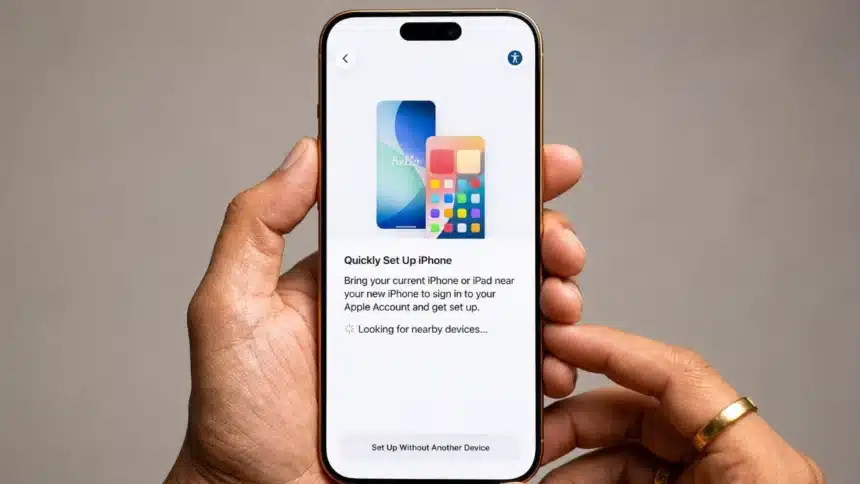
- Switching from another iPhone? Quick Start makes learning how to set up an iPhone fast. Place your old iPhone near your new one and follow the on-screen instructions.
- Got a brand new iPhone? Select “Set up without another device” and follow the instructions.
4. Internet & Login
- Mobile data: Want to use your operator? Insert a SIM card. Choose “Continue without Wi-Fi.”
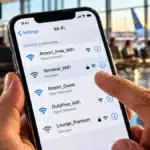
- Wi-Fi: Choose your network and enter the password.
5. Setting Up for Yourself Or Your Child
Apple will ask how old the user is to adjust settings and configure the account properly (if you are setting up an iPhone for a child).
6. Touch ID Or Face ID And Password
You will be guided through fingerprint or face scanning. Pretty easy. Now choose a six-digit code. If you prefer to make a password either longer or shorter, tap on other options available, such as four digits, custom code, or even no password at all (use with caution).
This passcode will also serve as the access code for Touch ID, Face ID, and Apple Pay.
7. Transferring Or Restoring Apps And Data
- If you want to switch from Android to iPhone, you can use the Move to iOS tool to restore data such as apps, photos, or contacts easily.
- If you are setting up your iPhone for the very first time, or if you have nothing to transfer, choose “Don’t transfer apps and data”, and your phone will be ready for you fresh.
8. Sign In To Your Apple Account Or Create A New One.
This is the step where you need to either Create a New Apple ID if you do not have one or use an existing one if you have it already. Sign in with your Apple ID (either your email or your phone number) and password.
Did you forget it? No worries. Just click on “Forgot password” or just create an Apple account if you do not have one yet. In case you manage several Apple accounts, then you can click More sign-in options. If you are using the existing account for logging in, then you may need to provide a verification code from your old iPhone.
9. Enable Automatic Updates And Other Features.
Proceed with the instructions that allow you to configure your iPhone to update automatically and configure other features:
- Set Up Siri: You will be asked to set up Siri by saying a few phrases so that Siri recognizes your voice.
- Screen Time: Set up Screen Time to know the duration of time spent on the iPhone. Here you can set up daily limits for the use of applications as well.
- Privacy: Get familiar with the type of information that you would like to share with Apple.
Additional Tips
- Back Button: If you are having difficulty getting through any page, just look out for the back button located in the top corner. You won’t get confused anymore.
- Check Updates: Look out for any updates after completion. The iPhone tends to update a lot, and it is best to have the latest security.
- Customization: Go through all the settings at your convenience, such as dark mode, ringtone settings, and privacy checks. Take your time and configure everything the way you want it.
That’s about it! Once you’re on the home screen, you’re ready to start. Have fun exploring!
Final Thoughts
Do not get intimidated by all the intricacies of the initial process. Learning how to set up an iphone is straightforward once you follow these steps, and it won’t take long before you don’t even realize how easy it became. You will be using your iPhone like a professional in no time. A small trick for you, use Siri to navigate through the whole process.
Must Read: How to Turn Off AI Features & Overlays on Android and iPhone
Visit Devicology for the latest Tech News, Guides, and in-depth Reviews. Follow us on Whatsapp, LinkedIn, X (Twitter) and Instagram to never miss an update!