



You can easily access and install millions of apps on your Android phone, but not all of them are trustworthy. Some of them may be suspicious, draining your phone’s battery, requesting unnecessary permissions, or even putting your personal information at risk.
The hardest part is knowing which apps are suspicious. However, you don’t need to be a security expert; you can do it in a few simple steps. Let’s understand how you can do that in this simple guide.
- How to Know if an App is Suspicious on Android?
- How to Check the Installed Apps on Android?
- How to Remove Suspicious Apps on Android?
- Run Google Play Protect
- What If the Uninstall Option is Missing?
- Restart Your Phone After Removing Apps
- How to Prevent Suspicious Apps from Getting on Your Android?
- Conclusion
How to Know if an App is Suspicious on Android?
To identify suspicious apps on your Android device, watch for key warning signs. A suspicious or malicious app may show one or more signs that can help you identify unusual behavior.
Key Warning Signs of Suspicious Apps
| Key Warning Sign | What to Look For |
| Battery drain | Unusual battery consumption when the app is not being actively used |
| Excessive permissions | Requesting access to features or information unrelated to the app’s main function |
| Performance issues | Unexpected crashes, slow response times, or overheating associated with the app |
| Unexpected pop-ups | Ads showing when the phone is idle or outside the app |
| Data usage spikes | Unexplained increases in mobile or background data consumption |
One warning sign doesn’t necessarily mean the downloaded app is suspicious. For example, even a legitimate app may consume a lot of battery. So, look for multiple signs and unusual behavior rather than relying on a single symptom.
How to Check the Installed Apps on Android?
To find suspicious apps, first you need to know what’s installed on your phone.
On Android, follow the steps below:
1. Open Settings.

2. Tap Apps.

3. Tap See all apps or App management.


The exact term may differ depending on the phone, Android version, and manufacturer.
From the list, look for apps you do not recognize. In particular, look for apps with generic names, unfamiliar icons, or apps you don’t remember installing.
If you think an app is suspicious, don’t open it right away. Check its details and permissions first.
How to Remove Suspicious Apps on Android?
After you have identified that an app is suspicious, whether you don’t remember installing it, don’t need it, or believe it is unsafe, the next step is to uninstall it. There are two common ways to uninstall an app; let’s look at them.
Method 1: Uninstall from Settings
1. Open Settings on your Android phone.
2. Tap Apps or Apps & notifications, depending on your device.
3. Tap See all apps or App management.
4. Find and tap the suspicious app.
5. Tap Uninstall.

6. Confirm by tapping OK or Uninstall.

This removes the installed app from your device. Some app-related information may still exist elsewhere, such as data stored in an online account or cloud service.
Method 2: Uninstall from App Drawer
Some Android devices let you uninstall an app directly from the app drawer.
1. Open your app drawer.

2. Find the app you want to remove.

3. Touch and hold the app icon.

4. Tap Uninstall, if available.

5. Confirm the uninstall.
The exact option may vary depending on your Android version and phone manufacturer.
Run Google Play Protect
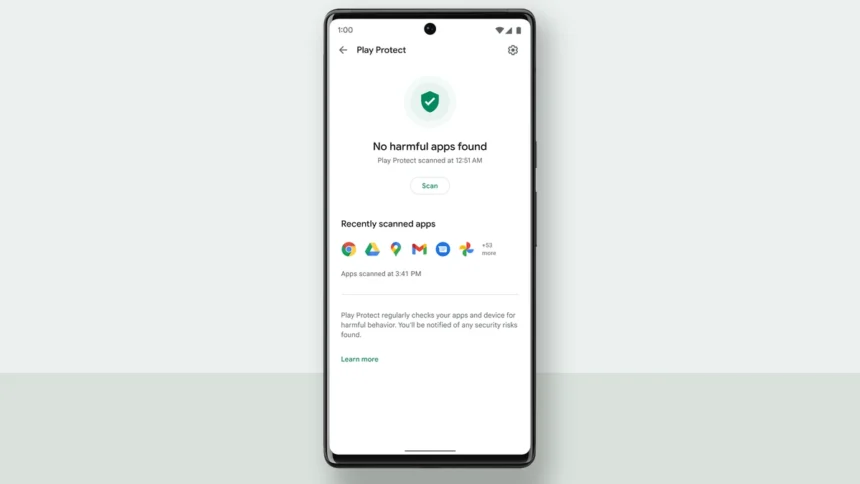
In addition to manually finding and removing apps, run Google Play Protect, Android’s built-in app security feature. It checks apps and your device for potentially harmful behavior, warns you about potentially harmful apps, and may disable or remove harmful apps in some cases.
To check Play Protect:
1. Open the Google Play Store.

2. Tap your profile icon in the top-right corner.

3. Select Play Protect.

4. Review the security status.

5. Tap Scan to check your apps, if the option is available.

Tip: Keep Play Protect enabled. Google recommends leaving it turned on for security.
What If the Uninstall Option is Missing?
Sometimes you may not see an uninstall option next to an app. There can be different reasons for this. Some pre-installed system apps cannot be uninstalled normally, while other apps may have been given special access or device administrator privileges.
If it is an app you installed and it has device administrator access, look for Device admin apps or Device administrator in your phone’s security settings. If the suspicious app has administrator access that you no longer want it to have, disable that access and then try uninstalling the app again.
Do not disable device administrator access for an app unless you understand why it has that permission, especially on a work-managed or organization-managed phone.
Also, check the Accessibility settings. Accessibility access can give an app extensive control over your Android device. If you find an unfamiliar app with accessibility access and you do not need it, disable that access and then try uninstalling the app.
If the app came pre-installed with your phone, Android may offer a Disable option instead of Uninstall. Some system apps cannot be deleted normally.
Restart Your Phone After Removing Apps
It’s a good practice to restart your Android device after uninstalling a suspicious app, especially if you were experiencing unusual behavior. After restarting, check whether the battery drain, pop-ups, overheating, or other unusual behavior has stopped.
After you restart the phone, run Google Play Protect again if you still suspect a problem and check whether any warnings remain.
How to Prevent Suspicious Apps from Getting on Your Android?
Here are some ways to reduce the chances of suspicious apps getting onto your Android phone:
- Prefer downloading apps from the Google Play Store or another source you trust.
- Examine app permissions and make sure they make sense for what the app does.
- Check the developer, app information, ratings, and recent user reviews before installing unfamiliar apps.
- Keep Android and your apps updated with the latest available security updates.
- Avoid installing APK files or apps from unfamiliar websites unless you trust the source and understand the risk.
Conclusion
Suspicious apps can be seriously risky, especially if they misuse permissions or put your personal information at risk. However, Android provides several tools that can help you identify and remove apps you don’t trust. Follow the steps in this guide to review installed apps, check permissions, uninstall suspicious apps, and scan your device with Play Protect.
Prefer trusted sources when downloading apps, keep Android privacy and security settings under review, and check permissions carefully to help keep your phone safe.