



Your phone may already have a fix in the settings menu if it has ever stuttered in Battle Royale or dropped frames right before you land a critical hit. Many recent Android phones have a Game Mode or Performance Mode, although the available features can vary by manufacturer and model. This mode can prioritise gaming performance, block out distractions, and help improve frame-rate consistency without needing any extra apps.
The catch is that each manufacturer hides this feature and names it differently. It’s called Game Booster by Samsung. It’s called Game Turbo by Xiaomi. It is known as the Game Dashboard on Pixel devices and similar Android implementations. This guide shows you how to find and set up Game Mode on the most popular Android skins. It also includes the little changes that really make a difference.
- What Does Game Mode / Performance Mode Actually Do?
- How to Enable Game Mode on Samsung (Game Booster)
- How to Enable Game Turbo on Xiaomi, Redmi, and POCO Devices?
- How to Use the Game Dashboard on Stock Android and Pixel?
- Other Brands: What to Look For
- Beyond Game Mode: Settings That Make an Even Bigger Difference
- Final Thoughts
What Does Game Mode / Performance Mode Actually Do?
Game Mode isn’t just a name for a product. In terms of details, it almost always:
- Prioritises gaming performance and system resources, which can increase battery usage.
- Blocks calls and notifications so nothing can get in the way of your work or cause you to accidentally tap the screen.
- Some gaming tools can protect touch areas near the edges of the screen to stop accidental touches during intense games.
- Keeps an eye on the temperature and can reduce CPU and GPU performance to prevent the phone from getting too hot.
- Through Android’s Game Mode API, supported devices can use game-specific Performance or Battery modes, while OEMs can apply their own performance-related interventions.
| Feature | What It Does |
| Performance Optimisation | Prioritises gaming performance and can help improve frame-rate consistency |
| Battery Management | Performance modes can use more battery, while Battery modes prioritise battery life |
| Notifications | Can block calls and notifications while gaming |
| Touch Controls | Some gaming tools provide mistouch prevention and edge touch protection |
| Thermal Management | Can reduce CPU and GPU performance when the phone gets too hot |
| Game-specific Settings | Supported devices may offer FPS, resolution, touch, or other per-game controls |
Many times, you can tell the difference right away: animations run more smoothly, frame rates can stay more consistent, and there may be less input lag in competitive games. The exact improvement depends on the phone, game, and performance settings being used.
How to Enable Game Mode on Samsung (Game Booster)
With One UI 7, Samsung’s Game Booster settings have been changed and expanded. To turn it on, you can follow these steps:
- Open the Gaming Hub app on your device.
- In the upper right corner, tap the three-dot menu.
- Pick Game Booster.
- Tap Game optimisation.
- You can pick Performance for the highest performance, or Standard and Battery saver for a balance between speed and battery life.
You can also fine-tune settings for each game on Samsung. Tap Customisations for individual games from the same Game Booster menu, pick a game, and change the frame rate targets, screen resolution, and frame booster settings just for that app.
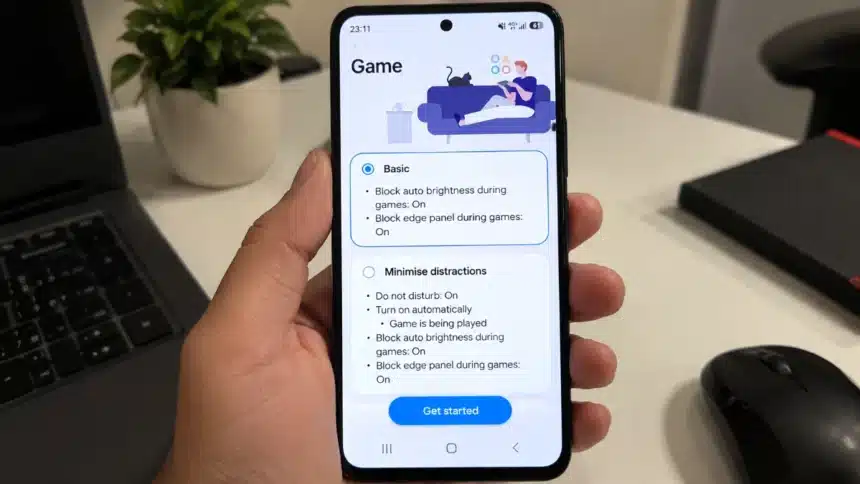
Samsung has moved the ability to set your phone to a gaming mode and turn off notifications while you play to the Modes and Routines section:
- Open Settings.
- Click on Modes and Routines.
- Select Game.
- Pick a time for Game mode to start up on its own, then tap “Done.”
How to Enable Game Turbo on Xiaomi, Redmi, and POCO Devices?
Xiaomi’s MIUI and HyperOS skins both have a tool called Game Turbo that can provide WLAN, touch, sound, performance, and temperature-related optimisations:
- Open the Game Turbo feature on your device. Depending on the model and software version, it may be available through Security or as a dedicated Game Turbo app.
- Add the games you want optimised to the list.
- Open the Game Turbo settings to adjust the available gaming options.
- Choose the performance and touch settings that suit your game.
There is also a floating panel inside Game Turbo that lets you quickly change the do-not-disturb, screen recording, and touch-related settings without leaving the game. The exact options and menu layout can vary between Xiaomi, Redmi, and POCO devices.
How to Use the Game Dashboard on Stock Android and Pixel?
If you have a Pixel phone or another phone from another company that looks a lot like Google’s Pixel phones, you can find gaming tools in the Game Dashboard:
- Launch any supported game.
- To get to the Game Dashboard, tap the Game Dashboard shortcut while playing a supported game.
- On supported devices and games, use the available Game Mode optimisation options, such as Performance or Battery mode.
- Turn on “Do Not Disturb” to stop calls and alerts while you’re playing.
- If available, use the other gaming tools provided by Game Dashboard.
This dashboard also makes it easy to record your screen and take screenshots. This is useful for both streamers and competitive gamers.
Other Brands: What to Look For
This feature has a few different names depending on the manufacturer, so if your phone isn’t listed above, look in the Settings app for one of these names:
- Game Space (OnePlus, some Oppo devices)
- Game Assistant (Huawei, Honor)
- Performance Mode (various OEMs)
- Game Mode (general Android term, also used by developers directly)
The setup process is pretty much the same no matter what the name is: go to Settings, find the gaming section, add or find your installed games, and choose a performance profile. Performance, Standard, and Battery Saver are common names for these profiles, although the available options vary by device and software version.
Beyond Game Mode: Settings That Make an Even Bigger Difference
Turning on Game Mode is the fastest win, but pairing it with a few additional settings tends to produce a noticeably smoother experience:
- Before you start playing, turn off Battery Saver. Power-saving settings can limit device performance and may affect gaming responsiveness.
- Use the highest practical refresh rate your screen supports; a higher refresh rate can make animations and touch interactions feel smoother, although it does not automatically increase the game’s frame rate.
- Avoid running unnecessary apps or resource-heavy processes in the background, particularly on devices with limited RAM.
- Keep your phone cool during long sessions. One of the main reasons why games slow down in the middle is that the phone gets too hot. To protect the hardware, Android can automatically reduce CPU and GPU performance when the device gets too hot.
- Keep enough free storage on your phone. A nearly full device can cause problems with normal system operation, so avoid letting storage remain almost completely full.
- Keep your OS and game apps updated, since updates can include performance, compatibility, and stability fixes.
Final Thoughts
It only takes a minute to turn on Game Mode or Performance Mode on Android, but it’s one of the best free ways to improve your mobile gaming experience. Many recent Android devices have some form of gaming or performance feature, whether it’s a Samsung, Xiaomi, Pixel, or something else. You just need to find it. If you also do smart things like avoiding unnecessary background processes and keeping your phone cool, you may get smoother and more consistent gameplay without having to buy any new hardware.