



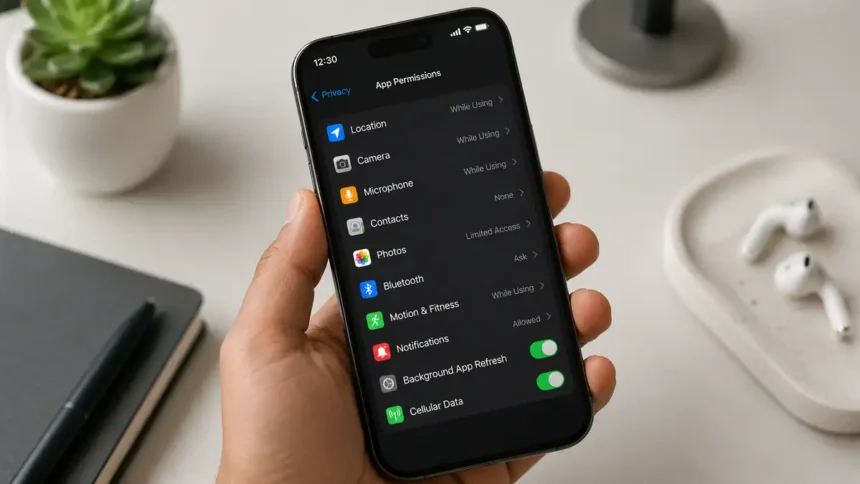
Every time you download a new app, it asks you for something. Access to your camera. Your contacts. Your location, even when you’re not using it. There is a general tendency to tap “Allow” without giving it much thought because people just want the app to work.
Here’s the problem: that reflex is exactly what shady developers count on. A flashlight app doesn’t need your contacts. A calculator has no business asking for your microphone. Yet many people grant these permissions simply because the pop-up appeared and “Allow” was the easy button.
- What Are Phone Permissions, Exactly?
- The Golden Rule: Does This Permission Match the App’s Primary Function?
- Permissions You Should Think Twice About
- 1. Accessibility Services (Android)
- 2. Display Over Other Apps / Screen Overlay
- 3. SMS and Call Log Access
- 4. Location: Especially “Always Allow”
- 5. Camera and Microphone
- 6. Contacts
- 7. Full File and Storage Access
- A Quick Note for iPhone Users
- A Quick Note for Android Users
- How to Audit Your Permissions Right Now
- 1. Open your permission manager
- 2. Go permission by permission, not app by app
- 3. Ask the golden rule question for each one
- 4. Revoke anything that doesn’t pass the test
- 5. Delete apps you no longer use
- The Bottom Line
In simple language, this guide explains what phone permissions do, which ones you should really be wary of, and how to lock things down on both iPhone and Android without needing a tech background. No permission is automatically bad; what matters is whether the permission makes sense for what the app actually does.
What Are Phone Permissions, Exactly?
Your phone is like a house with many locked doors. Each of your cameras, microphones, location, and text messages has its own door. When an app wants in, your phone’s operating system stops it at the threshold and asks you directly: should this app be allowed through?
That’s a permission request. Both iOS and Android use this system, though they handle it a little differently.
- When you use your iPhone, apps generally ask for access to privacy-sensitive data or features when they need it, such as the first time you try to use the camera in an app.
- On Android, low-risk or normal permissions, like basic internet access, can be granted automatically. But for sensitive permissions, like camera, microphone, location, and contacts, Android generally asks for your approval before the app can access them. Depending on the permission and Android version, you may also see options such as “Allow only while using the app” or “Ask every time.”
Neither system is asking to be nosy for no reason. A video-calling app legitimately needs your camera and mic. A maps app needs your location. The trouble starts when the permission being requested has nothing to do with what the app actually does.
The Golden Rule: Does This Permission Match the App’s Primary Function?
Before you tap “Allow” on anything, ask one simple question: does this app need this to do the thing I downloaded it for?
It makes sense that a scanner app would need your camera. If a calculator app asks to use your camera, that’s a huge red flag. This one filter will save you from the majority of bad permission decisions, even if you never read another word of this guide.
With that in mind, here are the permissions that deserve the most scrutiny.
Permissions You Should Think Twice About
Here are a few permissions that you need to keep in mind:
1. Accessibility Services (Android)
This one sounds safe and maybe even helpful. It’s designed for legitimate accessibility tools, like screen readers for visually impaired users. But in the wrong hands, accessibility access can be extremely powerful. Depending on the access granted and how the service is configured, an app may be able to read on-screen content, observe interface changes, and perform actions on your behalf.
Allow this only when you understand why the app needs accessibility access and trust the app. Be particularly cautious if a game, wallpaper app, or another app with no obvious reason to need accessibility access asks you to enable it.
2. Display Over Other Apps / Screen Overlay
Also called “Appear on top” or “Draw over other apps,” this permission lets an app show content floating above whatever else you’re doing. Messaging apps can use similar functionality legitimately for floating conversations. Malicious apps can abuse overlays to put a fake or deceptive layer on top of your screen. For example, an attacker could try to imitate a login screen to trick you into entering sensitive information.
If an app you don’t fully trust asks for this, deny it.
3. SMS and Call Log Access
Very few apps actually need broad access to your text messages or call history.
This is important because some one-time security codes are sent by SMS. An app with unnecessary access to your messages could expose sensitive information, including verification codes. This can weaken the protection provided by two-factor authentication. On Android, Google Play also restricts the use of SMS and Call Log permissions, generally limiting them to apps with eligible core functionality, such as certain default handlers or approved use cases.
Unless the app has a clear, legitimate core function that requires this access, there’s rarely a good reason to grant it.
4. Location: Especially “Always Allow”
Location tracking is one of the most sensitive permissions on any phone, largely because of how much it can reveal: where you live, where you work, your daily routine, and where you are right now. “Only while using the app” is available for location access on modern iOS and Android devices. For many apps, this provides the access they need without allowing continuous background location tracking.
Reserve “Always Allow” or equivalent background location access for an app that genuinely needs continuous tracking to provide a feature you’ve chosen to use, such as certain family-safety, navigation, or fitness features. Everyone else can usually get “while using” access at most.
If location privacy is a concern, you can also check your phone for hidden trackers and review apps that have unnecessary access to your location.
5. Camera and Microphone
Video call apps, camera apps, and voice recorders legitimately need these. That being said, you should be extra careful with these permissions because malicious software may try to misuse them to capture audio or video.
Modern iPhones and Android phones provide privacy indicators when the camera or microphone is being used. On iPhones running iOS 14 or later, an orange indicator means the microphone is being used, while a green indicator means the camera, or the camera and microphone, is being used. Apple explains these camera and microphone privacy indicators as part of its privacy controls. Android 12 and later also shows a green privacy indicator when an app accesses the camera or microphone.
If you see one of these indicators and you’re not using a feature that should need the camera or microphone, that’s worth investigating immediately.
6. Contacts
There’s more to your contact list than just names and numbers. It can contain phone numbers, email addresses and other information about people in your personal and professional life. Giving an app contact access can therefore expose information not only about you, but also about people in your address book.
A photo-editing app or a game normally has no legitimate reason to ask for full access to your contacts. Only grant it when contact access clearly makes sense for the app’s function. On iPhone, Apple also lets you control which contacts an app can access, including limited access to selected contacts.
7. Full File and Storage Access
Storage access works differently on modern phones than it did on older Android versions. Android now uses protections such as scoped storage, which limits how broadly normal apps can access files. Some apps can also use system tools such as the photo picker, allowing you to share only selected photos and videos instead of your entire media library.
Android also has a special “All files access” capability for apps that genuinely need broad access to shared storage, such as certain file managers. This is much more powerful than simply selecting an individual photo or document.
If an app asks for broad storage or media access when it only needs one photo, video, document, or folder, choose the narrower option when your phone offers one.
A Quick Note for iPhone Users
Apple’s model is generally restrictive out of the box, and it includes some extra tools worth knowing about:
- You can find the App Privacy Report in Settings > Privacy & Security > App Privacy Report. It shows how often and when apps accessed privacy-sensitive data and sensors such as your location, photos, camera, microphone and contacts over the past seven days. It can also show information about app and website network activity.
- Precise vs. Approximate Location lets you control whether an app gets your precise location or only an approximate location. Many apps can work without knowing your exact position. Apple lets you turn Precise Location on or off separately for individual apps.
A Quick Note for Android Users
Android’s Privacy Dashboard gives you a timeline of when apps accessed sensitive permissions such as your camera, microphone, or location. On Android 12, the dashboard shows permission activity from the past 24 hours, while Android 13 and later can show activity from the past seven days.
The exact menu names can vary depending on the Android version and phone manufacturer. Android also includes additional protections around sensitive access, including background location and certain restricted settings. Don’t approve sensitive access just because an app asks for it; first check whether the request makes sense for what the app does.
How to Audit Your Permissions Right Now
You don’t need to memorize every rule above. Instead, build one simple habit: a permissions check-up every few months.
1. Open your permission manager
On iPhone: Settings > Privacy & Security. On Android, look for Permission Manager under Settings > Security & Privacy > Privacy, although the exact wording and location can vary by phone manufacturer and Android version. Google’s Android permission controls also let you review access by app or permission type.
2. Go permission by permission, not app by app
Tap “Location,” then “Camera,” then “Microphone,” and see every app that currently has access to each.
3. Ask the golden rule question for each one
Does this app actually need this to perform its function?
4. Revoke anything that doesn’t pass the test
You can usually grant the permission again later if the app genuinely needs it. Some features may stop working until you restore the required permission.
5. Delete apps you no longer use
An unused app doesn’t need to remain on your phone. Modern Android versions can also automatically reset permissions for apps that haven’t been used for a while, adding another layer of protection.
You can also follow a broader phone data privacy check to review location tracking, background activity and other data-sharing settings.
If you set a reminder to do this every three months, it will stop being a chore and become a five-minute habit.
The Bottom Line
Permissions are not bad in and of themselves; they’re what let your camera app use your camera and your maps app figure out where you are. The real risk is the mismatch: permissions granted to apps that have no real reason to need them.
Get in the habit of pausing before you tap “Allow,” and take fifteen minutes every few months to review what you’ve already granted. It’s a simple habit that blocks one of the easiest ways for people to get to your personal information. You don’t need to be tech-savvy, you just need to be sceptical.