


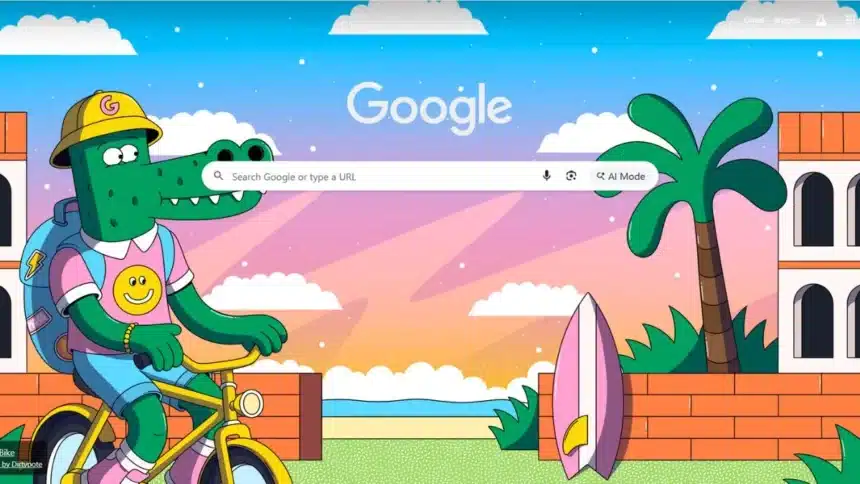
If you’re spending hours every day on Google Chrome, sticking with the default look doesn’t make much sense.
Chrome may look simple on the surface, but it actually offers plenty of ways to tweak how it looks and behaves.
How to Customize Google Chrome
Here’s a clear, step-by-step guide to help you personalise Chrome the right way.
Step 1: Open the Customize Panel
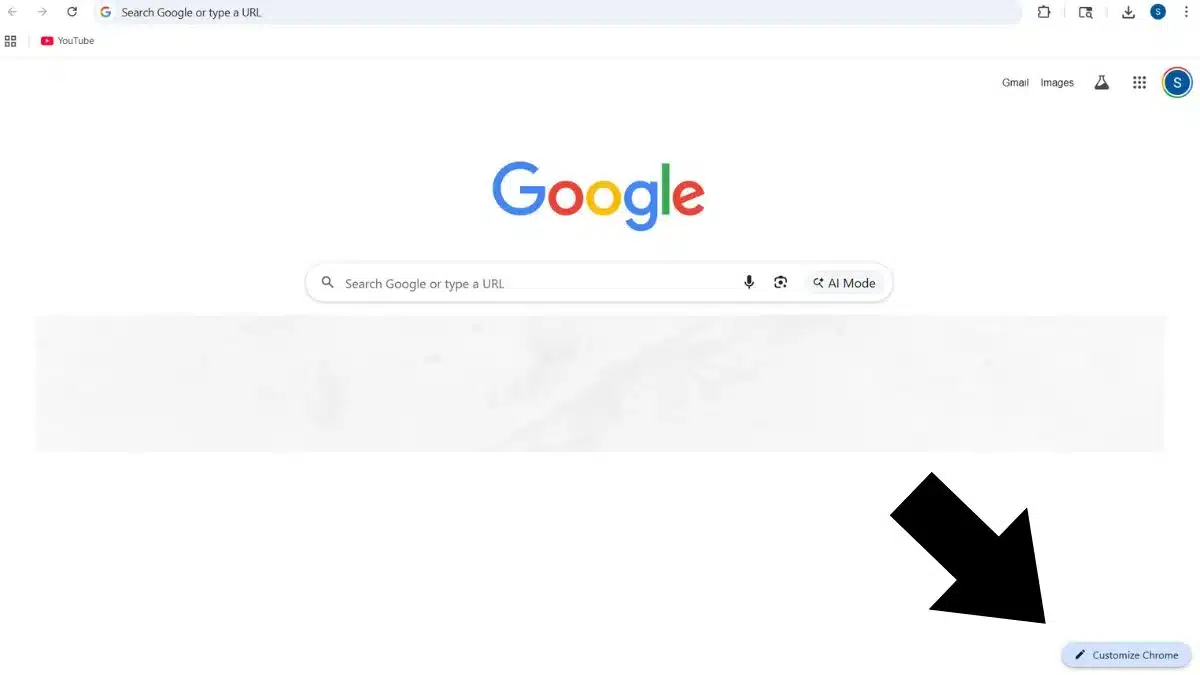
Open a new Chrome tab and at the bottom-right corner of the screen, you will see a “Customize Chrome” button or a small pencil icon. Click on it.
Step 2: Change Your Chrome Theme
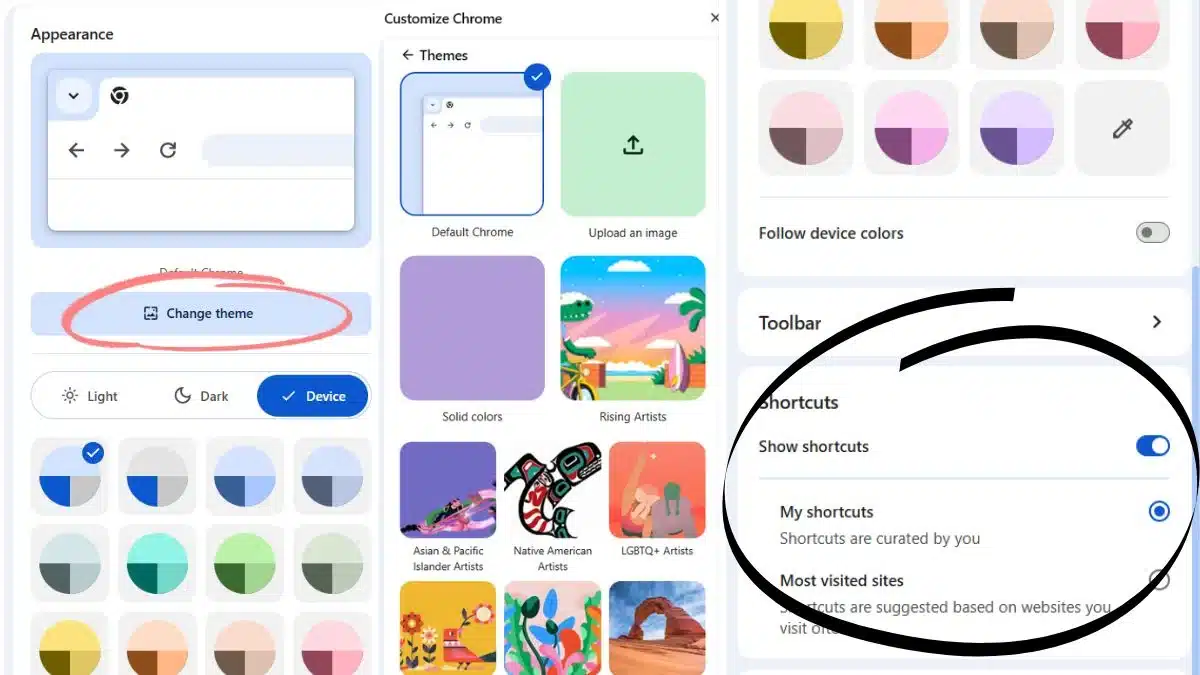
Inside the panel, you’ll see different colour options. Click on any colour swatch to instantly apply it or switch between Light and Dark mode.
Step 3: Explore More Themes
Click “Change theme” and browse the built-in theme gallery. These themes don’t just change colours, they can also add background images to your new tab page too.
You can also turn on “Refresh daily” to auto-change themes or upload your own image. But if you are still not satisfied, scroll down and open the Chrome Web Store to explore hundreds of additional themes.
Step 4: Customize Your Shortcuts
Scroll down in the same panel to find shortcut settings.
You have three options: Show your most visited sites, Add your own custom shortcuts or Hide shortcuts completely.
Step 5: Adjust Toolbar Icons
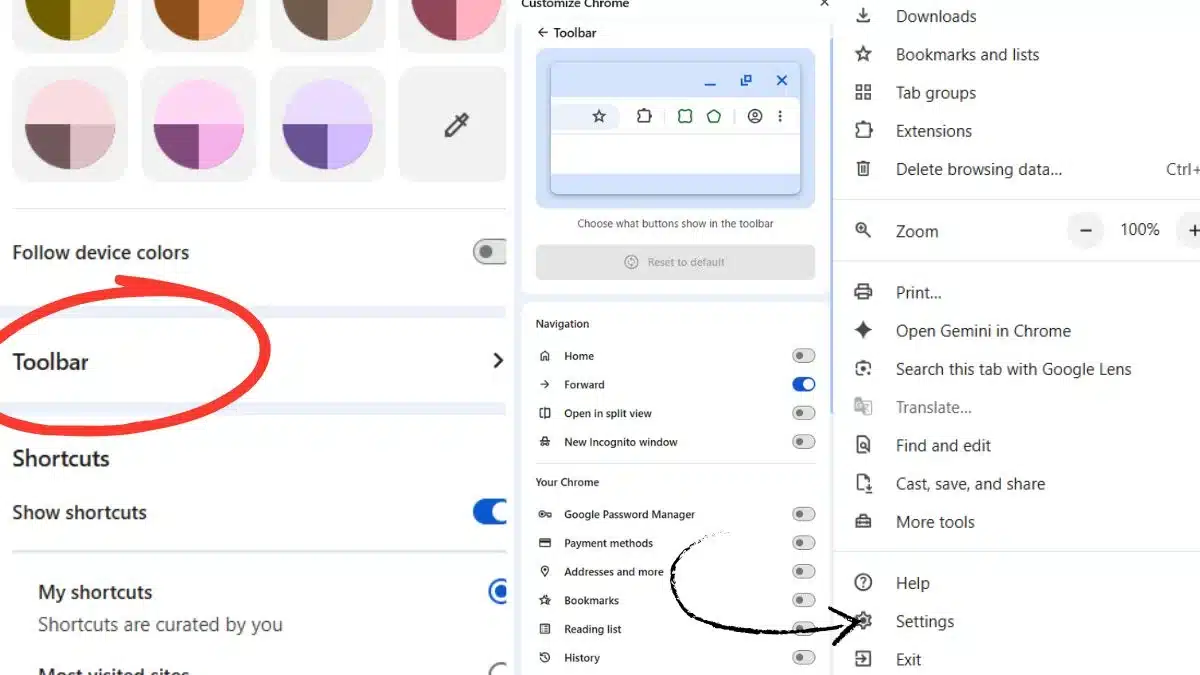
Go back to the customization panel, click on Toolbar. From here, you can choose which icons appear (like Home or History), and you can also rearrange icons by dragging them directly on the toolbar.
Step 6: Open Advanced Appearance Settings
Now click the three dots (⋮) in the top-right corner > go to Settings > then Appearance.
From here, you can show or hide the bookmarks bar, change fonts and text size, move the side panel (left or right) and set a custom startup or new tab page.
Step 7: Reset If Things Go Wrong
If your Chrome starts looking messy, go back to the customization panel and click “Reset to default Chrome”, to go back to the original layout.
So, customizing Google Chrome isn’t just about looks, but it can actually elevate your browsing faster, cleaner, and more comfortable.
Also Read: How to Boost Your Wi-Fi Speed at Home