
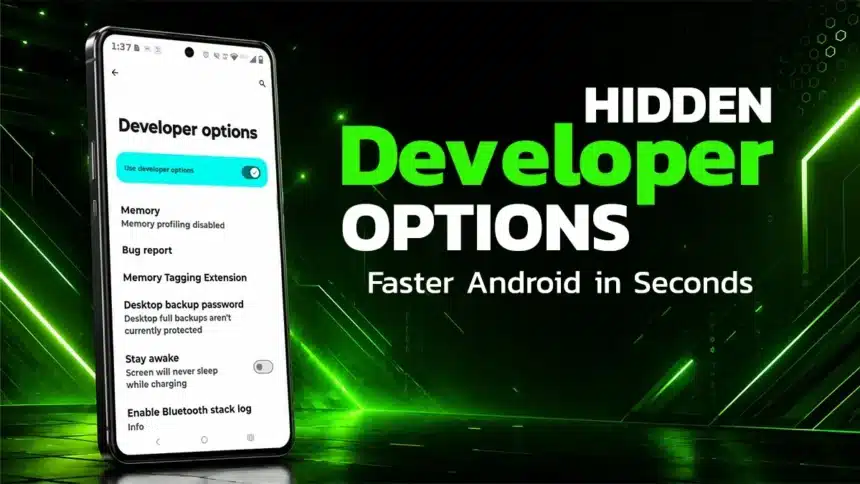
Is your Android phone starting to feel sluggish, lagging during daily scroll, or stuttering while switching apps? You don’t need to buy a brand new device just yet. Deep inside your settings lies a hidden menu built for power users.
If you are looking for how to speed up android phone performance safely, unlocking these hidden Developer Options in Android is the ultimate free trick to breathe new life into your device.
- What is Developer Mode in Android?
- How to Unlock Developer Options First
- Here are the Hidden Developer Options in Android That Actually Speed Up Your Phone
- 1. Reduce Animation Scale for Instant Snappiness
- 2. Limit Background Processes to Free Up Resources
- 3. Force GPU Rendering for Smoother Graphics
- 4. Lower the Logger Buffer Size
- 5. Suspend Execution for Cached Apps
- Putting All Five Settings Together
- Final Thoughts
What is Developer Mode in Android?
Developer Mode is a hidden diagnostic and configuration menu built into the Android operating system. Google created this section specifically for app developers to test software, analyze system logs, and debug performance under various conditions. By default, phone manufacturers keep this menu locked to prevent everyday users from accidentally altering advanced system level settings.
However, unlocking this menu does not harm your device. It safely grants you access to deep system toggles, such as adjusting how your phone handles temporary cache files or graphics rendering, allowing you to optimize performance and responsiveness completely for free.
How to Unlock Developer Options First
Before you start touching any setting, you need access to the menu itself. Android devices are hiding it by default for a specific reason. It also contains powerful controls meant for testing.
The Simple Unlock Trick
Getting access takes less than a minute on any device. To enable Developer Options, follow the steps below:
- Open Settings.
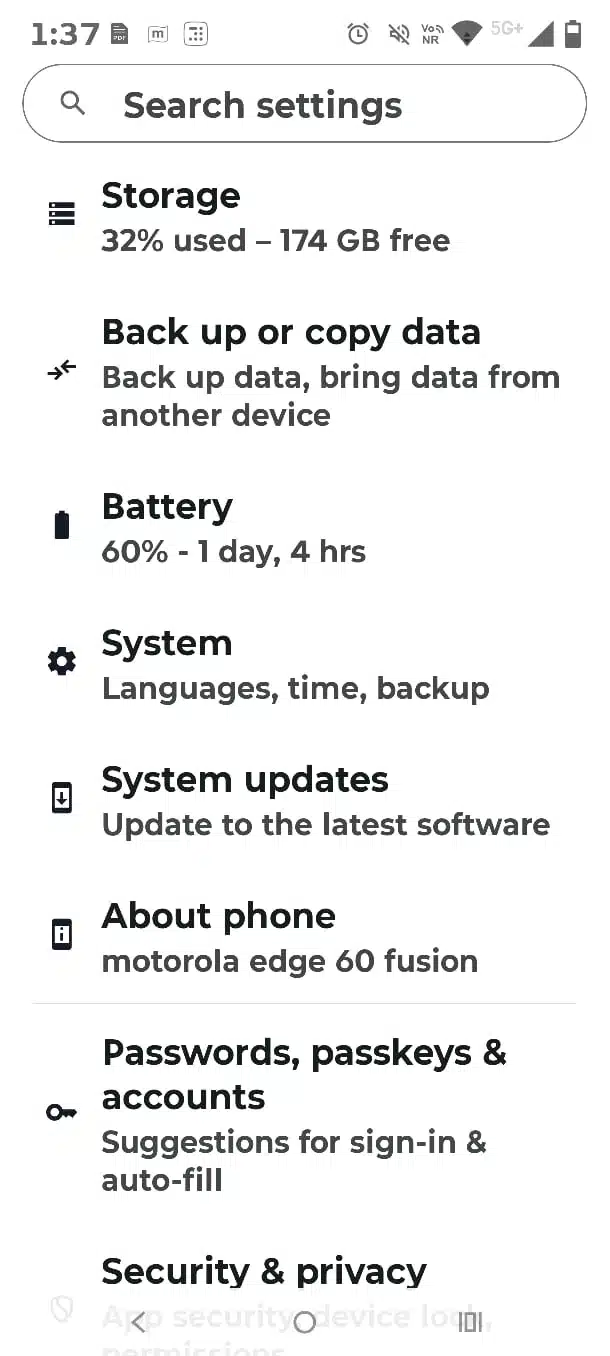
- Click on About Phone.
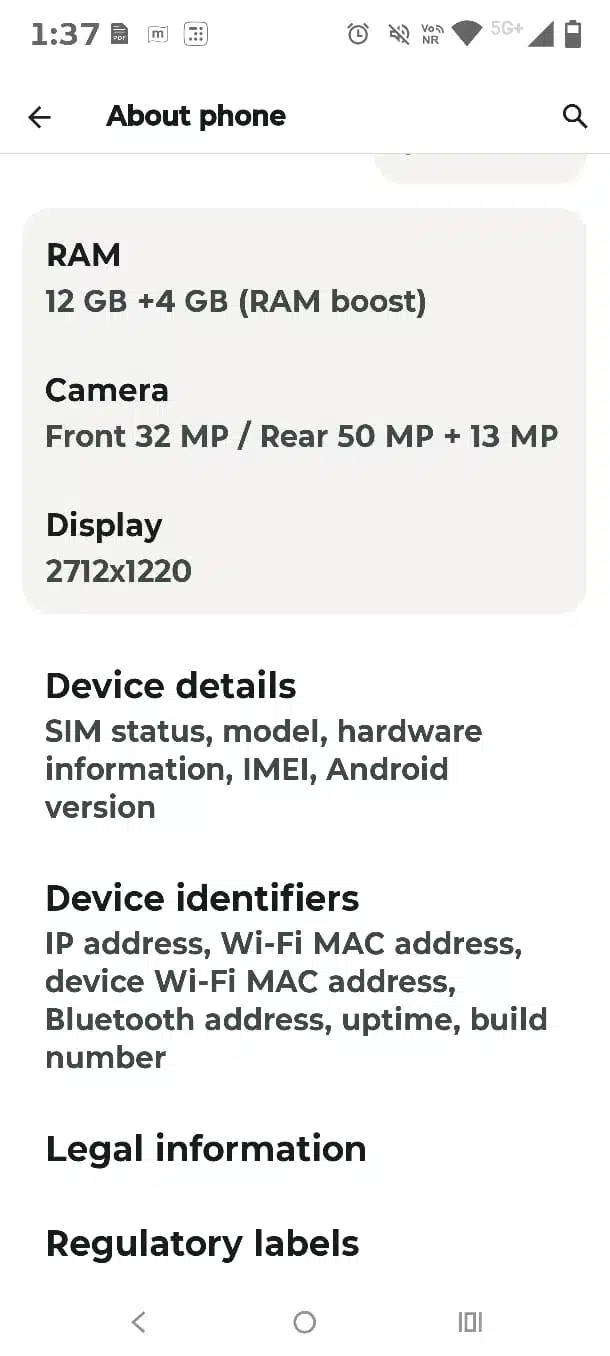
- Next, click on Device Identifiers.
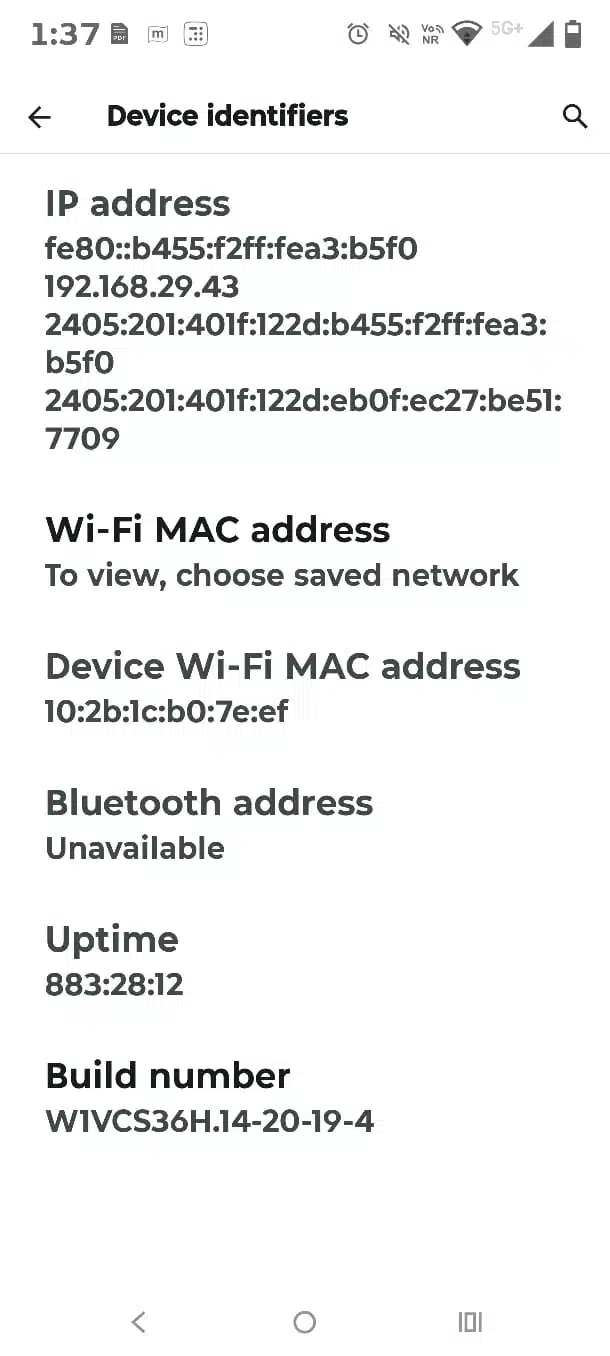
- Tap on Build Number 7 times, and you’ve unlocked Developer Options.
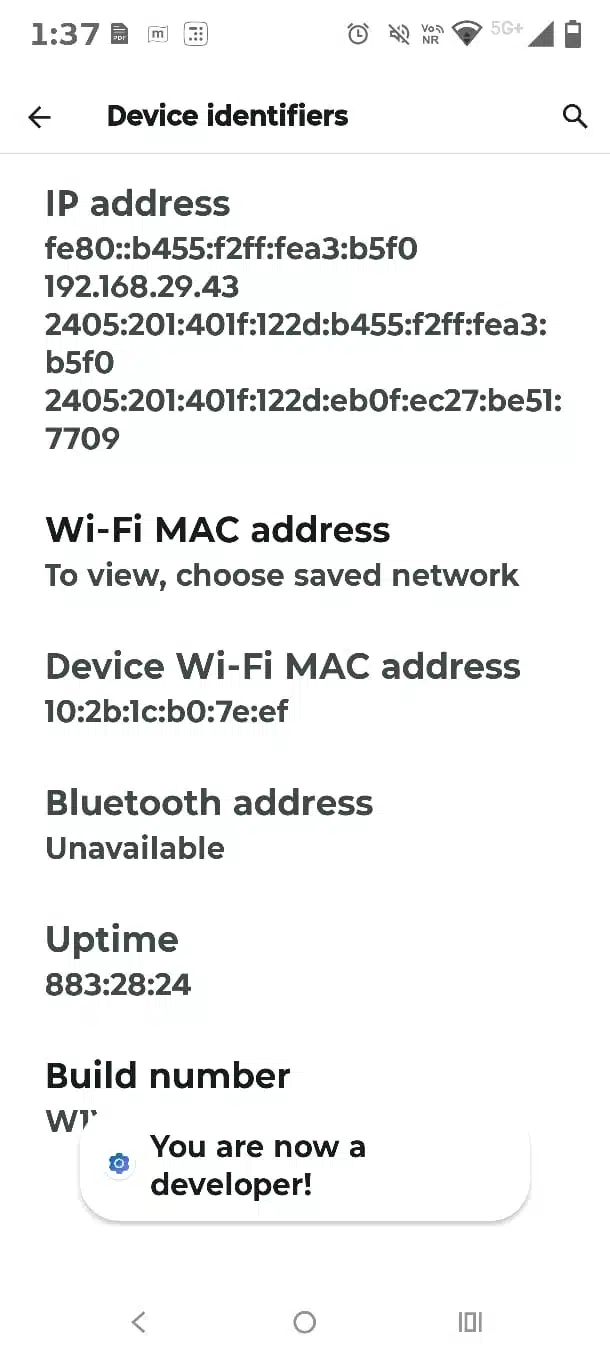
- To check and confirm the same: Settings>System> Developer Options. The Developer options will be marked Green or any other color based on your device.
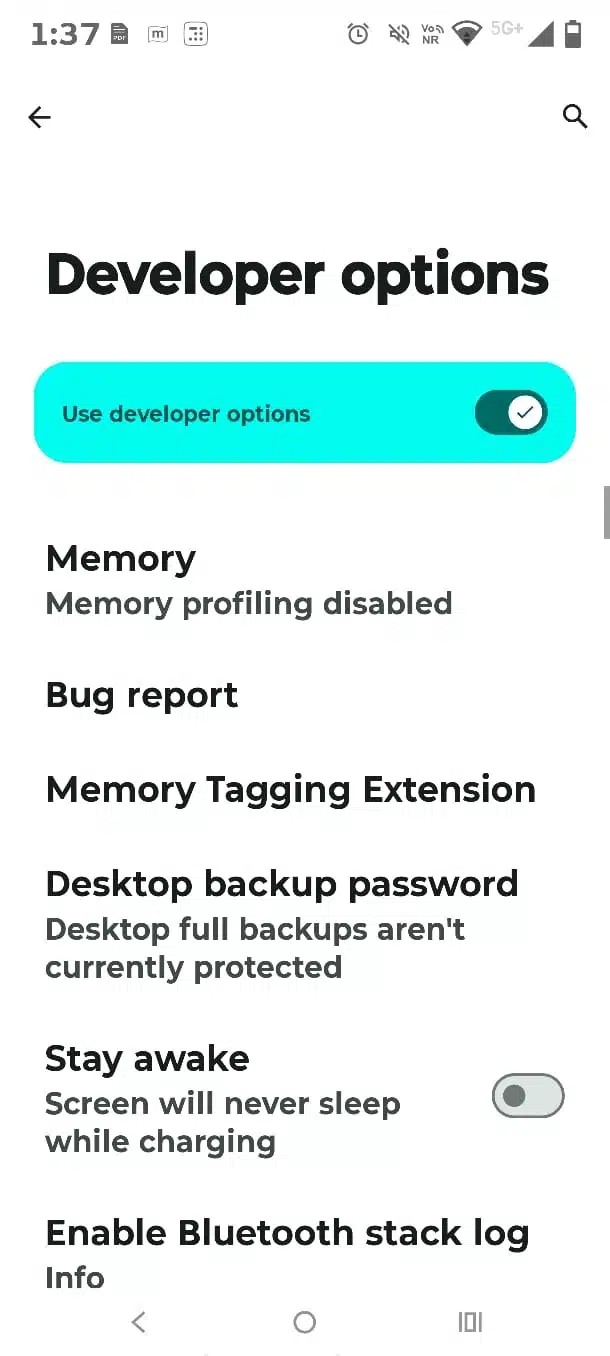
You will see the Developer Options inside System or even Additional Settings afterward. Every option sent below lives inside this same menu, and you just have to check them.
Here are the Hidden Developer Options in Android That Actually Speed Up Your Phone
1. Reduce Animation Scale for Instant Snappiness
Animation scale is one of the single most noticeable performance tweaks on any Android device. It will not touch your processor at any cost. It will only reduce how long visual effects take to run.
What Animation Scale Actually Controls
Three separate settings are working in coordination here.
| Setting | What It Affects |
| Window Animation Scale | App opening and closing speed |
| Transition Animation Scale | Switching between screens |
| Animator Duration Scale | Menu and button animations |
By default, these are set to 1x. If you change them to 0.5x, your phone will feel twice as fast because it spends less time drawing the transitions. Changing these scales is one of the most effective developer options to speed up android devices instantly.
How to Adjust It Properly
To get the best balance, you need to set all three values to 0.5x. This will eventually cut the transition time roughly in half. Changing just one setting creates inconsistent speeds across your phone. Some users often disable animations entirely, though there can be cases when it feels abrupt on older devices.
2. Limit Background Processes to Free Up Resources
Apps that are often sitting idle in the background consume more RAM and processing power. With time, this will slow down irrespective of the app you are using. The background process limit can fix this directly.
Why Background Apps Slow You Down
You might not know that Android devices keep recently used apps in memory by design. This will help apps to reopen quickly. On budget or older phones with limited RAM, too many idle apps create the opposite effect and drag down performance.
Choosing the Right Limit
Open Developer Options and then scroll to Background Process Limit. Set it to “At most 3 processes” or “At most 4 processes.” This forces Android to close unused apps more aggressively. Your active app then gets more memory and processing priority.
Using these hidden android settings for performance will stop unwanted apps from running in the background.
Be cautious with very strict limits on daily driver phones. Setting it too low can drain the battery faster, since apps need to reload more often when reopened.
3. Force GPU Rendering for Smoother Graphics
Your phone has two major processing units, the CPU and the GPU. Many older or poorly optimized apps rely too heavily on the CPU for visuals. Force GPU rendering shifts that balance.
What This Setting Does
This option pushes 2D rendering tasks onto your graphics processor. The GPU handles visual tasks more efficiently than the CPU in most cases. Scrolling, animations, and navigation feel noticeably smoother once enabled, especially in older apps.
When You Should Enable It
This setting helps most on apps that have not been updated recently. If a specific app feels laggy while scrolling, try enabling this option. Modern apps already use GPU acceleration automatically, so gains vary by app.
A Quick Trade-Off to Know
Forcing GPU rendering can increase battery usage slightly. It also uses more power during extended gaming sessions. Test it for a day and judge whether the smoothness is worth the trade-off.
4. Lower the Logger Buffer Size
This is the least known setting on this list. Android constantly records system activity through a logger buffer. Most users never need this data at all.
Why This Setting Matters
The default logger buffer size is fairly generous. Google built it this way to help developers debug apps. This means more background activity and extra work for your CPU and memory, even when you are not actively debugging anything.
How to Adjust It Safely
Open Developer Options and locate Logger Buffer Sizes. Reduce it from the default value to a smaller setting. This will not dramatically boost speed on its own. Combined with the other tweaks here, it can noticeably reduce background CPU load.
5. Suspend Execution for Cached Apps
This is a relatively newer setting that replaces the older background-app toggles that many users previously relied on. It changes how idle apps behave while sitting in memory. The result is a smoother experience without sacrificing app-switching speed.
How It Differs From Killing Apps
Constantly force-closing apps is a common but flawed habit. It wastes the purpose of your phone’s RAM, since apps then reload from storage every time you reopen them. This drains the battery and adds extra processing work.
What Suspend Execution Actually Does
This setting will also freeze app activity while all the apps remain stored in memory. No background processing will happen, yet the app will reopen instantly when needed. You get the speed benefit of cached apps without the resource drain of active background tasks.
Enabling It Correctly
Open Developer Options and search for Suspend execution for cached apps. Then, you have to toggle it on and restart your phone. You need to give a day or two for the device to notice the difference in app-switching speed.
Enabling this setting is a highly underrated way to make android phone faster without aggressively killing your background tasks.
Putting All Five Settings Together
Every setting, even alone, offers a modest improvement. But when combined, they can create a noticeably faster and smoother phone. Here is a quick summary to understand at a glance.
| Setting | Primary Benefit |
| Animation Scale | Faster visual transitions |
| Background Process Limit | More resources for active apps |
| Force GPU Rendering | Smoother scrolling and animations |
| Logger Buffer Size | Less background CPU load |
| Suspend Execution for Cached Apps | Faster app switching, less drain |
Final Thoughts
There’s no doubt that your phone is hiding more speed in its functioning than it has right now. These five Developer Options discussed in this article require no root access or third-party apps. You can easily try them one step at a time and then see the difference in your functioning.
Visit Devicology for the latest Tech News, Guides, and in-depth Reviews. Follow us on Whatsapp, LinkedIn, X (Twitter) and Instagram to never miss an update!