

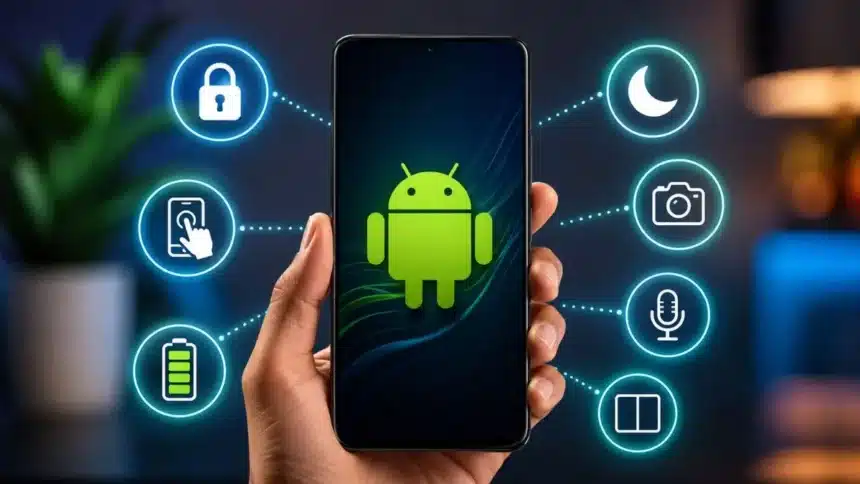
Modern-day smartphones come loaded with a bevvy of features. Every year, developers are focusing on such additional elements that extend the use of smartphones to such tasks where another device may have been required. Most of us use only a small part of what our smartphones are capable of. Smartphone developers are targeting convenience and ease of use through new tools, but these tools are often hidden inside settings and menus that not many users can easily find on their mobile devices.
In this article, we detail seven such features that are already built into your phone to make your life easy without any extra app installation and purchases.
Top 7 Secret Smartphone Features That Make Life Easier
1. Document Scanner
Document scanner turns your phone camera into a scanner. It can capture receipts, contracts, ID cards, and handwritten notes, and save them as clean, sharp PDF files.
To the people who still download a separate scanning app for this, here’s how to use it.
How to use it on Android:
- Open the Google Drive app.
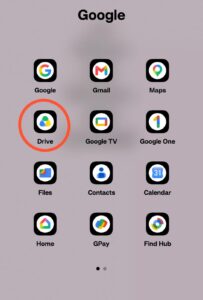
- Tap the camera icon (usually in the bottom-right corner).
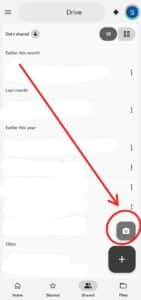
- Point your camera at the document. A blue outline will appear around it.
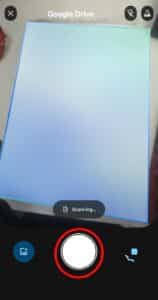
- Tap the shutter button to capture the page.
- Use the on-screen tools to crop, rotate, or remove shadows if needed.
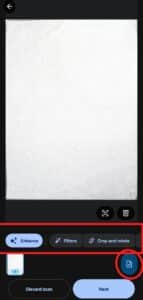
- Tap ‘Add’ to scan more pages, or ‘Save’ to finish. Choose to save the file as a PDF or an image.
2. Emergency SOS
Emergency SOS feature lets you quickly call emergency services and automatically alert people you trust, even if you cannot speak or explain where you are. In a real emergency, most people forget how to unlock their phone and dial a number properly. This feature is built for exactly that kind of moment.
How to use it on Android:
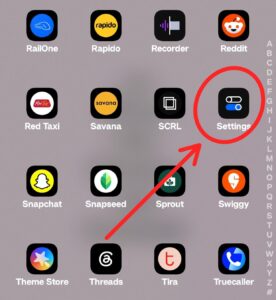
Most Android phones have a similar feature, usually called ‘Emergency SOS, ‘ as well. You can turn it on by going to Settings > Safety & emergency > enable the option to call emergency services by pressing the power button quickly several times.
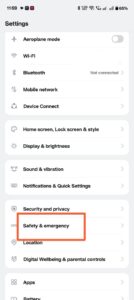
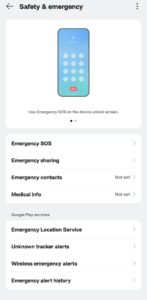
You can also add emergency contacts in the same menu so they get notified with your location.
3. Live Text
Your phone can recognise and read text inside a photo or through the live camera; for example, a phone number on a poster, a paragraph in a book, or a sign in another language. You can then copy it, translate it, or search for it, without typing a single word.
This saves a lot of time when you need information from something printed, and it removes the need for a separate translation or scanning app.
How to use it on Android:
Android phones offer the same ability through Google Lens.
- Open the Camera app or Google Photos
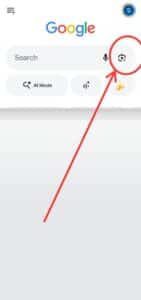
- Tap the Google Lens icon (it looks like a small circle with a dot inside)
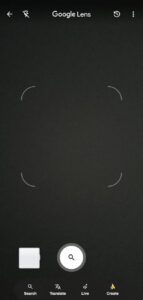
- Point it at the text
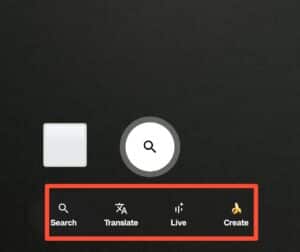
- Then choose to copy, translate, or search it.
4. Find My Device
It helps you find a lost or stolen phone on a map, lock it remotely, show a message with your contact number on the lock screen, make it ring loudly, or erase all the data on it if you believe it will not be recovered.
This is one of the most important safety features on any phone, but it only works if you turn it on before you lose your phone.
How to check it is turned on on Android:
- Open Settings, then ‘Security’
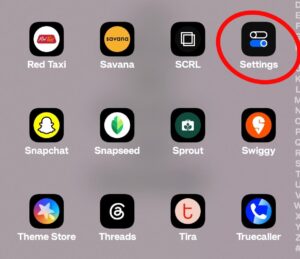
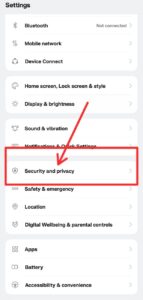
- Look for ‘Find My Device’ or related and make sure it is switched on.
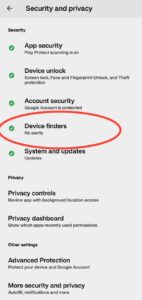
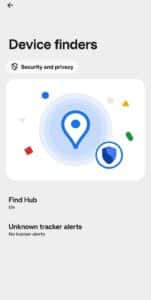
How to use it if your Android phone is lost:
- On another device, open the Find Hub app or go to android.com on a browser.
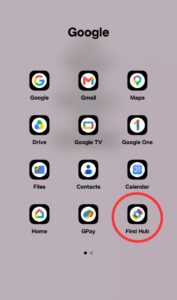
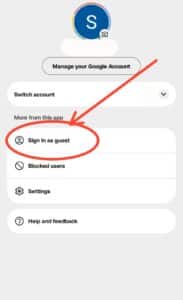
- Sign in with the same Google account used on the lost phone.

- Select the device to see its location, play a sound, lock it with a message and phone number, or erase its data as a last resort.
5. Optimized Battery Charging
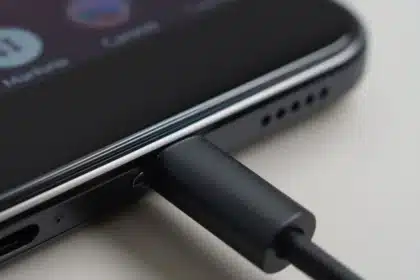
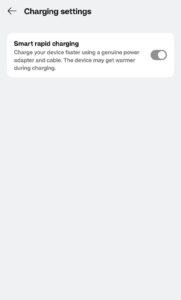
It slows down charging once your phone reaches around 80% and then finishes the last 20% closer to the time you usually unplug it. This reduces the amount of time your battery spends sitting at 100 per cent, which puts less strain on it over time.
Phone batteries lose their ability to hold charge faster when they are kept fully charged for long periods, such as overnight. So, this feature learns your daily routine and quietly protects the battery without you having to think about it.
How to use it on Android:
- Go to Settings
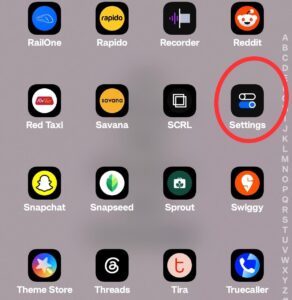
- Find Battery under the list of options
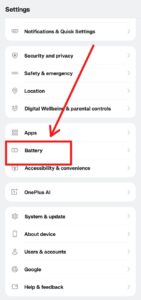
- Then see the Battery Care or Charging Protection feature in it
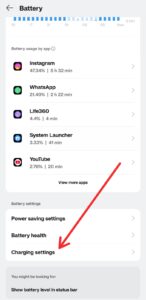
- Turn it on
6. Offline Maps
Offline maps let you download a map of an area in advance so you can still get directions and search for places even without an internet connection.
This is extremely helpful when travelling abroad without a local SIM card, or in areas with weak or no signal, such as remote roads or basements. It also saves mobile data.
How to use it on Google Maps:
- Open the Google Maps app and make sure you are signed in.
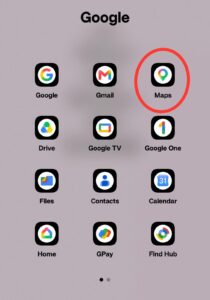
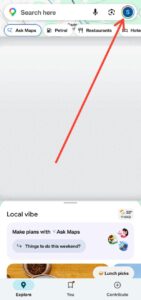
- Tap your profile picture in the top corner, then ‘Offline maps.’

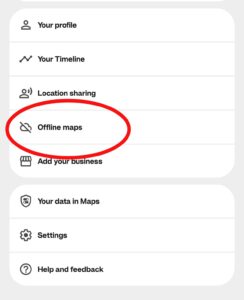
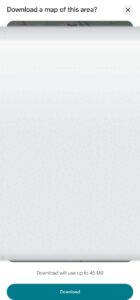
- Tap ‘Select your own map,’ adjust the area you want to cover, and tap ‘Download.’
7. Camera and Microphone Privacy Indicators
These indicators show a small coloured dot or icon at the top of your screen whenever an app is actively using your camera or microphone.
This gives you a simple way to notice if an app is accessing your camera or microphone when you did not expect it to, which can be an early sign that an app is asking for more access than it actually needs.
How to use it: On most recent Android phones, similar green icons appear in the top corner of the screen for the same reason.
So, if you notice the dot appearing when you are not using the camera or microphone yourself, it is worth checking which app was open at the time and reviewing that app’s permissions in your phone’s settings.
Also Read: 7 Everyday Essential Gadgets Before Smartphones Landed