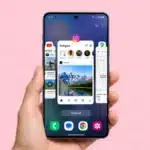


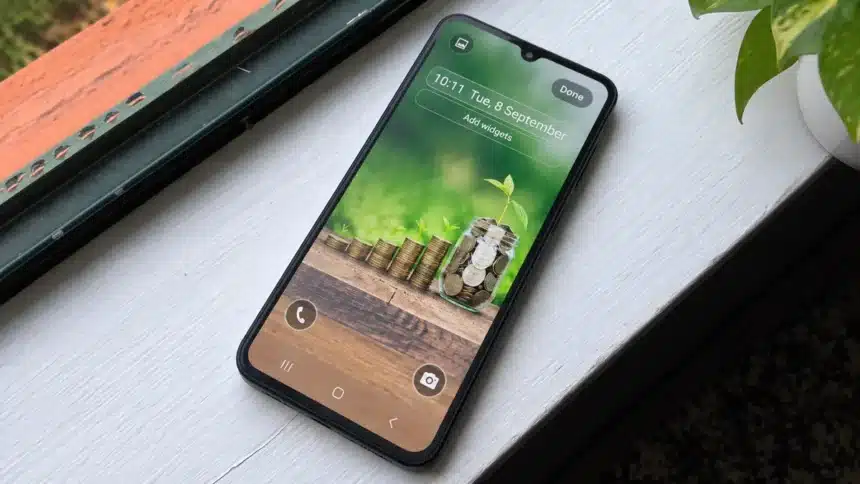
Your Samsung Galaxy lock screen is one of the first things you see when you wake your phone. But why settle for an uninteresting screen when you can have your own personal wallpaper, widget, clock style, shortcuts, and more by using Samsung’s customization options. It will not only make your Samsung Galaxy look better, but will also give it a more personal look.
The exact steps and options may vary by Galaxy model and One UI version, but the process is similar across most Galaxy phones.
How to Access Samsung Galaxy Lock Screen Customization
One of the easiest ways to customize your Samsung Galaxy’s lock screen is from the lock screen itself. Here are the simple steps to follow:
- Wake your Samsung Galaxy to display the lock screen.
- Touch and hold any empty area on the lock screen.
- If prompted, verify yourself using your password, PIN, biometrics, or pattern.
- You should now see the lock screen customization screen.
- Tap the elements you want to change in the preview.
Another way to access lock screen customization is through Settings > Lock screen and AOD. You may notice the menu is named differently on different One UI versions.
How to Change the Lock Screen Wallpaper
Changing your Samsung Galaxy lock screen wallpaper is the easiest way to change your phone’s lock screen look. At the lock screen customization screen, follow the steps listed below:
- Touch and hold the lock screen, then authenticate if prompted.
- Tap Wallpapers in the top-left corner.
- Choose a wallpaper source, such as Gallery, or select one of the available wallpaper options.
- Select the wallpaper or image you want to use.
- Adjust the image, frame, effect, or other available options if needed.
- Tap Done to apply the wallpaper to your lock screen.
Depending on your Samsung Galaxy version and model, you can choose between Samsung’s preinstalled wallpapers, images from your gallery, colors, or download an image.
Select Gallery when you want to change your wallpaper to pick a photo saved on your device. Pick your desired wallpaper, then move it around to make sure there aren’t any important angles or spots that will get cropped out or covered by the clock or your notifications.
As a general rule of thumb, use a high-resolution wallpaper and don’t place too many important details in the spot where your clock will show up.
How to Change the Lock Screen Clock
Interestingly, you can also change how your lock screen clock looks. To do so, here are the steps:
- Go to the lock screen customization screen.
- Tap the clock.
- Select your preferred clock style.
- Choose the color that matches your wallpaper.
- If the controls are available, adjust the clock’s size and position.
- Tap Done.
Depending on the One UI version and Samsung Galaxy model, you may also see additional options to change the clock style, size, position, and color.
Style Tip – Choose a simple clock if your wallpaper is very colorful or full of elements. Similarly, choose a larger or more distinctive clock if your wallpaper is very simple.
How to Add or Remove Lock Screen Widgets
Several lock screen widgets can actually offer you a lot of information without you needing to unlock your smartphone.
Some of the available widgets, depending on your Samsung Galaxy model and One UI version, include:
- Weather
- Digital Wellbeing
- Calendar
- Music controls
- Battery status
- Alarm
- Other Samsung or supported app information
To customize them, follow these steps:
- Touch and hold the lock screen, then authenticate if prompted.
- Tap Add widgets.
- Select the widget you want to add.
- Choose your preferred widget style or option, if available.
- Touch and hold a widget and drag it to rearrange it, or tap the minus icon to remove it.
- Tap Done to save your changes.
Important Tip – Do not overcrowd the screen by adding too many widgets. Only add the ones that are useful to make your lock screen look convenient and appealing.
How to Customize Lock Screen Shortcuts
You may have seen shortcuts at the bottom of your Samsung Galaxy’s lock screen that let you quickly access certain functions.
If you want to change them, here are the steps:
- Wake your phone, then touch and hold the lock screen.
- Authenticate if prompted.
- Tap the shortcut icon you want to change.
- Select the app or feature you want to use.
- Repeat the process for the other shortcut, if needed.
- Tap Done to save your changes.
Pro Tip – These shortcut icons also depend on the model and version. So, if you use any feature frequently, you can replace the unused shortcut with your preferred feature for easy access.
Final Thoughts
One of the best ways to make your Samsung Galaxy more personal is by customizing its lock screen. It not only personalizes your phone, but also lets you add more information within easy reach. Use this guide to change wallpapers, widgets, clocks, and shortcuts to fit how you use your phone.
Don’t worry if you don’t find the exact terms mentioned in our guide, as menu names and available options can vary by Samsung Galaxy model and One UI version.