

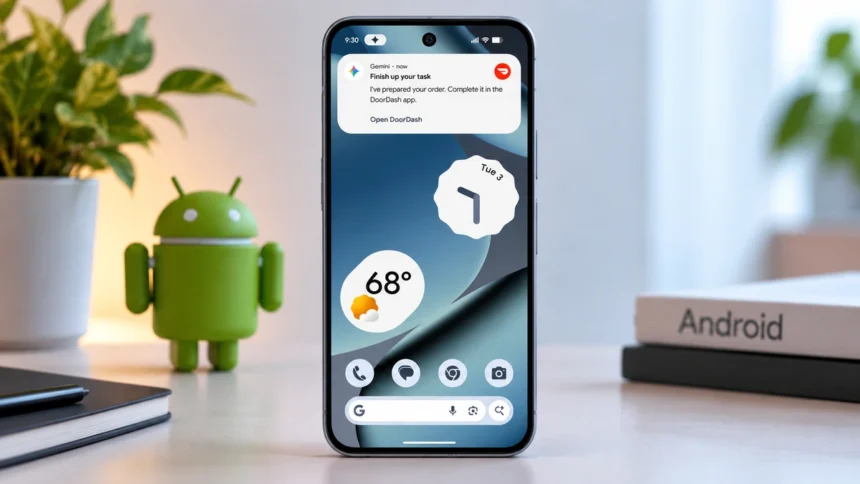
Google Gemini is more than just an AI bot. Instead, it is an excellent tool on your Android phone that you can chat with to supercharge your ideas. With Gemini, you can learn in new ways, plan events, write thank-you notes, and do much more. Gemini can also connect with your Android apps, such as YouTube Music and Google Workspace, to simplify your work.
All you have to do is use voice, text, camera, or images to get the help you want from Gemini. This also makes it easier to use Gemini to control your Android phone with supported device actions.
What is the Google Gemini App on Android?
The Gemini app is Google’s next-generation AI assistant that answers your questions and offers helpful responses to your ideas and tasks. This assistant comprehends and completes the following tasks, among others, using advanced natural language processing:
- Help plan festivals or carry out daily activities
- Provide answers on what you see on your camera or based on your screen context
- Create graphics or images to be used in other apps
- Find and take actions from your apps, such as Maps, Gmail, Calendar, and more
- Generate and complete code for students and developers
- Write blog posts, emails, creative content, and poetry
- Find and share information effectively across apps, such as Maps, Gmail, YouTube, etc.
Even if Gemini isn’t set as your default digital assistant on Android, you can still use many of its features. However, some Device assistance actions require the Google app, which hosts Gemini, to be set as your default digital assistant app.
Gemini can help you work and take actions effectively whether you are planning family events, managing work projects, or exploring creative ideas. It’s your research assistant, personal creative partner, and productivity booster. You can also learn more about how AI transformed smartphones and the growing role of AI assistants on mobile devices.
Use Gemini to Control Your Android Phone
Gemini can help you control and manage your Android device using Device assistance, formerly called Utilities, when you ask it to. For example, you can ask Gemini to open apps, manage your timers and alarms, read and reply to notifications, manage settings, control your media, and much more.
Remember, this Device assistance connected app is only available in the Gemini mobile app on Android. It is designed to work automatically with Gemini on your Android, even if Keep Activity is turned off. Some device actions may require additional permissions or the Google app to be set as your default digital assistant app.
Tools and Requirements
There are some things you will need to use Gemini on Android:
- Android phone running Android 9 or later with at least 2GB of RAM
- Google Account with access to Gemini
- Google app
- Access to the Gemini mobile app
To use Gemini’s Device assistance features on Android, you need access to the Gemini mobile app. Some device actions also require additional permissions or the Google app to be set as your default digital assistant app.
How to Start Using Gemini to Control Your Android Phone
There are just a few steps, and you are good to go:
1. Open the Gemini app on your Android device.
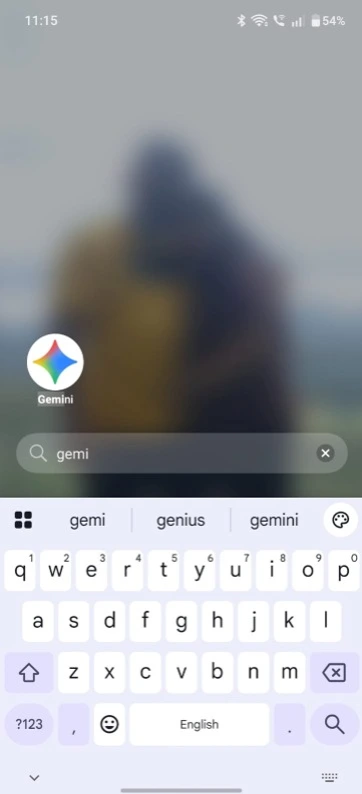
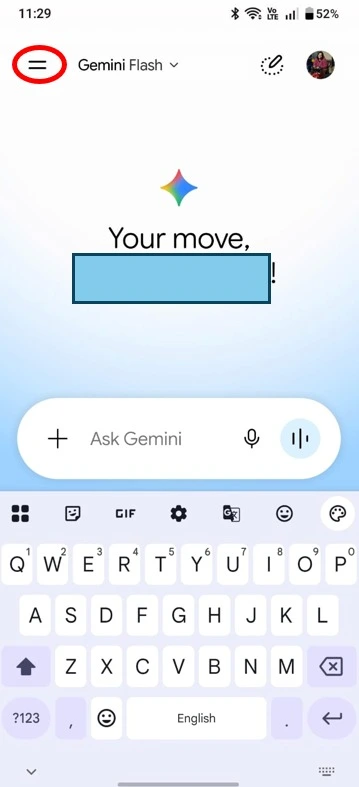
2. Tap the two-line menu icon on the top-left side.
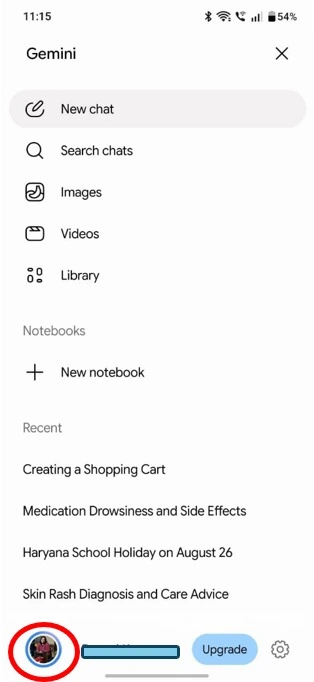
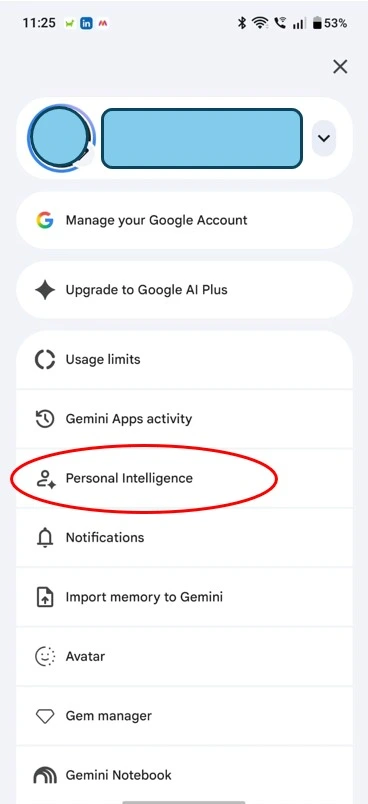
3. At the bottom, tap the Profile icon.
4. Select Settings or check for Personal Intelligence.
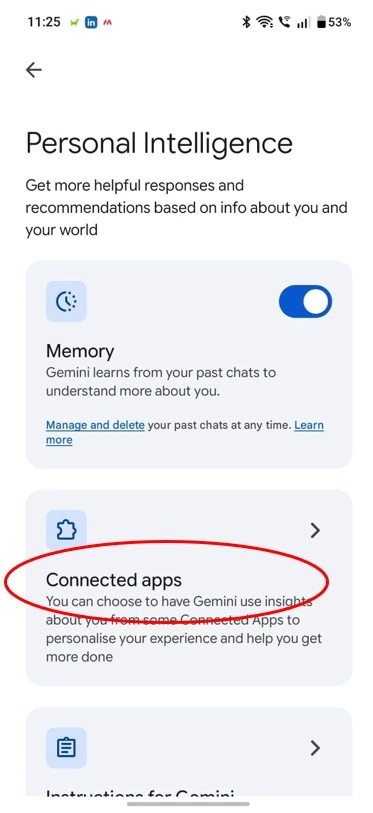
5. Tap Connected apps.
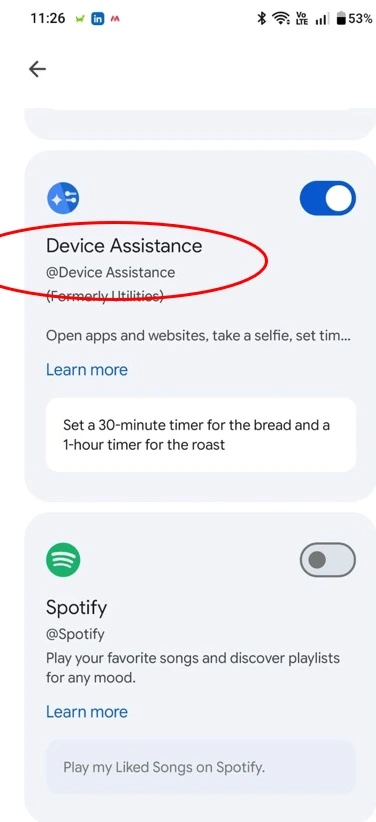
6. Scroll down and check that Device assistance, formerly called Utilities, is available. Device assistance is designed to work automatically with Gemini on Android, although some actions require additional permissions or settings.
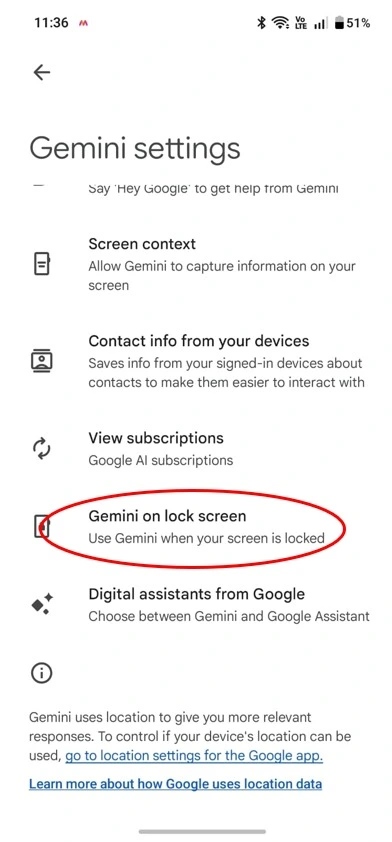
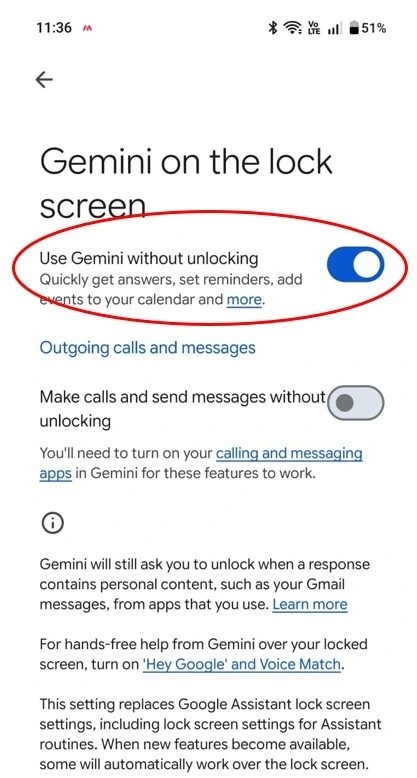
In the same settings, you can also enable the Gemini on the lock screen option and turn on “Use Gemini without unlocking.” This lets you use supported Gemini features and voice commands without unlocking your screen, although some requests involving personal information may still require you to unlock the phone.
Use Gemini to Automate Multi-Step Tasks Across Your Apps
Gemini can help you automate tedious tasks so you can focus on what matters. It can navigate tasks for you, like finding information in your Gmail. It can handle daily tasks and keep you informed.
Automation across apps can be even more helpful if you add image or screen context. Rather than switching between apps and copying data, Gemini can use visual context to help take action.
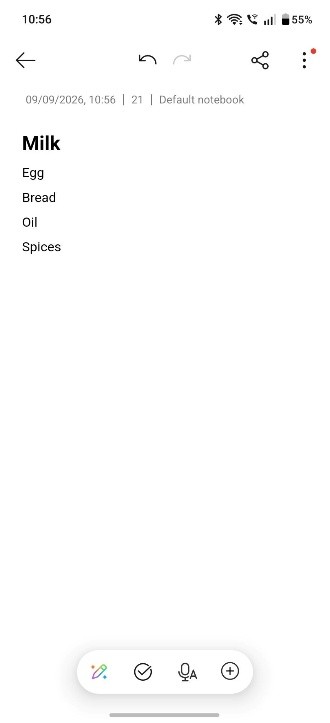
For example, if you have a long grocery list in your notes app, you may be able to long-press the power button on the list and ask Gemini to create a shopping cart for you.
Note: Note: Gemini’s [multi-step app automation] is available only on supported devices, in supported regions, and with select apps. Google initially launched the beta for the Pixel 10 series and Galaxy S26 series in the U.S. and Korea, with availability and compatibility varying by device and app.
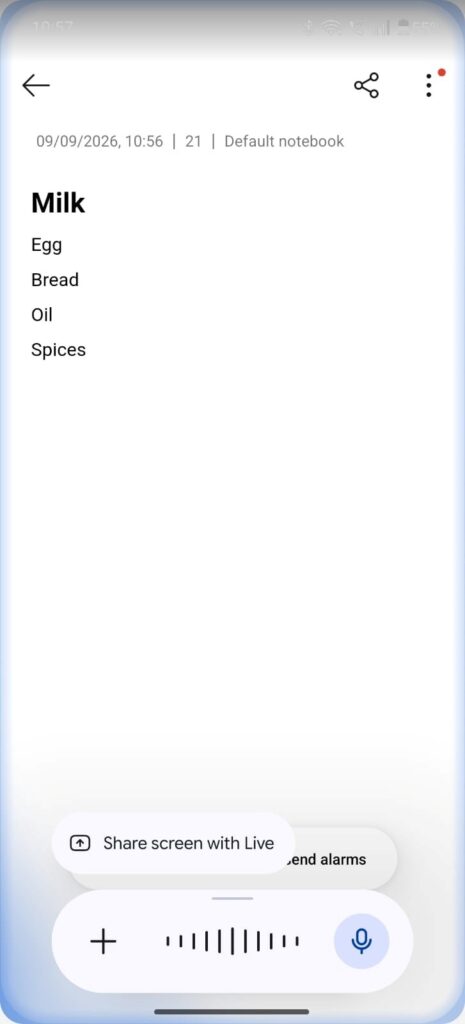
Similarly, you can click a picture and ask Gemini for information about it. The app can also let you track progress through notifications as Gemini works in the background. You remain in control and can monitor, interrupt, or stop supported automated tasks. For supported multi-step tasks such as purchases or bookings, Gemini can prepare the task while leaving the final confirmation to you. You can also use Gemini Live video and screen sharing to give Gemini visual context on Android.
Use Gemini for Health and Fitness Apps
You can use the Gemini app and even Gemini on your smartwatch to control supported health and fitness apps, such as Samsung Health or Fitbit. For instance, tell Gemini:
- To stop, start, pause, and resume your workout
- To tell you your heart rate
- To tell you your step count
What Gemini Can’t Control on Android
While Gemini can control many Android phone features, Device assistance has some important limitations. Gemini can’t change your device unlock credentials, such as your PIN or password, perform a factory reset, change permission settings for apps, or read your saved passwords.
Conclusion
Google Gemini is an excellent tool that offers something for everyone, whether you use Gemini’s free or paid features. Once you know how to use Gemini to control your Android phone, its advanced AI capabilities and integration with Google services can help you get more out of your Android device.
Are you ready to try? Download Google Gemini from the Google Play Store and experience its capabilities today.