
Finding every feature or setting on your iPhone can be difficult. That is why the Control Center on iPhone offers quick access to features that might otherwise be hidden in your phone’s menu. From here, you can quickly access controls for AirDrop, Bluetooth, Wi-Fi, brightness, Focus mode, and volume.
You can also access dark mode, music controls, and screen mirroring options. And many more features that you can add and remove. This guide shows you how to do it.
What is a Control Center on an iPhone?
Control Center on your iPhone is a quick-access panel that lets you manage commonly used phone functions without opening the Settings app.
Depending on the iOS and iPhone version, you can use the Control Center to access:
- Bluetooth and Wi-Fi
- Airplane Mode
- Mobile Data
- Personal Hotspot
- Screen brightness
- Volume
- Flashlight
- Camera
- Calculator
- Screen Recording
- Focus Modes
- Low Power Mode
- Dark Mode
- Accessibility features
How to Customize Control Center on iPhone?
Follow these steps to customize the Control Center on your iPhone.
1. Open Control Center
Do one of the following to open the Control Center on your iPhone:
- iPhone with Face ID: From the top right corner of your phone, swipe down. When you continue swiping down, you will see a group of controls.
- iPhone with Home button: Swipe up from the bottom of the screen.
You can also jump to specific control groups by swiping through the icons on the screen’s right edge. Swipe up through the icons to go back to the first group.
If you want to close the Control Center, press the Home button or swipe up from the screen’s bottom (for Face ID).
2. Access More Controls in Control Center
Many controls offer additional options. Touch and hold a control to see the available options. For instance, you can do the following in the Control Center:
- Touch and hold the top-left control group, then tap
 to open all the AirDrop options.
 - Touch and hold the to record a video, take a selfie, or take a photo.
- Touch and hold the at the top-right of the screen (the Control Center should be open) until you feel vibration. Then drag the slider to switch off the phone.
 to open all the AirDrop options.
 to record a video, take a selfie, or take a photo.
 at the top-right of the screen (the Control Center should be open) until you feel vibration. Then drag the slider to switch off the phone.
3. Customize Controls
You can easily rearrange, remove, or add controls in the Control Center.
- Open the Control Center.
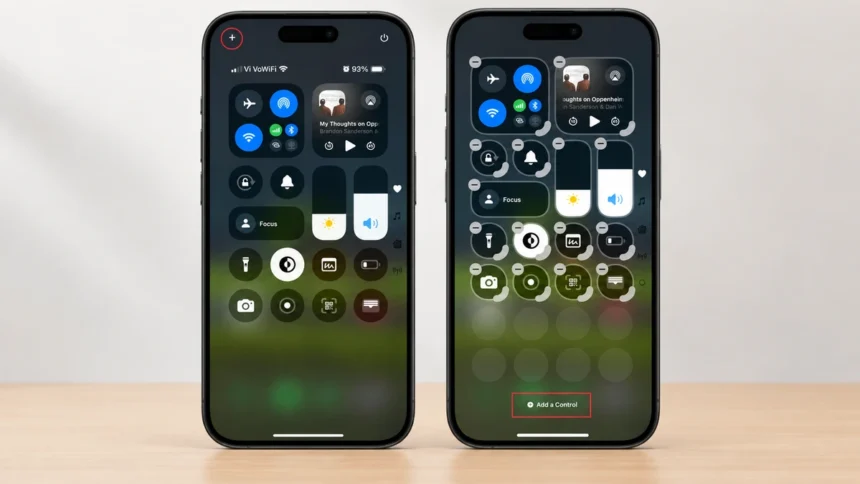
- Tap the “+” sign at the top left of the Control Center to start editing the controls.
- Now you can do any of the following:
- Rearrange controls by dragging a control to a new position.
- Remove a control or a group of controls by tapping the “-” sign at the upper left side of the control.
- Resize a control by dragging the handle at the lower right side of the control.
- Create new sections of controls by tapping the bottommost icon (the little circle) at the screen’s right edge – then tap Add a Control – and choose the controls you want to add. Or you can also drag a control to the bottom to create a new section.
- Add more controls by tapping Add a Control at the screen’s bottom to open the controls gallery and then tapping a control to add it to the Control Center.
- After you are done customizing, close the Control Center by swiping up from the screen’s bottom center.
Organize Controls From Multiple Pages
Control Center can include multiple pages or groups of controls in newer iOS versions.
This gives you more flexibility than keeping every shortcut on one screen.
Now, you can organize iPhone Control Center controls by purpose. For example:
- Main page: Bluetooth, Wi-Fi, Airplane Mode, volume, and brightness
- Media: Playback and music controls
- Tools: Calculator, camera, flashlight, and screen recording
Pro Tips on Customizing Control Center
- You can create multiple Control Center pages or groups.
- Add connectivity controls, such as Bluetooth and Wi-Fi, for individual access.
- Move between pages by swiping up or down or using the icons on the right edge.
- Add supported controls from third-party apps for quick access.
- Use the power button in the top-right corner to access the power-off slider and shut down the phone.
What to Do If You Can’t Access the Control Center?
Try restarting your iPhone if you can’t access the Control Center. If that doesn’t work, make sure Control Center access is allowed from the Lock Screen. If you can’t open Control Center while using an app, go to Settings > Control Center and make sure Access Within Apps is turned on.
If nothing works, update your iPhone to the latest iOS version, then reset all settings by going to Settings > General > Transfer or Reset iPhone > Reset > Reset All Settings.
Control Center Changes Introduced in iOS 18
iOS 18 introduced a redesigned Control Center with more customization options that can improve your iPhone’s usability. Here are some:
- Multiple Control Groups: Organize controls into different groups, including Home controls, Media Playback, Connectivity, and custom groups.
- Controls Gallery: Add available controls directly from the controls gallery.
- Third-Party App Controls: Add supported controls from third-party apps to Control Center.
- Resizable Controls: Resize supported controls directly within Control Center.
Conclusion
Although every function and feature in the Control Center is available somewhere in your iPhone’s settings or in apps, having access to them in the Control Center will make your life easier. In simple terms, it is the difference between completing the task in one step or multiple steps. If you haven’t customized your iPhone Control Center yet, take a few minutes to tailor your iPhone’s controls.