

By using this site, you agree to the Privacy Policy and Terms of Use.
Accept
DevicologyDevicology
  • News
    NewsShow More
    Fake ChatGPT Malware Is Stealing Passwords And Browsing History- Here’s How To Check Your PC
    By Sneha Singh
    Apple's First Touchscreen MacBook Is Coming - Here Are The Details
    Apple’s First Touchscreen MacBook Is Coming – Here Are The Details
    By Sneha Singh
    Apple Just Copied a 10-Year-Old Android Feature - Here's What It Does
    Apple Just Copied a 10-Year-Old Android Feature – Here’s What It Does
    By Sneha Singh
    Motorola Edge 2026 And Moto Buds 2: Key Features, Battery Life And Everything New
    Motorola Edge 2026 And Moto Buds 2: Key Features, Battery Life And Everything New
    By Tricia Wei
    Is Your iPhone Eligible? Apple’s Best Siri AI Features Are Limited To These 3 Models
    Is Your iPhone Eligible? Apple’s Best Siri AI Features Are Limited To These 3 Models
    By Sneha Singh
  • Features
    FeaturesShow More
    List of 15+ Everyday Tools Your Smartphone Can Replace
    List Of 15+ Everyday Tools Your Smartphone Can Replace
    By Sneha Singh
    11 iPhones You Didn't Think Would Get iOS 27 But Will
    11 iPhones You Didn’t Think Would Get iOS 27 But Will
    By Sneha Singh
    Fake ChatGPT Malware Is Stealing Passwords And Browsing History- Here’s How To Check Your PC
    By Sneha Singh
    Apple Is Dropping Support for These Older MacBooks- Check if Yours Is on the List
    Apple Is Dropping Support for These Older MacBooks- Check if Yours Is On The List
    By Sneha Singh
    Your iPhone Storage Keeps Disappearing? This Hidden Folder Could Be The Reason
    Your iPhone Storage Keeps Disappearing? This Hidden Folder Could Be The Reason
    By Sneha Singh
  • Reviews
  • Apps
  • Guide
    GuideShow More
    How To Play Videos Directly On Telegram’s Apple Watch App
    How To Play Videos Directly Via Telegram’s Apple Watch App
    By Sneha Singh
    How To Create AI Stickers In WhatsApp
    How To Create AI Stickers In WhatsApp
    By Sneha Singh
    How To Quickly Transfer Files Between Android And Windows
    How To Quickly Transfer Files Between Android And Windows
    By Sneha Singh
    How to Automatically Clean Up Your iCloud Mail Inbox on iPhone
    How to Automatically Clean Up Your iCloud Mail Inbox on iPhone
    By Sneha Singh
    How to Recall an Email in Outlook (Step-by-Step Guide)
    How to Recall an Email in Outlook (Step-by-Step Guide)
    By Sneha Singh
  • Tech
    TechShow More
    What Is Active Noise Cancellation? Here’s How ANC Really Works
    What Is Active Noise Cancellation? Here’s How ANC Really Works
    By Arthur James
    Best Fitness Trackers Worth Buying In 2026
    Best Fitness Trackers Worth Buying In 2026
    By Sneha Singh
    Best VPNs for Fast Browsing, Streaming and Gaming
    Top 5 VPNs for Fast Browsing, Streaming And Gaming
    By Sneha Singh
    Why Apple CarPlay and Android Auto Are Slowly Disappearing From Cars
    Why Apple CarPlay and Android Auto Are Slowly Disappearing From Cars
    By Sneha Singh
    Which Pixel Watch Feature Could Be Making Its Way To Samsung's New Galaxy Watches?
    Which Pixel Watch Feature Could Be Making Its Way To Samsung’s New Galaxy Watches?
    By Sneha Singh
  • Top
    TopShow More
    Top 7 Websites To Download Free PC Games
    Top 7 Websites To Download Free PC Games
    By Sneha Singh
    Best VPNs for Fast Browsing, Streaming and Gaming
    Top 5 VPNs for Fast Browsing, Streaming And Gaming
    By Sneha Singh
    Top 7 YouTube Alternatives to Try in 2026
    Top 7 YouTube Alternatives to Try in 2026
    By Sneha Singh
    Top 5 GCash Alternatives You Should Try in 2026
    Top 5 GCash Alternatives You Should Try in 2026
    By Sneha Singh
    Top 10 Most Expensive Phones in 2026
    Top 10 Most Expensive Phones in 2026
    By Sneha Singh
  • Game Zone
    Game ZoneShow More
    Best Gaming Keyboards in 2026 Which One Should You Actually Buy
    Best Gaming Keyboards in 2026: Which One Should You Actually Buy?
    By Sneha Singh
    Top Gaming Accessories Every Gamer Needs
    Top Gaming Accessories Every Gamer Needs
    By Sneha Singh
    Best Free-to-Play Games on PS5
    Best Free-To-Play Games On PS5
    By Sneha Singh
    Best Free iOS Games 2025: Hottest iPhone And iPad Games To Try Now
    Best Free iOS Games 2025: Hottest iPhone And iPad Games To Try Now
    By Carlos Blanco
    Best New iOS And Android Games For August 2025
    Best New iOS And Android Games For August 2025
    By Tricia Wei
Font ResizerAa
DevicologyDevicology
Font ResizerAa
  • News
  • Features
  • Reviews
  • Apps
  • Guide
  • Tech
  • Top
  • Game Zone
Search
  • News
  • Features
  • Reviews
  • Apps
  • Guide
  • Tech
  • Top
  • Game Zone

Popular Post

7 Things Google’s Gemini Intelligence Can Now Do for You on Android
Features

7 Things Google’s Gemini Intelligence Can Now Do for You on Android

How To Check If Your Phone Is Waterproof Or Not?
Features

Is Your Phone Water-Proof Or Water-Resistant? Know What To Check

How To Keep Your Private Data Safe When Your Phone Needs Repair
Features

How To Keep Your Private Data Safe When Your Phone Needs Repair

iOS 27 Brings Major CarPlay Upgrades: Here’s Everything New
NewsFeatures

iOS 27 Brings Major CarPlay Upgrades: Here’s Everything New

Follow US
Made by ThemeRuby using the Foxiz theme. Powered by WordPress
Guide

How To Sign Out From Microsoft Authenticator On iOS And Android

Tricia Wei
Last updated: December 3, 2024
By Tricia Wei
Share
How To Sign Out From Microsoft Authenticator On iOS And Android

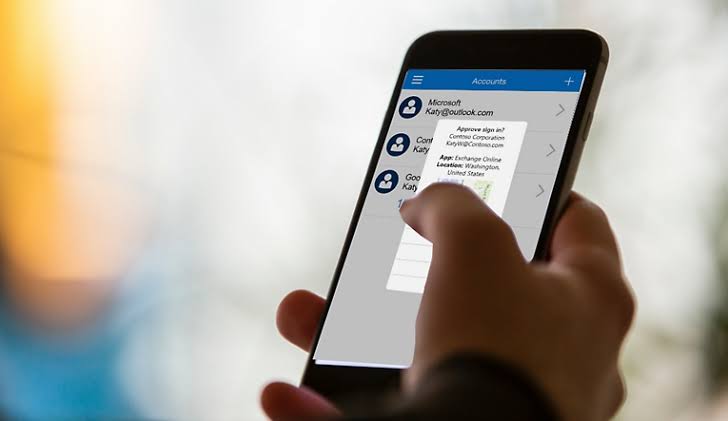
Microsoft Authenticator is a two-factor authentication (TFA) app which is used for enhancing the security of your accounts. This app enhances the security of your accounts and is a strong competetor of other popular applications like Google Authenticator and Authy. You might use it when updating your Microsoft account or enabling TFA. This application is available for download on the Google Play Store and Apple App Store.

Contents
  • Key Features of Microsoft Authenticator:
  • What This Guide Covers:
  • How to Sign Out from Microsoft Authenticator
  • How to Remove All Accounts from Microsoft Authenticator
  • How to Remove All Accounts from Microsoft Authenticator on Android
  • How to Remove All Accounts from Microsoft Authenticator on iOS

Key Features of Microsoft Authenticator:

Passwordless Sign-In: Sign in to your Microsoft account without using a password. Support for Multiple Accounts: Manage both Microsoft and non-Microsoft accounts, including services like Facebook and Google.

TFA Codes: The app generates a 6 or 8-digit code every 30–60 seconds. Use this code when prompted during login.

Push Notifications: For Microsoft accounts, you can log in using a push notification and confirm via fingerprint, PIN, or secondary phone authentication.

Compatibility: Works with various websites and services outside of Microsoft.
What This Guide Covers:

In this article, we will show you how to sign out or remove all accounts from Microsoft Authenticator on Android and iOS devices. This is useful when you want to reset the app or no longer need it for account authentication.

How to Sign Out from Microsoft Authenticator

  1. Important Note: Before recovering your accounts, make sure to sign out to save your account details.
  2. Steps to Remove an Account:
    • Open the Microsoft Authenticator app.
    • Select the account you want to remove.
    • Tap the Settings (gear) icon.
    • Choose Remove account.
  3. Reminder: After removing the account, your device will no longer work for verifying sign-ins.

How to Remove All Accounts from Microsoft Authenticator

The easiest method of removing all accounts from Microsoft Authenticator is to reset the app and delete all its data.

How To Sign Out From Microsoft Authenticator On iOS And Android

How to Remove All Accounts from Microsoft Authenticator on Android

  1. Open your device’s Settings app and go to Apps.
  2. Find and select Authenticator from the list.
  3. Tap Storage or Storage & cache.
  4. Choose Clear data and confirm by tapping OK.

Important: This action cannot be undone. All accounts will be deleted, and your device will no longer verify sign-ins.

How to Remove All Accounts from Microsoft Authenticator on iOS

  1. Open your device’s Settings app.
  2. Go to General and select Storage.
  3. Find and select Authenticator from the list.
  4. Tap Offload App.

Important: This action cannot be undone. All accounts will be deleted, and your device will no longer verify sign-ins.

ALSO READ: Microsoft Authenticator: A Simple Guide To Setup And Use

TAGGED:account managementaccount recoveryaccount securityAndroidapp resetapp settingsAuthyGoogle AuthenticatoriosMicrosoft accountMicrosoft Authenticatormobile securitymulti-account supportpasswordless sign-inpush notificationsremove accountsTFA appTFA codestwo-factor authentication
Share This Article
Facebook Flipboard Copy Link

Must Read

List of 15+ Everyday Tools Your Smartphone Can Replace
Features

List Of 15+ Everyday Tools Your Smartphone Can Replace

11 iPhones You Didn't Think Would Get iOS 27 But Will
Features

11 iPhones You Didn’t Think Would Get iOS 27 But Will

FeaturesNews

Fake ChatGPT Malware Is Stealing Passwords And Browsing History- Here’s How To Check Your PC

Apple Is Dropping Support for These Older MacBooks- Check if Yours Is on the List
Features

Apple Is Dropping Support for These Older MacBooks- Check if Yours Is On The List

Game Zone

Best Gaming Keyboards in 2026 Which One Should You Actually Buy
Game ZoneTech

Best Gaming Keyboards in 2026: Which One Should You Actually Buy?

Sneha Singh
By Sneha Singh
May 28, 2026
Top Gaming Accessories Every Gamer Needs
Game ZoneTech

Top Gaming Accessories Every Gamer Needs

Sneha Singh
By Sneha Singh
May 29, 2026

Popular Posts

Apple Vision Pro Review: A Week in the Future of Spatial Computing
Top 15 AI-powered apps shaping the world
LCD vs OLED vs AMOLED: Smartphone Display Technologies Compared
What's Grok? Check Out Elon Musk's latest AI chatbot
What’s Grok? Check Out Elon Musk’s latest AI chatbot
User unlocking 100 GB free storage on Google Photos using a Chromebook and Google One perks
Unlock Cloud Power: How to Get 100 GB Free on Google Photos Without Spending a Rupee

You Might also Like

Transfer WhatsApp from Android to iPhone using Move to iOS app
Guide

Share Sticker Packs On WhatsApp With These Simple Steps

AI Overviews ads with sponsored product listings in Google Search
Guide

Google Rolls Out AI Overviews Ads With Sponsored Products in Search

5 Tips To Keep Your Android Phone Safe
Guide

5 Tips To Keep Your Android Phone Safe

How to Unlock a PDF File Without a Password - Quick and Easy Guide
Guide

How to Unlock a PDF File Without a Password – Quick and Easy Guide

Devicology
Whatsapp Instagram X-twitter Linkedin

The website Devicology is a repository of information on mobile devices, mobile gadgets, their functions and how to manage the devices for better user control. It offers expert advice on how to manage the settings of the hand-held devices so that the control remains with the user. From custom settings to optimum device utilization, the website covers multiple subjects of user interest and value. 

  • About Us
  • Terms of Use
  • Privacy Policy
  • Contact Us

© 2026 – Devicology. All Rights Reserved