




Fixing your laptop keyboard doesn’t need to be complicated. Learn simple steps to clean, reboot, and troubleshoot keyboard issues efficiently.
Recurring keyboard issues while working on your laptop could hamper your productivity and efficiency. While it’s a common issue, it could well be frustrating at time.
However, one need not be a tech expert to resolve it. Whether you’re dealing with a single unresponsive key or a completely non-functional keyboard, you can fix your laptop keyboard by following simple steps.
Here’s what to do to troubleshoot and clean your laptop keyboard to bring it back in action.
Remove dirt and debris, if any
The gaps between keys on the board can trap dust, crumbs, debris, and other unwanted elements. Start by turning off your laptop and gently shaking it to dislodge any loose particles. As a next step, use a canister of compressed air—available at any office store—to blow away leftover debris.
Be cautious not to use too much force while shaking or hold the canister too close to the laptop keyboard, as you could jeopardize the keys and the delicate mechanism beneath the keycaps.
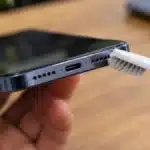
Lastly, use a fine brush to carefully clean between the keys and remove any debris underneath.
Reboot your device
Often, a simple process as a quick reboot can solve many software-related keyboard issues. Start by saving your work, then shut down your laptop. Wait for a few seconds, and then switch it on. This can refresh the system and resolve temporary glitches.
If none of the above steps yield the required result, then a recent software change may be the cause of the problem. Users can perform a system restore routine to revert the laptop to a previous working state.
Update your keyboard’s drivers
Sometimes, outdated or corrupt keyboard drivers can cause keyboard problems. To update your laptop keyboard driver, perform the following steps:
- Go to the Device Manager on your laptop.
- Find the Keyboards section, right-click on your keyboard, and select Update driver.
- Follow the on-screen prompts to complete the update.
- Try disabling and re-enabling it in order to reset the keyboard and fix minor issues.

Use external keyboard
Another way to fix the problem is to consider attaching an external keyboard to your laptop and check if it works. Like built-in laptop keyboards, external keyboards are sturdy and easy to clean.
Also Read: Level up your Gaming PC with these software essentials
Seek professional assistance
If you’ve tried all the above steps, your external keyboard functions correctly, and your laptop keyboard is still not working, you might need to seek the help of a professional technician.
The problem in all probability lies with your laptop’s built-in keyboard hardware. The problem could be a damaged keyboard cable or a malfunctioning keyboard controller. At this point, it’s recommended to contact your laptop manufacturer’s customer support—especially if it’s under warranty—or take your laptop to a repair center. They will be able to examine if specific keys aren’t working or if there are issues with overall internal hardware.
A malfunctioning laptop keyboard can be disruptive to work. However, with the right troubleshooting steps, you can often resolve the issue on your own.