


Battery Drain is one of the most common issues reported by iPhone users, especially while gaming, streaming videos, and using the device for a long time.
Many users think that if they are experiencing bad battery life, then their phone is ‘old’, but the fact is that hidden settings and habits can disrupt battery life without users’ awareness over a long time.
- How To Improve Your Battery Life?
- Step 1: Check Your Battery Health
- Step 2: Update Your iPhone Regularly
- Step 3: Reduce Brightness Without Ruining Display Quality
- Step 4: Use Wi-Fi Whenever Possible
- Step 5: Turn On Low Power Mode
- Step 6: Turn Off Background App Refresh
- Step 7: Manage Location Services Smartly
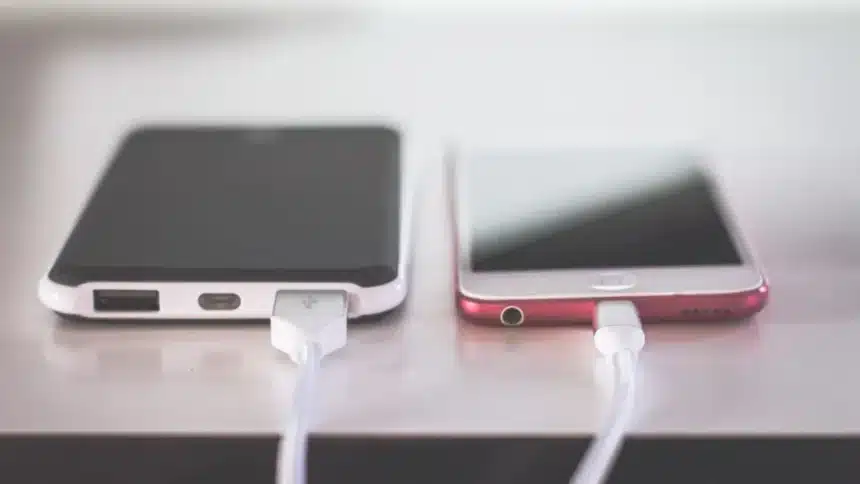
- Step 8: Avoid Extreme Heat While Charging
- Step 9: Don’t Keep Your iPhone at 0% or 100% All the Time
- Step 10: Aeroplane Mode
However, there are several settings and tools provided by Apple itself that will help you improve battery life without sacrificing performance or turning off all features.
How To Improve Your Battery Life?
In this article, we will tell you guide to improve the performance of your iPhone without slowing it down.
Step 1: Check Your Battery Health
Apple separates battery performance into two categories:
Battery life means how long your iPhone lasts on a single charge. Battery health refers to the overall lifespan of the battery before it eventually needs replacement.
Many users confuse the two. A phone draining quickly in one day does not always mean battery health is permanently damaged. Sometimes it is simply caused by apps, brightness, poor network coverage, or background activity.
You can check your battery health by going to:
Settings > Battery > Battery Health & Charging
If the maximum capacity drops significantly below 80%, battery replacement may eventually become necessary.
Step 2: Update Your iPhone Regularly
One of the simplest but most ignored fixes is updating iOS regularly. Apple frequently pushes software updates containing battery optimisation improvements, bug fixes, and better power management systems.
To update your iPhone:
Settings > General > Software Update
Many battery-drain issues after updates are temporary because the system reindexes files and apps in the background for a few hours or days.
Step 3: Reduce Brightness Without Ruining Display Quality
Your screen is one of the biggest battery consumers on any smartphone.
Keeping brightness constantly at maximum drains power much faster, especially on newer high-refresh-rate OLED displays.
Instead of manually adjusting brightness every time, turn on Auto-Brightness. It will adjust your phone’s brightness as per your needs.
Go to:
Settings > Accessibility > Display & Text Size > Auto-Brightness
You can also quickly reduce brightness through Control Centre.
Step 4: Use Wi-Fi Whenever Possible
The use of mobile data drains your phone’s battery much faster than Wi-Fi, especially if you are in a location with a poor signal, causing your phone to constantly search for better coverage.
If you are at your home, office, or college, keeping your iPhone connected to Wi-Fi will help reduce the amount of strain on your battery.
A poor signal can devour your battery life because the iPhone has to continuously amplify the strength of the antenna signal in order to connect back to the network.
Step 5: Turn On Low Power Mode
Most people only use Low Power Mode at 10 or 20% battery. That is a mistake.
Low Power Mode reduces background activity, animations, mail fetching, and unnecessary system processes while still keeping core features fully usable.
You can enable it anytime from:
Settings > Battery > Low Power Mode
Or add it to Control Centre for faster access. Using Low Power Mode during travel, long workdays, gaming sessions, or outdoor shoots can dramatically increase backup time.
Step 6: Turn Off Background App Refresh
Background App Refresh allows apps to update content even when not actively used.
While useful for apps like email or messaging, many apps abuse this feature and quietly drain battery throughout the day.
To manage it:
Settings > General > Background App Refresh
You can turn it off completely, allow Wi-Fi only or disable it for selected apps.
Step 7: Manage Location Services Smartly
Location tracking is another major battery killer. Apps constantly checking your GPS in the background can heavily affect battery life.
Go to:
Settings > Privacy & Security > Location Services
Step 8: Avoid Extreme Heat While Charging
Heat is one of the biggest long-term enemies of lithium-ion batteries.
Apple recommends keeping devices between 16°C and 22°C ideally, while avoiding temperatures above 35°C.
Charging your iPhone under pillows, inside thick cases, in direct sunlight or inside hot cars can permanently reduce battery health over time.
Step 9: Don’t Keep Your iPhone at 0% or 100% All the Time
Battery experts generally recommend keeping lithium-ion batteries between 20% and 80% when possible.
Constant deep discharges or overnight overheating at 100% can slowly affect long-term battery lifespan.
Apple already includes Optimised Battery Charging to help reduce wear during overnight charging.
Enable it from:
Settings > Battery > Battery Health & Charging
Step 10: Aeroplane Mode
If you are travelling through places with weak cellular signals, your iPhone may drain its battery rapidly while searching for towers.
So, overall, improving iPhone battery life is less about one magical setting and more about controlling the small things that quietly drain power every day.
Also Read: How to Reduce Background Noise on iPhone Effortlessly