

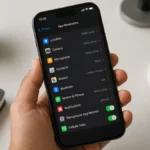



Doing a factory reset on your iPhone basically takes it back to the way it was when you first bought it. All your personal data gets wiped, leaving a clean, out-of-the-box device. This is super helpful if you’re planning to sell or give away your phone, if you’re dealing with stubborn software issues, or if you just want a completely fresh start.
You’ll want to consider a factory reset if your iPhone keeps running into serious glitches, if other fixes haven’t worked, or when it’s time to hand your device off to someone new. Just remember, everything goes during a reset, including photos, contacts, apps, music, and your personal settings.
Getting Your iPhone Ready for a Factory Reset
Back Up Your Data
Before you wipe your phone, make sure all your important stuff is saved. You can back up your iPhone in three different ways:
iCloud Backup: Go to Settings > [Your Name] > iCloud > iCloud Backup, then tap Back Up Now. Stay connected to Wi-Fi until it finishes.
iTunes Backup: Plug your iPhone into a computer, open iTunes, pick your device, and click Back up.
Finder Backup: On Macs running macOS Catalina (10.15) or newer, connect your iPhone, open Finder, select your device, and hit Back up.
Turn Off Find My iPhone
This step is important because it removes Activation Lock. Otherwise, the next person using your device would need your Apple ID and password to get in.
Open Settings
Tap your name at the top
Select Find My
Tap Find My iPhone
Switch it off
Enter your Apple ID password when asked
Go back and tap Sign Out
Enter your Apple ID password again to confirm
How to Factory Reset Your iPhone in Settings
The easiest way is through the Settings app on your phone:
Open Settings
Scroll down and tap General
Go to Transfer or Reset iPhone (or Reset on older iOS versions)
Tap Erase All Content and Settings
Enter your passcode and, if prompted, your Apple ID password
Confirm by tapping Erase after reading the warning
Wait for the process to finish. Your phone will restart a couple of times.
Why this method works best: it’s the most straightforward way, ensuring your data is completely wiped while keeping iOS intact.

Other Ways to Factory Reset
Using iTunes or Finder
If you can’t use your phone’s settings because of a forgotten passcode or a frozen screen, you can reset it on your computer:
Connect your iPhone with a USB cable
Open iTunes or Finder and select your device
Click Restore iPhone and confirm
The latest iOS will be downloaded and installed, wiping your phone clean
Using iCloud.com
If your phone is lost or stolen, you can erase it remotely:
Go to iCloud.com and log in with your Apple ID
Click Find My
Choose your device from the list
Select Erase iPhone
What Each Factory Reset Option Means
When you open reset settings, you’ll notice more options than just a factory reset. Here’s a quick rundown:
Reset All Settings: Brings system preferences back to default but keeps your data and apps
Reset Network Settings: Clears Wi-Fi passwords, cellular settings, and VPNs
Reset Keyboard Dictionary: Removes any custom autocorrect or typing suggestions
Reset Home Screen Layout: Puts your apps back in the default order
Reset Location & Privacy: Restores these settings to factory defaults
Only Erase All Content and Settings will fully wipe your phone.
After the Factory Reset
When it’s done, your iPhone will show the “Hello” welcome screen, just like when you first unboxed it. From here, you can:
Set it up as a new phone
Restore from an iCloud backup
Restore from an iTunes or Finder backup
Transfer data from another iPhone
Your device will now be completely clean, with only iOS and the standard Apple apps installed.
Troubleshooting Reset Problems
If the Reset Doesn’t Work
Sometimes the process may freeze or fail. If that happens:
Make sure your battery is at least 50 percent
Stay connected to a stable Wi-Fi network
Try a force restart by holding Volume Down + Side Button until the Apple logo appears
If all else fails, use the iTunes or Finder method
If You Forgot Your Passcode
You’ll need to use recovery mode:
Connect your iPhone to a computer
Force restart while it’s connected (the button combo depends on your model)
Keep holding the buttons until you see the recovery mode screen
In iTunes or Finder, choose Restore when prompted
ALSO READ: Doubao Stays on Top as China’s Favorite AI App While DeepSeek Slips