



How to Use the AI Features on iPhone 16: A Step-by-Step Guide
Apple has added a suite of AI tools to recent iPhones under the name Apple Intelligence. These features bring writing helpers, smart photo tools, on-device visual understanding, live translation, and improved Siri interactions to the iPhone environment.
This guide provides a practical, step-by-step walkthrough for iPhone 16 users who want to enable and use the most useful AI features. Follow each step to set up Apple Intelligence, learn how to use visual intelligence and image tools, get the most from AI writing and summarization, and manage privacy settings effectively.
- How to Use the AI Features on iPhone 16: A Step-by-Step Guide
- Step 1: Check Compatibility and Update iOS
- Step 2: Turn On Apple Intelligence and Basic Settings
- Step 3: Set Up Visual Intelligence (Camera and Screen)
- Step 4: Use Writing Tools, Summaries, and Message Helpers
- Step 5: Create Images, Genmoji, and Use Image Tools
- Step 6: Use Enhanced Siri and Live Translation
- Step 7: Use the Action Button with AI
- Step 8: Privacy Controls and Data Handling
- Tips, Shortcuts, and Troubleshooting
Step 1: Check Compatibility and Update iOS
Before you begin, make sure your iPhone 16 is running the latest iOS version that supports Apple Intelligence. Installing the newest official update ensures all features work properly.
To update:
- Open Settings
- Tap General
- Select Software Update
- Follow the on-screen prompts to install the latest version
After updating, restart your phone to activate all new system services. This also ensures AI tools run smoothly without glitches.
Step 2: Turn On Apple Intelligence and Basic Settings
Apple Intelligence must be enabled before you can use it. To turn it on:
- Open Settings
- Tap Apple Intelligence

Tap Apple Intelligence - Toggle the switch to On
Turn On Apple Intelligence and Basic Settings - Review privacy and data options

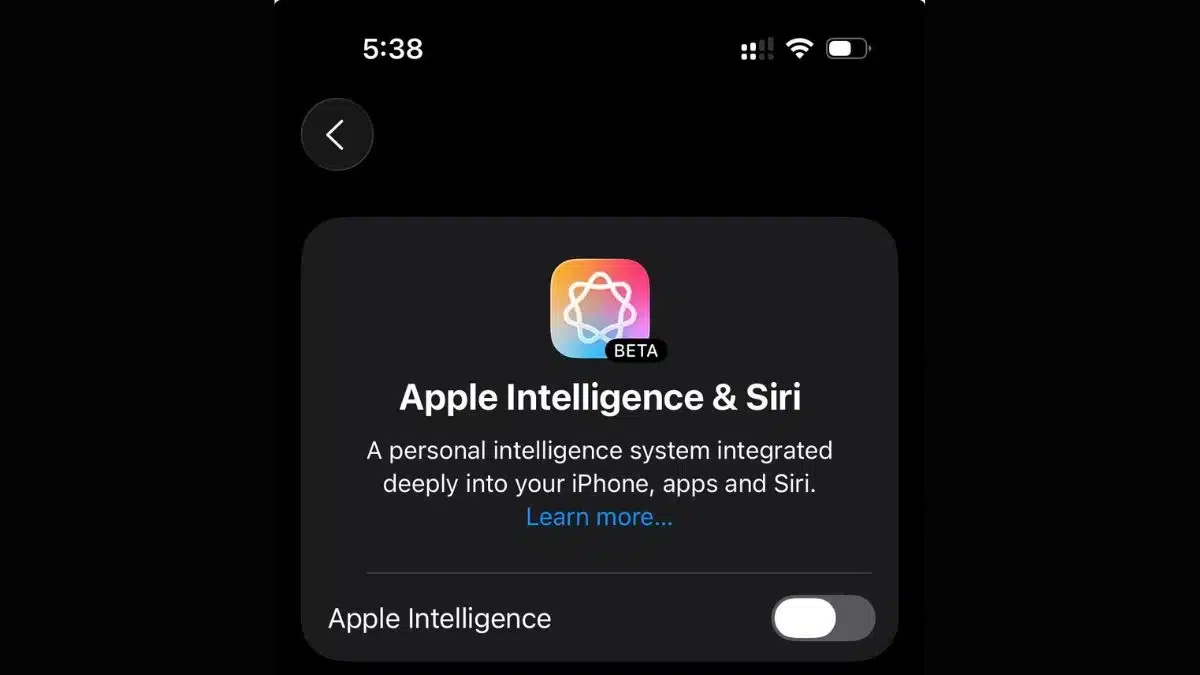
Once enabled, explore the suggested AI tools that integrate across system apps like Messages, Mail, Notes, Photos, and Safari. You can manage individual tool permissions in the same menu.
Step 3: Set Up Visual Intelligence (Camera and Screen)
Visual Intelligence allows your iPhone to recognize objects, translate text, and suggest quick actions using the camera.
To enable:
- Go to Settings
- Tap Camera or Apple Intelligence
Set Up Visual Intelligence (Camera and Screen) - Turn on Visual Intelligence

Now, point your camera at signs, menus, or objects. You’ll see options like Copy, Translate, or Look Up appear on-screen. This feature also works with screenshots and photos.
Step 4: Use Writing Tools, Summaries, and Message Helpers
Apple Intelligence includes AI-powered writing and summarization tools in Mail, Messages, and Notes.
To use them:
- Tap the AI icon or Compose Suggestions in your keyboard or toolbar.
- Select Rewrite, Summarize, or Tone Adjust.
- Review the generated content and make final edits before sending.
These tools help create replies faster, summarize long messages, and improve tone for professional communication.
Step 5: Create Images, Genmoji, and Use Image Tools
The iPhone 16’s AI suite includes Image Playground, Image Wand, and Genmoji.
To create images or Genmoji:
- Open Photos or Messages
- Tap Create or Image Playground
Create Images, Genmoji, and Use Image Tools - Enter a short text prompt
- Save or share your creation

You can also use Clean Up in Photos to remove unwanted objects or improve lighting automatically. Always save an original copy before applying permanent edits.
Step 6: Use Enhanced Siri and Live Translation
Apple has upgraded Siri with improved context awareness and conversational abilities.
To use enhanced Siri:
- Press and hold the side button or say “Hey Siri”
- Ask follow-up questions naturally
- Try tasks like “Summarize this message” or “Plan my day”
For Live Translation, go to FaceTime or Phone settings and enable Live Translation during calls. It supports real-time text or caption translation in supported languages.
Step 7: Use the Action Button with AI
The Action Button on iPhone 16 can be customized to launch AI tools or shortcuts.
To set it up:
- Open Settings
- Tap Action Button
- Choose Shortcut or App Launch
- Select your preferred AI app, such as ChatGPT or Notes AI
This lets you open an assistant or feature instantly without navigating through apps.
Step 8: Privacy Controls and Data Handling
Apple Intelligence is designed with privacy in mind. You can control how your data is processed.
To adjust privacy settings:
- Go to Settings
- Tap Privacy & Security
- Open Apple Intelligence Privacy
- Choose between On-Device Processing or Private Cloud
You can also delete your AI interaction history or disable features you don’t use.
Tips, Shortcuts, and Troubleshooting
- If a feature isn’t showing up, ensure your iPhone is fully updated.
- Restart your device after every major update.
- Some AI tools are released region by region, they may appear later.
- Use Shortcuts to automate actions like opening the camera, summarizing notes, or generating AI images.
- Test AI features in different apps to learn how they behave in real scenarios.
Apple Intelligence transforms how the iPhone 16 works, from smarter Siri interactions to automatic writing tools and creative AI image generation. By following these steps, users can unlock the full power of Apple’s AI system while staying in control of privacy and customization.
As Apple continues to refine its AI ecosystem, understanding how to use these tools today ensures you’re ready for even more powerful updates in the future.
FAQs
1. Which iPhone models support Apple Intelligence?
A. Currently, iPhone 15 Pro models and the iPhone 16 and 17 lineup support Apple Intelligence features.
2. How do I create a Genmoji or an AI image on iPhone 16?
A. Open Photos or Messages, tap Create, and enter a short text prompt to generate custom emojis or visuals.
3. Can I use the Action Button to launch ChatGPT or other AI apps?
A. Yes. Go to Settings – Action Button, and set it to open your preferred AI app or shortcut.
4. Are all Apple Intelligence features available worldwide?
A. Not yet. Some tools are released gradually and may depend on language or region.
5. How does Apple protect my privacy when I use AI features?
A. Most AI tasks are processed on-device, meaning your personal data never leaves your iPhone unless you enable optional cloud features.
Also Read- Laptop Battery Myths: Should You Keep It Plugged In?