
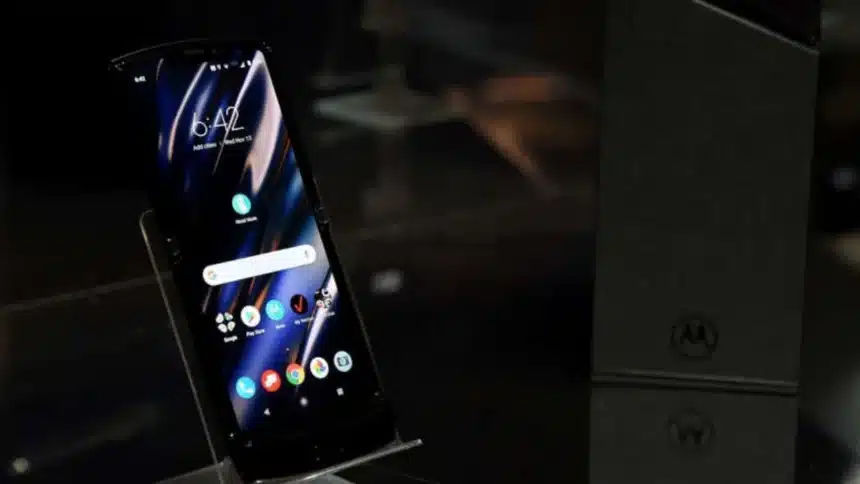
Foldable Phones have gone beyond their flashy design. Devices such as the Motorola Razr Fold 2026 can now be considered productivity machines. Many users looking for a tablet/smartphone in one device are using this device for productivity as well.
What many users don’t know about the Razr Fold is that its best multitasking features are hidden deep inside settings and are not activated by default.
Motorola has added some really good multitasking features (desktop-style taskbar, floating windows, and three-app multitasking) to the Razr Fold that can make the device feel more like a mini laptop than a standard Android phone.
How To Unlock the Multitasking Power of the Motorola Razr Fold
Here’s how to unlock the full multitasking power of the Motorola Razr Fold 2026.
1. Enable The Hidden Taskbar First
The persistent taskbar is one of the hottest things about the Razr Fold, giving you the ability to interact with your phone just as you would with a desktop operating system, like Windows or macOS.
The ability to use the taskbar allows users to quickly launch applications, place them in split screen mode and move between tasks without having to go back to the home screen repeatedly.
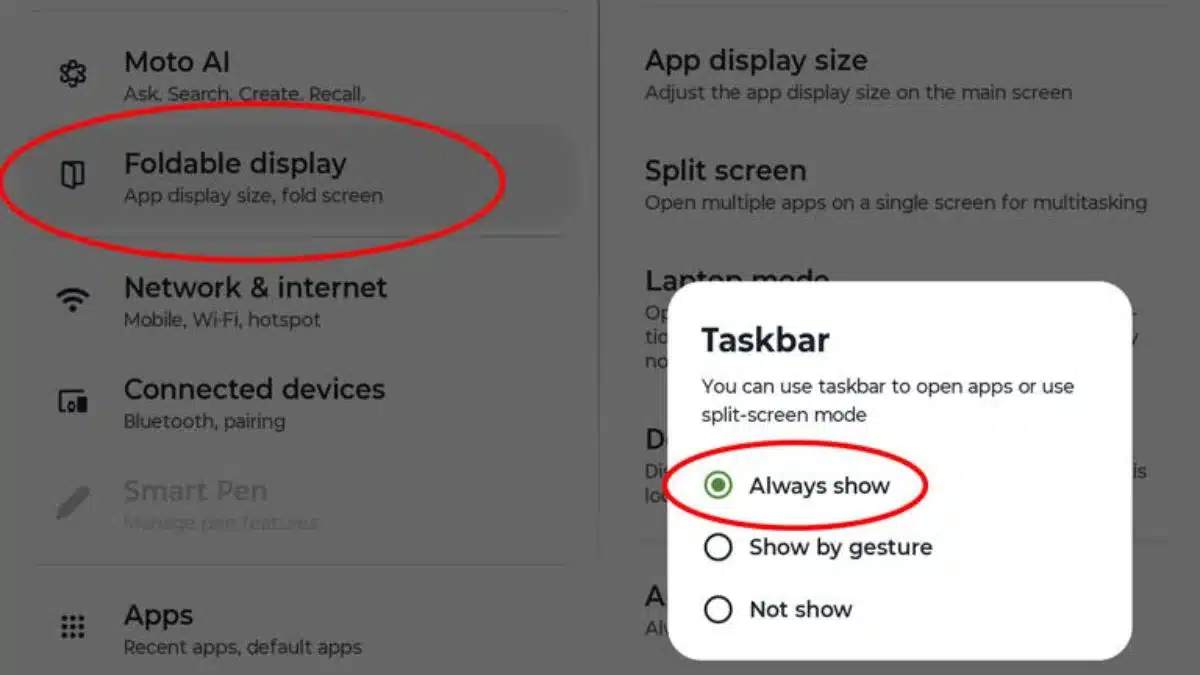
How To Turn On The Taskbar
Step 1: Open the Settings app
Step 2: Tap Foldable display
Step 3: Select Task Bar
Step 4: Choose Always show
Once enabled, the taskbar will remain visible whenever the phone is unfolded.
This single feature dramatically improves multitasking because users can quickly drag and drop apps into different layouts without awkward gestures.
2. How To Use Split-Screen Multitasking
The Razr Fold supports multiple split-screen layouts depending on how apps are dragged across the display.
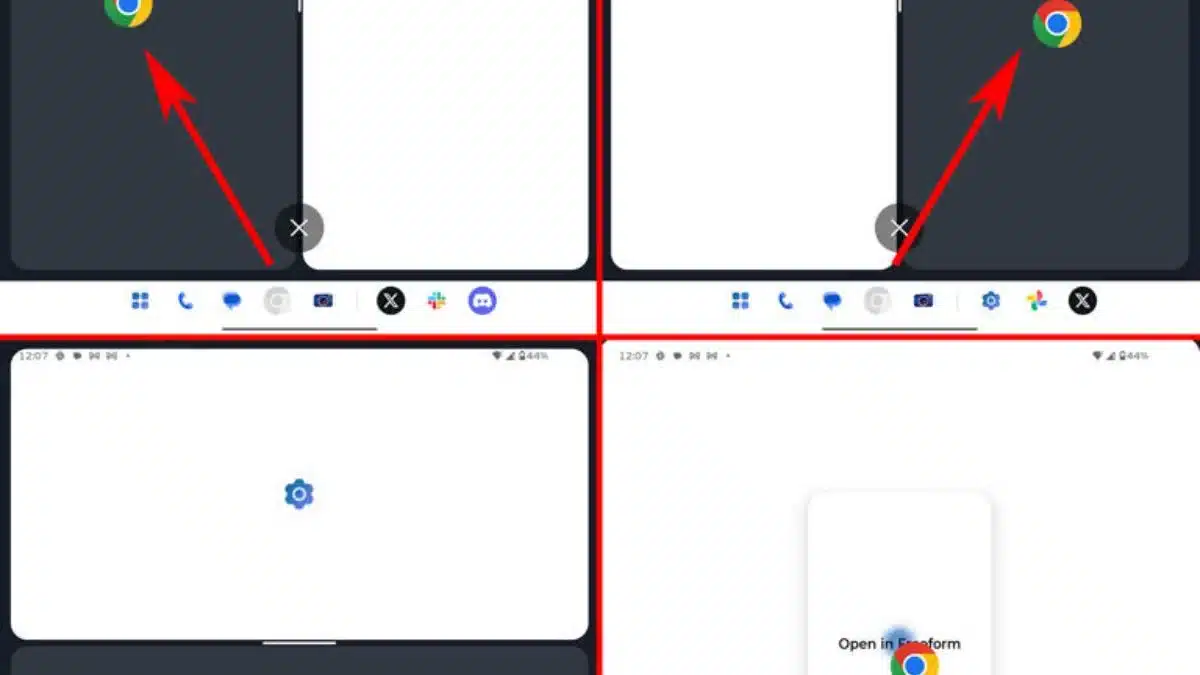
Vertical Split-Screen
Drag an app icon from the taskbar to the left or right side of the screen.
This layout works especially well for apps that do not scale properly on large tablet displays. Messaging apps, social media feeds, and browsers tend to work better in this format.
Horizontal Split-Screen
Drag the app to the top or bottom section of the screen.
This creates wide horizontal windows. It is more niche but can still work well for apps like video playback, documents, or music controls.
3. Use Floating Windows Like A Desktop Computer
One of the Razr Fold’s most underrated features is floating window support.
Instead of forcing apps into split-screen mode, users can open apps inside movable floating windows similar to desktop software.
How To Open Floating Windows
Step 1: Open an app normally
Step 2: Drag another app icon from the taskbar
Step 3: Drop it in the centre of the screen
The app will now appear inside a floating window that can be resized, moved around, minimized, or reopened later.
This setup becomes extremely useful when replying to messages while browsing, checking notes during meetings, or managing multiple apps simultaneously.
4. How To Run Three Apps At Once
The Razr Fold also supports three-app multitasking, something many foldables still struggle to handle smoothly.
Steps To Enable Three-App Multitasking
Step 1: Open your first app in full screen
Step 2: Drag a second app to either side of the display for split-screen mode
Step 3: Drag a third app to the “Add” option near the center-top of the screen
Once enabled, the third app stays hidden along the side of the display.
Tapping the side panel instantly rotates the third app into view without fully closing the others.
This feature is surprisingly practical for productivity workflows like watching videos while chatting, browsing while taking notes, managing email and calendar together and editing documents while researching online.
5. Try The 90:10 App Switching Mode
One of the smartest multitasking features on the Razr Fold is the 90:10 split mode.
Instead of showing two equal apps side-by-side, this layout prioritises one main fullscreen app while keeping another app partially visible on the edge.
How To Enable 90:10 Mode
Step 1: Open two apps in split-screen mode
Step 2: Press and hold the white divider bar between apps
Step 3: Drag it fully toward one side until the layout changes
The secondary app now sits behind the primary app and can be reopened instantly with a single tap.
This creates a much cleaner multitasking setup while keeping both apps active.
It is especially useful for switching between YouTube and messaging apps, checking maps while browsing, jumping between work apps quickly and multitasking without cluttering the display
6. Save Your Favourite App Pairs
If you repeatedly use the same two apps together, the Motorola Razr Fold allows users to save app combinations directly to the taskbar.
For example, Chrome + Notes, Gmail + Calendar, YouTube + WhatsApp or Docs + Browser.
How To Save App Pairs
Tap the white divider bar between apps and select Save app pair.
This shortcut can save a surprising amount of time during daily multitasking.
7. Switch To Grid View For Better App Navigation
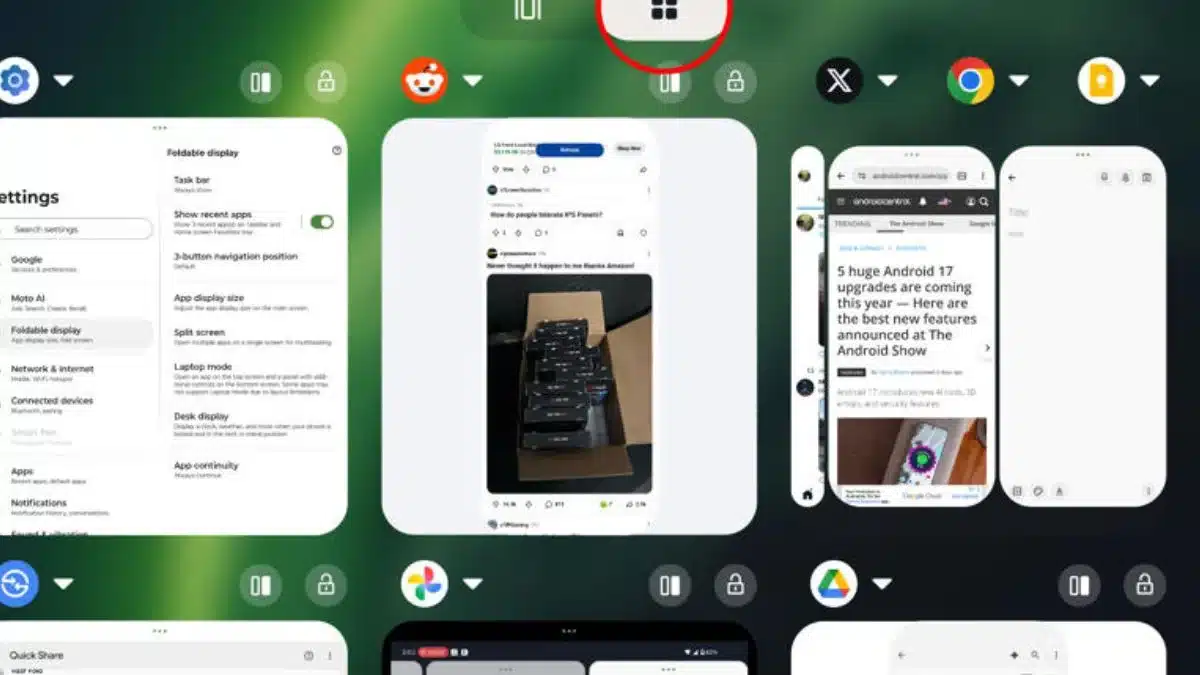
The default recent apps screen on the Razr Fold uses oversized cards that waste screen space.
Motorola includes a much better grid-based multitasking view, but again, it is not obvious unless users manually enable it.
How To Enable Grid View
Step 1: Open the multitasking overview screen
Step 2: Tap the grid icon at the top
Grid View allows users to see several apps simultaneously instead of scrolling through giant cards one by one.
The biggest strength of the Motorola Razr Fold 2026 is not just the hardware itself. It is how much flexibility Motorola has quietly packed into the software experience.
Also Read: How To Speed Up Your Windows Internet Connection Without Upgrading Wi-Fi