


With Apple CarPlay and Android Auto, you can use the built-in screen in your car to control your phone’s maps, music, videos, and calls. It only takes a few minutes to set up on a supported vehicle, but there are often connection drops, black screens, and audio problems. This guide includes tried-and-true steps for setting up both platforms, as well as solutions to the most common issues.
CarPlay vs Android Auto: Quick Comparison
| Feature | Apple CarPlay | Android Auto |
| Minimum OS Requirement | iOS 7.1 or later (iPhone 5 and newer) | Android 9.0+ (Android 11+ built-in, Android 9-10 requires app) |
| Connection Types | Wired & Wireless | Wired & Wireless (Requires compatible 5GHz Wi-Fi car stereo) |
| Voice Assistant | Siri | Google Assistant / Gemini |
| App Store Source | Built-in iOS feature (No app needed) | Google Play Store (For Android 9 & 10) |
Quick Prerequisites Before You Begin
Before you start fixing problems, make sure your phone and car can actually do what you want them to.
- CarPlay vs Android Auto: Quick Comparison
- Quick Prerequisites Before You Begin
- How to Set Up Apple CarPlay (Step-by-Step)
- Setting Up Wired Apple CarPlay via USB
- Setting Up Wireless Apple CarPlay via Bluetooth/Wi-Fi
- Enabling Siri for Hands-Free Apple CarPlay
- How to Set Up Android Auto (Step-by-Step)
- Common Apple CarPlay & Android Auto Issues and How to Fix Them
- Issue 1: Phone Not Connecting or Disconnecting Frequently
- Issue 2: Black Screen, Frozen Display, or Lag
- Issue 3: No Sound, Microphone, or Call Audio Problems
- Issue 4: Wireless Connection Drops Regularly
- Quick Fixes & Troubleshooting Checklist
- Conclusion & Final Tips
Device & Vehicle Compatibility Check
Minimum requirements:
Apple CarPlay: Compatible with iPhone 5 and newer models running iOS 7.1 or later.
- Running Android 11.0 or higher: Built directly into the system settings (no separate app download required).
- Running Android 9.0 or 10.0: Requires downloading the Android Auto app from the Google Play Store.
- Running Android 8.0 or lower: No longer supported for running current Android Auto updates.
Vehicle Support: Your car must clearly support either CarPlay or Android Auto. You can check compatibility in the infotainment settings menu, consult your owner’s manual, or call your dealership. Older cars (typically manufactured before 2016) may require an aftermarket head unit or a wireless adapter dongle to work with these systems.
Original Cable vs Third-Party USB Cables
One of the main reasons connections don’t work is a bad cable. Follow these rules:
- Get a certified MFi cable for your iPhone or a certified USB-C data cable for your Android phone. You can also use the cable that came with your phone.
- Don’t use charging-only cables, as they carry only power, not data, so CarPlay and Android Auto won’t be able to find your phone.
- Every 12 to 18 months, or right away if you see fraying, bent connectors, or cables that don’t fit right, you should replace the cables.
How to Set Up Apple CarPlay (Step-by-Step)
Setting Up Wired Apple CarPlay via USB
- Turn on Siri and start your car.
- Connect your iPhone to the car’s USB port, which is usually marked with a smartphone or CarPlay icon.
- CarPlay should launch automatically. If it doesn’t, find the CarPlay icon on the car’s screen and tap it.
If your car has both wired and wireless CarPlay, it will offer to switch to a wireless connection the next time you connect.
Setting Up Wireless Apple CarPlay via Bluetooth/Wi-Fi
- Select Bluetooth on your iPhone and connect it to your car.
- Make sure Wi-Fi is on by going to Settings > Wi-Fi.
- Make sure Auto-Join is turned on by tapping your car’s CarPlay network.
- Go to Settings > General > CarPlay > Available Cars and choose your car if it doesn’t connect automatically.
To start the pairing process, press and hold the voice command button on your steering wheel if your car only has wireless CarPlay.
Enabling Siri for Hands-Free Apple CarPlay
Siri is always on when you use CarPlay, but if your voice commands don’t work:
- Make sure that “Listen for Hey Siri” and “Press Side Button for Siri” are turned on in Settings > Siri & Search.
- Check Settings > Screen Time > Content & Privacy Restrictions > Allowed Apps if CarPlay doesn’t find your iPhone. CarPlay might be blocked here without you knowing it.
- Another way to get Siri to work is to hold down the voice button on your steering wheel.
How to Set Up Android Auto (Step-by-Step)
Setting Up Wired Android Auto
- Use a data-capable cable to connect your Android phone to the car’s USB port.
- If your phone asks you, make sure the USB connection mode is set to “File Transfer (MTP)” instead of “Charging only.” If it’s not, Android Auto might not start.
- Android Auto should open on its own. You can get it from the Google Play Store and follow the setup steps if you don’t already have it.
Setting Up Wireless Android Auto
- First, use Bluetooth to connect your phone to the car.
- To change settings in the Android Auto app, open it and tap the three-dot menu.
- Pick your car from the list when you click Connect to a car.
- Make sure Wi-Fi is turned on. For wireless Android Auto to work properly, it needs 5GHz support for both Wi-Fi Direct and Bluetooth.
Configuring Google Assistant Settings
Google is making Gemini the voice assistant in Android Auto. On compatible phones, it will replace the original Google Assistant. The set-up is the same either way:
- Go to Settings > Assistant in the Android Auto app and make sure the assistant is turned on for driving mode.
- To use it, either say “Hey Google” or press the voice button on the steering wheel.
- If your phone has Gemini turned on, say “Hey Google, let’s chat” instead of the wake word every time for a continuous back-and-forth conversation.
- From the same Assistant settings menu, you can change which notifications are read out loud.
Common Apple CarPlay & Android Auto Issues and How to Fix Them
Issue 1: Phone Not Connecting or Disconnecting Frequently
Checking Cable Damage and Port Dirt
Check the cable for frayed or bent pins and, if you can, try a different one. Check the USB ports on both the phone and the car for lint or other debris that could interfere with a good connection.
Disabling Battery Saver Restrictions
Battery saver modes limit what can be done in the background, which can lead to drops. While you’re driving, turn off Low Power Mode (iPhone) or Battery Saver (Android). You can also set your phone so that the CarPlay or Android Auto app doesn’t use battery saver.
Issue 2: Black Screen, Frozen Display, or Lag
Clearing System RAM and Background Apps
If you don’t need an app, close it before connecting. Having too many processes running in the background can slow down the handoff to your car’s screen. Restarting your phone every so often can also clear temporary memory buildup.
Resetting the Car Infotainment System
You can find a reset button or an option to do so in the infotainment settings menu. Display glitches are usually fixed by a soft reset, which doesn’t delete paired devices.
Issue 3: No Sound, Microphone, or Call Audio Problems
Checking Bluetooth Audio Channel Settings
If calls or music aren’t going where they should, check the Bluetooth settings on your phone and make sure both media audio and phone audio are enabled for your car’s Bluetooth profile.
Verifying App Permissions for Microphone
In your phone’s privacy or app permissions settings, make sure that CarPlay or Android Auto can access your microphone. Voice commands and hands-free calls won’t work without it, and you won’t even get an error message.
Issue 4: Wireless Connection Drops Regularly
Fixing Wi-Fi and Bluetooth Interference
There are times when nearby networks, other Bluetooth devices, or certain phone cases can interfere with the wireless signal. Take off the case and any other Bluetooth devices paired with it, like a smartwatch, to see if things improve.
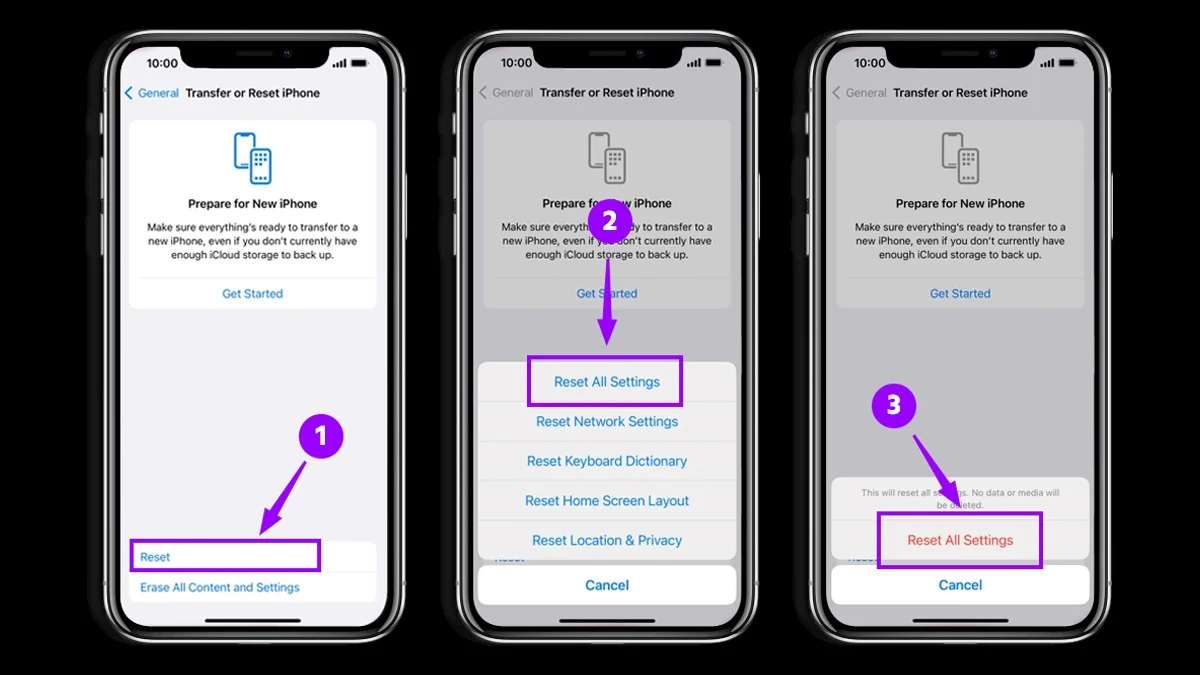
Resetting Network Settings on Phone
If interference isn’t the problem, clear the network settings on your phone. Saved Wi-Fi and Bluetooth pairings will be erased, so you’ll need to reconnect everything. However, this fixes most persistent wireless drops.
- iPhone: Go to Settings > General > Transfer or Reset iPhone > Reset > Reset Network Settings. (Note: This clears saved Wi-Fi passwords).
- Android: Go to Settings > System > Reset options > Reset Wi-Fi, mobile & Bluetooth.
Quick Fixes & Troubleshooting Checklist
Go through these in the right order. The first three steps usually fix most problems.
- Clear Cache and Data (For Android Auto): To clear your storage, go to Settings > Apps > Android Auto > Storage. Then, tap Clear Cache and Clear Data. Fixing many display and connection bugs makes the app rebuild its settings. You’ll have to set it up again afterwards, though.
- Forget and Re-pair Bluetooth & Wi-Fi Connections: Remove any saved Bluetooth pairings and Wi-Fi networks from both your phone and car, then reconnect them all again. This fixes most of the handshake errors that keep happening.
- Restarting Your Phone and Car Infotainment System: First, take the cable out and put it back in. It’s been said that turning the phone and the car’s infotainment system off and back on will fix many problems.
- Checking OS & App System Updates: The Android Auto or CarPlay app on your phone, as well as the infotainment firmware in your car, should all be kept up to date. Manufacturers often use these updates to fix connectivity bugs.
Conclusion & Final Tips
There are three main reasons why CarPlay and Android Auto don’t work properly: a faulty cable, outdated software, or an outdated Bluetooth connection. Follow the steps in the list above, starting with a restart and cable swap and ending with a full network reset, to fix most problems without taking your car to the dealership. If you keep the software on your phone and car up to date, your connections should stay stable in the future.
Visit Devicology for the latest Tech News, Guides, and in-depth Reviews. Follow us on Whatsapp, LinkedIn, X (Twitter) and Instagram to never miss an update!