


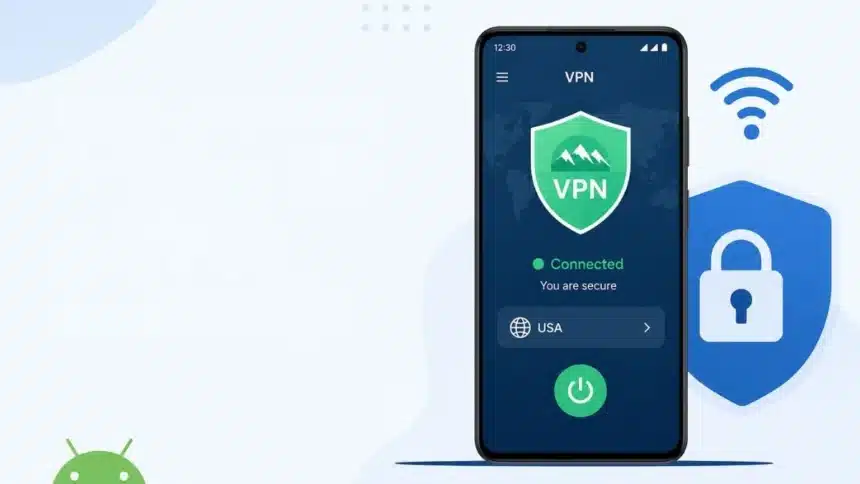
Not sure whether you can get a VPN up and running on your phone? Setting up a VPN on Android takes only a few minutes and protects your smartphone and online privacy. Using a VPN for Android is as simple as downloading an app or subscribing to a service.
In this guide, you will learn what a virtual private network Android user needs, why you need one, and how to set up a VPN on Android phone devices safely.
- Quick Guide: How To Set Up A VPN On Android
- What Is a VPN?
- Why You Need a VPN for Android
- Method 1: Automatic Setup via a VPN App (Recommended)
- 1. Choose a Reliable VPN Provider
- 2. Download and Install the App
- 3. Sign In or Create an Account
- 4. Connect to a Server
- 5. Enable Extra Security Features
- Method 2: Manual Setup via Android Settings
- Essential Built-In Android Security Settings
- How To Choose A Reliable VPN Provider
- Conclusion
Quick Guide: How To Set Up A VPN On Android
| Feature / Method | Method 1: Automatic App Setup (Recommended) | Method 2: Manual Android Settings Setup |
| Ease of Use | Very Easy (One-tap connect) | Moderate (Requires server details) |
| Best For | Daily browsing, streaming, public Wi-Fi | Enterprise/Work networks, custom setups |
| Setup Time | 2 minutes | 5 minutes |
| Protocol Support | WireGuard, OpenVPN, Proprietary | IKEv2 / IPsec |
| Extra Features | Split Tunneling, Ad Blocker, Server Selection | Basic encryption connection only |
What Is a VPN?
A VPN (Virtual Private Network) creates an encrypted tunnel between your device and a remote server. It helps encrypt Android internet traffic, hides your IP address, and secures your data from hackers and network admins.
Why You Need a VPN for Android
While privacy and data security are the main reasons to use a VPN, there are several practical benefits:
- Bypass Geo-Restrictions: Access websites, streaming platforms, and apps that are restricted in your region by changing your virtual location.
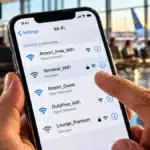
- Protect Public Wi-Fi Connections: Unsecured public Wi-Fi networks at cafes, airports, and hotels leave your personal data vulnerable. A VPN encrypts your traffic so no one can intercept your credentials.
- Prevent ISP Throttling: Some internet providers slow down your bandwidth during heavy streaming or gaming. Encryption hides your activity so ISPs cannot throttle specific traffic types.
Must Read: What Is A VPN Router? Uses And Benefits Explained Simply
Method 1: Automatic Setup via a VPN App (Recommended)
This is the easiest way on how to connect VPN on Android devices smoothly.
1. Choose a Reliable VPN Provider
Avoid untrusted free VPNs from the Play Store. Free services often log user data, show excessive ads, or lack strong encryption. Choose a trusted provider with a verified no-logs policy.
2. Download and Install the App
Search for your chosen VPN provider on the official Google Play Store and tap Install.
3. Sign In or Create an Account
Open the app and sign in with your credentials. Most providers offer a free trial or a money-back guarantee period.
4. Connect to a Server
Tap the quick connect button to automatically link to the fastest server near you, or manually pick a specific country from the server list.
5. Enable Extra Security Features
Go to the app settings and turn on features like split tunneling VPN options (select which apps use the VPN) and Auto-Connect (enables the VPN whenever you join an unknown Wi-Fi network).
Must Read: Top 5 Free VPNs For Android
Method 2: Manual Setup via Android Settings
If you are using a custom enterprise network or do not want to install a third party app, you can follow this manual VPN setup Android method using built in tools.
- Open your phone’s Settings.
- Go to Network & Internet (or Connections) and select VPN.
- Tap the + icon in the top right corner to add a new profile.
- Enter the Name, select the Type (modern Android versions support IKEv2/IPsec), and enter the Server Address provided by your network administrator.
- Save the profile, tap on it, and enter your Username and Password to connect.
Essential Built-In Android Security Settings
Once your VPN is set up, enable these built in options for the best VPN settings for Android protection:
- Always-on VPN: Automatically restarts your VPN connection if your phone reboots or loses signal.
- Block Connections Without VPN (Kill Switch): Acts as a built-in VPN kill switch Android feature, cutting off all internet traffic if the VPN drops unexpectedly to prevent data leaks.
How To Choose A Reliable VPN Provider
When selecting a VPN service for Android, consider these critical factors:
- Encryption Standard: EEnsure the provider uses AES 256-bit encryption or ChaCha20 encryption with secure protocols like WireGuard, OpenVPN, or IKEv2.
- Strict No-Logs Policy: Verify that the company does not record your browsing history, IP addresses, or connection timestamps with a proven no-logs VPN policy.
- Server Speeds: Look for providers with high speed server networks to avoid buffering and latency issues.
- No Bandwidth Caps: Ensure your subscription includes unlimited data usage for smooth streaming and downloading.
Conclusion
Setting up a VPN on Android is one of the simplest ways to protect your mobile device. Using a dedicated VPN app is the fastest method, while Android’s built-in settings offer flexible options for custom network setups. Choose a reliable provider and secure your mobile browsing today.
Must Read: Top 5 VPNs for Fast Browsing, Streaming And Gaming
Visit Devicology for the latest Tech News, Guides, and in-depth Reviews. Follow us on Whatsapp, LinkedIn, X (Twitter) and Instagram to never miss an update!