


No longer can you just use passwords for your online accounts. People try to figure out your password, hack into your data, or use phishing every day. Someone who knows your password can use it to get into your bank, social media, or email accounts. Two-factor authentication (2FA) is a very useful tool in this situation. There’s a second piece of proof that only you have. So even if someone gets hold of your phone, it still would not let them into your account.
There is a lot of information in this guide about what is Two-Factor Authentication, why it’s important, and how to set it up on your phone for your most important accounts.
- Two-Factor Authentication: What Is It?
- Why Should You Use Two-Factor Authentication?
- Types of Two-Factor Authentication
- 1. SMS or Text Message Codes
- 2. Authenticator Apps
- 3. Push Notifications
- 4. Keys for hardware security
- 5. Biometric Verification
- How to Set Up Two-Factor Authentication
- Step 1: Choose an Authenticator App
- Step 2: Go to Your Account’s Security Settings
- Step 3: Pick “Authenticator App” as your method.
- Step 4: Look at the QR code.
- Step 5: Enter the Verification Code
- Step 6: Save Your Backup Codes
- Step 7: Repeat for Other Accounts
- Tips for Managing 2FA Effectively
- What to Do If You Lose Your Phone
- Final Thoughts
Two-Factor Authentication: What Is It?
Before two-factor authentication lets someone into an account, it needs two types of proof:
- Anything you know, like your PIN or password
- You can prove who you are with your phone, a security key, or an app.
- A lot of the time, fingerprints or faces are used as a “second” layer of authentication. But they can be the first thing that is used too.
With 2FA, you need more than just a password to show who you are. Usually, an app or your phone will send you this one-time code. This means that someone who wants to break into your device would need to know both the password and how to open it.
Why Should You Use Two-Factor Authentication?
This is why you need to use two-factor authentication:
- It’s hard for most automated attacks to get through. One more step will stop bots that try to use stolen passwords or guess them.
- Keeps you safe from phishing. You also make sure that no one else can get in, even if you type your password into a fake site by accident.
- Keeps several accounts safe at the same time. Many people use the same passwords over and over, so if one gets out, it can be used to get into many accounts. That damage is stopped by 2FA.
- Lets you know something is wrong. If you get a 2FA prompt that you didn’t ask for, you need to change your password right away.
Types of Two-Factor Authentication
Understanding the various setup options is important before you begin.
1. SMS or Text Message Codes
Each time you log in, a code is sent to your phone. It’s the simplest to set up, but SIM-swapping attacks can read your SMS, making it the least safe.
2. Authenticator Apps
Every 30 seconds, Apple Pay, Google Authenticator, and Microsoft Authenticator all generate a new six-digit code. These can be used even when you’re not online. They’re safer than SMS because someone else can’t read them as well.
3. Push Notifications
Some services will inform an app on your phone. Simply tap “Approve [number]” to accept or decline it. First, you have to get the app. It’s safe and simple to use.
4. Keys for hardware security
Through Bluetooth or NFC, your phone can connect to things you hold in your hands. The safest choice is this, but you need to bring an extra device.
5. Biometric Verification
You can prove who you are by your face or your fingerprint, and most of the time, your phone will also be used as the physical device. Most people should use an authenticator app because it is safe and simple to use.
How to Set Up Two-Factor Authentication
Allow two-factor authentication by following these steps:
Step 1: Choose an Authenticator App
You can get a safe app for your phone from the App store. Some examples are Duo Mobile, Google Authenticator, Microsoft Authenticator, or Xbox Live. It’s possible to switch phones without losing your access with both Authy and Microsoft Authenticator because they both store your data in the cloud.
Step 2: Go to Your Account’s Security Settings
Sign in to the account you want to keep safe, either on a computer or in the app. This could be your online bank account, email, social media account, or something else. Click on this link:
- Settings → Security or Privacy
Pick an option that says “Multi-Factor Authentication,” “2-Step Verification,” or “Two-Factor Authentication.”
Step 3: Pick “Authenticator App” as your method.
You can use 2FA in most services in more than one way. Utilize the authenticator app instead of SMS if you can.
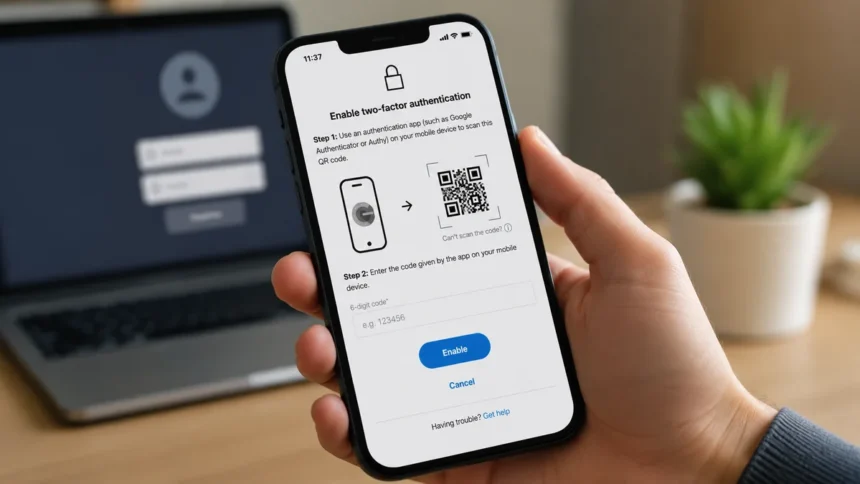
Step 4: Look at the QR code.
On the account’s screen, a QR code will appear. To do this, open the authenticator app, press “+” or “Add Account,” and then choose “Scan QR Code.” If you look at the screen with your phone’s camera, the account will be linked right away. This is what you do if you can’t scan a code: type the setup key into the app.
Step 5: Enter the Verification Code
Your authenticator app will make a six-digit code as soon as you link them. To be sure that everything went well, type this code into the website or app.
Step 6: Save Your Backup Codes
People often forget to do this very important step. Most services will give you a backup code that you only need once when you turn on two-factor authentication. If you lose your phone, keep these safe in a password manager or a printed copy that is kept in a safe place.
Step 7: Repeat for Other Accounts
With the same app, you can add two-factor authentication (2FA) to all of your important accounts, like banking, social media, email, and Google Drive. You don’t need a separate app for each service because one app can hold all of your accounts.
Tips for Managing 2FA Effectively
Here are some tips on how to handle 2FA well:
- Put your email first. Since your email account is often the way to reset passwords for other accounts, it’s the most important to keep safe.
- If you can, stay away from SMS. Only use it as a backup if you can’t get an authenticator app to work.
- Get a copy of your authenticator app and save it. Apps like Authy sync between devices, so if you lose your phone, you won’t be locked out for good.
- Keep backup codes in a different place. They should not be kept in a note that is simple to get to on the phone that creates your codes.
You might want to get a hardware key for your most important accounts. A physical key keeps your accounts, like your main email or financial services, even safer because it’s very hard to hack.
What to Do If You Lose Your Phone
People may worry if they lose the device that is linked to their 2FA, but most services are ready for this:
- Forgot how to set up 2FA? To get back in, use the backup codes you wrote down.
- If you use an app that syncs with the cloud, like Authy, get a new device and set up your accounts again.
- Last but not least, get in touch with the service’s support team. Many of them have ways to make sure you are who you say you are before you can access your account again.
Final Thoughts
Set up two-factor authentication for each account in just a few minutes. This makes it much less likely that someone will hack into your account. Start with the ones that are the least public, like email, banking, and cloud storage, and work your way up. Now and then, there are data breaches all the time. One of the best and easiest ways to keep your digital life safe is to use two-factor authentication (2FA).
Visit Devicology for the latest Tech News, Guides, and in-depth Reviews. Follow us on Whatsapp, LinkedIn, X (Twitter) and Instagram to never miss an update!