


Using your fingerprint or face to unlock your phone is fast, easy, and secure. Here’s a quick step-by-step guide to help you set it up on your OnePlus device.
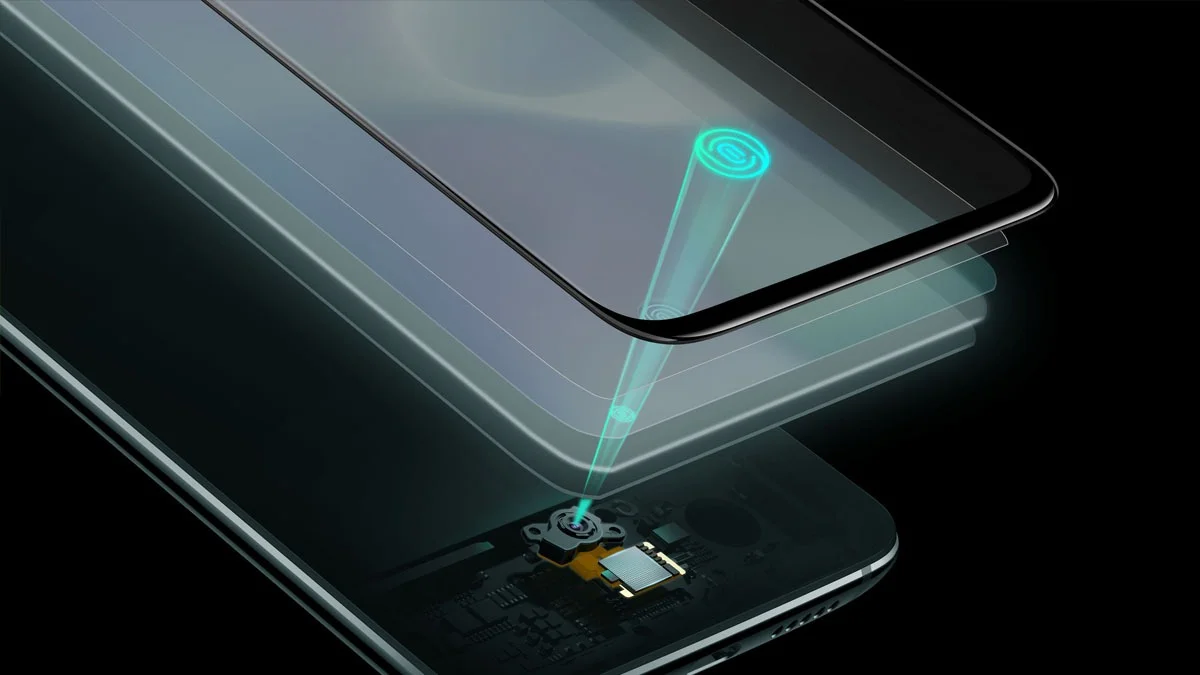
Fingerprint Unlock
How to Set It Up:
- Open Settings: Go to the Settings app on your phone.
- Head to Security: Scroll down and tap on Security & Privacy.
- Tap on Device Unlock: You’ll find it under the security section.
- Select Fingerprint (and Set a Backup): Tap on Fingerprint and Face Unlock. If you haven’t already, you’ll need to set a backup screen lock like a PIN, pattern, or password. This is required for safety.
- Register Your Fingerprint:
- Tap on Fingerprint.
- Agree to any pop-ups or terms.
- Enter your screen lock when asked.
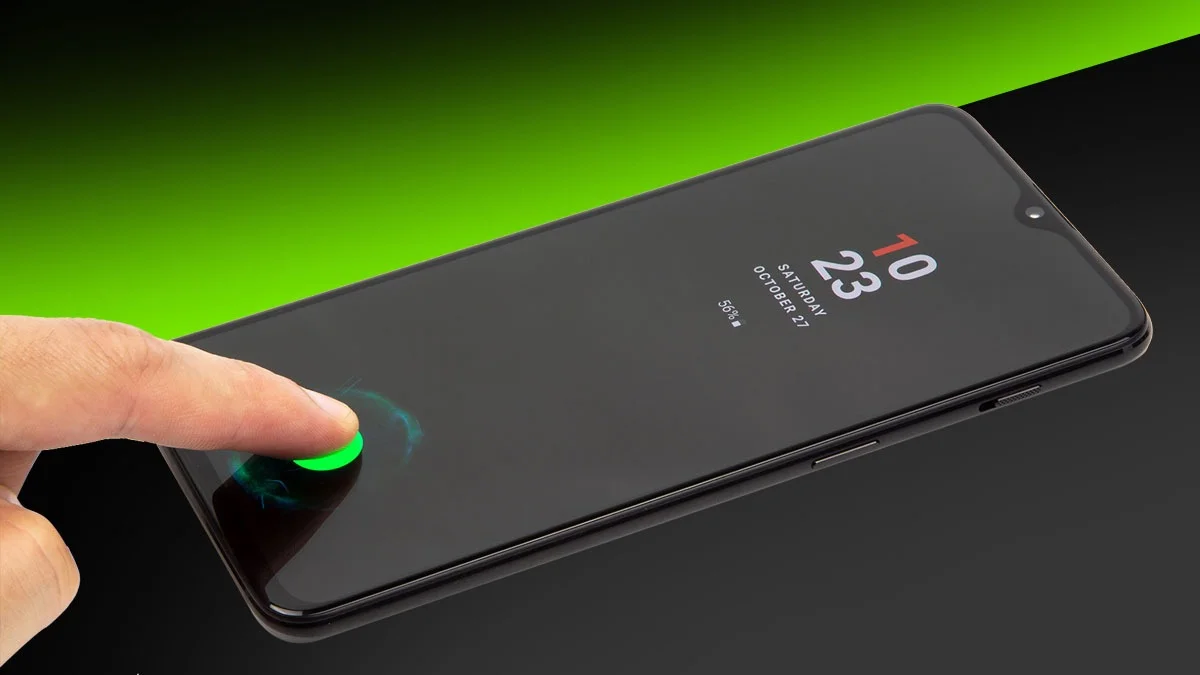
- Follow the on-screen steps: Place your finger on the sensor (this could be on the screen or power button, depending on your phone).
- Lift and place your finger a few times, moving it slightly so the sensor can capture your entire fingerprint.
- You’re Done: Once it’s saved, tap Done. You can add more fingerprints or name them if you like.
Try It Out: Lock your phone and unlock it with your fingerprint to make sure it’s working.
Tips:
Make sure your finger is clean and dry when setting it up.
Some phones let you choose if a light tap or a firm press unlocks the phone.
Face Unlock
How to Set It Up:
- Open Settings: Just like before, open the Settings app.
- Go to Security: Tap on Security & Privacy.
- Tap on Device Unlock, Then choose Fingerprint and Face Unlock.
- Choose Face Unlock and Set a Backup: If you haven’t set a PIN, pattern, or password yet, the phone will ask you to do that first.
- Register Your Face:
- Tap Add Now or Enroll Face.
- Make sure you’re in a well-lit area and hold the phone at eye level.
- Follow the on-screen instructions and stay still while your face is being scanned.
- Adjust the Settings: After setup, you can change how Face Unlock works. You can:
- Use it to unlock certain apps.
- Go straight to the home screen after unlocking.
- Brighten the screen in low light so your face is easier to detect.
- Require your eyes to be open for extra security.
- Test It: Lock your phone, wake the screen, and look at it. It should unlock automatically if it recognizes your face.
Tips:
- Face unlock is very convenient, but for things like payments, fingerprint or PIN is more secure.
- Wearing glasses, hats, or being in poor lighting might affect how well it works, adjust the settings if needed.
Troubleshooting
Can’t Find the Options? Try restarting your phone or checking for software updates.
Sensor Not Working? Clean the fingerprint area and make sure your fingers are clean. If it still doesn’t work, try deleting and re-adding your fingerprints.
And that’s it. Now your OnePlus phone is easier and quicker to unlock using your fingerprint or face.
ALSO READ: 3 iPhone Settings That Secretly Track You: How To Turn Them Off