


Your Apple iPhone is not just a device; it is an important element of your daily activities that you engage with throughout the entire day and still, many of you have not unlocked all of the capabilities of your iPhones.
You can tailor your iPhone in a variety of ways to create a cleaner screen, decrease your time spent on repetitive actions and provide an experience that feels much more personalized to you and your preferences than the factory defaults.
So, let me tell you some basic ways and iPhone settings, that you can change to customize your iPhone personally.
Start With Your iPhone Home Screen
First things, first. Let’s start with the home screen. Move apps around, group them into folders, and remove the ones that you don’t use daily. A clean home screen isn’t just aesthetic; it makes navigation faster.
Use Widgets That Actually Help
Widgets are low effort, high impact. Instead of opening apps again and again, you can check the weather, reminders, calendar, or battery status all in just once. So, if you fix it properly, widgets turn your home screen into a dashboard instead of a mess of icons.
Customize Your Lock Screen
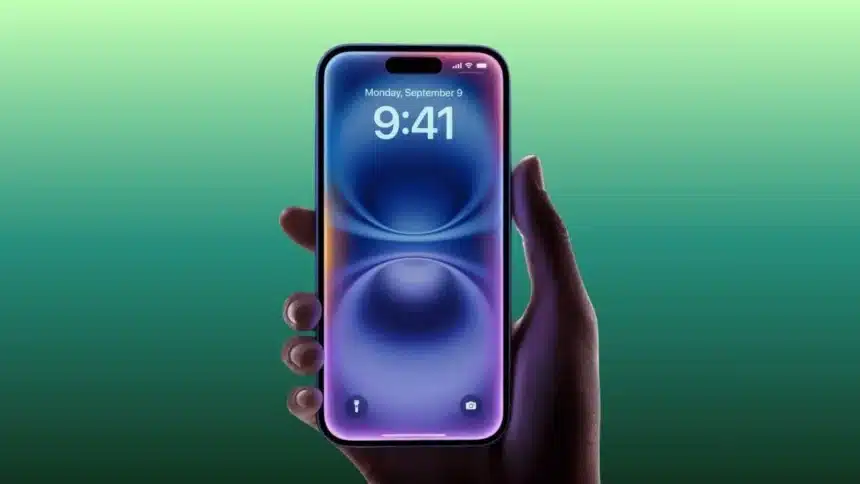
Your lock screen is the first thing you see every time you pick up your phone, so don’t keep it boring. Switch wallpapers, try different fonts, and add widgets that matter to you. It could be your schedule, weather, or even battery levels; basically, do it the way you like to see it.
Set Up Focus Modes for Real Life
Focus modes are underrated. You can create different setups for work, sleep, or personal time. Notifications that don’t matter get silenced automatically, while important ones still come through.
Change App Icons With Shortcuts
If you want your iPhone to actually look unique, this is where it gets interesting. Using the Shortcuts app, you can replace default app icons with custom ones. Pick a theme, match colours, or go minimal.
Customize Control Center
Swipe down, and that panel should work for you. Add the tools you use most, like screen recording, flashlight, voice notes, or low power mode. Remove the ones you never touch..
Use Back Tap for Quick Actions
With Back Tap, you can double or triple-tap the back of your iPhone to trigger actions. Open the camera, take a screenshot, or launch an app.
Adjust Accessibility Settings
These iPhone settings aren’t just for accessibility, they’re for comfort. You can increase text size, tweak colors, enable voice features, or reduce motion. It makes your phone easier on the eyes and smoother to use.
So, overall customizing your iPhone is not about flashy themes or overdoing it. It is about making your device work the way you do.
Also Read: 3 iPhone Settings To Speed Up a Slow Phone