

By using this site, you agree to the Privacy Policy and Terms of Use.
Accept
DevicologyDevicology
  • News
    NewsShow More
    Apple Creator Studio Shows How Apple Is Rethinking Creative Subscriptions
    Apple Creator Studio Shows How Apple Is Rethinking Creative Subscriptions
    By Tricia Wei
    Nothing’s CMF Phone Mini Concept Is The Compact Phone We Want Back
    Nothing’s CMF Phone Mini Concept Is The Compact Phone We Want Back
    By Tricia Wei
    Infinix NOTE Edge Shows How Affordable Phones Have Evolved
    Infinix NOTE Edge Shows How Affordable Phones Have Evolved
    By Tricia Wei
    This 4-Inch Phone Proves Peak Smartphone Design Still Exists
    This 4-Inch Phone Proves Peak Smartphone Design Still Exists
    By Tricia Wei
    Apple Issues New Spyware Alert For iPhone Users
    Apple Issues New Spyware Alert For iPhone Users
    By Tricia Wei
  • Features
    FeaturesShow More
    3 Underrated Apple Watch Features Most Users Miss
    3 Underrated Apple Watch Features Most Users Miss
    By Tricia Wei
    Apple Watch Blood Sugar Tracking Might Be Closer Than We Think
    Apple Watch Blood Sugar Tracking Might Be Closer Than We Think
    By Tricia Wei
    Apple Brings Back Drag And Drop Multitasking With iPadOS 26.2 Update
    Apple Brings Back Drag And Drop Multitasking With iPadOS 26.2 Update
    By Tricia Wei
    Public WiFi Can Expose Your Identity In Minutes, Security Expert Warns
    Public WiFi Can Expose Your Identity In Minutes, Security Expert Warns
    By Tricia Wei
    Apple TV Adds Google Cast For Android Users While Netflix Cuts Support
    Apple TV Adds Google Cast For Android Users While Netflix Cuts Support
    By Tricia Wei
  • Reviews
  • Apps
  • Guide
    GuideShow More
    How To Create A Google Photos Album In Just A Few Minutes
    How To Create A Google Photos Album In Just A Few Minutes
    By Tricia Wei
    Apple’s Back Tap Feature Makes Smart Home Control Effortless
    Apple’s Back Tap Feature Makes Smart Home Control Effortless
    By Tricia Wei
    How To Blur Your Home On Google Maps In Under A Minute
    How To Blur Your Home On Google Maps In Under A Minute
    By Tricia Wei
    Step by Step Guide To Call Recording On Google Pixel
    Step by Step Guide To Call Recording On Google Pixel
    By Tricia Wei
    How To Fix iPhone 16 Battery Drain After The Latest Update: Step-by-Step Guide
    How To Fix iPhone 16 Battery Drain After The Latest Update: Step-by-Step Guide
    By Carlos Blanco
  • Tech
    TechShow More
    Top 5 Wireless Speakers For Home In 2026
    Top 5 Wireless Speakers For Home In 2026
    By Carlos Blanco
    Nothing’s CMF Phone Mini Concept Is The Compact Phone We Want Back
    Nothing’s CMF Phone Mini Concept Is The Compact Phone We Want Back
    By Tricia Wei
    Infinix NOTE Edge Shows How Affordable Phones Have Evolved
    Infinix NOTE Edge Shows How Affordable Phones Have Evolved
    By Tricia Wei
    3 Underrated Apple Watch Features Most Users Miss
    3 Underrated Apple Watch Features Most Users Miss
    By Tricia Wei
    Top 5 Best Smartwatches For 2026 (Apple, Samsung, Google And More)
    Top 5 Best Smartwatches For 2026 (Apple, Samsung, Google And More)
    By Carlos Blanco
  • Top
    TopShow More
    Top 5 Laptops Expected To Launch In 2026: MacBook M6, Dell XPS, ThinkPad And More
    Top 5 Laptops Expected To Launch In 2026: MacBook M6, Dell XPS, ThinkPad And More
    By Carlos Blanco
    Top 5 Smartphones Expected To Launch In 2026: iPhone 18, Galaxy S26 And More
    Top 5 Smartphones Expected To Launch In 2026: iPhone 18, Galaxy S26 And More
    By Carlos Blanco
    Top 5 Smartwatches Expected To Launch In 2026: Apple Watch, Galaxy Watch And More
    Top 5 Smartwatches Expected To Launch In 2026: Apple Watch, Galaxy Watch And More
    By Carlos Blanco
    Top 5 Wireless Earbuds Expected To Launch In 2026: AirPods, Galaxy Buds And More
    Top 5 Wireless Earbuds Expected To Launch In 2026: AirPods, Galaxy Buds And More
    By Carlos Blanco
    Top 5 Action Cameras To Buy In 2026 For Video And Vlogging
    Top 5 Action Cameras To Buy In 2026 For Video And Vlogging
    By Carlos Blanco
  • Game Zone
    Game ZoneShow More
    Best Free iOS Games 2025: Hottest iPhone And iPad Games To Try Now
    Best Free iOS Games 2025: Hottest iPhone And iPad Games To Try Now
    By Carlos Blanco
    Best New iOS And Android Games For August 2025
    Best New iOS And Android Games For August 2025
    By Tricia Wei
    Top Gaming Websites In Thailand (July 2025): Most Visited Platforms Ranked
    Top Gaming Websites In Thailand (July 2025): Most Visited Platforms Ranked
    By Carlos Blanco
    Top Gaming Websites In Ukraine: Most Visited Platforms in 2025
    Top Gaming Websites In Ukraine: Most Visited Platforms in 2025
    By Carlos Blanco
    Phantom Blade Zero Gameplay Demo Played at S-Party 2025
    Phantom Blade Zero Gameplay Demo Played at S-Party 2025
    By Vishwajeet Jaiswal
Font ResizerAa
DevicologyDevicology
Font ResizerAa
  • News
  • Features
  • Reviews
  • Apps
  • Guide
  • Tech
  • Top
  • Game Zone
Search
  • News
  • Features
  • Reviews
  • Apps
  • Guide
  • Tech
  • Top
  • Game Zone

Popular Post

Honor Launches Magic 8 Pro Air With Massive 5,500mAh Battery
News

Honor Launches Magic 8 Pro Air With Massive 5,500mAh Battery

Alibaba’s Qwen AI App Crosses 100 Million Users With Major Upgrade
News

Alibaba’s Qwen AI App Crosses 100 Million Users With Major Upgrade

JD Sports Brings Shopping Directly To ChatGPT And Copilot
News

JD Sports Brings Shopping Directly To ChatGPT And Copilot

Anker Reveals Its Latest Lineup Of Smart Charging Accessories
Tech

Anker Reveals Its Latest Lineup Of Smart Charging Accessories

Follow US
Made by ThemeRuby using the Foxiz theme. Powered by WordPress
Guide

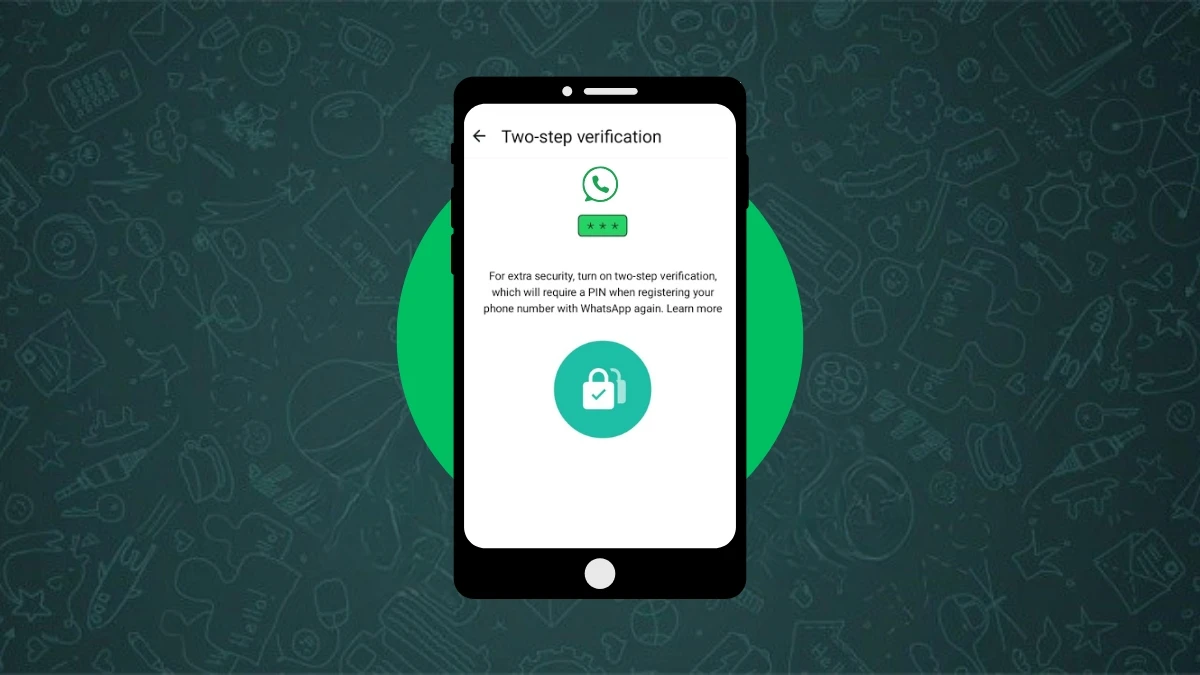
How to Secure Your WhatsApp Account Using Two-Step Verification

Vishwajeet Jaiswal
Last updated: May 19, 2025
By Vishwajeet Jaiswal
Share
How to Secure Your WhatsApp Account Using Two-Step Verification

WhatsApp Security Guide to Set Up and Manage Two-Step Verification

In today’s digital time, WhatsApp is not just a messaging app. It holds your personal data, chats, and important contacts, which makes it important to keep secure. That is why WhatsApp gives a feature called two-step verification, which adds an extra layer of security to your account.

Contents
  • WhatsApp Security Guide to Set Up and Manage Two-Step Verification
  • What is two-step verification?
    • How to enable two-step verification on WhatsApp
    • What to do if you forget your PIN
    • How to manage two-step verification settings
      • To change your PIN
      • To add or change your email address
      • If you no longer want to use this feature
    • One small but useful tip
  • Final advice

But just enabling it is not enough. Managing it is also equally important, which people often ignore. Here you will learn how to manage WhatsApp’s two-step verification feature so your account stays safe and you never face any trouble accessing it.

- Advertisement -

What is two-step verification?

How to Secure Your WhatsApp Account Using Two-Step Verification
two-step verification

This is an optional feature where you set a six digit PIN for your WhatsApp account. Whenever you reinstall WhatsApp or try to log in with your number, it asks for this PIN. This way only you can access your account.

This PIN is different from the six digit code you get through SMS when installing WhatsApp.

If you add your email address then if you ever forget your PIN, WhatsApp can send a reset link to that email.

- Advertisement -

How to enable two-step verification on WhatsApp

  1. Open WhatsApp and go to Settings
  2. Tap on Account
  3. Select the two-step verification option
  4. Tap on Turn on or Set up PIN
  5. Enter your six digit PIN and confirm it
  6. Enter an email address that you can access or tap Skip if you do not want to add it
  7. Confirm the email and tap Save or Done

What to do if you forget your PIN

  • If you have added an email address, WhatsApp will send the reset link to it
  • If not, you will have to wait for seven days to reset your PIN
  • WhatsApp cannot speed up this waiting period or disable your account during this time

How to manage two-step verification settings

Too Curious? Here's How To Read Deleted WhatsApp Messages
WhatsApp

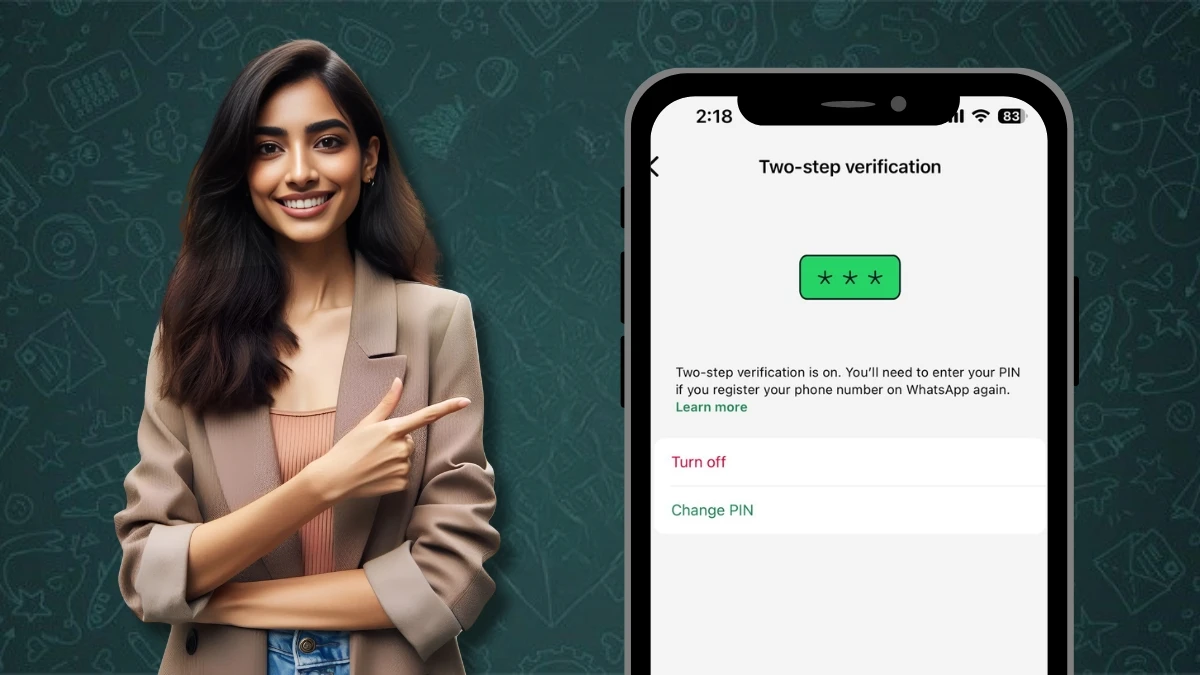
To change your PIN

  • Go to WhatsApp Settings
  • Go to Account, then two-step verification then tap Change PIN

To add or change your email address

  • Open Settings
  • Go to Account, then Email address then tap Add email address or Change email address

If you no longer want to use this feature

  • Go to WhatsApp Settings
  • Go to Accoun,t then two-step verification then select Turn off

One small but useful tip

WhatsApp asks for your PIN once every week to make sure you do not forget it. This reminder is also part of your security. So whenever it asks for your PIN, do not skip it. Enter and confirm it.

Final advice

WhatsApp today is not just for chats. It holds your whole network. Two-step verification is a simple step but it protects your account from hackers, unauthorized access, and unnecessary risks. If you have not enabled this feature yet, do it today and give your digital privacy smart protection.

ALSO READ: How to Use Effects, Filter, Touch up, and Background on WhatsApp Video Call

- Advertisement -
TAGGED:enable WhatsApp securitymanage WhatsApp settingssecure WhatsApp accountWhatsApp account securityWhatsApp email setupWhatsApp PIN resetWhatsApp PIN tipsWhatsApp privacy featureWhatsApp safety guideWhatsApp two step verification
Share This Article
Facebook Flipboard Copy Link
- Advertisement -
Ad image

Must Read

Apple Creator Studio Shows How Apple Is Rethinking Creative Subscriptions
NewsApps

Apple Creator Studio Shows How Apple Is Rethinking Creative Subscriptions

Top 5 Wireless Speakers For Home In 2026
Tech

Top 5 Wireless Speakers For Home In 2026

Nothing’s CMF Phone Mini Concept Is The Compact Phone We Want Back
NewsTech

Nothing’s CMF Phone Mini Concept Is The Compact Phone We Want Back

Infinix NOTE Edge Shows How Affordable Phones Have Evolved
NewsTech

Infinix NOTE Edge Shows How Affordable Phones Have Evolved

- Advertisement -
Ad image

You Might also Like

How to Fix a Slow iPhone: Quick Tips for Boosting Speed
Guide

How to Fix a Slow iPhone: Quick Tips for Boosting Speed

How to Easily Connect Your Android Phone to a Windows PC with Phone Link
Guide

How to Easily Connect Your Android Phone to a Windows PC with Phone Link

Android Notification Link Flaw Puts Millions At Risk: What You Need To Know
Guide

Android Notification Link Flaw Puts Millions At Risk: What You Need To Know

How to Unlock a PDF File Without a Password - Quick and Easy Guide
Guide

How to Unlock a PDF File Without a Password – Quick and Easy Guide

Devicology
Whatsapp Instagram X-twitter Linkedin

The website Devicology is a repository of information on mobile devices, mobile gadgets, their functions and how to manage the devices for better user control. It offers expert advice on how to manage the settings of the hand-held devices so that the control remains with the user. From custom settings to optimum device utilization, the website covers multiple subjects of user interest and value. 

  • About Us
  • Terms of Use
  • Privacy Policy
  • Contact

© 2026 – Devicology. All Rights Reserved