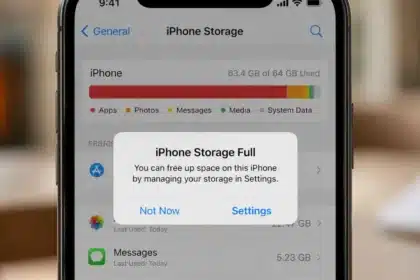

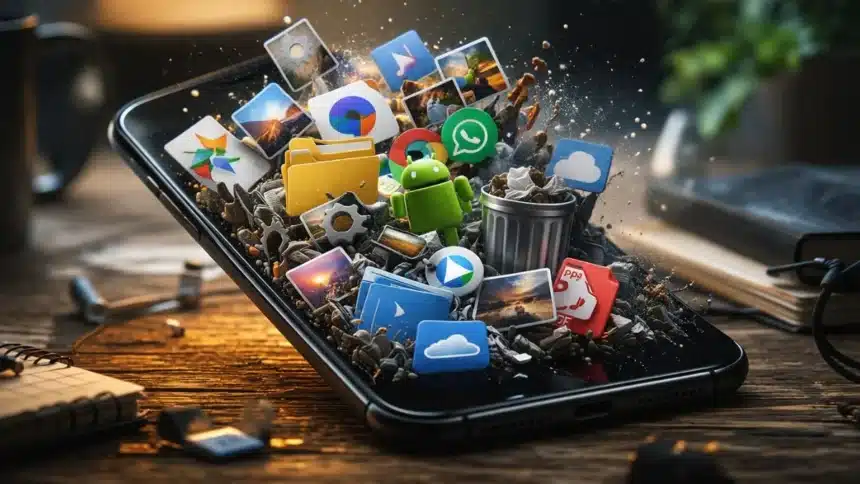
While you haven’t actually downloaded anything significant, your phone keeps prompting you with a notice that says, “You’re running out of storage!”
So, what’s really going on with all your storage? So, it’s not like there are thousands of new apps you are downloading, but what’s happening is all the stuff your phone is saving quietly.
Even if you haven’t directly downloaded something that fills up your phone, the accumulation of hidden files can easily build up until your phone is slow to run.
Let’s look at the hidden files on your phone and how to eliminate them without losing any of your valuable files.
1. Cached App Data
Apps like Instagram, Chrome, and YouTube store temporary data to load faster. Over time, this cache can grow into hundreds of MBs or even GBs.
So to remove the cache- Go to Settings > Apps > Storage > Clear Cache (don’t hit “clear data” unless you want to log out).
2. Duplicate Photos & Videos
Burst shots, screenshots, forwarded memes, and more. Basically, your gallery is probably full of copies you don’t even remember saving.
To fix this quickly, use Google Photos’ “Free up space” or a duplicate cleaner app.
3. Offline Downloads
The songs on Spotify, Netflix shows, and PDFs that you download to see offline don’t delete themselves on their own. So, to clean this space, open each app, check downloads and delete what you’re not using.
4. Old WhatsApp Media Files
Deleting chats doesn’t delete media. Your phone could be storing years of photos, videos, voice notes, and random documents from WhatsApp alone.
So, go to WhatsApp > Settings > Storage and Data > Manage Storage and clean up large files.
5. System Update Leftovers
After updates, your phone sometimes keeps installation files that are no longer needed. So, after you restart your device, always check storage settings, because some phones do auto-clear, but some don’t.
6. Trash Folders
Gallery and file manager apps keep items in a Recycle Bin for 15–30 days, and yes, they still occupy storage. SO, always try to keep your recycle bin or trash bin empty.
7. App Residual Files
You delete an app, but it doesn’t fully leave. Leftover folders, hidden files, and configs remain behind, especially from games or heavy apps.
So, after deleting the app, go to file manager and check folders like android/data, downloads or internal Storage folders with app names and clean them manually.
8. Large Email Attachments
Gmail and other apps download attachments automatically, i.e. PDFs, images, and presentations.
You might not even remember opening them. So always remove the larger files present in Gmail.
9. Auto-Saved Media
Some apps automatically save every image or video you receive. Group chats make this 10x worse. And that’s how your gallery ends up with random memes and blurry forwards.
So always keep your auto-download off in social media apps like WhatsApp and Telegram.
10. Hidden App Data
Some apps store data deep in the system- maps, offline content, thumbnails, logs. You will not see them in your gallery, but they are there.
Fix: Go to Settings > Storage > Apps and sort by size.
So, now you know your phone isn’t randomly running out of space. It’s slowly filling up with things you never actively chose to keep.
Also Read: You Paid For An iPhone- But Are You Even Using These 10 Features?