



You created a Google account. Maybe years ago, maybe last week. Either way, you probably tapped “Next” through every screen, accepted every default, and moved on with your life.
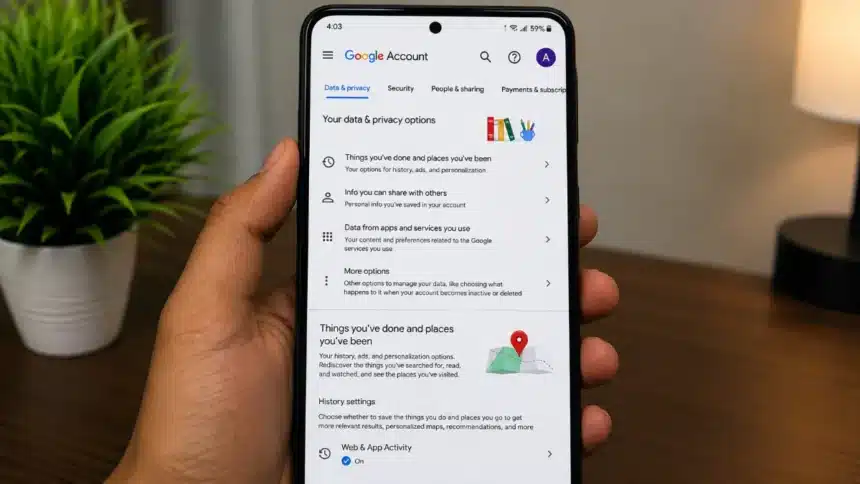
Here is the problem: those settings can have a major impact on what activity Google saves and how your experience is personalized. If you never went back to check what you agreed to, you may be allowing Google to save more activity than you realize.
- The “Just Click Next” Trap
- What Google Tracks Through These Settings (And What It Means)
- The Gemini AI Trap (New in 2026)
- How to Fix Your Google Privacy Settings (Step by Step)
- Step 1: Open Your Google Account Privacy Dashboard
- Step 2: Turn Off Web & App Activity
- Step 3: Turn Off Location History (Timeline)
- Step 4: Turn Off YouTube History
- Step 5: Turn Off Ad Personalization
- Step 6: Review Search Services History
- Step 7: Turn Off Gemini Personal Intelligence
- Step 8: Set Auto-Delete for Any History You Keep
- What Happens If You Turn Everything Off?
- The Real Privacy Trap: Not Knowing You Had a Choice
- Quick Privacy Checklist
- The Final Word
This is not a conspiracy theory. It is how Google’s various activity and personalization controls work. And if you never went back to check what you agreed to, you may be allowing Google to save more personal information than you realize.
Let us walk through the privacy traps most users fall into and how to fix them.
The “Just Click Next” Trap
When you set up a Google account, the process feels simple. Name, email, password, done. But buried in that setup flow are activity and personalization options that can affect what Google saves:
- Web & App Activity (saves searches and other activity on Google services, with additional activity available depending on your settings)
- Location History / Timeline (records where you physically go when Timeline is enabled)
- YouTube History (logs videos you watch and searches you make on YouTube)
- Ad Personalization (uses information and activity covered by your ad settings to make ads more relevant)
- Search Services History (saves activity across Google Search, Maps, Shopping, Flights, Hotels, Translate and News when the setting is available and enabled)
Every single one of these is not turned ON by default. For example, Google says Timeline is off by default, while Search Services History is currently being rolled out gradually. Your settings can also depend on your existing choices and account.
What Google Tracks Through These Settings (And What It Means)
Here is a breakdown of what each setting actually does:
| Setting | What It Tracks | Why It Matters |
| Web & App Activity | Google searches and other activity on Google services. Depending on your settings, it can also include Chrome history and activity from sites, apps, and devices that use Google services. | Can be used to provide more personalized Google experiences. |
| Location History (Timeline) | Your visits and routes when Timeline is enabled. | Creates a detailed record of places you have visited and routes you have taken. |
| YouTube History | Videos you watch and searches you make on YouTube, along with certain voice and audio activity depending on your settings. | Helps provide recommendations and lets you revisit previous activity. |
| Ad Personalization | Information and activity covered by your Google ad settings. | Can be used to make ads more relevant when personalized ads are enabled. |
| Search Services History | Activity across Google Search, Maps, Shopping, Flights, Hotels, Translate and News when the setting is available and enabled. | Helps Google provide personalized recommendations and lets you revisit previous activity. |
Google’s current Web & App Activity settings allow you to control whether Google saves searches and other activity on Google services. Additional Chrome history and activity from sites, apps and devices using Google services can also be included depending on your settings.
Timeline works differently. Google says Timeline is off by default. When enabled, it can save your visits and routes to a map on your signed-in devices.
YouTube History can include the videos you watch and searches you make on YouTube. Depending on your settings, it can also include voice and audio activity.
Google’s newer Search Services History is currently being rolled out. It covers services including Search, Maps, Shopping, Flights, Hotels, Translate and News.
Google also says that Search Services History can include media from your interactions when the relevant Save Media setting is enabled. Saved media can be used to improve Google services and, under Google’s stated conditions, to develop and improve its AI models.
The Gemini AI Trap (New in 2026)
If you use Google’s Gemini AI assistant, there is a newer setting most users should know about: Personal Intelligence.
When eligible users opt in and connect supported Google apps, Gemini can use information from connected services to give more personalized answers. Depending on availability and the apps you connect, this can include information from Google Photos, Google Workspace services such as Gmail, Search services and YouTube.
That does not mean Gemini is automatically scanning your emails, photos, and viewing habits. Google says eligible users can opt in to Personal Intelligence and choose which apps to connect.
If you do not want Gemini using information from connected Google apps for personalized responses, you can review the Gemini Connected Apps settings and choose which services, if any, you want to connect.
How to Fix Your Google Privacy Settings (Step by Step)
You do not need to delete your Google account. You just need to review what should be saved and what should not. Grab your phone and follow along.
Step 1: Open Your Google Account Privacy Dashboard
Open Chrome on your phone and go to myaccount.google.com/data-and-privacy. You will land on your Google Account privacy page.
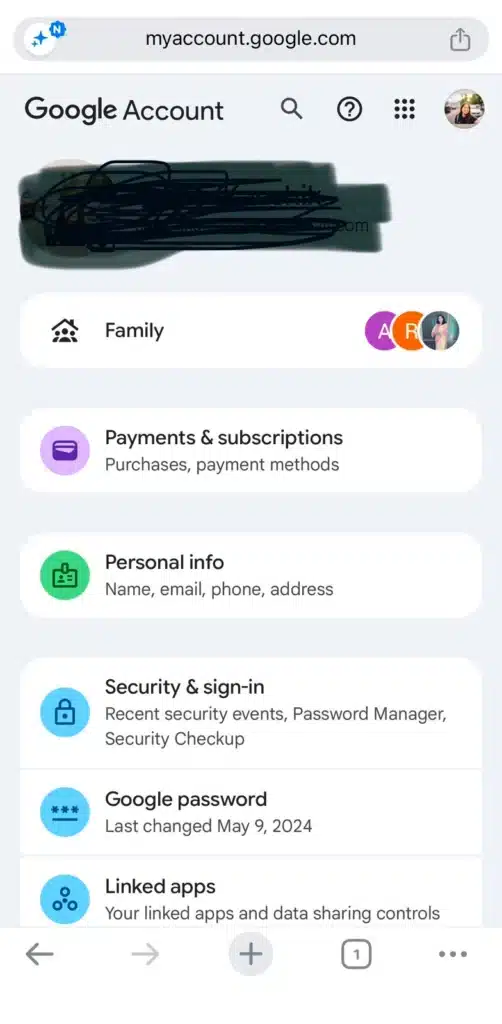
At the top of the page, you will see a row of horizontal tabs: Home, Personal info, Data & privacy, Security, People & sharing, and Payments & subscriptions. Swipe that tab row sideways if needed and tap Data & Privacy.
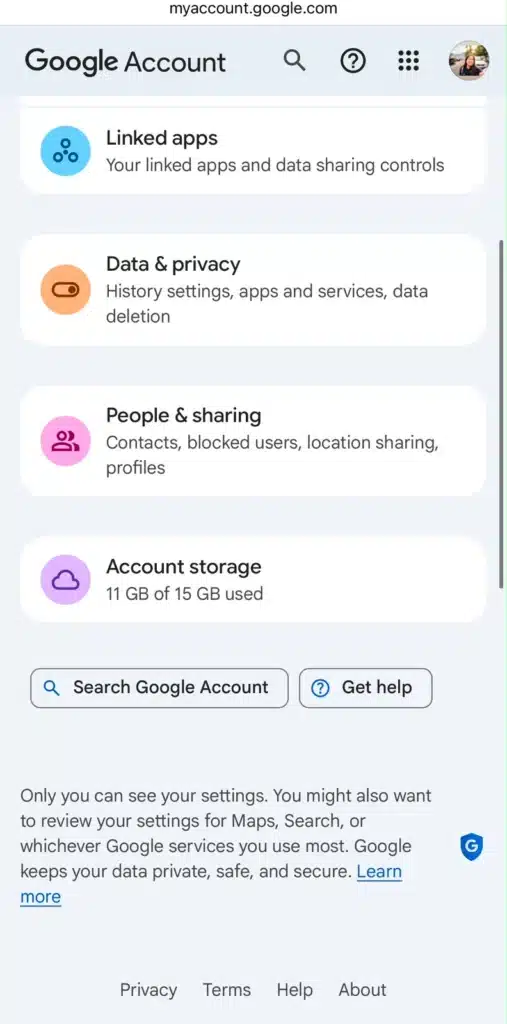
Now scroll down slightly. You will see sections for managing your activity and privacy settings. Depending on your account and Google’s current rollout, you may see Web & App Activity, Timeline, YouTube History and Search Services History. Each card displays its current status, most likely reading “On” or “Saving activity.”
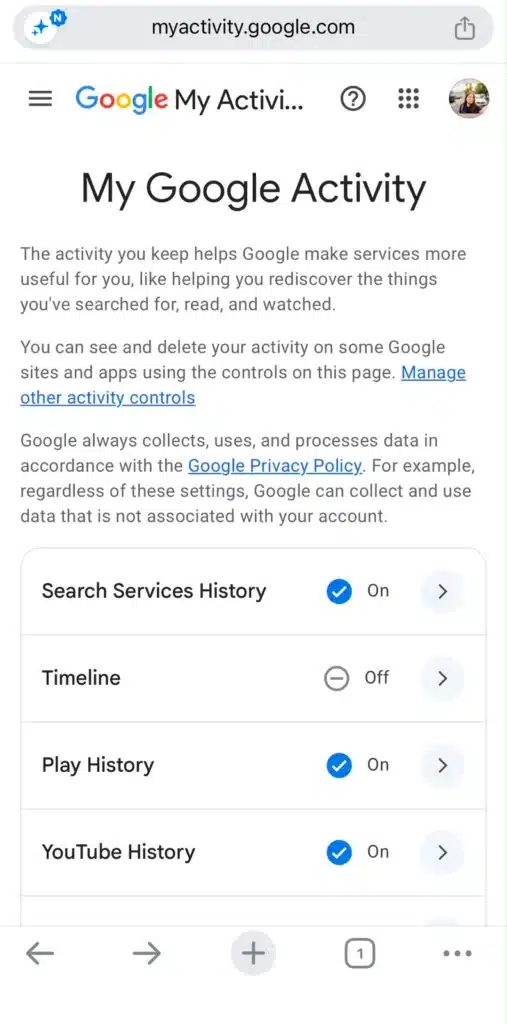
Step 2: Turn Off Web & App Activity
Click on the Web & App Activity section. This opens a new page showing the current status of the setting.
You will see an option to turn the setting off. Tap Turn off and follow the confirmation steps.
Google will display a confirmation screen explaining what changes (you lose personalized search suggestions). Tap Turn off again to confirm.
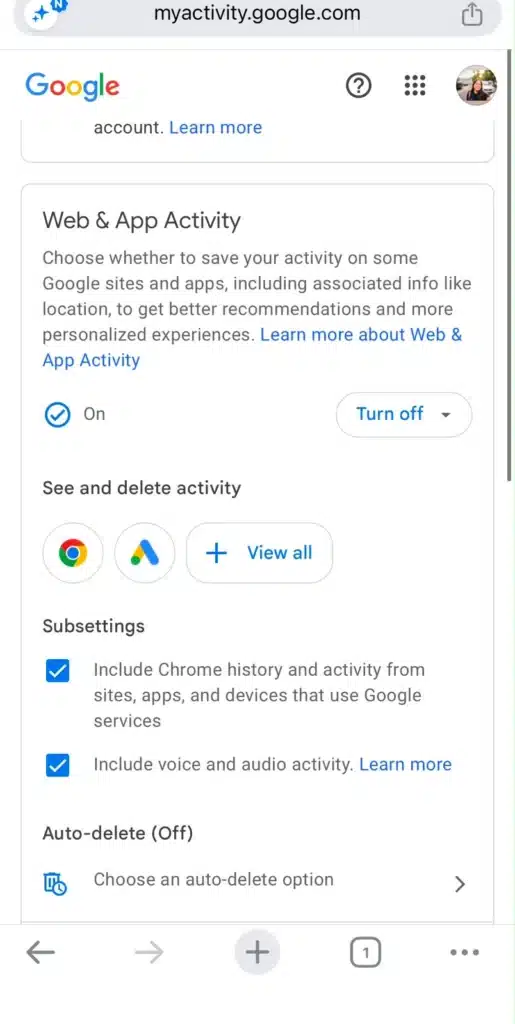
The page will update to show this setting is now paused.
Step 3: Turn Off Location History (Timeline)
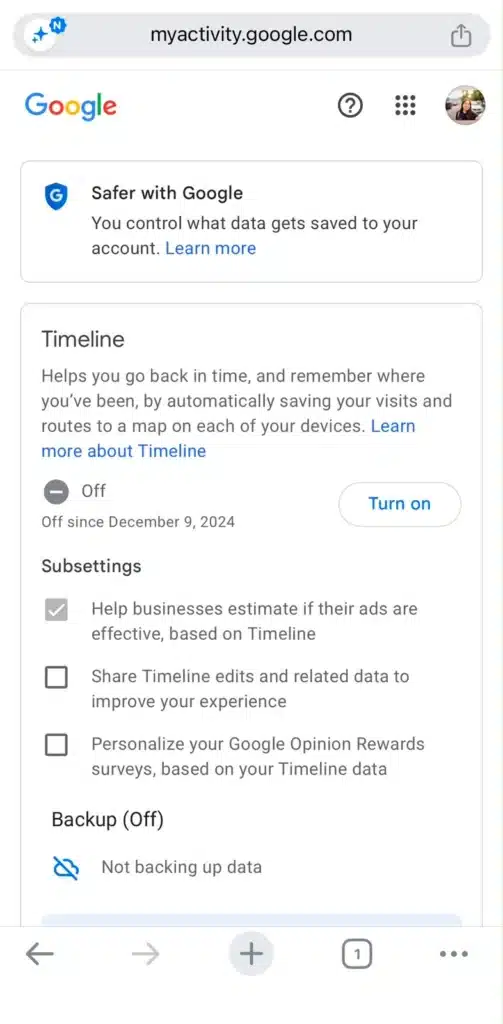
Tap the back arrow to return to the “Data & Privacy” page. Under your activity settings, tap the Timeline option.
Tap Turn off and confirm when prompted. This stops Google from saving new visits and routes to your Google Maps Timeline.
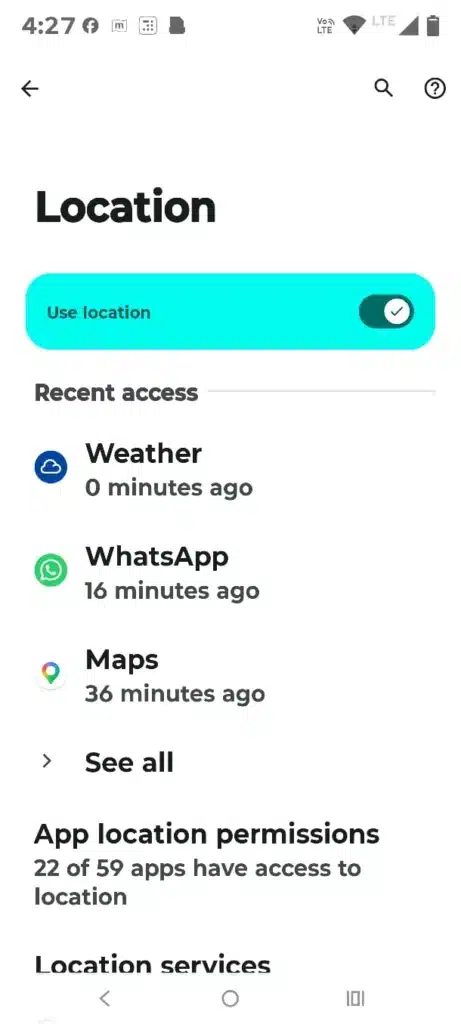
Extra step for Android users only: Google can also use location information through device-level services and app permissions outside Timeline. To tighten location privacy on Android, open your phone’s Settings app, tap Location, and review your device location setting and individual app permissions. Google Location Accuracy is a separate setting and turning it off does not disable all location access.
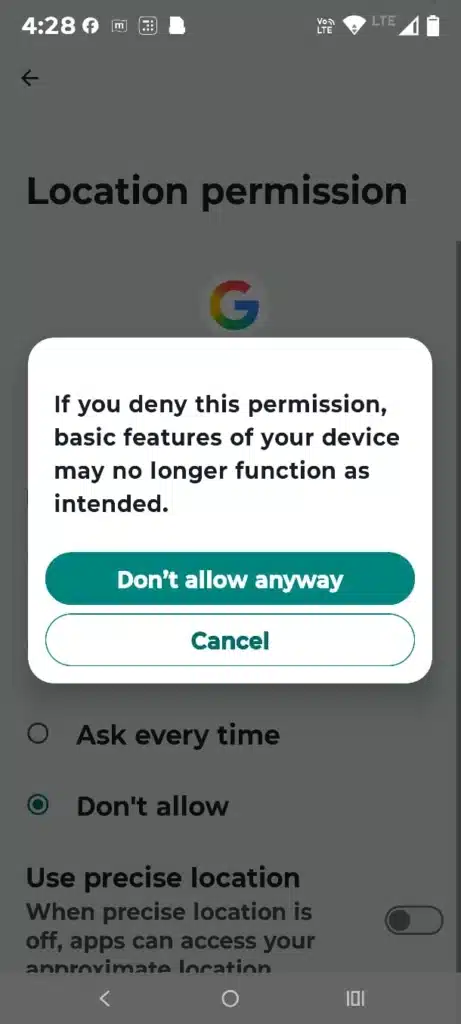
NOTE: iPhone users should also review the location permissions and privacy settings on the device itself. Turning off Timeline does not automatically disable every other Google or device-level location setting.
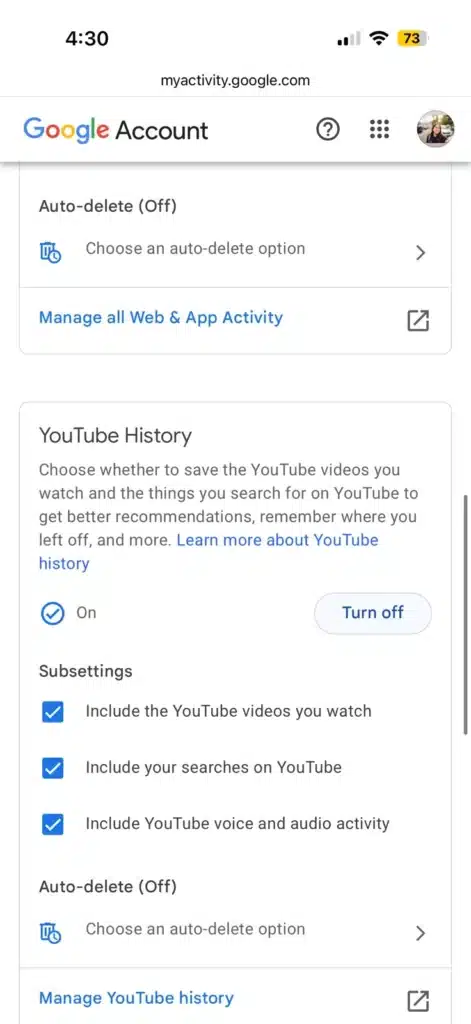
Step 4: Turn Off YouTube History
Go back to the “Data & Privacy” page. Under your activity settings, tap the YouTube History option.
Tap Turn off. This stops new YouTube watch and search activity from being saved to your YouTube History while the setting is paused.
You can also use Google’s Auto-delete option if you want to keep some YouTube History while automatically deleting older activity.
Step 5: Turn Off Ad Personalization
Go back to the “Data & Privacy” page and find your advertising settings. You can also open My Ad Center directly.
On this page, you can control whether personalized ads are enabled. If personalized ads are ON, you can switch them OFF.
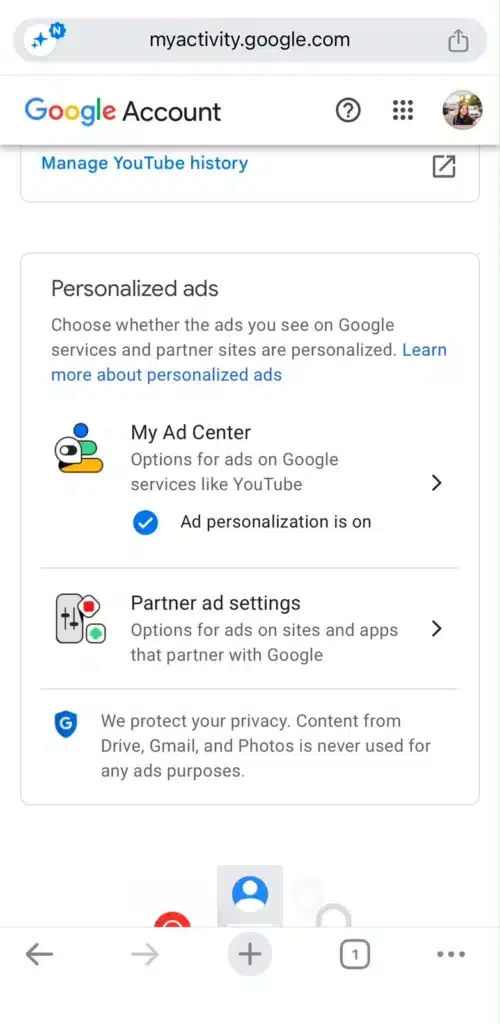
This does not remove ads from your life. You will still see ads. They just will not be personalized using the information and activity covered by Google’s personalized ads settings.
Step 6: Review Search Services History
If Search Services History is available on your account, open it from My Google Activity or your Google Account activity settings.
Google says the new setting covers Search, Maps, Shopping, Flights, Hotels, Translate and News. The feature is currently being rolled out gradually.
You can turn Search Services History off or choose Turn off and delete activity.
There is also a separate Save Media option. When enabled, Google can save images, files, audio and video from your interactions with Search services. Google says saved media may be used to improve your experience and to develop and improve its AI models.
If you do not want this media saved, review the Save Media setting and turn it off where available.
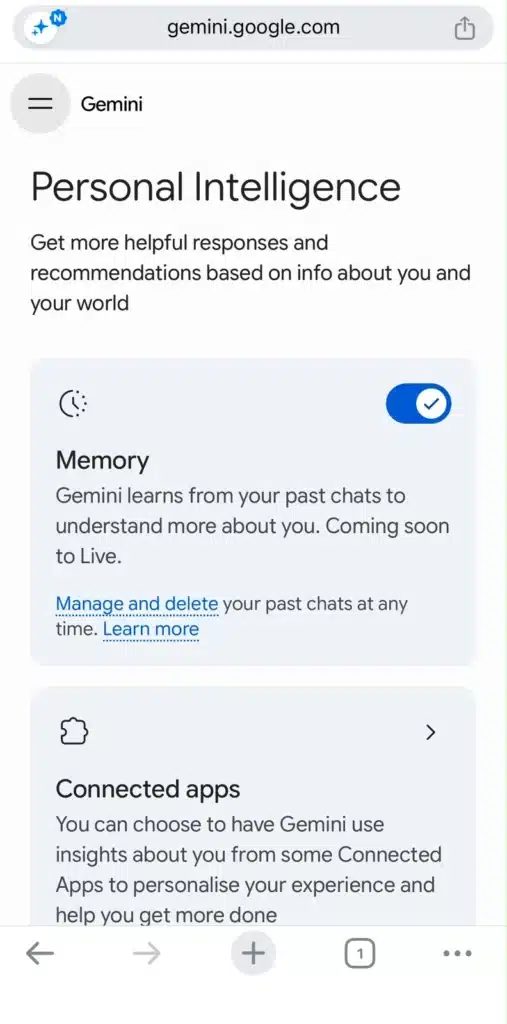
Step 7: Turn Off Gemini Personal Intelligence
Open a new tab in Chrome and go to gemini.google.com.
If you are eligible, a card will show where you can opt in to Personal Intelligence in Gemini. You can then choose which apps to connect or choose Don’t connect.
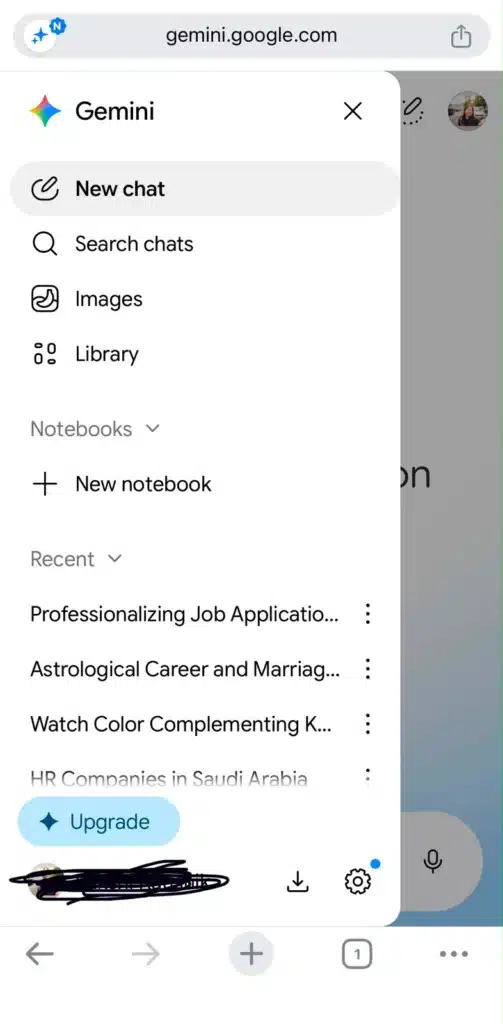
When connected, Gemini can use information from supported apps to provide more personalized responses. Google currently lists apps and services including Contacts, Google Photos in certain countries and territories, Google Workspace, Search services and YouTube.
If you have already connected apps, review the Connected Apps settings and disconnect any services you do not want Gemini to use for personalization.
Step 8: Set Auto-Delete for Any History You Keep
If you prefer to keep some tracking active (for example, you like personalized YouTube recommendations), you can at least limit how long Google stores that data.
Go back to any History setting (like Web & App Activity or YouTube History). On that page, look for the Auto-delete option.
Depending on the activity, Google provides retention choices such as 3 months, 18 months and 36 months.
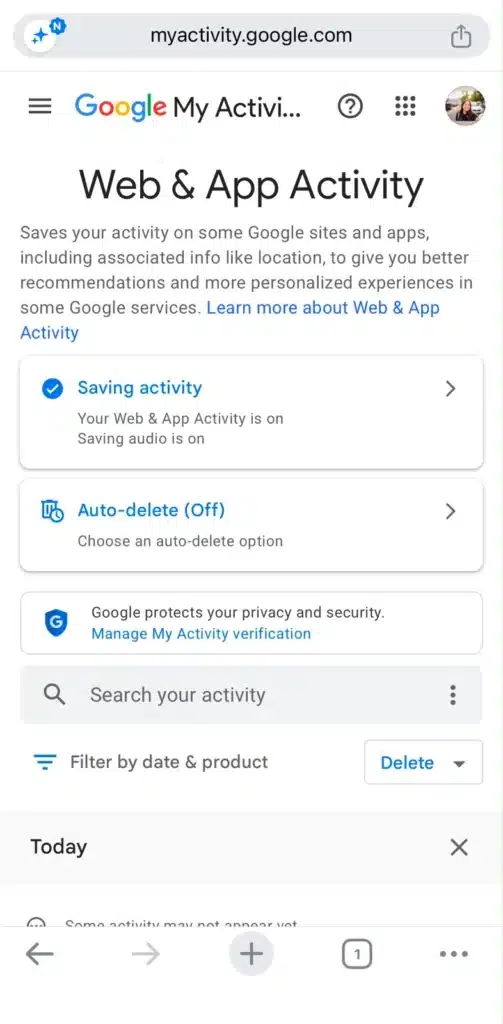
If you do not want older activity sitting in your account indefinitely, choose a shorter retention period such as 3 months where that option is available.
What Happens If You Turn Everything Off?
Honest answer: some features become less personalized. Here is what changes:
| What You Lose | What You Keep |
| Personalized search suggestions and experiences based on saved activity | Full Google Search functionality |
| “Recommended for you” on YouTube | YouTube still works, but recommendations may be less tailored |
| Google Maps remembering your places and routes through Timeline | Maps navigation and core features |
| Personalized ads based on your activity | You still see ads, just not personalized using that information |
| Gemini using information from connected apps for personalized responses | Gemini still works for general queries |
Turning these settings off does not delete your Google Account. Some features may become less personalized or unavailable because they rely on saved activity, while core Google services continue to work.
The Real Privacy Trap: Not Knowing You Had a Choice
The biggest issue is not that Google collects data. It is that many people set up their accounts and rarely revisit their settings, and may not realize how much information can be saved through the different activity controls.
Google does offer controls. They are just spread across different sections of your account and individual Google services, so many users never find them.
The fix takes five minutes. The awareness lasts forever.
Quick Privacy Checklist
Use this as your reference:
- Web & App Activity: OFF (or auto-delete at 3 months)
- Location History / Timeline: OFF
- YouTube History: OFF (or auto-delete at 3 months)
- Ad Personalization: OFF
- Search Services History: OFF if you do not want Search services activity saved
- Save Media: OFF if you do not want media from Search services interactions saved
- Gemini Personal Intelligence: Don’t connect apps unless you want Gemini to use information from those connected services
- Review third-party app access: Remove apps you no longer use
- (Android only) Check device-level Google settings and app permissions for additional location controls
Go to myaccount.google.com/data-and-privacy right now and spend five minutes reviewing these settings. Future you will be grateful.
The Final Word
Google gives you powerful tools for free. But your Google Account also comes with a range of activity and personalization controls that determine what information is saved and how your experience is personalized.
The good news? You do not have to quit Google. You just need to review the available settings and use the controls on your terms.
Five minutes in your privacy dashboard is all it takes to understand what activity is being saved and which controls are available to you.
Now that you know where the switches are, review them.
Your privacy is worth checking before you need to worry about it.