




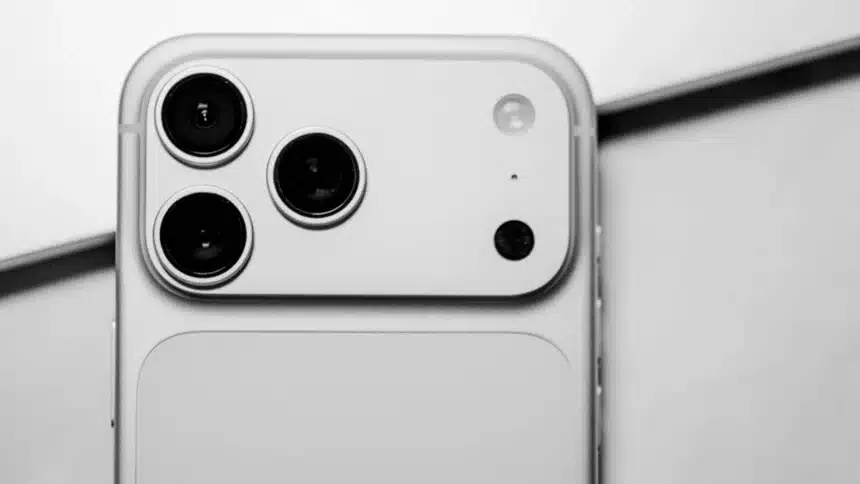
Smartphones provide convenient access to video calls, voice assistants, photography, and communication tools. However, microphone and camera permissions can create privacy risks when applications receive unnecessary access. Reviewing these permissions regularly helps identify unexpected activity and strengthens control over personal information.
Modern mobile operating systems include privacy indicators, permission dashboards, and application-level controls. These features help users identify which applications access sensitive hardware and when access occurs. Understanding these tools makes smartphone privacy management more practical and effective.
Why Microphone and Camera Permissions Matter
Microphones and cameras can capture sensitive information from private conversations and personal surroundings. Applications generally require explicit permissions to access these features on modern mobile operating systems. However, previously granted permissions may remain active long after their original purpose disappears.
Not every instance of microphone or camera access indicates malicious activity. Video calls, voice messages, photography, and accessibility tools often require legitimate access. The important distinction is whether the activity matches the application’s purpose and expected behavior.
Warning Signs of Unexpected Access
Several indicators can help identify potentially unnecessary microphone or camera activity.
- Unexpected privacy indicators: A camera or microphone indicator appears without an obvious explanation.
- Unfamiliar applications: An installed application requests permissions unrelated to its primary function.
- Background activity: Sensitive access occurs when the application is not actively being used.
- Unusual battery consumption: An application consumes excessive power without an identifiable reason.
- Unexpected permission requests: An application repeatedly requests access after permission restrictions.
- Unexplained data usage: An application transfers more information than its normal activity suggests.
These indicators warrant investigation but do not independently prove surveillance or malicious behavior. Application activity, operating system restrictions, and legitimate background functions should be considered together.
How to Check Microphone and Camera Access on Android
Android includes privacy indicators and permission management tools for monitoring sensitive application access. Exact menu names vary depending on the Android version and device manufacturer. The following steps describe the standard approach on supported Android devices.
Review the Privacy Dashboard
The Privacy Dashboard provides information about recent microphone and camera permission usage. It helps identify applications that accessed these features during the available reporting period.
1. Open Settings on the Android device.
2. Select Security and privacy or Privacy, depending on the interface.
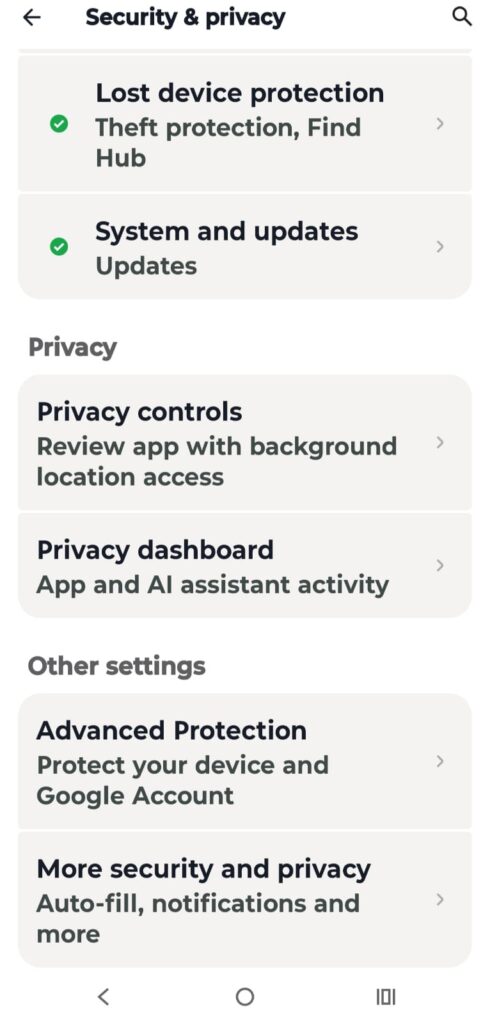
3. Open the Privacy dashboard.
4. Select Microphone to review recent microphone access.
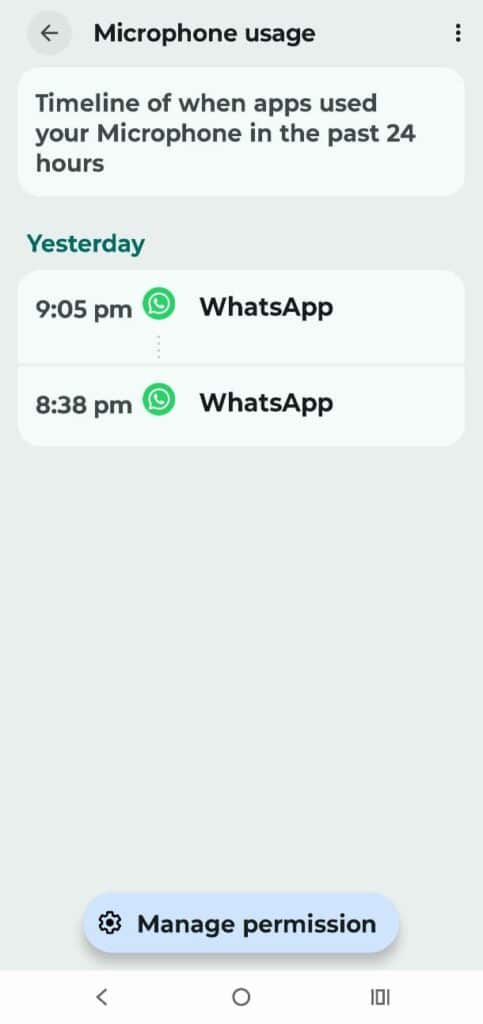
5. Return to the dashboard and select Camera.
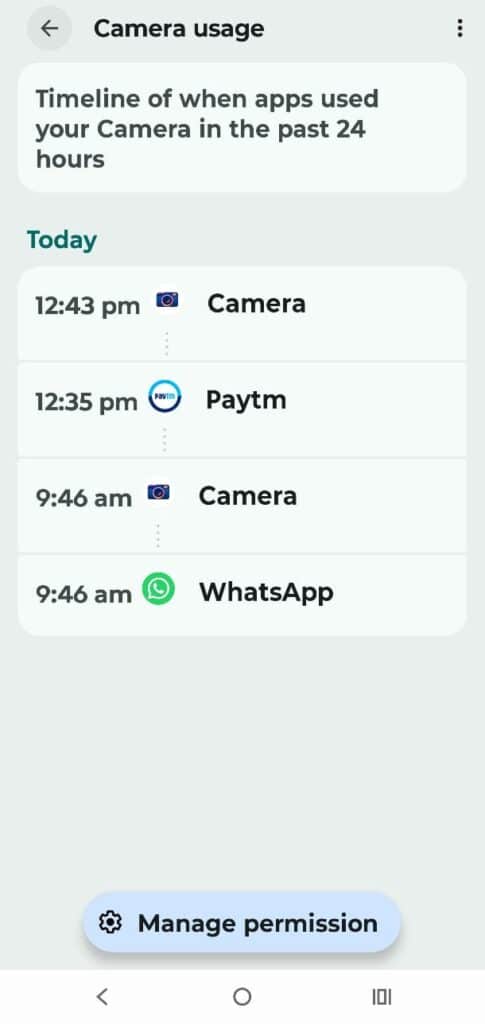
6. Review the applications listed with their access times.
7. Select an application to inspect or change its permissions.
Some Android versions provide a shorter reporting period than others. Devices with older software may use different setting names or offer fewer dashboard details.
Identify Active Camera and Microphone Usage
Supported Android versions display a privacy indicator when an application accesses the camera or microphone. The indicator generally appears near the top of the screen.
- Watch for the camera or microphone indicator during normal device use.
- Swipe down from the top of the screen to open Quick Settings.
- Tap the privacy indicator when the interface offers that option.
- Review which application recently accessed the relevant hardware.
- Investigate any access that appears inconsistent with the application’s function.
Some Android devices also provide camera and microphone access controls in Quick Settings. Disabling these controls can block access system-wide for supported applications until access is restored.
How to Check Microphone and Camera Access on iPhone
Apple provides privacy indicators and application permission controls through iOS. These features help identify active hardware access and restrict applications that no longer require it.
Check the App Privacy Report
The App Privacy Report records information about application access to sensitive data and sensors. It can also show network activity associated with applications and websites.
1. Open Settings on the iPhone.
2. Select Privacy & Security.
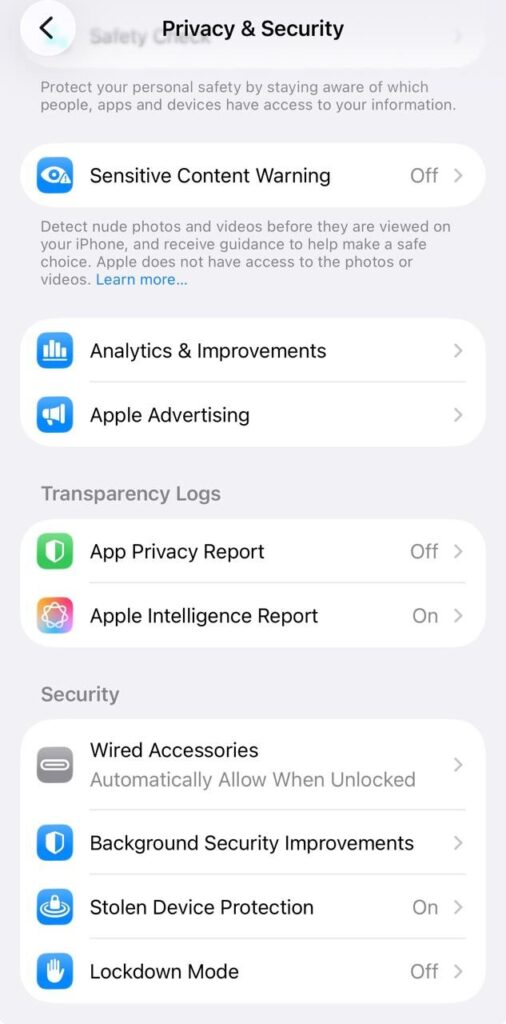
3. Open App Privacy Report.
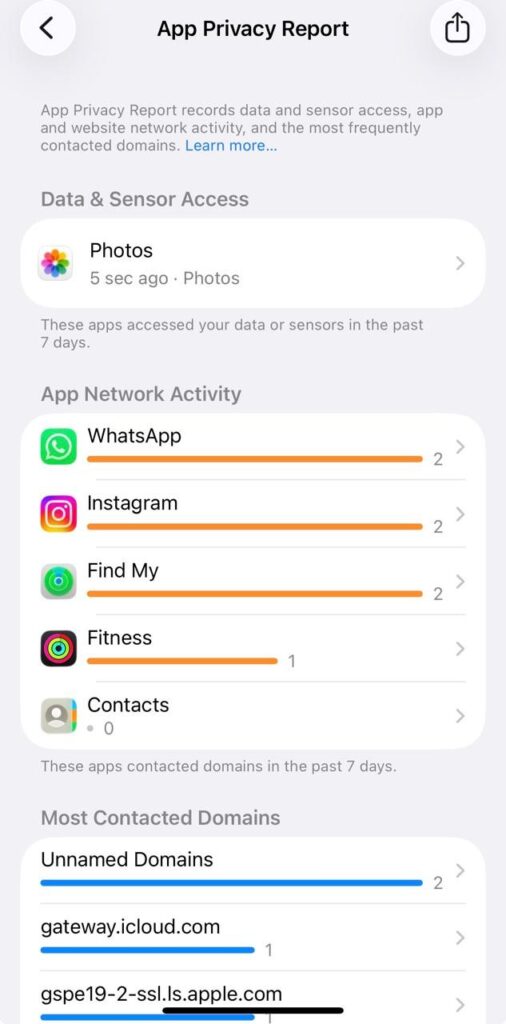
4. Enable the report if it is not already active.
5. Review the available data under Data & Sensor Access.
6. Select the relevant reporting period and inspect microphone or camera activity.
The report begins collecting information after activation, so historical activity may not appear immediately. Its available details depend on the installed iOS version and recorded application activity.
Understand the Privacy Indicators
iOS displays colored indicators when applications access the microphone or camera. A green indicator means the camera is active, either alone or alongside the microphone. An orange indicator indicates microphone access without camera access.
To investigate an indicator:
- Observe the upper portion of the screen during normal use.
- Open Control Center shortly after the indicator appears.
- Review the application identified as recently using the microphone or camera.
- Compare the activity with recent calls, recordings, or other expected actions.
An indicator signals access, not necessarily unauthorized recording or data transmission. Reviewing the associated application provides a more useful starting point for investigation.
Revoke Unnecessary Microphone and Camera Permissions
Permission reviews help limit unnecessary access without removing useful applications. Revoking permissions is generally preferable to uninstalling legitimate applications that occasionally require these features.
Manage Permissions on Android
Android allows individual applications to receive, deny, or conditionally access sensitive hardware.
- Open Settings and select Privacy or Security and privacy.
- Open Permission manager or the relevant permissions section.
- Select Camera to review applications with access.
- Choose an application that does not need camera access.
- Select Don’t allow or the equivalent available option.
- Repeat the process for Microphone permissions.
Where supported, Android offers options such as allowing access only while using an application. These controls can reduce unnecessary background access without disabling essential features permanently.
Manage Permissions on iPhone
iOS provides centralized controls for microphone and camera permissions.
- Open Settings on the iPhone.
- Select Privacy & Security.
- Open Microphone to review authorized applications.
- Disable access for applications that do not require it.
- Return to Privacy & Security and select Camera.
- Review the application list and disable unnecessary permissions.
Applications may request permission again when a restricted feature is used. Permissions should be granted only when the requested access matches the application’s purpose.
Compare Smartphone Privacy Monitoring Features
Both major mobile platforms provide tools for monitoring sensitive hardware access. Their interfaces differ, but the underlying objective remains similar.
| Privacy Feature | Android | iPhone |
|---|---|---|
| Recent permission history | Privacy Dashboard | App Privacy Report |
| Active access indicator | Camera or microphone indicator | Green or orange indicator |
| Individual permission controls | Permission Manager | Privacy & Security settings |
| Quick access restrictions | Supported Quick Settings controls | Application permissions and available system controls |
| Background access review | Dashboard and application settings | Privacy reports and application settings |
Feature availability depends on the operating system version and device configuration. Older devices may require software updates to access newer privacy controls.
Additional Steps to Strengthen Privacy
Permission management works best alongside broader smartphone security practices. These measures help reduce exposure to malicious applications and unexpected data collection.
Recommended practices include:
- Install applications through trusted official app stores.
- Review developer information and permissions before installation.
- Remove applications that are unfamiliar or no longer needed.
- Install operating system and application security updates promptly.
- Review background activity and battery usage for unexplained patterns.
- Avoid granting microphone or camera access without a clear functional reason.
- Use built-in security scanning tools where available.
If suspicious access continues, restart the device and review recently installed applications. Persistent concerns may justify removing unfamiliar software and seeking support from the device manufacturer.
Conclusion
Monitoring microphone and camera access is an important part of modern smartphone privacy management. Android’s Privacy Dashboard and Apple’s App Privacy Report provide useful visibility into application permissions. Privacy indicators also help identify active access during everyday device use.
Regular permission reviews can reduce unnecessary data exposure without disrupting essential smartphone functions. Revoking excessive permissions, maintaining updated software, and investigating unexpected activity strengthen privacy protections. These practices help keep sensitive hardware access aligned with legitimate application requirements.