


By using this site, you agree to the Privacy Policy and Terms of Use.
Accept
DevicologyDevicology
  • News
    NewsShow More
    Thin, Affordable, And Built to Last: This $200 Android Phone Changes The Game
    Thin, Affordable, And Built to Last: This $200 Android Phone Changes The Game
    By Tricia Wei
    Samsung’s New Flip Phone Is Exclusive To The Olympics
    Samsung’s New Flip Phone Is Exclusive To The Olympics
    By Tricia Wei
    Apple Smart Glasses Explained: Design, AI, And Release Plans
    Apple Smart Glasses Explained: Design, AI, And Release Plans
    By Tricia Wei
    Motorola’s Razr Fold Targets Photographers With Stylus Support
    By Tricia Wei
    6 Smart Ways To Use iPhone Camera Control Beyond Taking Photos
    6 Smart Ways To Use iPhone Camera Control Beyond Taking Photos
    By Tricia Wei
  • Features
    FeaturesShow More
    Thin, Affordable, And Built to Last: This $200 Android Phone Changes The Game
    Thin, Affordable, And Built to Last: This $200 Android Phone Changes The Game
    By Tricia Wei
    Apple Smart Glasses Explained: Design, AI, And Release Plans
    Apple Smart Glasses Explained: Design, AI, And Release Plans
    By Tricia Wei
    How To Actually Use iPhone Camera Control: 6 Features Worth Trying
    How To Actually Use iPhone Camera Control: 6 Features Worth Trying
    By Tricia Wei
    7 Hidden Apple Messages Features That Go Beyond Texting
    7 Hidden Apple Messages Features That Go Beyond Texting
    By Tricia Wei
    iPhone Users Can Set Up Text Feature To Catch Stolen Phones
    iPhone Users Can Set Up Text Feature To Catch Stolen Phones
    By Tricia Wei
  • Reviews
  • Apps
  • Guide
    GuideShow More
    How To Create A Google Photos Album In Just A Few Minutes
    How To Create A Google Photos Album In Just A Few Minutes
    By Tricia Wei
    Apple’s Back Tap Feature Makes Smart Home Control Effortless
    Apple’s Back Tap Feature Makes Smart Home Control Effortless
    By Tricia Wei
    How To Blur Your Home On Google Maps In Under A Minute
    How To Blur Your Home On Google Maps In Under A Minute
    By Tricia Wei
    Step by Step Guide To Call Recording On Google Pixel
    Step by Step Guide To Call Recording On Google Pixel
    By Tricia Wei
    How To Fix iPhone 16 Battery Drain After The Latest Update: Step-by-Step Guide
    How To Fix iPhone 16 Battery Drain After The Latest Update: Step-by-Step Guide
    By Carlos Blanco
  • Tech
    TechShow More
    How To Actually Use iPhone Camera Control: 6 Features Worth Trying
    How To Actually Use iPhone Camera Control: 6 Features Worth Trying
    By Tricia Wei
    7 Hidden Apple Messages Features That Go Beyond Texting
    7 Hidden Apple Messages Features That Go Beyond Texting
    By Tricia Wei
    Motorola’s Razr Fold Targets Photographers With Stylus Support
    By Tricia Wei
    iPhone Users Can Set Up Text Feature To Catch Stolen Phones
    iPhone Users Can Set Up Text Feature To Catch Stolen Phones
    By Tricia Wei
    Motorola Edge 70 Review: Chasing Slim Without The Premium Price
    Motorola Edge 70 Review: Chasing Slim Without The Premium Price
    By Tricia Wei
  • Top
    TopShow More
    Top 5 Laptops Expected To Launch In 2026: MacBook M6, Dell XPS, ThinkPad And More
    Top 5 Laptops Expected To Launch In 2026: MacBook M6, Dell XPS, ThinkPad And More
    By Carlos Blanco
    Top 5 Smartphones Expected To Launch In 2026: iPhone 18, Galaxy S26 And More
    Top 5 Smartphones Expected To Launch In 2026: iPhone 18, Galaxy S26 And More
    By Carlos Blanco
    Top 5 Smartwatches Expected To Launch In 2026: Apple Watch, Galaxy Watch And More
    Top 5 Smartwatches Expected To Launch In 2026: Apple Watch, Galaxy Watch And More
    By Carlos Blanco
    Top 5 Wireless Earbuds Expected To Launch In 2026: AirPods, Galaxy Buds And More
    Top 5 Wireless Earbuds Expected To Launch In 2026: AirPods, Galaxy Buds And More
    By Carlos Blanco
    Top 5 Action Cameras To Buy In 2026 For Video And Vlogging
    Top 5 Action Cameras To Buy In 2026 For Video And Vlogging
    By Carlos Blanco
  • Game Zone
    Game ZoneShow More
    Best Free iOS Games 2025: Hottest iPhone And iPad Games To Try Now
    Best Free iOS Games 2025: Hottest iPhone And iPad Games To Try Now
    By Carlos Blanco
    Best New iOS And Android Games For August 2025
    Best New iOS And Android Games For August 2025
    By Tricia Wei
    Top Gaming Websites In Thailand (July 2025): Most Visited Platforms Ranked
    Top Gaming Websites In Thailand (July 2025): Most Visited Platforms Ranked
    By Carlos Blanco
    Top Gaming Websites In Ukraine: Most Visited Platforms in 2025
    Top Gaming Websites In Ukraine: Most Visited Platforms in 2025
    By Carlos Blanco
    Phantom Blade Zero Gameplay Demo Played at S-Party 2025
    Phantom Blade Zero Gameplay Demo Played at S-Party 2025
    By Vishwajeet Jaiswal
Font ResizerAa
DevicologyDevicology
Font ResizerAa
  • News
  • Features
  • Reviews
  • Apps
  • Guide
  • Tech
  • Top
  • Game Zone
Search
  • News
  • Features
  • Reviews
  • Apps
  • Guide
  • Tech
  • Top
  • Game Zone

Popular Post

Samsung Galaxy S26 Sticks With 25W Wired Charging
News

Samsung Galaxy S26 Sticks With 25W Wired Charging

Why This Affordable Camera Phone Works For All-Day Photography
Tech

Why This Affordable Camera Phone Works For All-Day Photography

Apple Creator Studio Shows How Apple Is Rethinking Creative Subscriptions
NewsApps

Apple Creator Studio Shows How Apple Is Rethinking Creative Subscriptions

Top 5 Wireless Speakers For Home In 2026
Tech

Top 5 Wireless Speakers For Home In 2026

Follow US
Made by ThemeRuby using the Foxiz theme. Powered by WordPress
Guide

How to Deactivate Instagram Account Temporarily or Delete It Permanently (2025 Guide)

Arthur James
Last updated: May 23, 2025
By Arthur James
Share
How to deactivate Instagram account using mobile app in 2025

Learn how to deactivate Instagram account on mobile or PC, or delete it permanently with easy step-by-step instructions for 2025.

Instagram has become an inextricable part of our lives currently. It is one of the most engrossing apps on our phones. However, over sharing of information or addiction to the platform could be overwhelming. Therefore, some users might like to delete or deactivate their account for social media detoxification. 

Contents
  • Learn how to deactivate Instagram account on mobile or PC, or delete it permanently with easy step-by-step instructions for 2025.
    • How to deactivate your Instagram account on Android or iOS 
    • How to deactivate your Instagram Account on PC or laptop 
    • How to delete Instagram account on Android or iOS 
    • How to delete your Instagram Account on a PC or laptop 
      • By Using Browser 
      • By Using App 
  • How to reactivate your Instagram account

If you want to take a break from Instagram, you can deactivate it. With this feature, you can log back into your Instagram account anytime and use it as it is. In this article, we guide you on how to temporarily deactivate your Instagram account on mobile and laptop. 

- Advertisement -

How to deactivate your Instagram account on Android or iOS 

Follow the steps to deactivate your Instagram account from your Android or iOS device: 

Step 1: Open the Instagram app on your Android or iOS device. 

Step 2: Click on the Hamburger menu and then go to the Account Centre option. 

- Advertisement -

Step 3: Click on the Personal Details and then tap on Ownership and Control option. 

Step 4: Tap on the Deactivation or Deletion option. 

Step 5: Select the profile you want to deactivate and tap on it. 

- Advertisement -

Step 6: Tap on the Deactivate account option and tap on Continue. 

Step 7: Enter your password and follow the on-screen prompts to deactivate Instagram account. 

How to deactivate your Instagram Account on PC or laptop 

Here’s how you can deactivate your Instagram account on your computer. 

Step 1: Open the Instagram website on your browser. 

Step 2: Select the Accounts Centre option from the Hamburger menu at the bottom.

Step 3: Go to Personal details > Account Ownership and Control> Deactivation or Deletion. 

Step 4: Select the desired account and then click on Deactivate account. 

Step 5: Enter your password and follow the prompts to delete your Instagram account. 

Some users might wish to permanently delete their Instagram account owing to various reasons. You can delete your Instagram account either using your phone or PC in the following ways:

How to delete Instagram account on Android or iOS 

Here’s a step-by-step procedure to delete your Instagram account from your Android or iOS device. 

Step 1: Open the Instagram app on your phone

Step 2: Go to Account Profile by clicking on the Hamburger menu. 

Step 3: Open Account Centre and then go to Personal Details 

Step 4: Tap on Account Ownership and Control and select the Deactivate or Delete option. 

Step 5: Select the desired account you want to remove and select Delete account, then tap on Continue.

Step 6: Select the reason for deleting your account. Enter your Instagram account password and follow the on-screen prompts to delete your Instagram account permanently. 
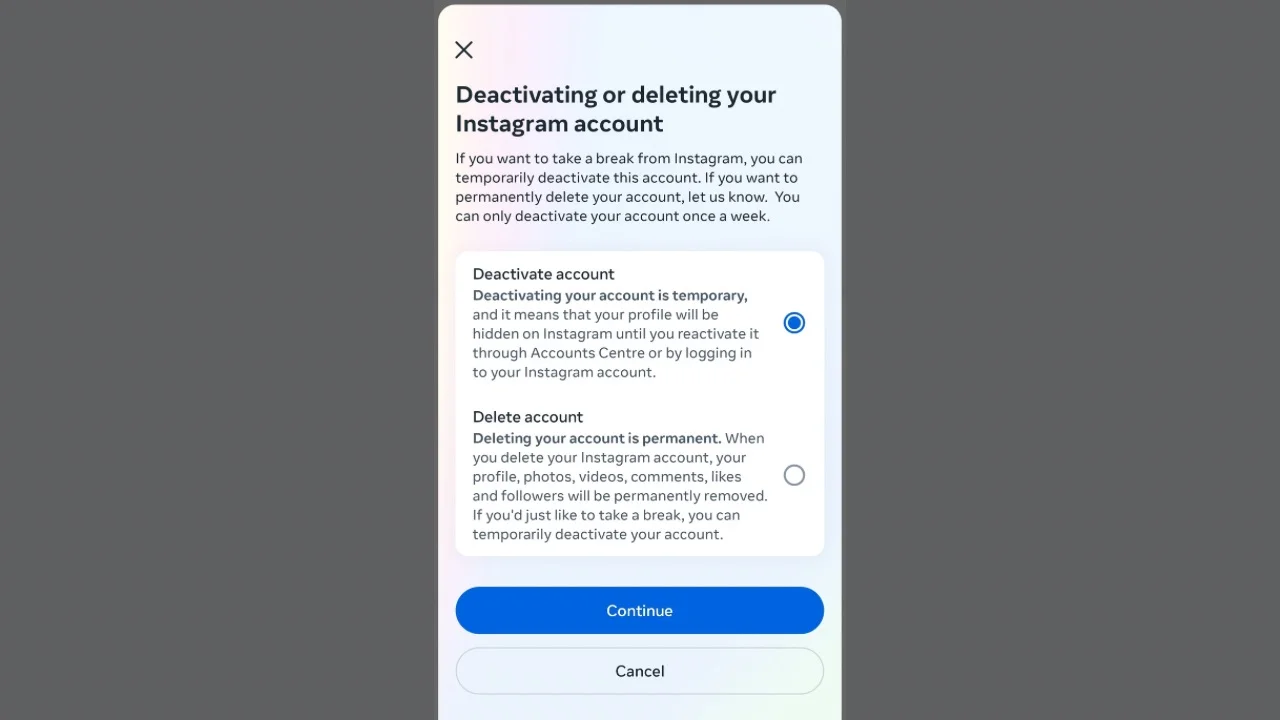
How to Temporarily Deactivate Instagram Account On Phone, PC

How to delete your Instagram Account on a PC or laptop 

Users can also delete their Instagram account on a PC or laptop. There are two methods to do so:

By Using Browser 

Step 1: Log in to your Instagram account on any browser on your computer. Enter the following link: https://www.instagram.com/accounts/remove/request/permanent/

Step 2: Select the reason from the drop-down menu.

Step 3: Re-enter your Instagram password. 

Step 4: Click the Delete button, and your account will be permanently deleted. 

By Using App 

Step 1: Open the Instagram app on your browser. 

Step 2: Click on the Hamburger menu at the bottom and select the Accounts Centre option. 

Step 3: Go to Personal details > Account Ownership and Control> Deactivation or deletion. 

Step 4: Select the account you wish to delete and tap on Delete account on the next screen. 

Step 5: Enter your password and follow the prompts to delete your Instagram account. 

Also Read: EXPLAINED: How Instagram’s New ‘Teen Accounts’ Feature Will Protect Young Users

How to reactivate your Instagram account

In case you are missing all the actions on Instagram and wish to get back to the platform, Meta allows you to reactivate your account after deactivating it. You just need to log back into the Instagram app or website using your username and password. This will restore your account to its previous state, and you can continue using it as normal.

In case you had deleted your instagram account, there is a 30-day window after deletion to reactivate your account. In order to reactivate your account during this tenure, you can simply log in to the Instagram application and enter your username and password. With this, you can easily access your account. 

However, if more than 30 days have passed since you deleted your Instagram account, you will not be able to reactivate it using the usual login process. In this case, you will need to contact Instagram support for assistance in recovering your account.

TAGGED:Deactivate Instagram Accountdeactivate Instagram on PCdeactivate Instagram temporarilydelete Instagram accountdelete Instagram on AndroidDelete Instagram PermanentlyInstagram account deactivationInstagram GuideInstagram privacyInstagram settings 2025Reactivate Instagram AccountRecover Instagram Accountsocial media detox
Share This Article
Facebook Flipboard Copy Link
- Advertisement -
Ad image

Must Read

Thin, Affordable, And Built to Last: This $200 Android Phone Changes The Game
NewsFeatures

Thin, Affordable, And Built to Last: This $200 Android Phone Changes The Game

Samsung’s New Flip Phone Is Exclusive To The Olympics
News

Samsung’s New Flip Phone Is Exclusive To The Olympics

Apple Smart Glasses Explained: Design, AI, And Release Plans
NewsFeatures

Apple Smart Glasses Explained: Design, AI, And Release Plans

How To Actually Use iPhone Camera Control: 6 Features Worth Trying
TechFeatures

How To Actually Use iPhone Camera Control: 6 Features Worth Trying

- Advertisement -
Ad image

You Might also Like

How To Use Snapchat Without Wasting Your Mobile Data
Guide

How To Use Snapchat Without Wasting Your Mobile Data

How to Take Screenshots on Samsung Phones - Easy Guide
Guide

How to Take Screenshots on Samsung Phones: Easy Guide

How To Delete Downloaded YouTube Videos on Android, iOS
Guide

How To Delete Downloaded YouTube Videos on Android, iOS

Best Apple Watch Alternatives 2025 – Smartwatches with health tracking
GuideTech

How to Set Medication Reminders on Apple Watch

Devicology
Whatsapp Instagram X-twitter Linkedin

The website Devicology is a repository of information on mobile devices, mobile gadgets, their functions and how to manage the devices for better user control. It offers expert advice on how to manage the settings of the hand-held devices so that the control remains with the user. From custom settings to optimum device utilization, the website covers multiple subjects of user interest and value. 

  • About Us
  • Terms of Use
  • Privacy Policy
  • Contact

© 2026 – Devicology. All Rights Reserved